What is Suno Studio? A beginner's guide to Suno's browser DAW
My stack My fav 6 tools for AI music after testing 70+
-
 ElevenMusic · Music generation
 -
 Moises · Stem separation
 -
 Controlla · Voice swap & cloning
 -
 Cryo Mix · Mixing + mastering
 -
 Neural Frames · Music videos
 -
 ONCE · Distribution
Some links are affiliate links — I earn a commission at no cost to you. Every tool here is one I run myself and truly believe in. This stack is proven.
You opened Suno Studio, saw a timeline full of colored clips, and could not tell whether you were looking at a real DAW or a fancy export screen. Fair reaction. Suno’s own marketing calls it a generative audio workstation, which explains nothing if you have never used one.
This guide covers what Suno Studio is, what it costs, what you need to run it, and how to make your first track in it step by step.
What is Suno Studio?
Suno Studio defined
Suno Studio is Suno’s browser-based digital audio workstation, which the company calls a generative audio workstation. It puts AI-generated tracks, MIDI recording, audio recording, effects and automation on one multitrack timeline. Studio is included in the Premier plan and runs in Chrome with no install.
The current version is Studio 2.0, which shipped on August 13, 2026. I covered the launch in my Studio 2.0 news piece. This guide is the full walkthrough.
Why Suno Studio matters if you have never opened a DAW
A DAW (digital audio workstation) is the software where music gets assembled. Ableton, Logic and FL Studio are DAWs. Tracks run left to right on a timeline, and you record, edit, layer and mix them until the song is done.
What is a DAW in music terms? Think of it as the studio desk, the tape machine and the mixing board collapsed into one program. The learning curve is the famous problem. Most beginners quit before their first finished song.
Suno Studio is an online DAW that skips the hardest part. When you cannot play a part, you type what you want and the AI generates it onto the timeline as a clip you can edit. The floor drops from “learn an instrument first” to “describe the part you hear in your head.” It sits in the same young category as Mozart AI and the browser studio Riffle, but with Suno’s music model behind it.
What can you actually do in Suno Studio?
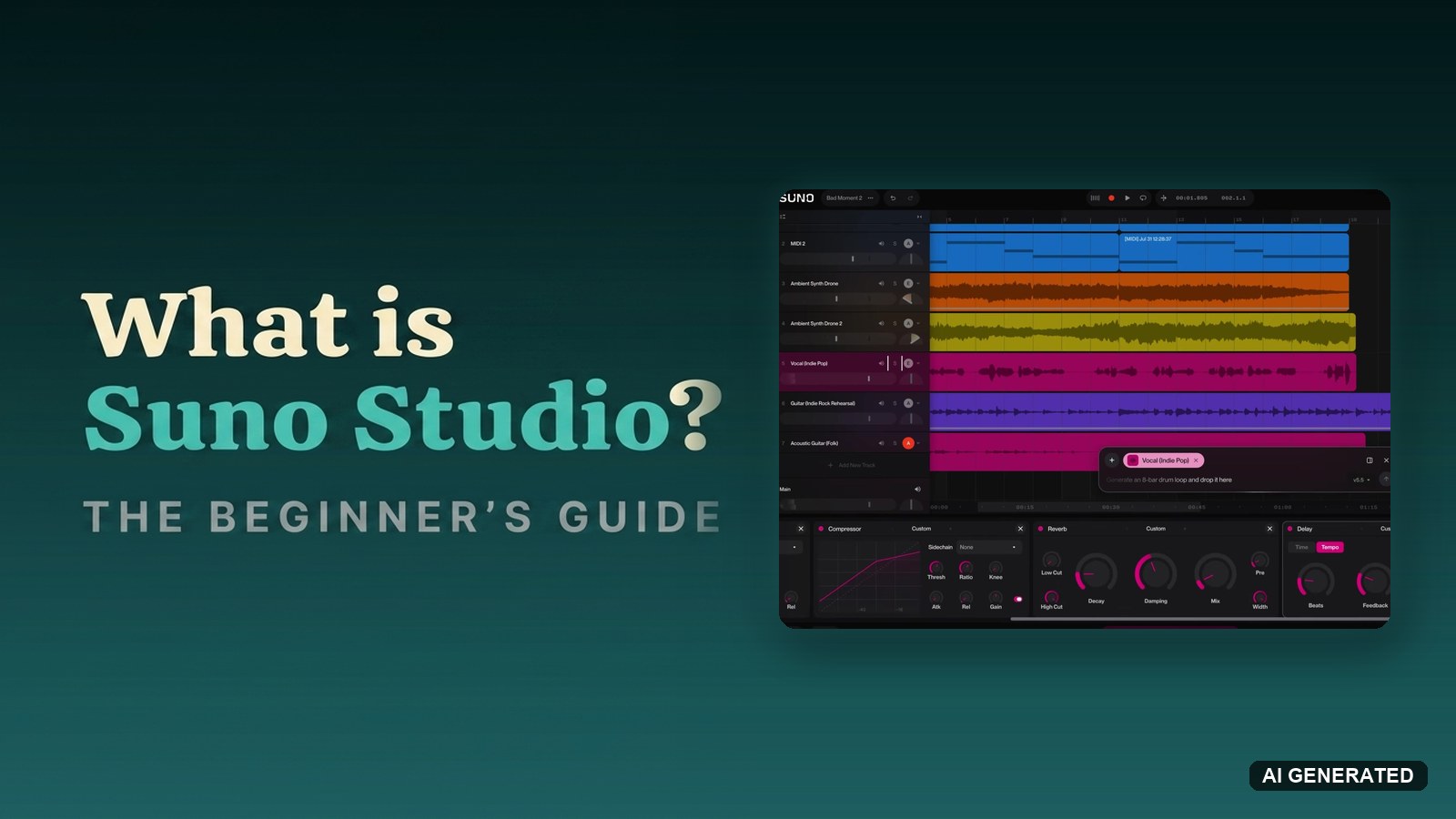
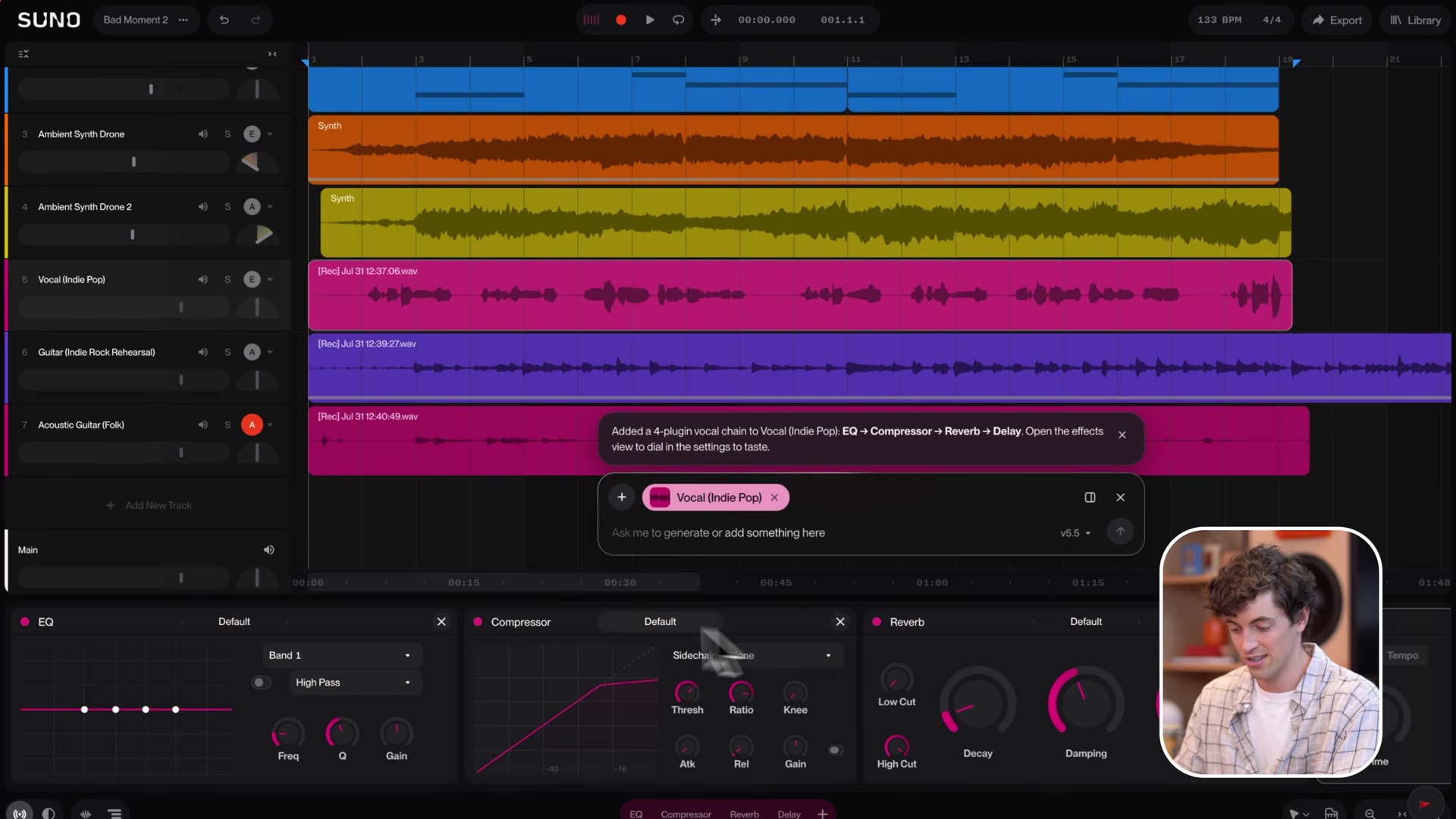
Suno Studio 2.0 covers generation, MIDI, recording, mixing and export in one place. Here is a full session with all of it on screen at once: named tracks on the timeline, the chat bar mid-prompt, and an effects rack along the bottom.
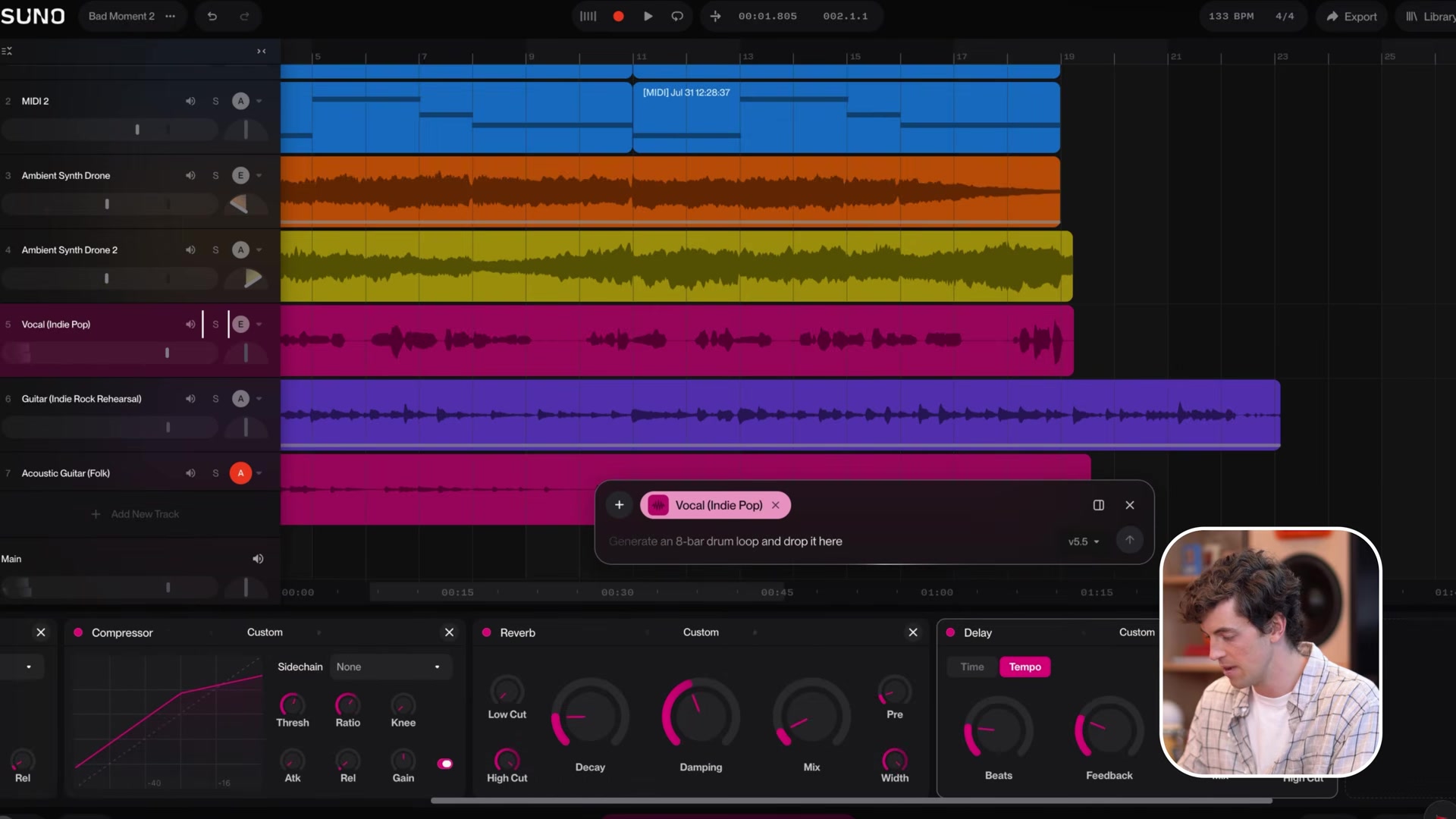
Suno’s own Getting Started walkthrough runs the whole flow in 37 minutes:
Here is the feature map, piece by piece.
The Suno Studio timeline and take lanes
The timeline works like any modern DAW. Clips sit on tracks, you drag, split, duplicate and color-code them, and transport controls (metronome, tempo, time signature, loop) sit above the arrangement. Record several passes of a part and Studio stacks them as take lanes under the clip, so you comp the best moments into one track.
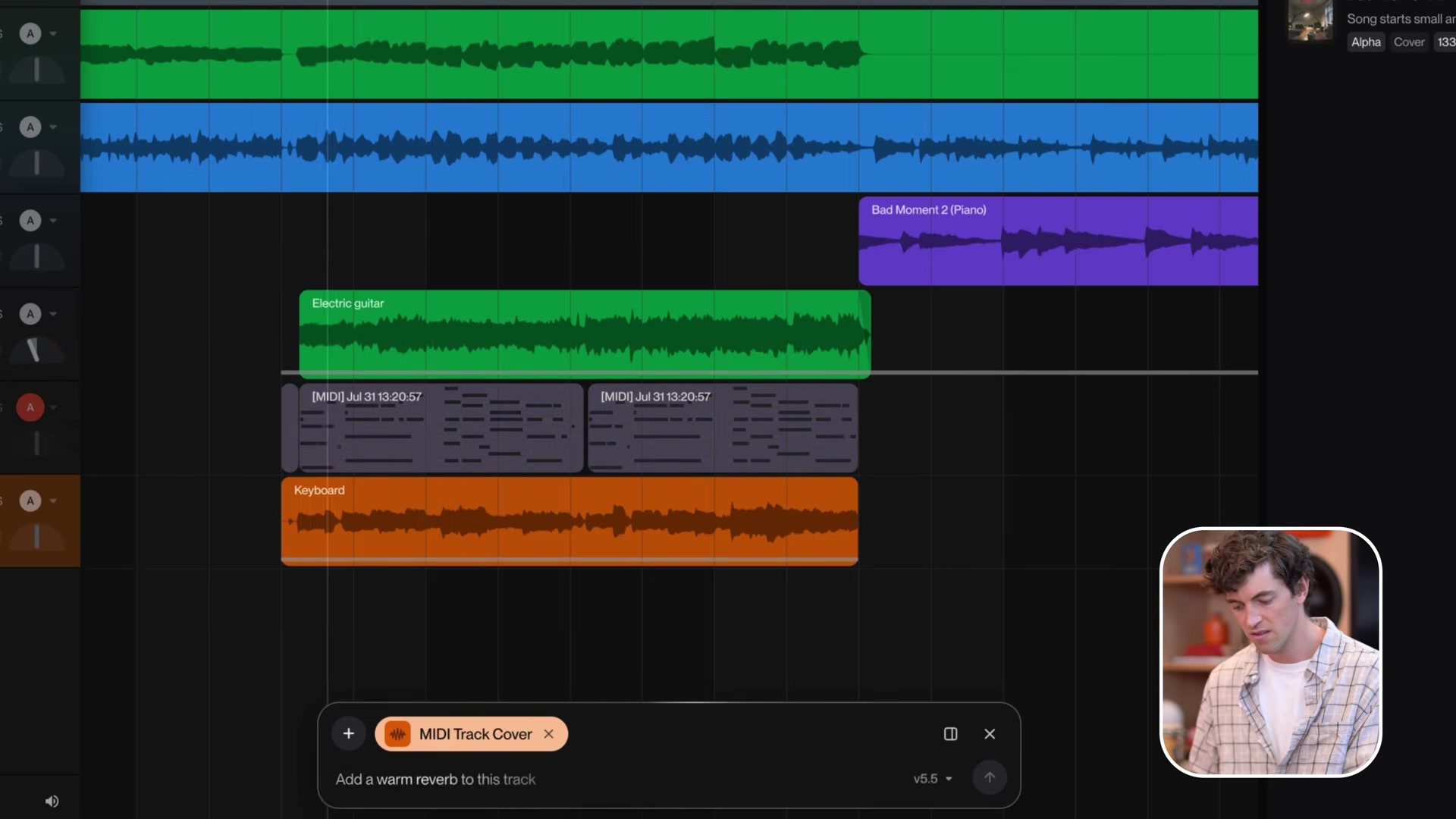
The Suno Studio chat bar
The chat bar is the feature with no equivalent in a conventional DAW. It reads your project state and the audio on every track, then acts on plain requests. It generates audio clips and MIDI clips onto the timeline, designs synth presets, builds effect chains with the parameters already set, arranges sections, renames and color-codes your tracks, and answers how-to questions about Studio itself. It ships as a beta feature.
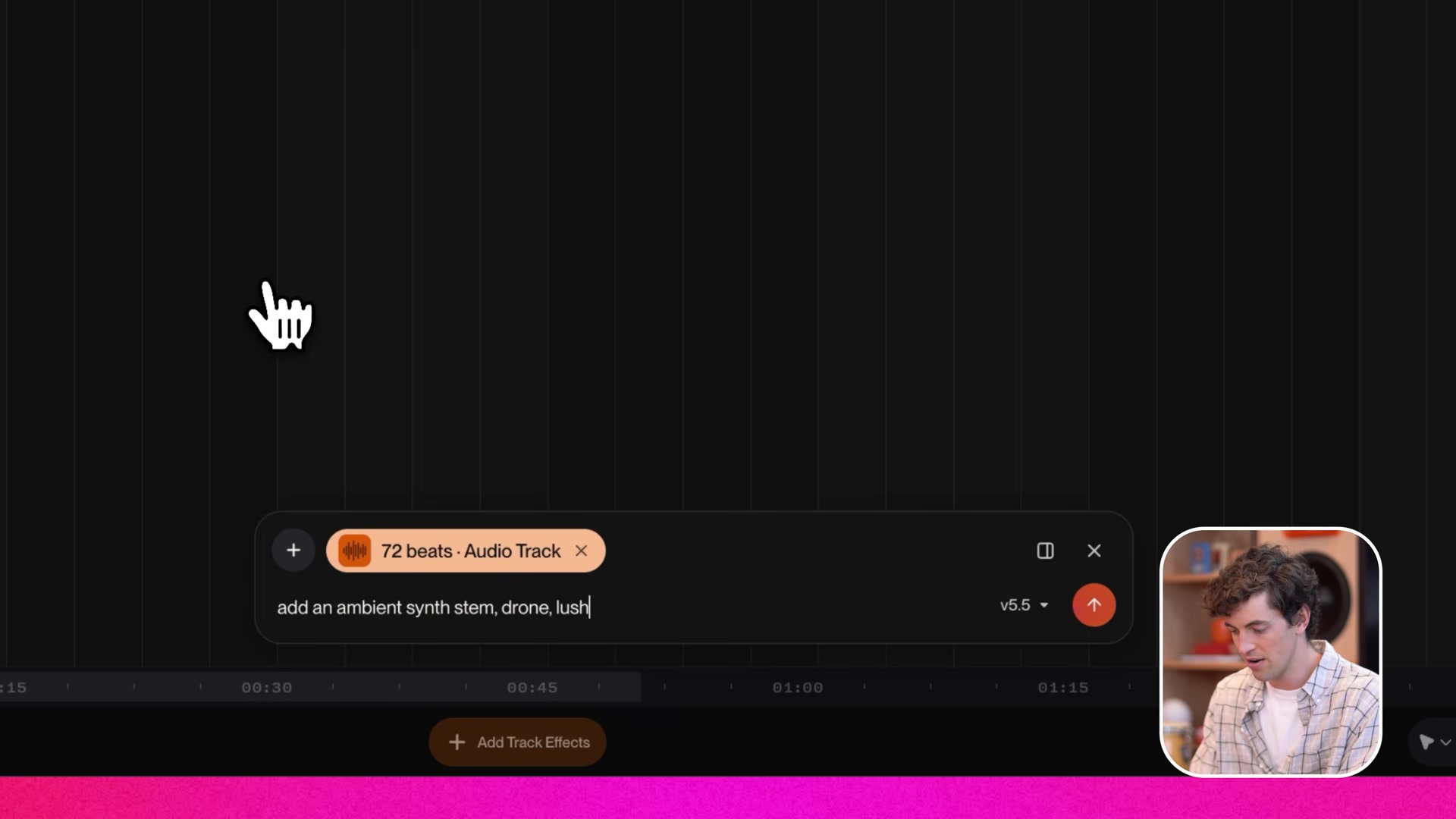
Henry Phipps, Suno’s Studio product manager, explains the reasoning in the launch video: “a lot of producers have asked about directly, actually, like can we just have AI to help like clean up my session and rename things and color code things? Like, the answer is yes, we absolutely should.”
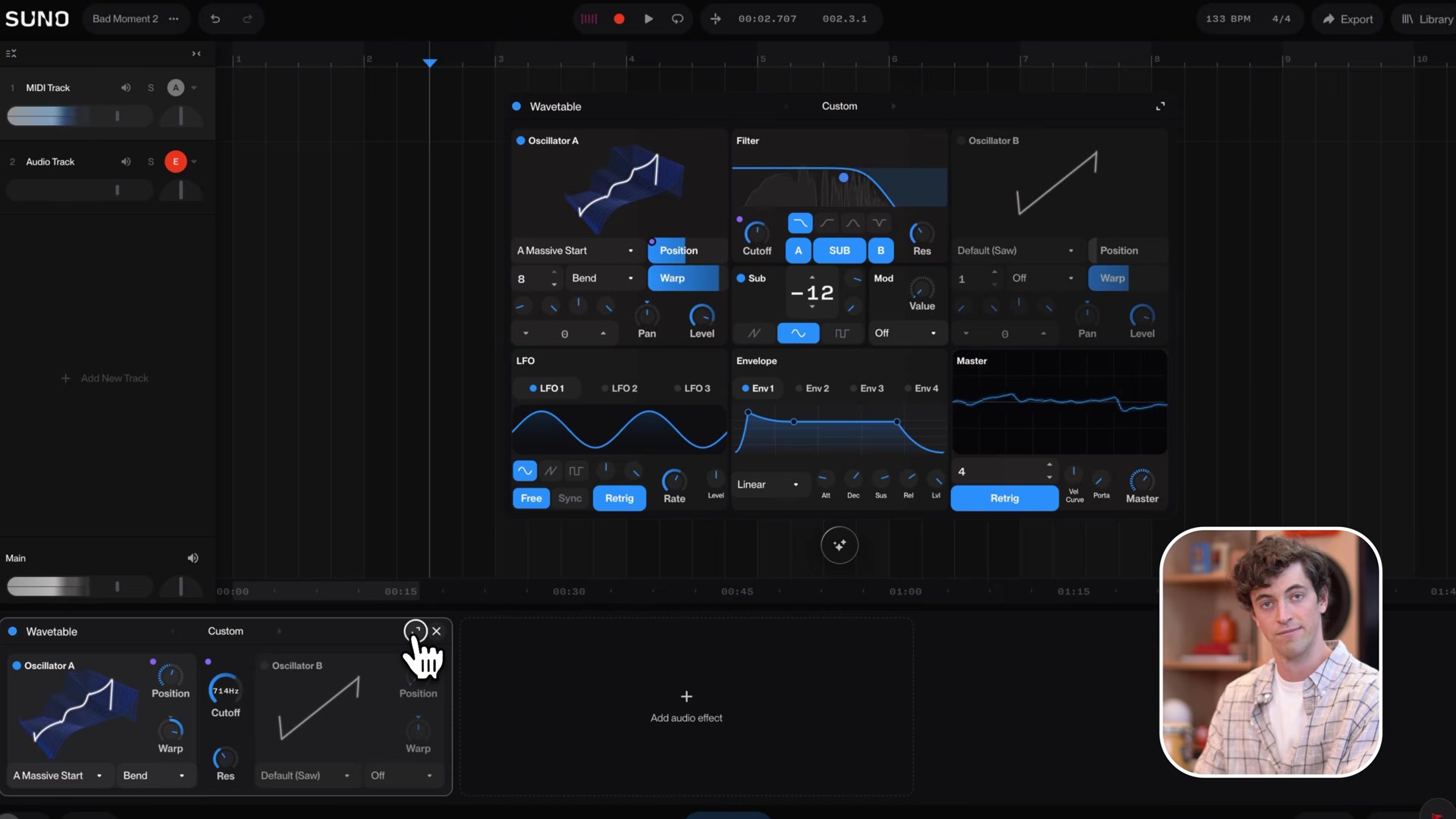
MIDI tracks and the wavetable synth in Suno Studio
Studio 2.0 added full MIDI support: import, recording and editing on the timeline. You play parts in over a USB MIDI controller, or use musical typing (Cmd+K / Ctrl+K), which turns your computer keyboard into a synth keyboard with a built-in arpeggiator. There is no separate chord mode button, despite Suno’s marketing page naming one: hold several keys together and drag the chord onto the timeline as a MIDI clip. MIDI tracks run through a built-in wavetable synth with oscillators, filters, envelopes, LFOs and a mod matrix.
MIDI also runs in both directions. The chat bar covers a MIDI clip as real instrument audio, and Convert to MIDI turns audio into editable notes. I break the whole workflow down in my guide to using MIDI in Suno Studio.
Audio effects and automation in Suno Studio
Studio ships 7 built-in audio effects: compressor, EQ, reverb, convolution, delay, gate and distortion. You chain them on any track, automate any knob over time, and use sidechain compression to make one instrument duck to another. There is no VST or Audio Units support, so third-party plugins stay out. My Suno Studio mixing guide walks through every effect.
Advanced stem separation inside Suno Studio
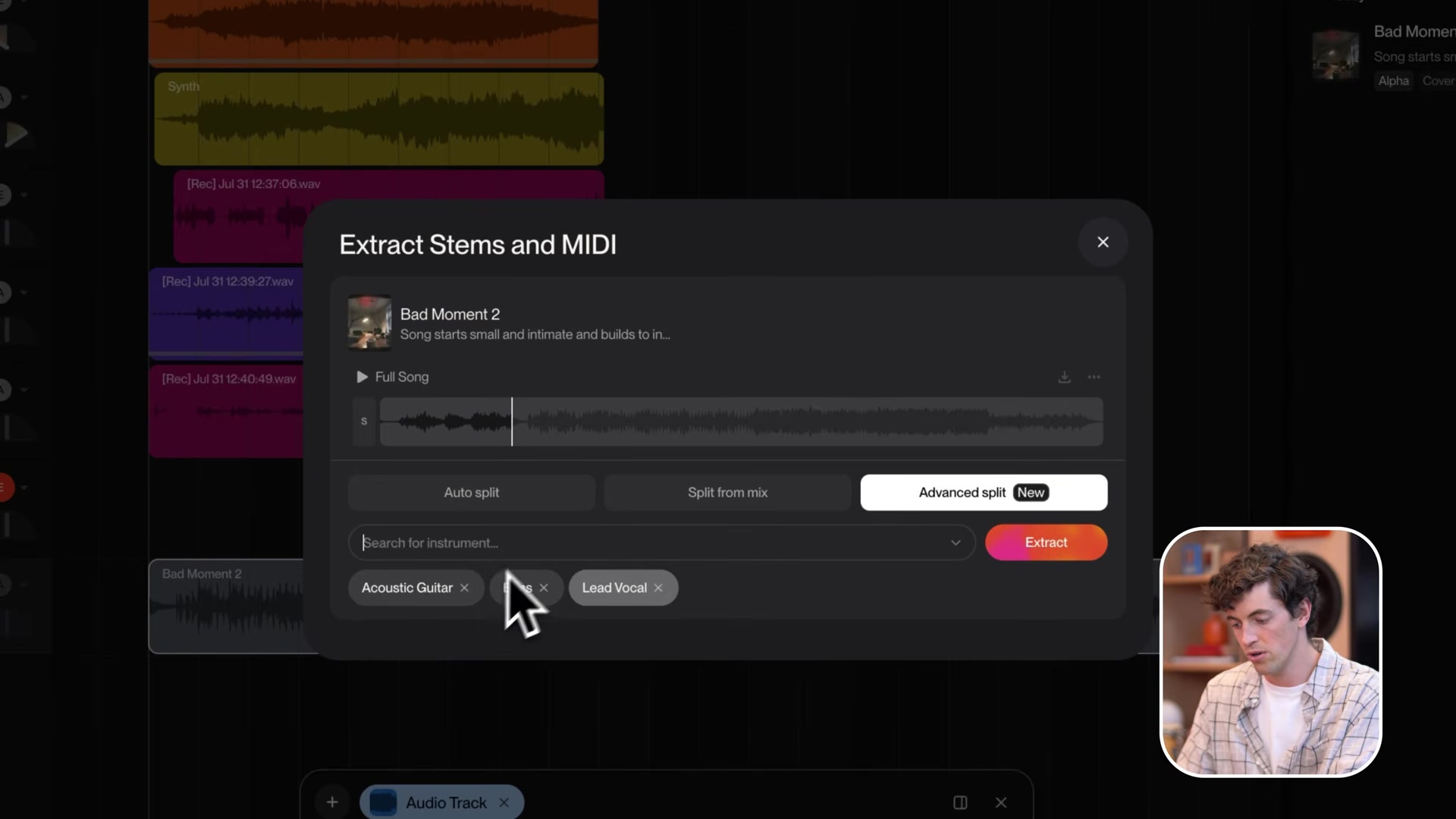
Right-click any audio clip and Studio splits it into stems without leaving the timeline. Advanced Split, the highest-fidelity mode, lets you name the exact instruments you want back. The separated stems land on timing-aligned tracks below the original. The full walkthrough lives in my Suno stem separation guide.
Custom plugins you build by typing in Suno Studio
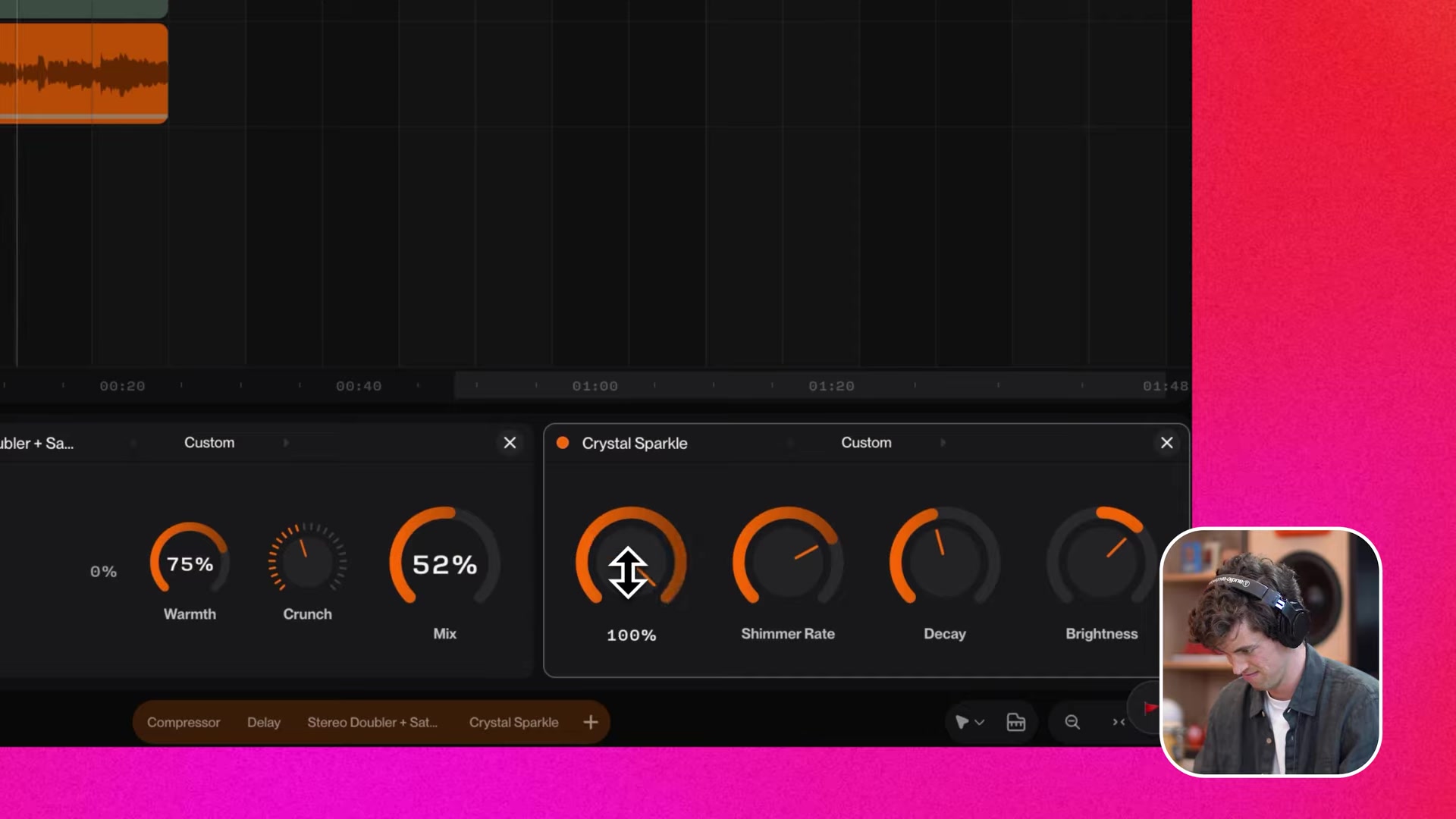
Describe an effect in the chat bar and Studio builds a working plugin with knobs, saved permanently to your library. Suno says creating plugins costs no credits at launch, and a credit structure may come later. I documented the prompt patterns in my guide to building plugins in Suno Studio.
What does Suno Studio cost and which plan do you need?
Suno Studio is a Premier feature. There is no separate Suno Studio price, no standalone app and no Studio-only free trial. Here is how the current Suno plans compare, as of August 2026 on annual billing:
| Plan | Price | Credits | Suno Studio | Stem separation | Commercial use |
|---|---|---|---|---|---|
| Free | $0 | 50 daily | No | None | No |
| Pro | $8/mo | 2,500 monthly | No | 2 modes | Yes |
| Premier | $24/mo | 10,000 monthly | Yes | 3 modes, incl. Advanced Split | Yes |
So how much is Suno Studio in practice? $24 a month, billed annually, with the rest of Premier included. Whether Suno Premier is worth it depends on how much of the tier you use. If you only generate songs, Pro covers you. Studio, Advanced Split and the export terms below are the Premier case.
One export detail matters more than the price. Suno’s platform-wide download caps start September 3, 2026 (60 downloads a month on Premier). Exports out of Studio are the exception. Premier subscribers pull 32-bit/48kHz multitracks and stems from Studio with no download limit, per Suno’s launch announcement.
For the wider picture on Suno’s plans, model versions and my verdict, read my full Suno review.
What do you need to run Suno Studio?
Studio runs in the browser, and there is no Suno Studio app to download. Suno’s help centre lists the requirements:
- A desktop, laptop or tablet with a screen at least 768px wide. Phones are not supported.
- A CPU with SIMD support (SSE4.1 or Neon). Any recent machine qualifies.
- At least 4 GB of RAM.
- Chrome as the recommended browser. Web MIDI does not work in Safari, so MIDI controllers need Chrome.
The 768px floor means an iPad works on paper. In practice the shortcut-heavy workflow wants a keyboard.
How do you make your first track in Suno Studio?
This is the 6-step version of Suno’s Getting Started walkthrough, from empty project to export. Expect 30 to 60 minutes for a first pass.
Step 1: Set your tempo and add your first track
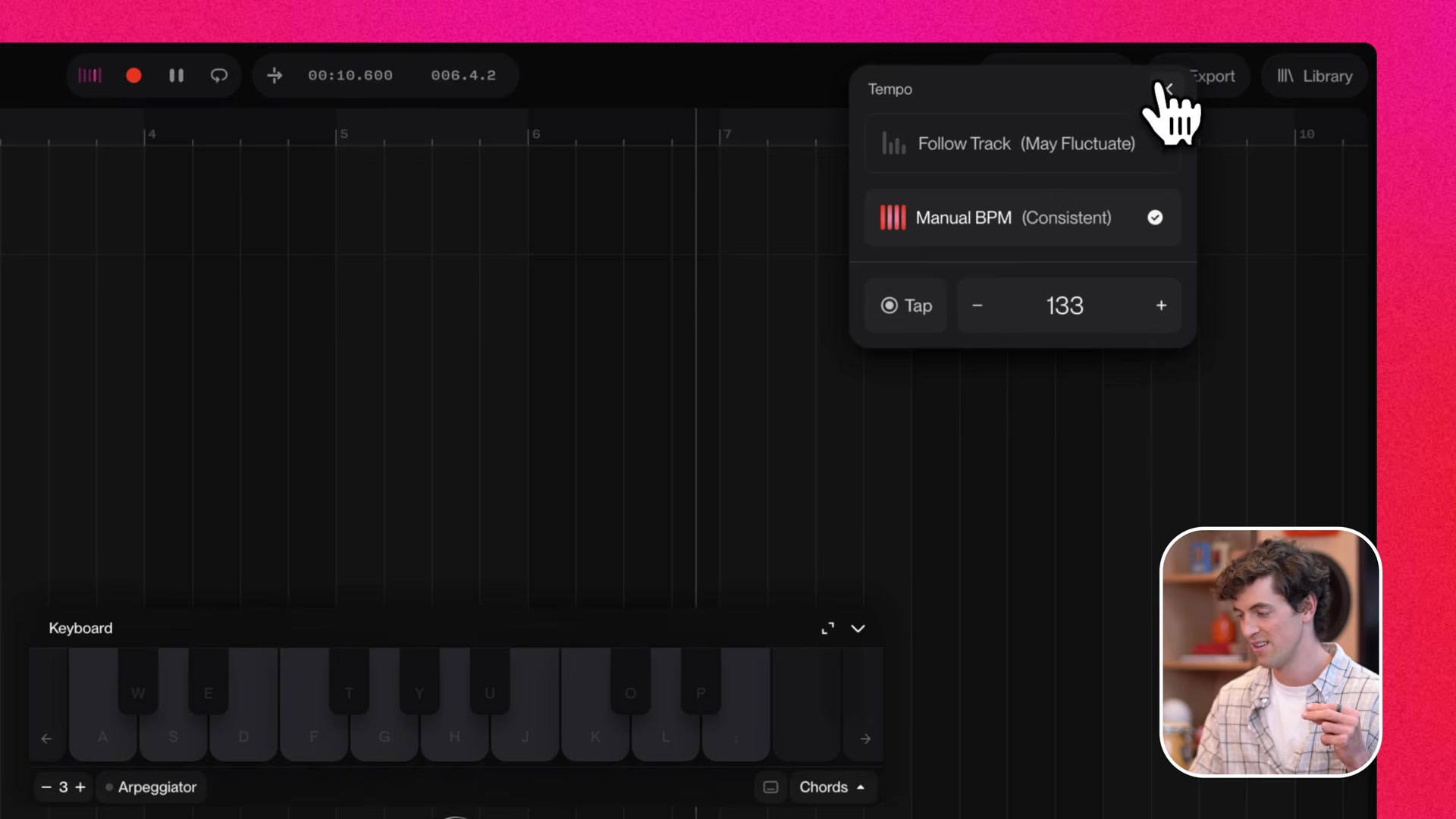
Open Studio from the Suno sidebar and create a new project. Set the tempo and time signature in the transport bar above the timeline before you record anything, because every clip after this locks to the grid. Click the BPM readout and choose Manual BPM to type or tap the tempo. Press Shift+T, then M for a MIDI track or A for an audio track.
Step 2: Play a part in with musical typing
Arm the MIDI track and press Cmd+K (Ctrl+K on Windows) to pull up musical typing. Your computer keyboard becomes the synth keyboard, Z and X shift the octave, and the built-in arpeggiator fills in movement you cannot play. Hold several keys at once for a chord and drag it from the keyboard onto the timeline. Open the piano roll (Shift+Tab) to fix timing and pitch, turn scale mode on so every note stays in key, and quantise the take to snap it to the grid.
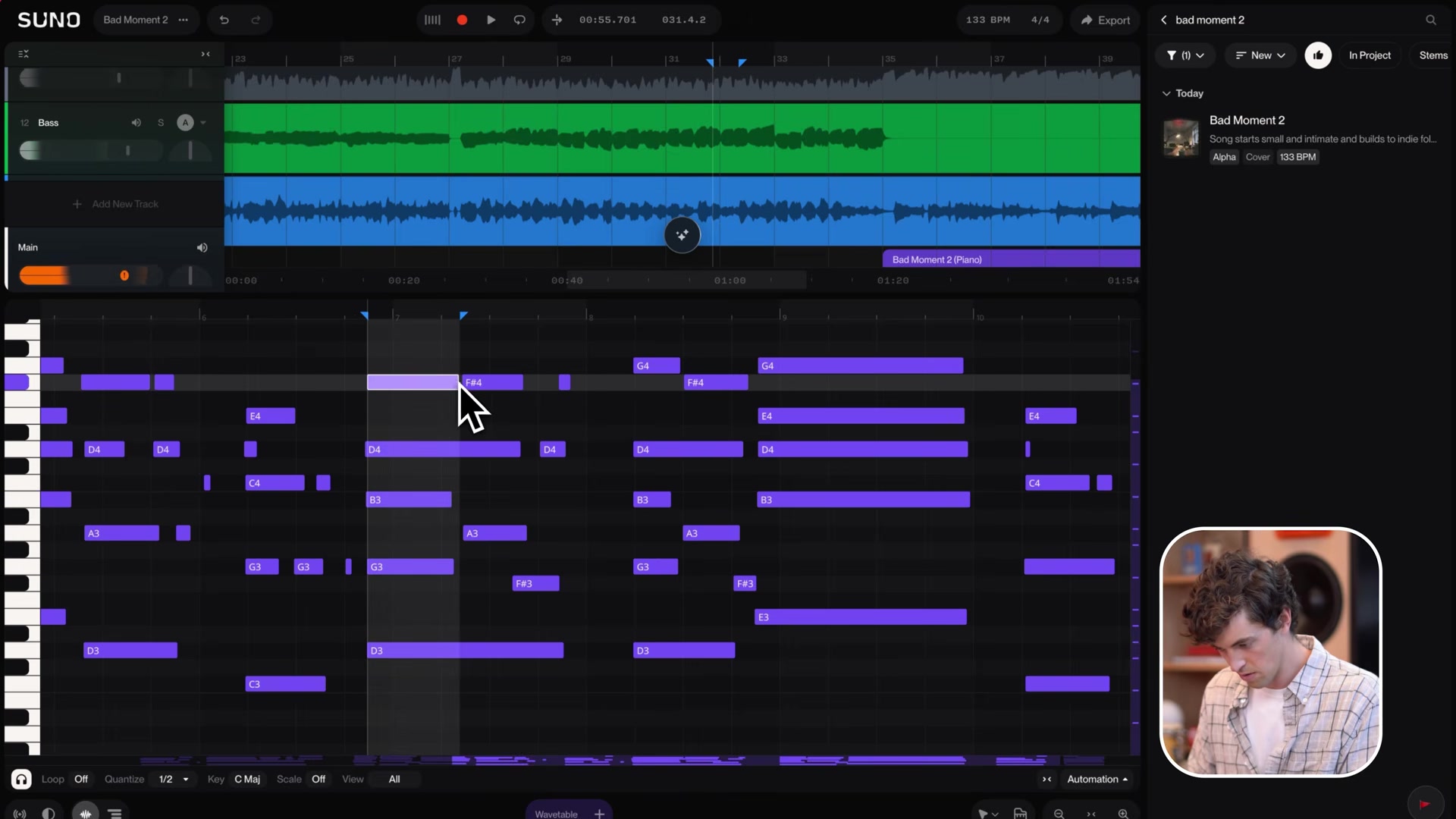
Step 3: Ask the chat bar for a part you cannot play
Press Enter to open the chat bar and describe the next layer: “add an ambient synth stem, drone, lush” or “generate an 8-bar drum loop and drop it here.” Attach a track as context and the generation matches your tempo, key and arrangement. The result lands as a normal clip you can trim, split and effect like anything else.
Step 4: Record your voice or an instrument
Add an audio track, pick your input source, and calibrate latency first (the dropdown under the record button plays clicks and measures the round trip). Turn on the metronome with Shift+C, set a count-in, and record with Shift+R. Studio records up to 2 inputs at once and stacks repeated passes as take lanes for comping. My Suno Studio recording guide covers the full vocal chain.
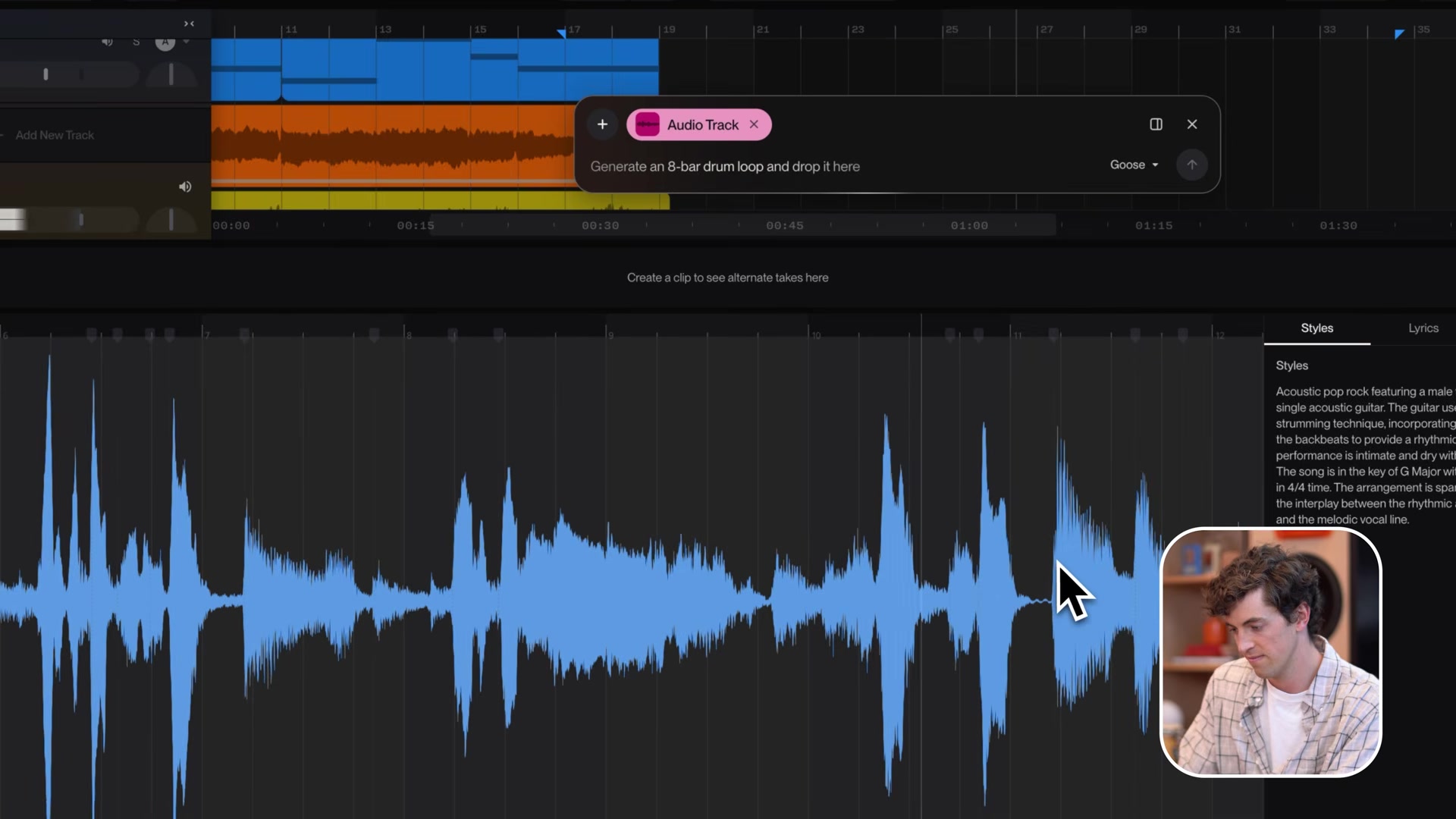
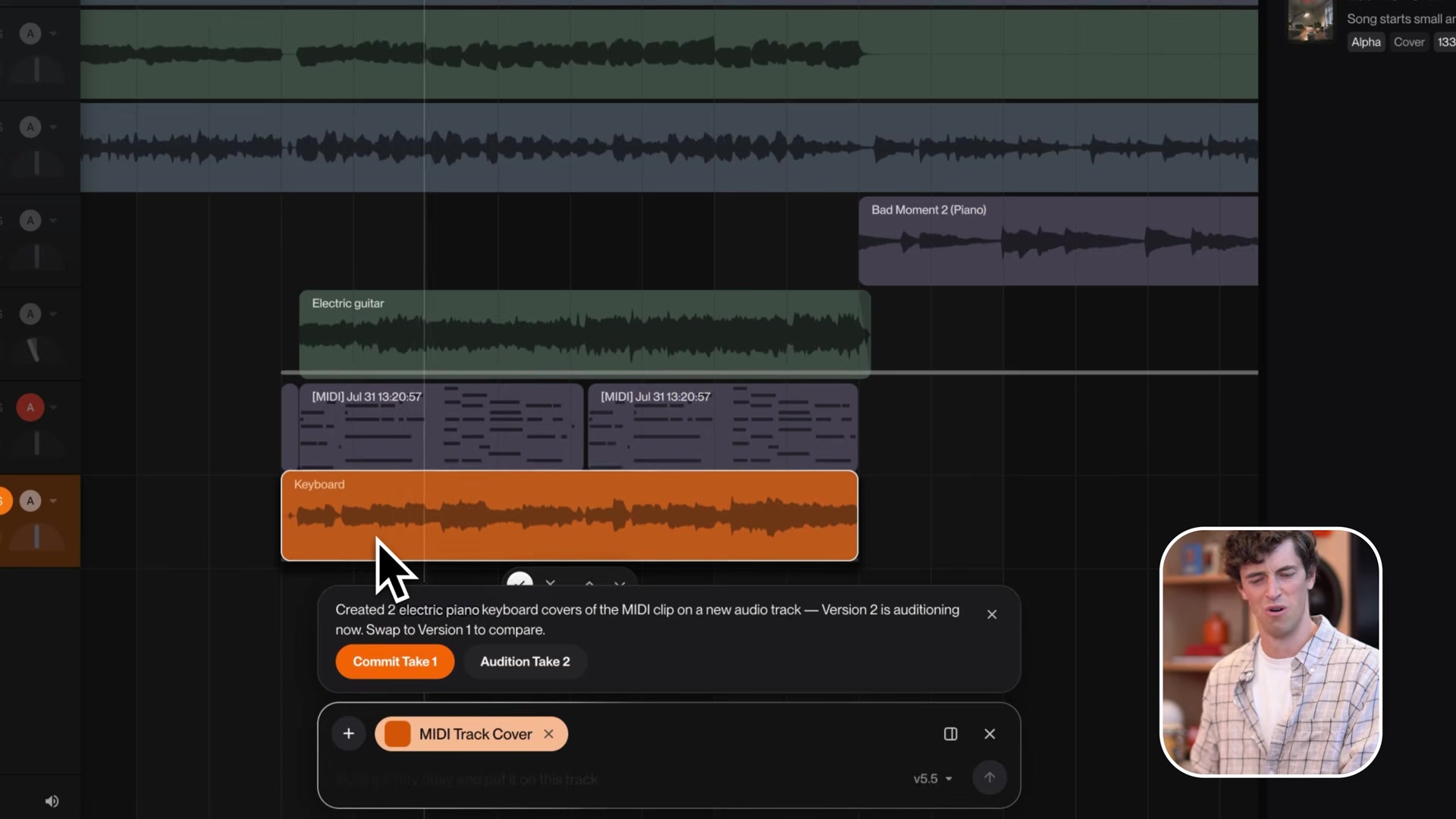
Step 5: Cover, split and rebuild the track
This is where Studio stops feeling like a normal DAW. Right-click a clip to split it into stems, keep the drums and replace the rest. Ask the chat bar to cover your rough vocal in a different voice while keeping the lyrics. Convert a generated melody to MIDI and rewrite the notes. Every AI move returns editable material instead of a finished, locked song.
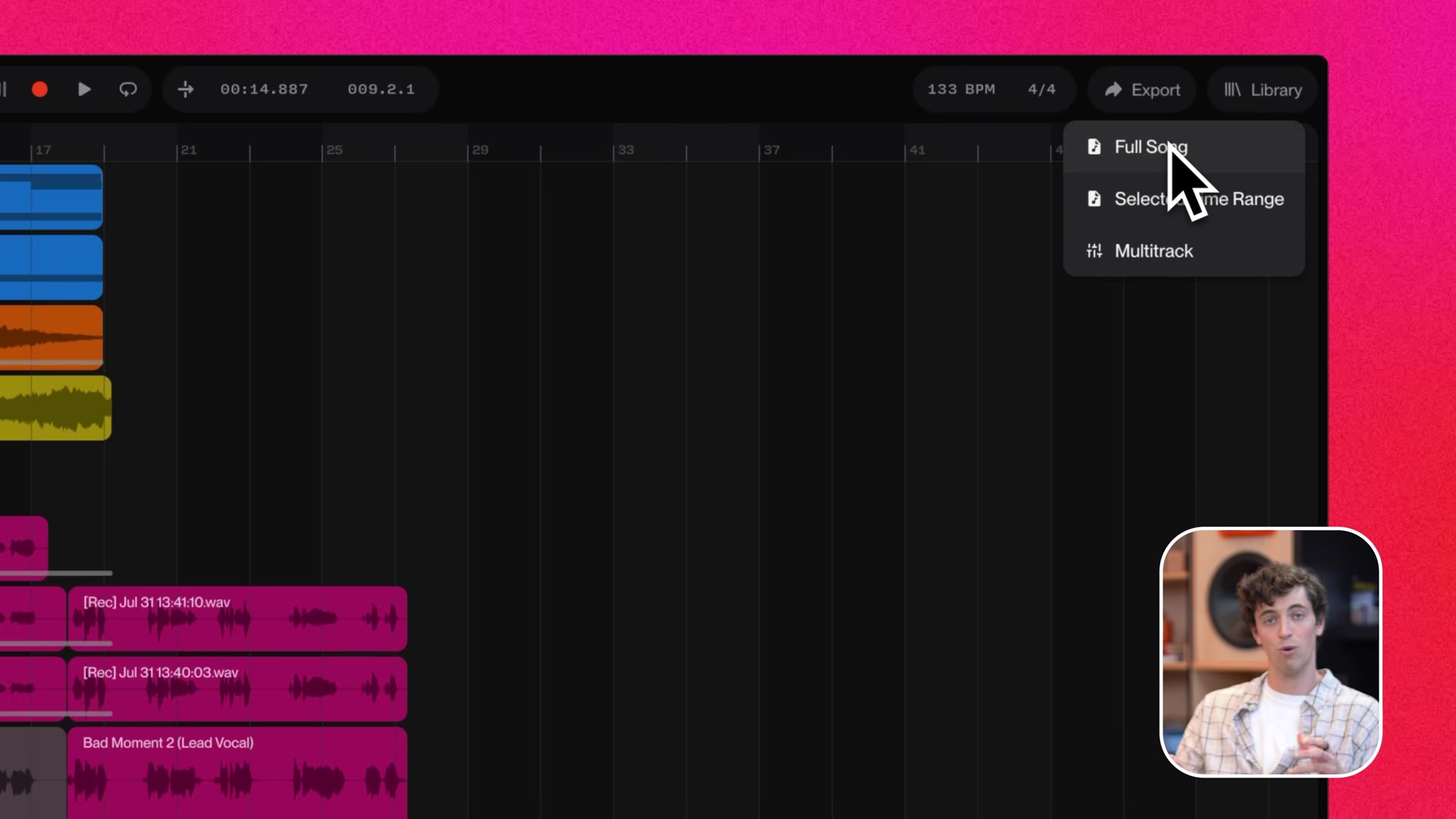
Step 6: Export your song, stems or MIDI
Click Export in the top right. Full Song bounces the arrangement, Selected Time Range exports a section, and Multitrack renders every track as its own file in a zip. Individual clips right-click to WAV or MIDI. On Premier, these Studio exports carry no download limit.
Bonus tips for Suno Studio
Learn the Suno Studio keyboard shortcuts
Studio leans on shortcuts harder than most browser tools. The ones worth memorizing on day 1: numbers 1 to 4 switch panels (1 chat, 2 device view, 3 automation and take lanes, 4 library), Shift+Tab opens the piano roll, Cmd+E splits a clip, Shift+F adds a fade, and Option-click on any knob types an exact value.
Share a Suno Studio project link
Share Project produces a link where others can view, copy and remix your session. It is not real-time collaboration. Henry Phipps says it plainly: “Right now these links aren’t realtime links, so you won’t see each other’s changes made in real time, but maybe that will come someday.”
Open your Studio 1.0 projects in Studio 2.0
Studio 2.0 is fully backwards compatible, and opening an old project asks whether you want the old or new interface. One catch: the move only runs one way. Once you add MIDI, effects or automation in 2.0, the project stays there. Studio started as a waitlisted beta in 2025, and the arc from that first version to 2.0 took under a year.
Suno Studio key takeaways
Suno Studio is the most complete attempt yet to put a real DAW and a music model in the same window. The essentials:
- Suno Studio is a browser DAW for Premier subscribers ($24 a month, annual billing).
- Studio 2.0 added MIDI, a wavetable synth, 7 effects, automation, recording upgrades and the chat bar.
- You need Chrome and at least a 768px screen. No phones, no Safari MIDI.
- The first-track flow: tempo, MIDI part, chat-bar layers, record, rebuild, export.
- Studio exports carry no download limit on Premier, unlike the rest of Suno from September 3, 2026.
- No VST support and no pitch correction yet. Suno says tuning tools are on the wish list.
We make music with our ears. Real-time control beats typing a prompt and hoping.
Open Studio, set a tempo, and build one 8-bar loop today. Which part will you type instead of play?
Frequently asked questions
How much does Suno Studio cost?
Suno Studio is included in the Premier plan, which costs $24 a month on annual billing. There is no separate Studio subscription. Premier also includes 10,000 monthly credits, commercial rights and all 3 stem separation modes.
Is Suno Studio free?
No. Suno's free plan covers basic song generation but does not include Studio. The $8-a-month Pro plan does not include it either. Studio is the headline feature of the $24-a-month Premier tier, and Suno offers no separate Studio free trial.
What are the system requirements for Suno Studio?
Suno Studio runs in the browser on a desktop, laptop or tablet with a screen at least 768px wide. Suno recommends Chrome and requires a CPU with SIMD support (SSE4.1 or Neon) and at least 4 GB of RAM. Mobile phones are not supported, and Web MIDI does not work in Safari.
Is Suno Studio a real DAW?
Studio 2.0 covers the core of a real DAW. You get a multitrack timeline, MIDI recording and editing, audio recording with latency calibration, take comping, 7 audio effects, automation and multitrack export. The gaps are real too. It does not load VST or Audio Units plugins, and there is no pitch correction yet.
Can you use Suno Studio on a phone?
No. Suno states Studio is built for desktop, laptop and tablet screens with a minimum width of 768px. Phones are not supported. On a tablet, a keyboard helps because many Studio workflows lean on keyboard shortcuts.
About the author

Covering AI music tools, industry shifts, and news for music creators and professionals. Twice-weekly newsletter at aimusicpreneur.com.