
How to separate stems in Suno: Auto Split, Split from Mix, Advanced Split
My stack My fav 6 tools for AI music after testing 70+
-
 ElevenMusic · Music generation
 -
 Moises · Stem separation
 -
 Controlla · Voice swap & cloning
 -
 Cryo Mix · Mixing + mastering
 -
 Neural Frames · Music videos
 -
 ONCE · Distribution
Some links are affiliate links — I earn a commission at no cost to you. Every tool here is one I run myself and truly believe in. This stack is proven.
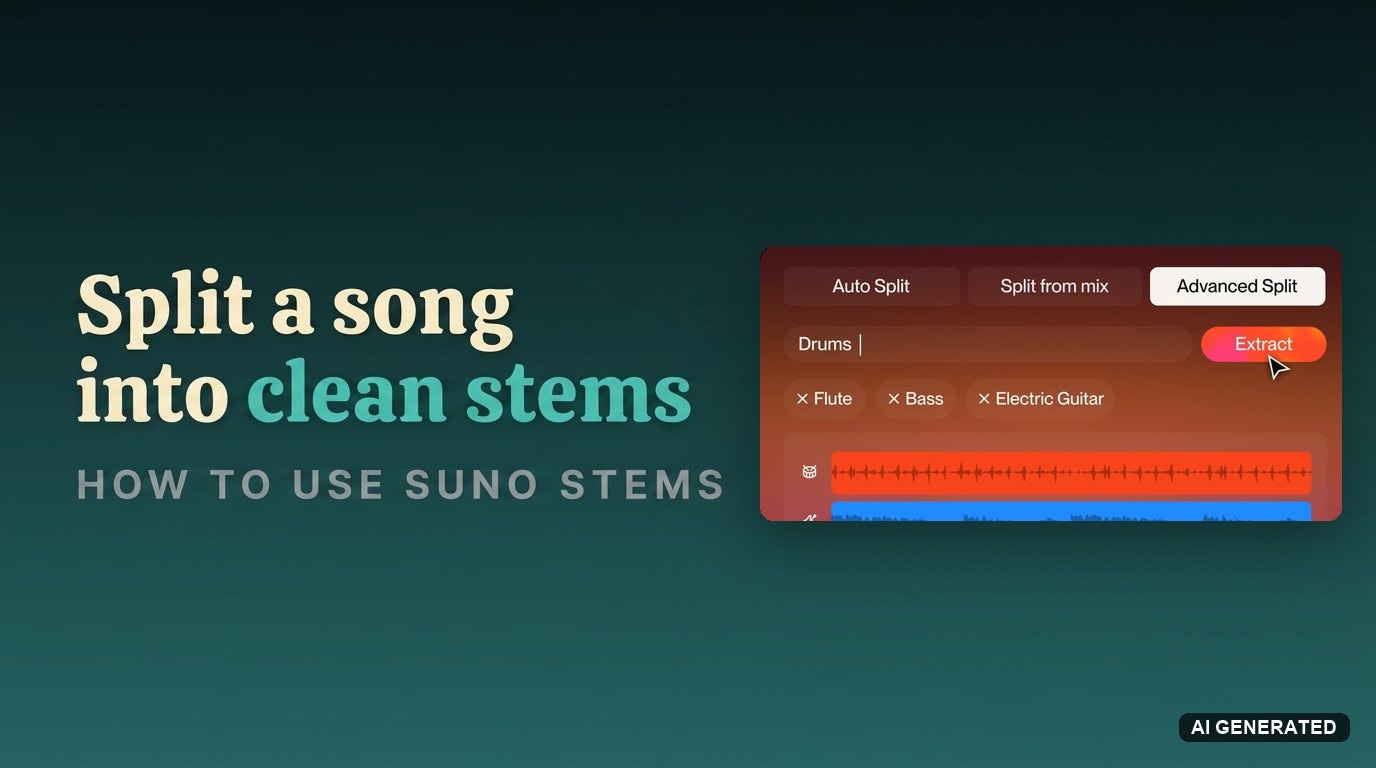
Suno rebuilt how it pulls stems out of a song. The stem tools used to give you two basic options. Now you get three modes, cleaner output, and control over exactly which instruments come out.
This guide shows you how to separate stems in Suno with all three modes: Auto Split, Split from Mix, and the new Advanced Split. You will learn what each mode does, what it costs, and how to get clean tracks you can drop into Studio or your DAW.
What is Suno’s Advanced Stem Separation?
Stem separation breaks a finished song back into its parts: vocals, drums, bass, guitar, and more. Suno updated its stem tools for Pro and Premier subscribers, and the upgrade is a real step up.
Open the Get Stems panel and you now see three tabs: Auto Split, Split from Mix, and Advanced Split. The old version had two basic options. The new lineup adds cleaner output and far more control over what you extract.
The biggest change is how Advanced Split works. Older stem tools isolate frequencies, which can leave audio bleed between tracks. Advanced Split rebuilds each stem from scratch with Suno’s latest model, so the result is punchier and free of artifacts.
Instead of isolating frequencies, Suno listens to your track and regenerates that specific stem from scratch using the latest music model.
Auto Split, Split from Mix, and Advanced Split: which Suno mode should you use?
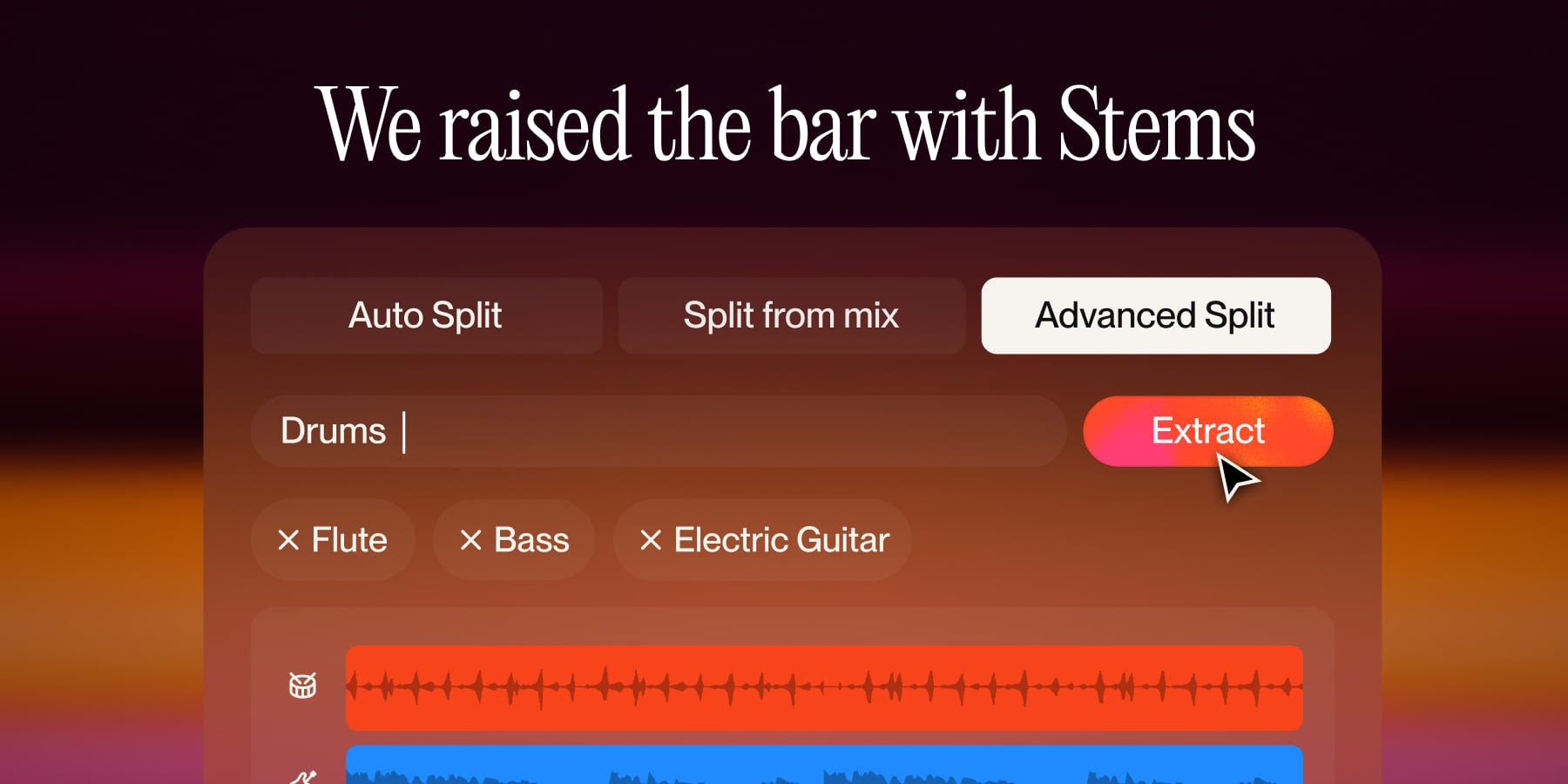
Each mode solves a different job. Here is how to pick the right one:
- Auto Split is the classic option. It scans your track and returns up to 12 preset stems (drums, bass, vocals, guitar, keys, and more). Fast, but it filters frequencies, so expect some bleed on busy mixes. Use it when you want every part at once.
- Split from Mix pulls out one instrument or voice. Suno hands you two stems: the part you chose, and everything else as a backing track. Use it for demos, or for a backing track to play over.
- Advanced Split is the new, cleanest mode. Search close to 100 instruments and extract exactly what you need, each one rebuilt from scratch. Use it when you want studio-grade, specific stems.
Suno’s walkthrough shows all three modes in action, including a side-by-side of the old Auto Split against the new Advanced Split:
What you need before you separate stems in Suno
Three things get you ready to extract stems:
- A Suno subscription. Stem separation is a paid feature, so the free tier will not show it.
- The right tier. Pro covers Auto Split and Split from Mix. Advanced Split is Premier-only.
- A song in your library. Generate one in Suno or upload your own track.
For plans and pricing, see my full Suno review. You also spend credits per extraction, which I break down below.
How to get stems from a Suno song, step by step
The whole flow takes a few minutes per song. Follow these six steps.
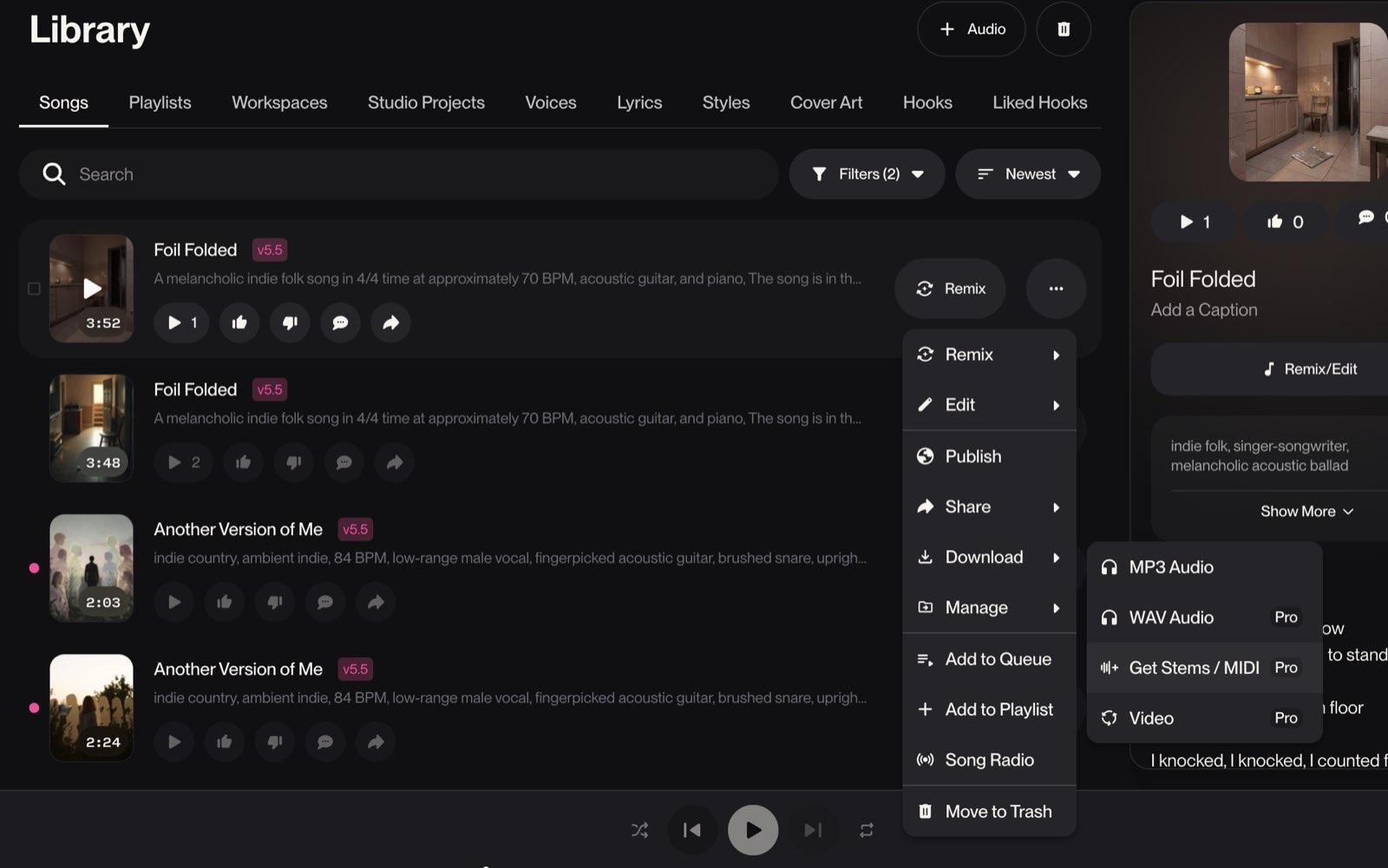
Step 1: Open your Suno track and click Get Stems
- In your Library, find the song you want.
- Click the three-dot More menu next to it.
- Select Get Stems.
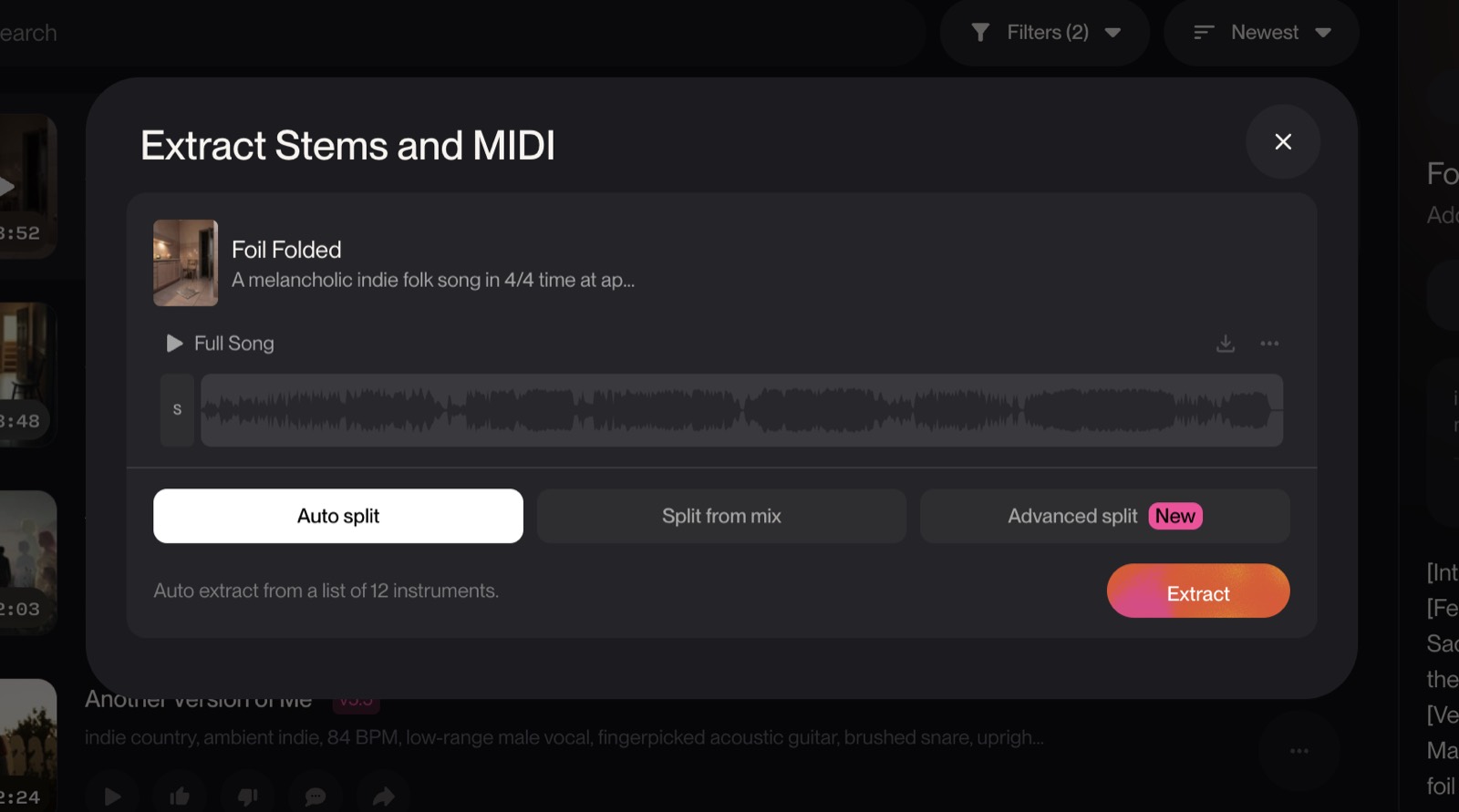
Step 2: Pick Auto Split for a fast 12-stem breakdown
- Open the Auto Split tab.
- Run it. Suno scans for up to 12 preset instruments and returns what it finds.
Step 3: Use Split from Mix to isolate one instrument
- Open the Split from Mix tab.
- Choose the instrument or voice you want.
- Run it. Suno returns two stems: your pick, and everything else.
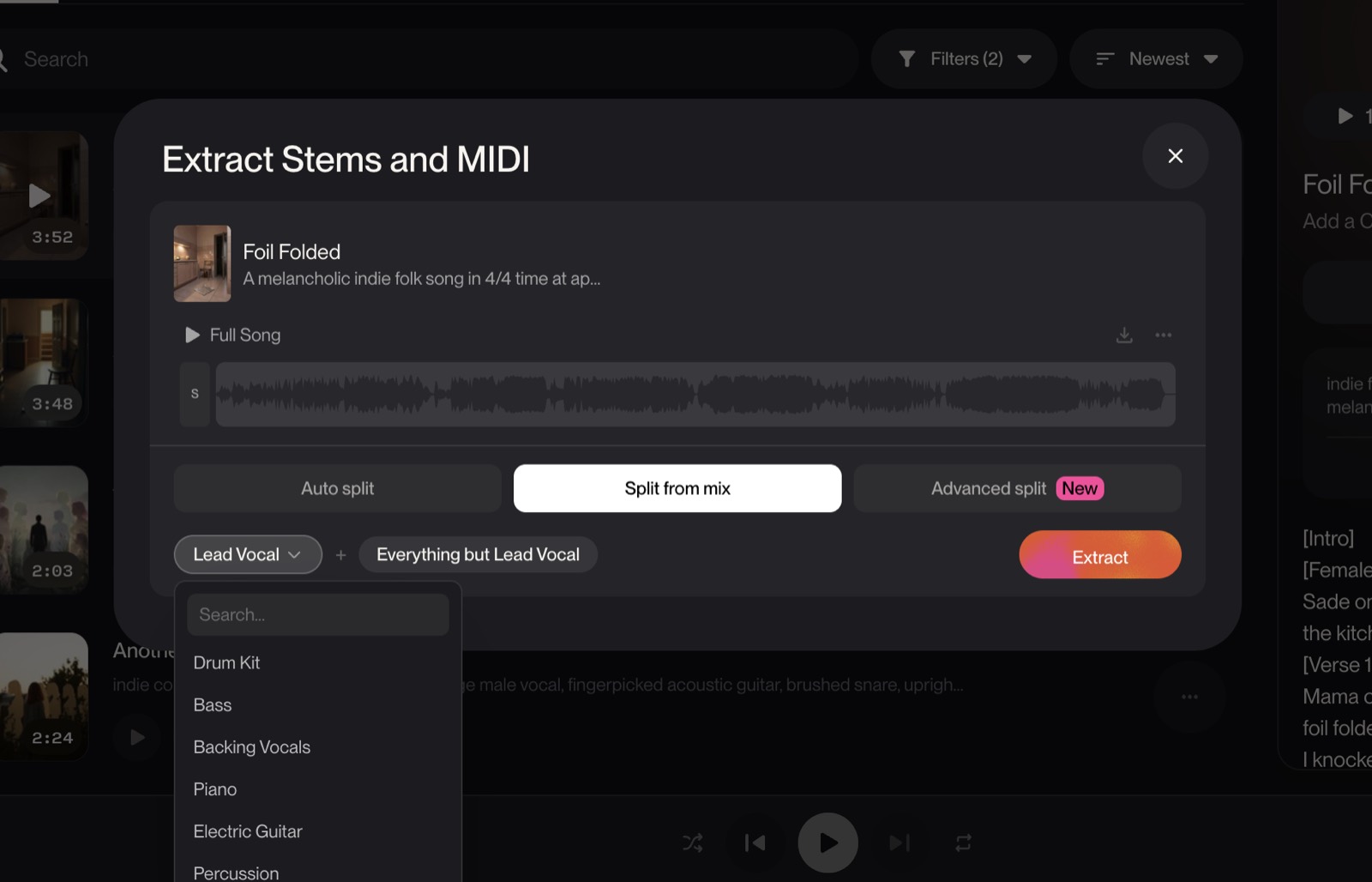
Step 4: Use Advanced Split to regenerate clean, specific stems
- Open Advanced Split (Premier only).
- Search the instrument list, with close to 100 options.
- Add each stem you want, then run it.
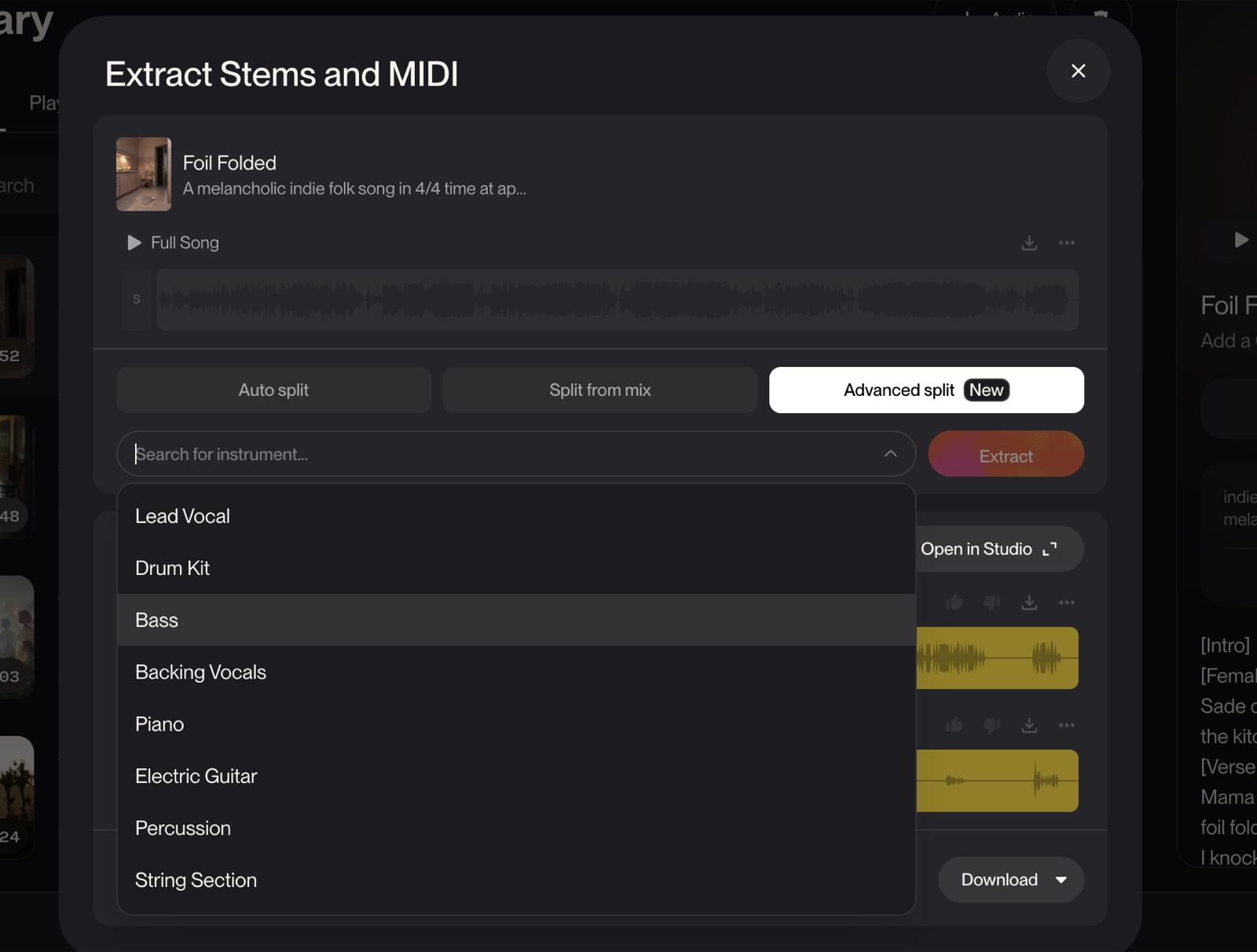
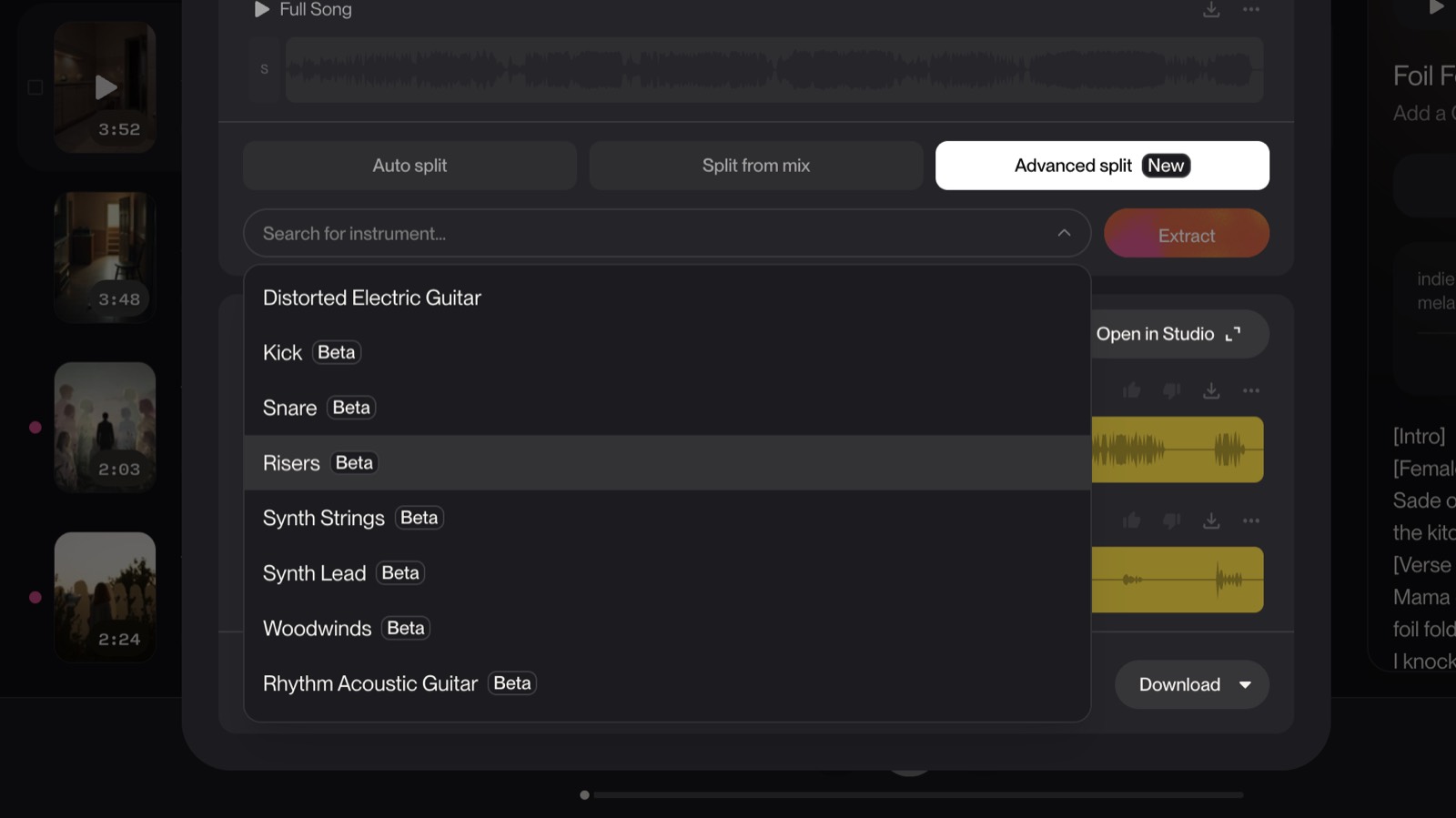
Step 5: Compare both Suno stem versions or regenerate
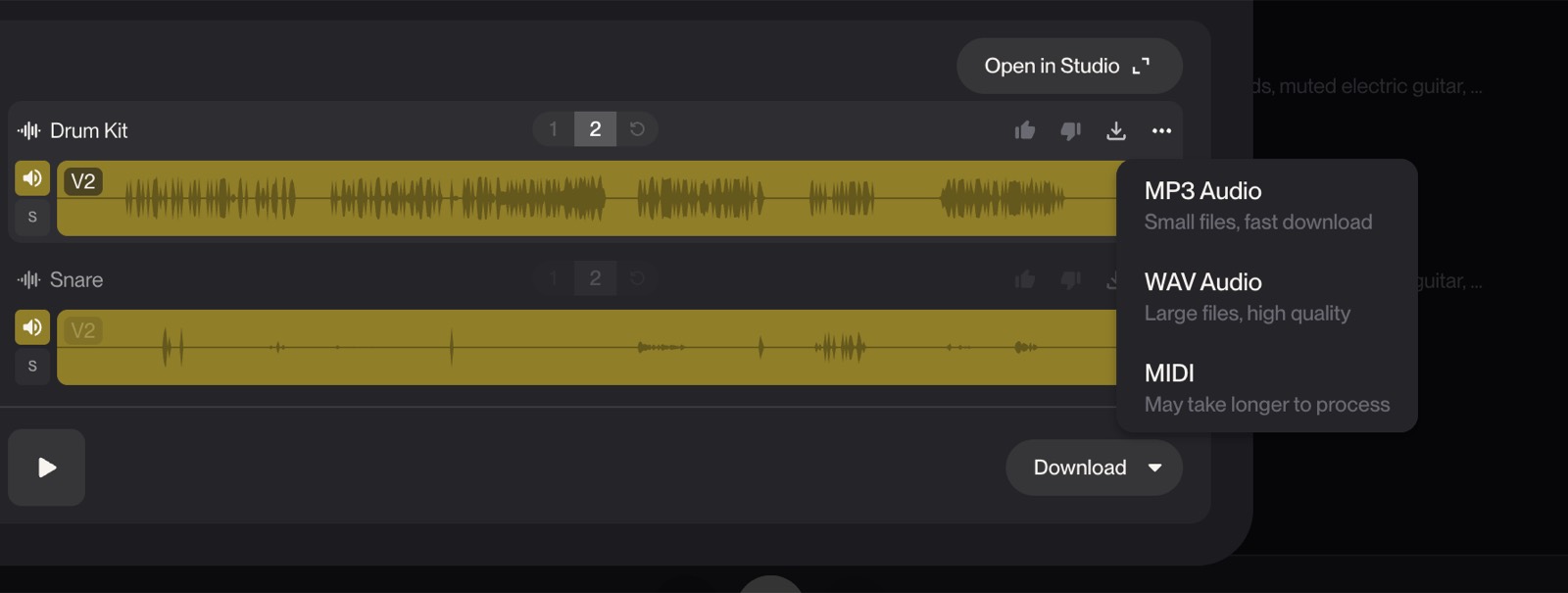
- Every extraction gives you two versions.
- Play version 1 and version 2. Keep the cleaner one, or pick the one with more texture.
- Want different options? Click Regenerate for two new versions.
Step 6: Export your Suno stems as WAV or MP3
- Open the Export menu.
- Choose WAV for full quality, or MP3 for smaller files.
- Download your stems, or send them to Suno Studio to keep building.
How much do Suno stem separations cost in credits?
Stem separation runs on credits, and the price depends on the mode:
- Auto Split: 50 credits for a full 12-stem extraction.
- Split from Mix: 10 credits per extraction.
- Advanced Split: 10 credits per stem you pull.
So a clean three-instrument Advanced Split costs 30 credits, while a full Auto Split costs 50. Check your plan’s monthly credits before a big session. On tiers: Pro covers Auto Split and Split from Mix, and Premier adds Advanced Split. You can compare the official modes on Suno’s stem splitter page.
How to split stems inside Suno Studio 2.0
Since Studio 2.0 shipped on August 13, 2026, you can also separate stems without leaving the Studio timeline. Right-click any audio clip, choose Get Stems, and the same panel opens in place, with Split from Mix and Advanced Split as the modes.
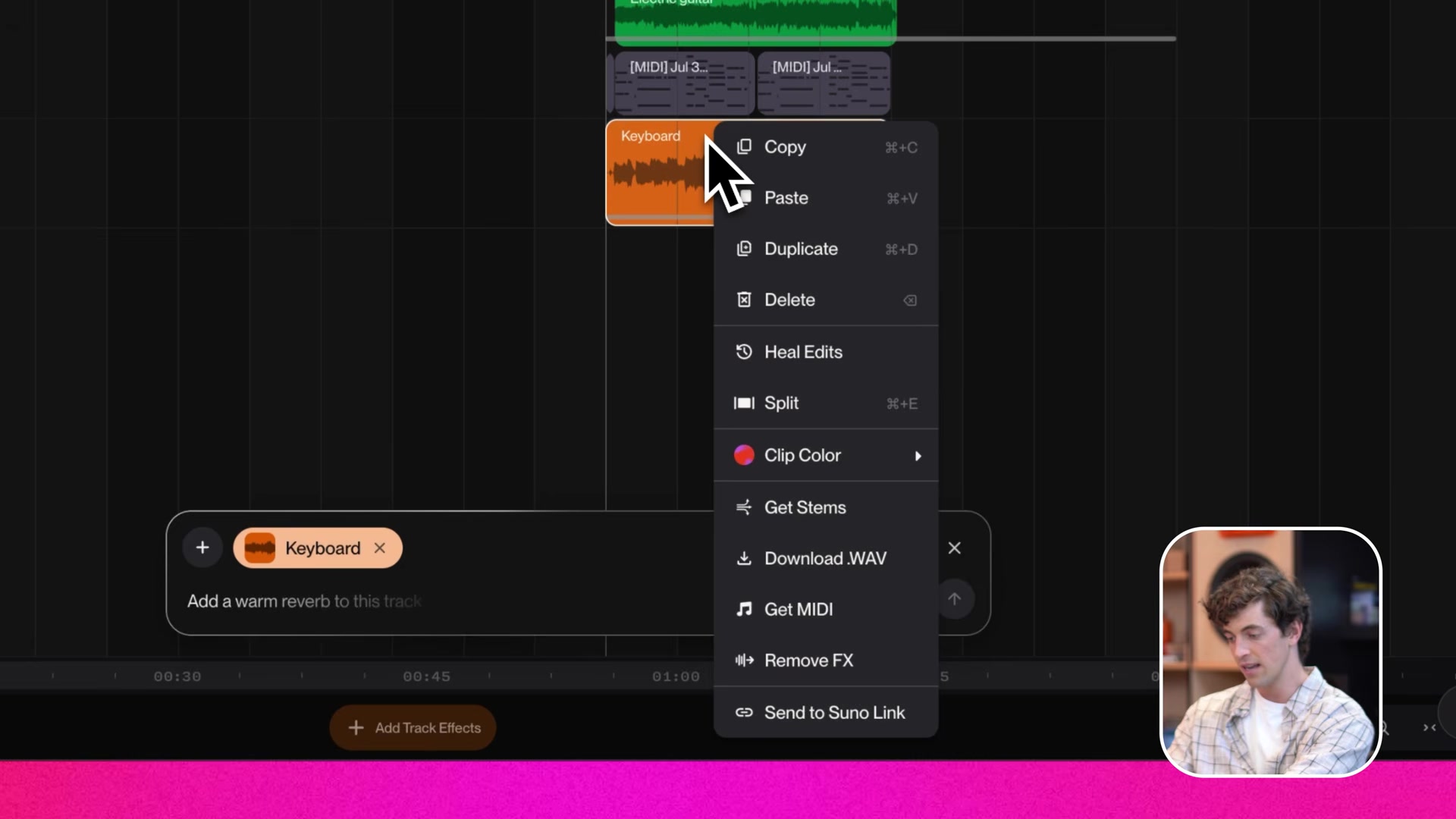
Advanced Split works the same way it does in the library: you type the instruments you want instead of accepting an auto set. Henry Phipps, Suno’s Studio product manager, explains why the typed route sounds better in the Getting Started walkthrough: “in theory it seems like we ought to be able to detect all the instruments that are there. But we found that this works the best when you’re using your ears and you say, I want that specific instrument. Even though it’s more work, the stems that come out of that mode are higher fidelity.”
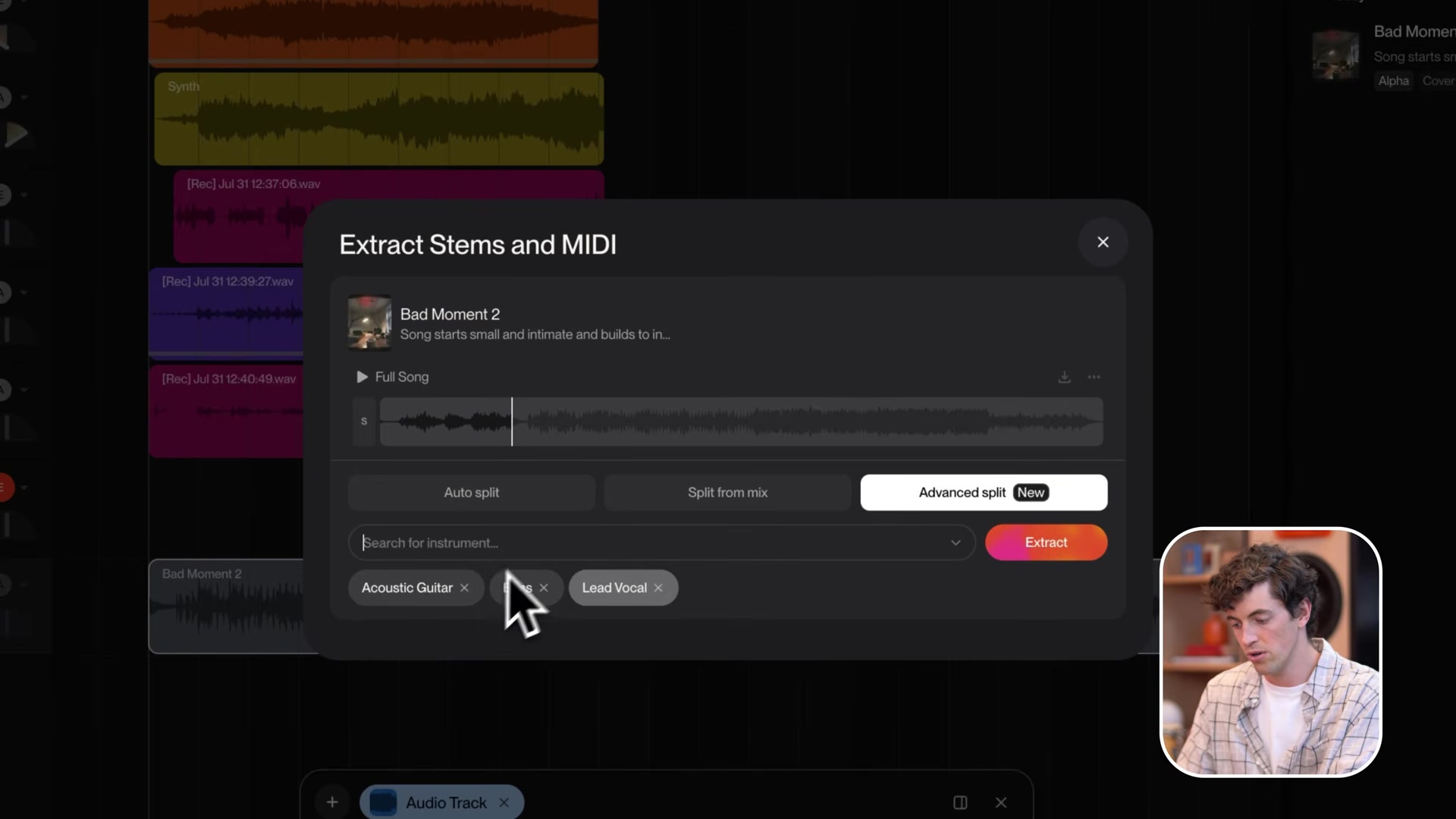
Two Studio-only conveniences are worth knowing:
- Insert All places every extracted stem on its own timing-aligned track directly below the original clip, ready to mix.
- The stem panel downloads each part as MP3, WAV or MIDI, so a bassline can leave Studio as notes instead of audio.
Plan gating stays the same inside Studio: Pro covers 2 separation types (Auto, Split from Mix), Premier covers all 3 including Advanced Split, and Free has none. New to Studio itself? Start with my Suno Studio beginner’s guide, and see my Suno Studio mixing guide for what to do with the stems once they land.
How to use your Suno stems in Studio or a DAW
Once your stems are out, you have two paths.
Keep building in Suno Studio. Send the stems straight into Suno Studio to arrange, layer, and write new parts on top. Or take them to a DAW: export WAV and drop the time-aligned stems into Ableton, Logic, or FL Studio for mixing.
Your stems also feed other tools. If you only need the vocal out, a dedicated vocal remover like LALAL.AI can be faster for that one job. For practice tracks and multitrack control, Moises is another option worth a look.
What trips people up with Suno Advanced Split, and how to fix it
A few issues come up often. Here is how to handle them:
- Two instruments bleed into one stem. They share a frequency range, like a synth and a piano. Fix: extract them in separate runs, or switch to the other version.
- Snare or kick sounds rough. Those granular picks are still in beta. Fix: pull the full drum kit instead, or use Auto Split for those parts.
- Auto Split stems have bleed. It filters frequencies instead of regenerating. Fix: re-pull the problem part with Advanced Split for a clean result.
- No Get Stems option. You are on the free tier. Fix: upgrade to Pro, or Premier for Advanced Split.
How do you get the cleanest stems out of Suno?
Five habits get you better stems:
- Use Advanced Split for any stem that has to be clean. Save Auto Split for fast full sessions.
- Compare both versions every time. One is often clearly cleaner than the other.
- Extract overlapping instruments separately. Do not ask for a synth and a piano in one run.
- Export WAV, not MP3, when the stems go into a DAW.
- Skip the beta picks like snare and kick for release work until they improve.
Is Suno’s Advanced Stem Separation worth using?
If you make music in Suno and want real control over the parts, yes. Advanced Split is the first time the stems come out clean enough to drop straight into a mix, and the instrument list reaches far past the old 12-stem preset. The trade-offs are the Premier tier and the per-stem credit cost. For full pricing and where Suno fits against other generators, see my Suno review.
Generate a song, pull one stem, and listen to both versions. The quality jump is obvious on the first clean track. You can read Suno’s own notes in its Advanced Stem Separation help doc.
Frequently asked questions
Do you need Suno Pro or Premier to separate stems?
Stem separation is a paid feature, so you need a Suno subscription. Pro gives you Auto Split and Split from Mix. Advanced Split, the cleanest mode, is limited to the Premier tier.
Can you export Suno stems as WAV or MP3?
Yes. Suno lets you export your separated stems as WAV for full quality or MP3 for smaller files. You can pull up to 12 time-aligned stems, ready to drop into a DAW.
Can you use Suno stems in Ableton, Logic, or FL Studio?
Yes. Export your stems as WAV and the tracks stay time-aligned, so they line up when you import them. From there they work in Ableton, Logic, FL Studio, or any DAW, and you can keep building them inside Suno Studio.
Can Suno's Advanced Split isolate one instrument like a violin or an 808?
Yes. Advanced Split lets you search close to 100 instruments and pull out a single one, from a lone violin in a string section to a theremin, an 808, or a didgeridoo. Each stem is rebuilt from scratch for a cleaner result.
Why do some Suno Advanced Split stems sound cleaner than others?
Advanced Split regenerates each part with Suno's latest model, so most stems come out clean. Instruments that share a frequency range, like a synth and a piano, can blend, and a few granular picks such as snare and kick are still in beta. Comparing the two versions, or regenerating, usually fixes it.
About the author

Covering AI music tools, industry shifts, and news for music creators and professionals. Twice-weekly newsletter at aimusicpreneur.com.