
How to fix timing in Suno Studio: warp markers, clip stretching and tempo mode
My stack My fav 6 tools for AI music after testing 70+
-
 ElevenMusic · Music generation
 -
 Moises · Stem separation
 -
 Controlla · Voice swap & cloning
 -
 Cryo Mix · Mixing + mastering
 -
 Neural Frames · Music videos
 -
 ONCE · Distribution
Some links are affiliate links — I earn a commission at no cost to you. Every tool here is one I run myself and truly believe in. This stack is proven.
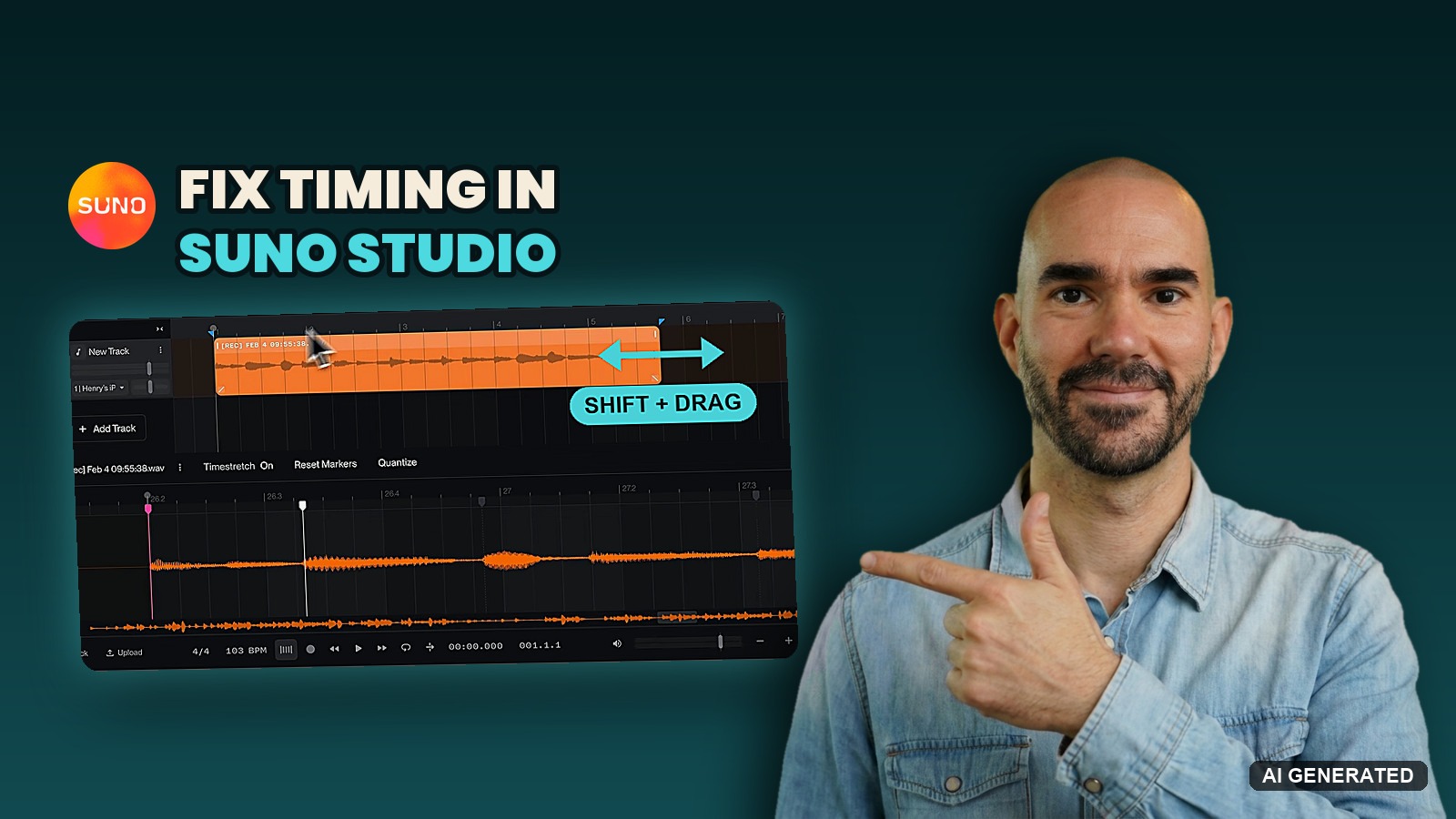
You record a guitar part without a click, drop it into Suno Studio, and it wobbles all over the grid. Or you generate a jazz track, split the stems, and they drift off tempo the second you open them in another DAW.
You can fix timing in Suno Studio without leaving the browser. There are 3 tools for it: Manual BPM for the whole project, clip stretching for a whole clip, and Suno Studio warp markers for single beats inside a clip. This tutorial takes you through all 3 in 6 steps.
What you need before you fix timing in Suno Studio
The short list:
- A Suno Premier subscription. Studio is part of Premier. My Suno Studio beginner’s guide covers the plans and the rest of the interface.
- A clip with a timing problem. A recorded take, an imported sample, or a generation with tempo drift.
- A desktop browser. Studio runs at suno.com/studio, so there’s nothing to install.
One honest note: the screenshots in this guide come from Suno’s own Studio Fundamentals videos. Clip stretching is the newest piece, added in Suno’s October 8, 2026 release notes, and there’s no official walkthrough video for it yet.
Which Suno Studio timing tool should you use?
Pick the tool by how big the problem is. A project that wanders needs one fixed tempo. A sample at the wrong speed needs the whole clip stretched. A single late snare or a rushed guitar strum needs one warp marker moved.
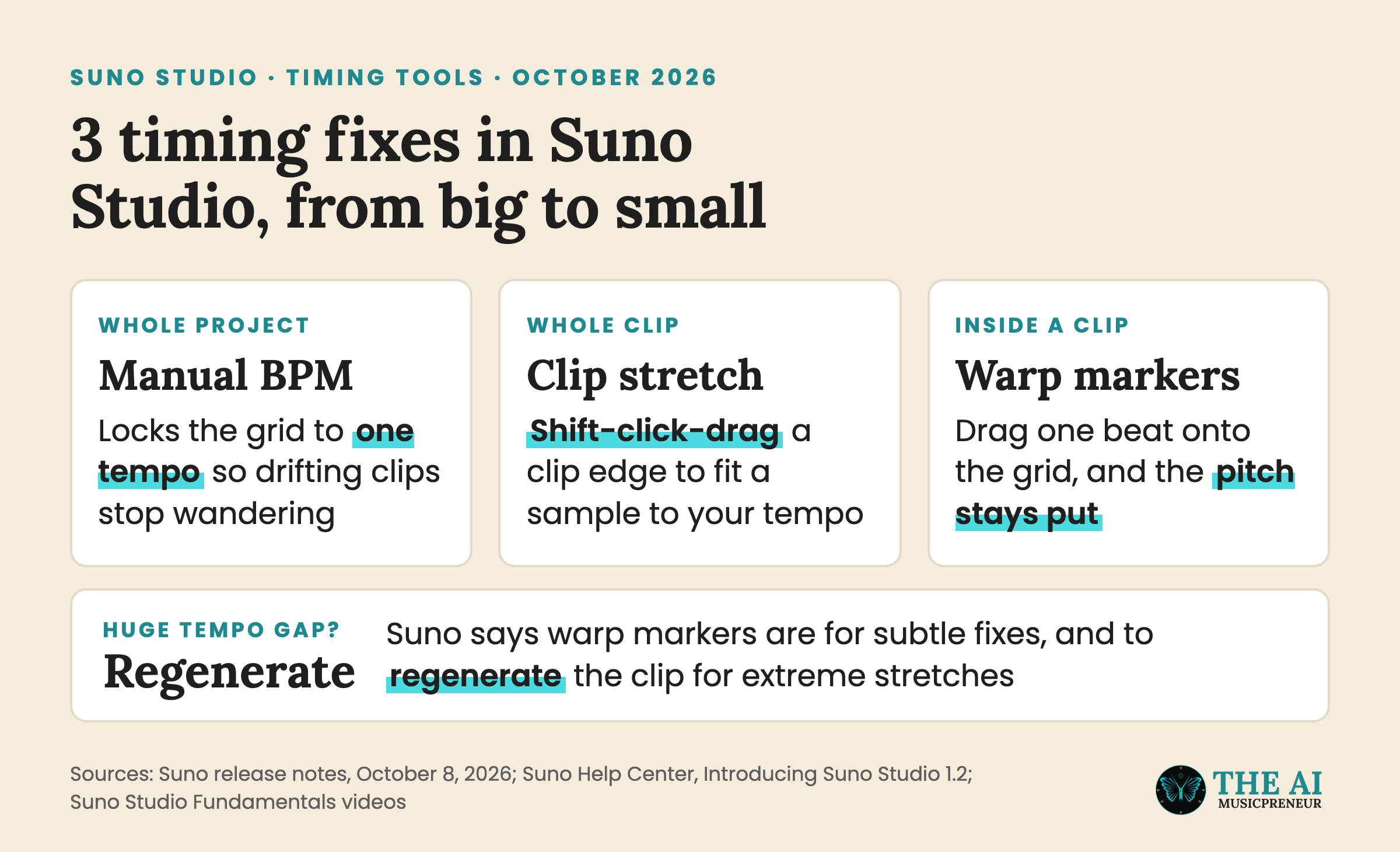
Suno’s Studio 1.2 help article also sets a limit worth knowing: warp markers are for subtle timing corrections, and for extreme time-stretching Suno suggests regenerating the clip with an adjusted prompt. That’s the one rule to keep in your head while you work.
Here is Suno’s own 2-minute demo of warping a guitar take recorded without a metronome:
How to fix timing in Suno Studio, step by step
Six steps, from a wandering project to stems that sit on the grid.
Step 1: Lock the project tempo with Manual BPM
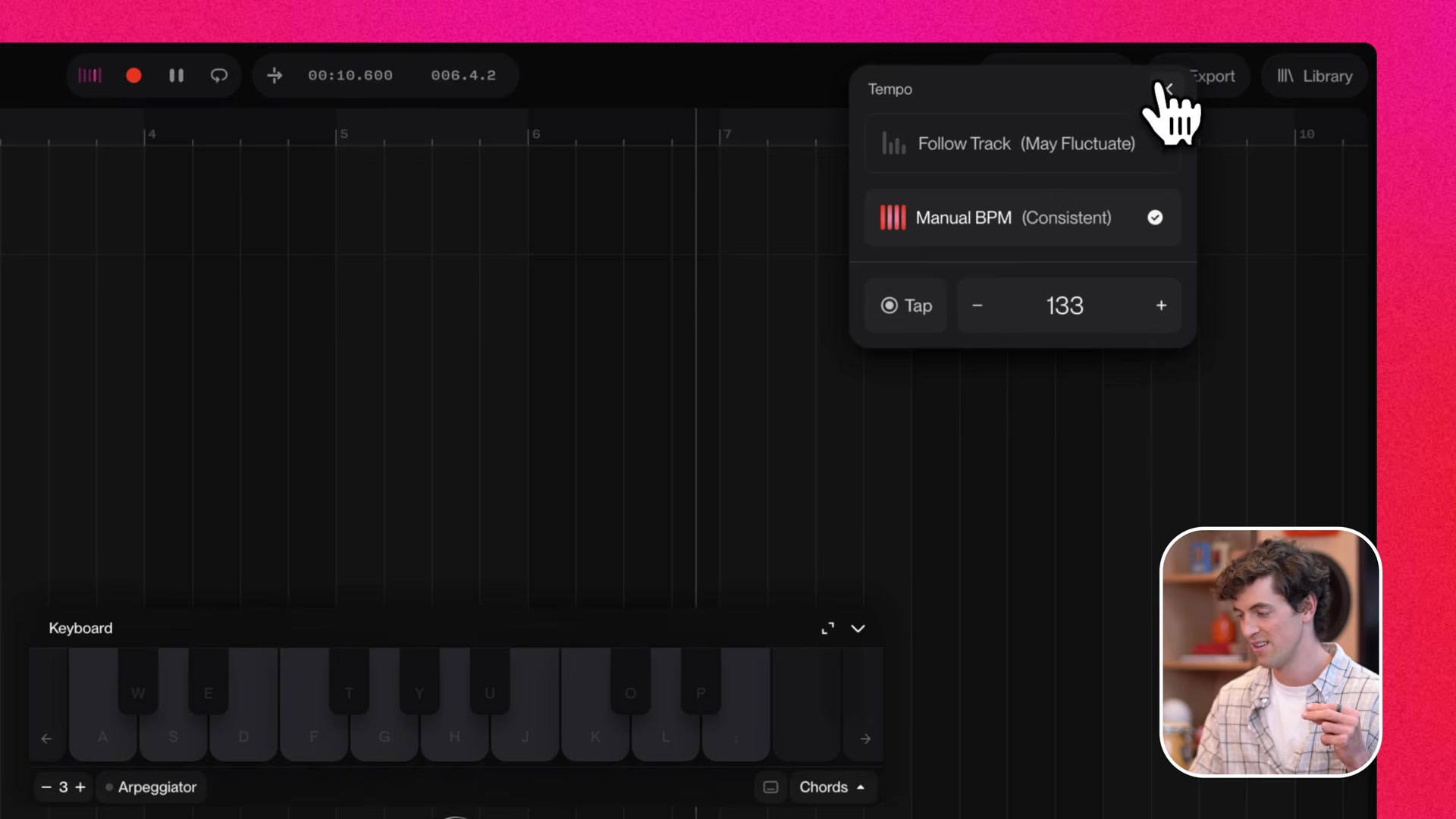
Studio’s tempo menu has 2 modes. Follow Track, which the menu itself labels “may fluctuate,” follows the tempo of the audio. That’s why a generated jazz or disco track can read 118 BPM in one bar and 122 in the next.
- Click the BPM readout in the transport bar at the bottom.
- Untick Follow Track and tick Manual BPM to hold one tempo.
- Type the tempo or tap it in. In Suno’s tempo drift demo, an old jazz track bouncing between 118 and 122 got locked to 119 BPM and still sounded natural.
Step 2: Stretch a whole clip to the tempo with Shift-drag
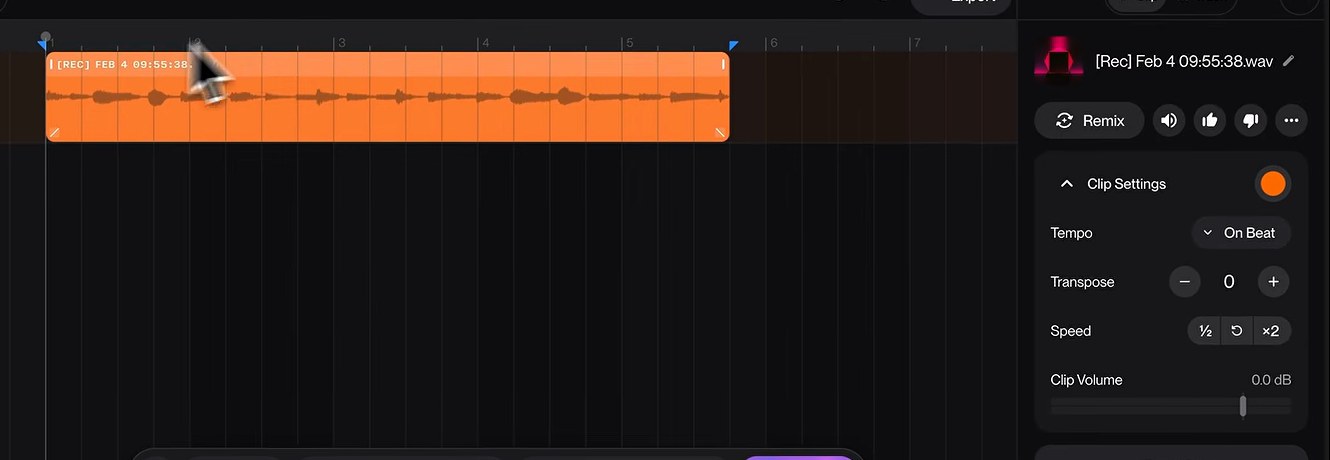
This is the October 8, 2026 addition. Suno describes it as shift-click-dragging a clip to timestretch it automatically, built for matching samples and found sounds to your project “regardless of the tempo.”
- Drop the sample onto a track in your project.
- Hold Shift, click the clip’s edge and drag it.
- Let go when the clip lines up with the bars you want it to fill.
Step 3: Open the clip in the warp marker editor
- Double-click the clip header (the strip along the top of the clip).
- A panel opens at the bottom of the screen with the clip’s waveform and a row of white warp markers.
- Check the header of that panel reads Timestretch On, next to Reset Markers and Quantize.
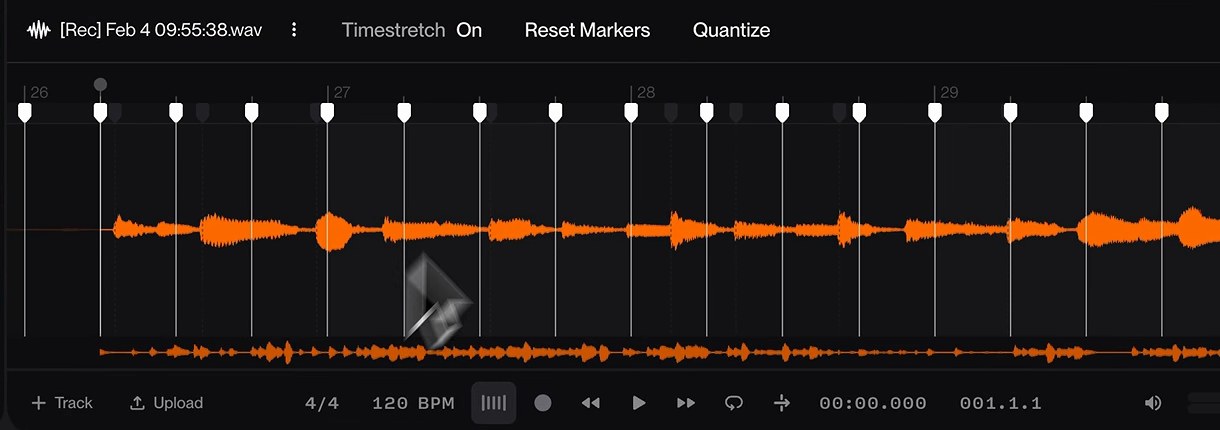
Studio places markers on its own when it analyses the clip. On a loose recording, that’s usually too many markers in the wrong places.
Step 4: Reset the warp markers
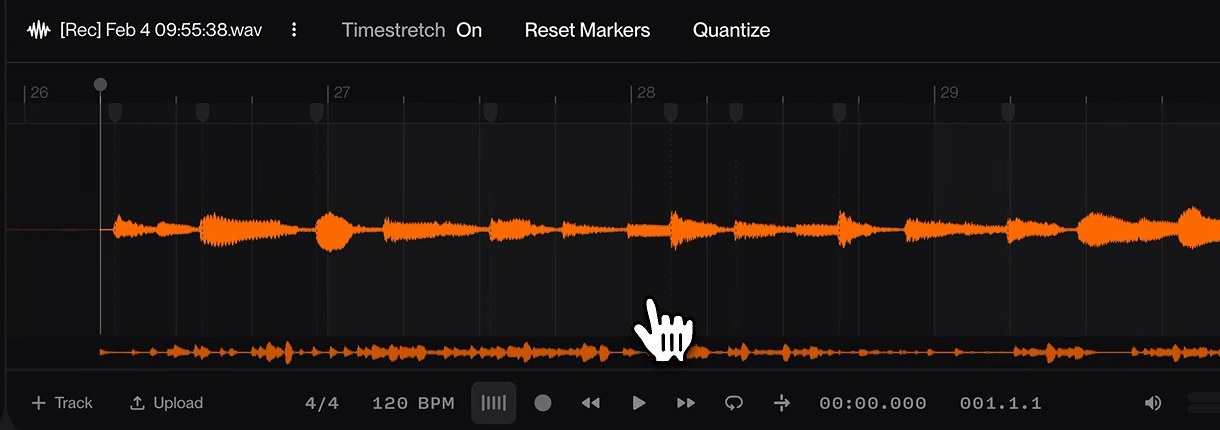
Open Reset Markers. In Suno’s Studio 1.2 walkthrough, it has 3 options:
- Start and end: clears everything except the first and last marker. Best for a free-played take.
- Every transient: a marker on every hit Studio detects.
- Near grid lines: markers only on transients close to a beat.
Step 5: Drag Suno Studio warp markers onto the beat
- Click a suggested point, or anywhere on the waveform, to add a warp marker at that hit.
- Drag the marker left or right to the grid line where that beat belongs.
- Loop the section and play it back after each move.
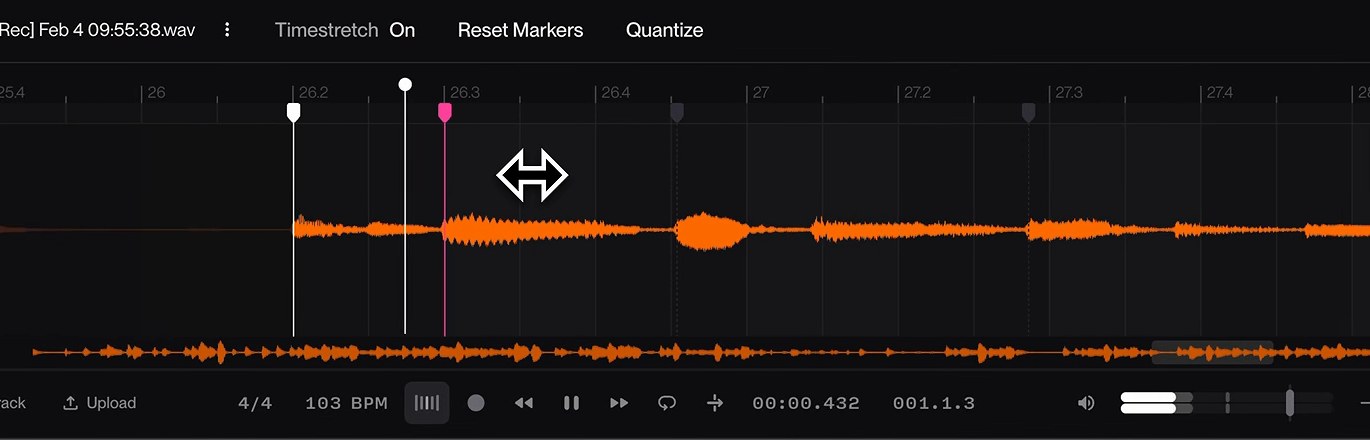
Suno’s help article says moving a marker corrects timing “without affecting pitch,” so a stretched strum doesn’t go sharp or flat.
Step 6: Export stems at one steady tempo
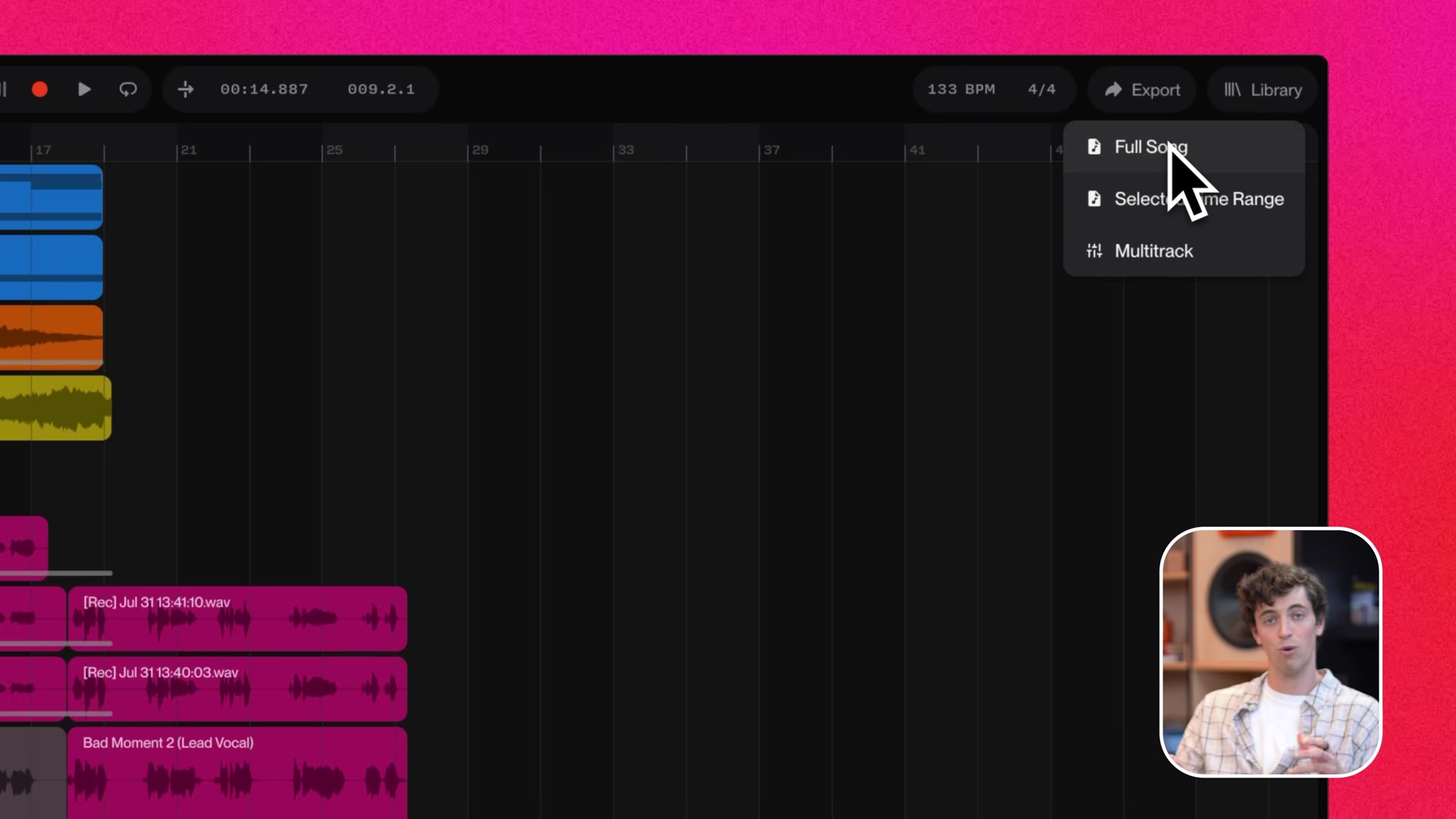
- Click Export in the top right and choose Multitrack.
- Wait while Studio renders each track. Suno’s demo says this can take up to 2 minutes.
- Unzip the download. Every track is a WAV at your fixed tempo.
What common Suno Studio timing mistakes trip people up, and how do you fix them?
The ones that show up most in Suno’s own demos:
- Stems drift when you open them in another DAW. The project was still on Follow Track. Switch to Manual BPM before you export, then export again.
- The stretched audio sounds smeared or robotic. The tempo gap is too big. Suno’s guidance is to keep warp markers for subtle fixes and regenerate the clip with an adjusted prompt for extreme changes.
- Markers sit on the wrong hits. The automatic markers picked up every transient. Reset to start and end, then place your own on the beats you care about.
- An a cappella vocal starts in the wrong place. Studio has to guess beat 1 on non-rhythmic clips. Suno’s October 8 update improved downbeat detection for exactly this, so newer clips need less manual alignment.
How do you get the best timing results out of Suno Studio?
Work from big to small. Set Manual BPM first, stretch whole clips second, and touch warp markers last, because every bigger fix changes what the smaller ones need to do.
Leave a little human feel in. Suno’s own guitar demo stops at “pretty close” on purpose, and a part that sits perfectly on the grid can sound programmed. Fix the notes that bother you, not every note.
Once the timing is right, the rest of the session gets easier. My Suno Studio mixing guide covers clip fades and the 7 built-in effects, and the vocal recording guide covers takes and comping.
Is Suno Studio good enough to fix timing without a DAW?
For most timing jobs, yes. Locking a drifting generation to one tempo, fitting a sample to your project and pulling a loose guitar take onto the grid all work inside Studio now, and the October 8 update added clip stretching on top.
For heavy surgery, like big tempo changes or note-by-note editing on a dense mix, export the stems and finish in your DAW. If you need cleaner parts first, my Suno stem separation guide covers the split modes.
Open your last generation with tempo drift, switch it to Manual BPM, and export the stems tonight!
Frequently asked questions
Why do Suno songs drift off tempo?
Suno says it happens most with older styles like 80s disco or 60s jazz, where the generated tempo moves around the way a live band does. In its own demo the tempo bounced between 118 and 122 BPM. Switching the project to Manual BPM locks it to one value.
Does warping audio in Suno Studio change the pitch?
No. Suno's Studio 1.2 help article says dragging a warp marker moves that point in time and corrects the timing without affecting pitch. Very large stretches can still add artifacts, which is why Suno suggests regenerating the clip instead.
When did Suno add clip stretching to Suno Studio?
Suno announced clip stretching in its October 8, 2026 Studio update, alongside better downbeat detection, curved clip fades and pop-out windows. Warp markers came earlier, in Studio 1.2.
Can you add swing to a drum loop with Suno Studio warp markers?
Yes. In Suno's Studio 1.2 walkthrough, the presenter places markers on every beat and offbeat, Cmd-clicks to select all the offbeats, then drags them off the grid together to give a straight loop a swing feel.
About the author

Covering AI music tools, industry shifts, and news for music creators and professionals. Twice-weekly newsletter at aimusicpreneur.com.