How to make a music video with AI from your own song in SoundBoost
My stack My fav 6 tools for AI music after testing 70+
-
 ElevenMusic · Music generation
 -
 Moises · Stem separation
 -
 Controlla · Voice swap & cloning
 -
 Cryo Mix · Mixing + mastering
 -
 Neural Frames · Music videos
 -
 ONCE · Distribution
Some links are affiliate links — I earn a commission at no cost to you. Every tool here is one I run myself and truly believe in. This stack is proven.
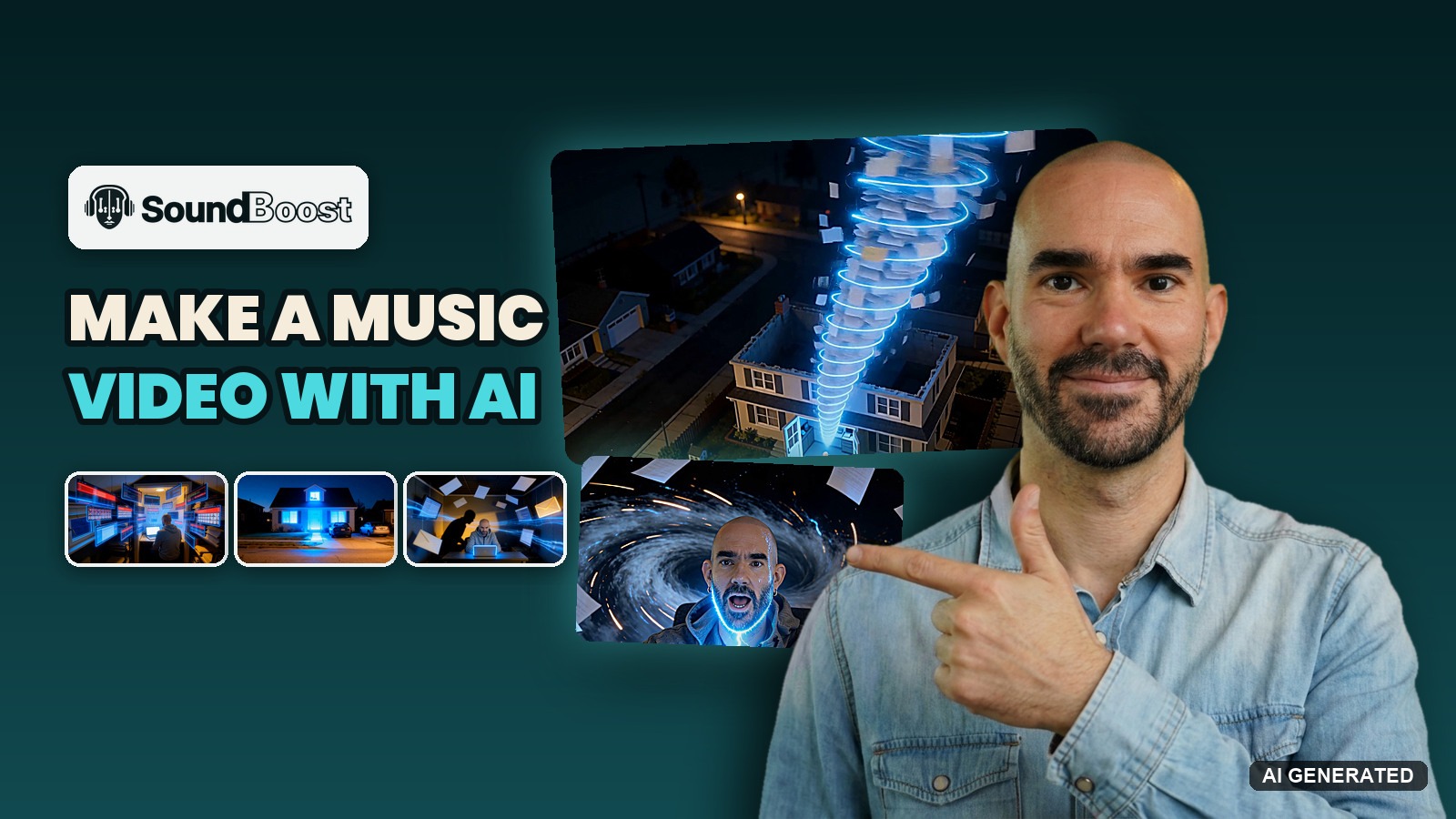
I recently wrote a new song called “Laptop Light” and made a sketch of it in Suno. Then I wanted to see what an AI music video generator could make of it.
A song is great, but a great visual helps your song travel and connect with fans. On social media it’s often the first thing people see, and for independent artists it’s one of the most important assets of a release. The catch: a professional music video can cost quite a bit.
That’s what AI music video generators change. Music videos, visualizers and lyric videos are more affordable than ever, and you can make a music video with AI from your own song in 3 screens.
So I ran “Laptop Light” through SoundBoost’s AI music video generator on October 26, 2026, with myself as the main character. The film for the 3:32 song cost 2,368 credits on the default video model (H3) at 1080p. The storyboard before it, with every fix I made, cost 368.
At 768p, the quality most SoundBoost users pick, the film would cost about half. Stronger models (Kling 4, Seedance 2.5) cost 3 to 4.5 times as much, and Step 6 lists every price.
The gap between storyboard and film is the whole lesson. The storyboard is the cheap part: every scene is a still you fix for a few credits. Generating the scenes is the expensive part, so review every still before you make the film.
Below is every step, what it cost, the fix that broke something else, and my verdict. But first, here’s what came out the other end, made from my song and 4 photos of me:
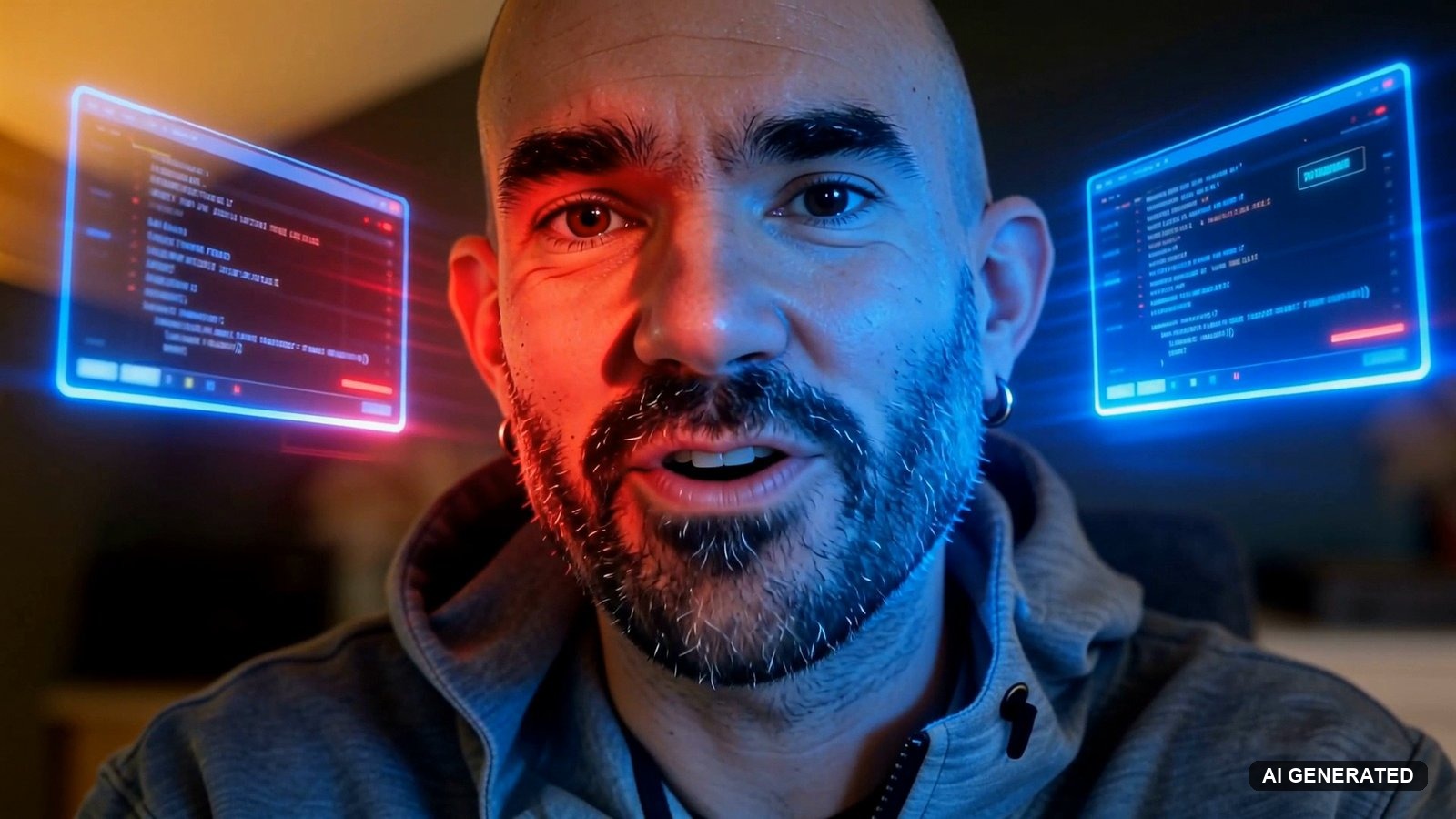
And here are 6 frames from it:
-
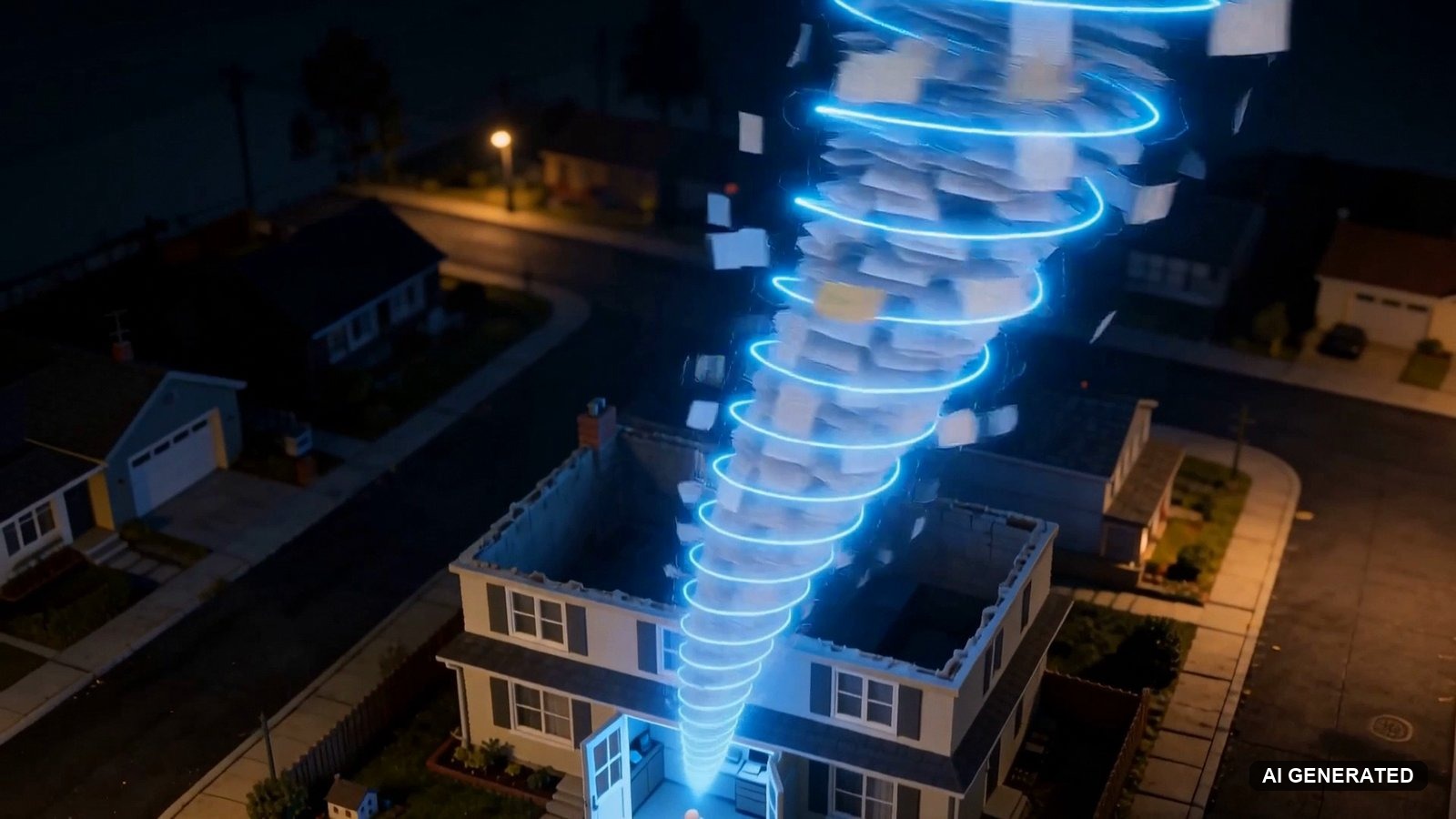
2:11 · My SoundBoost film (AI-generated)
-
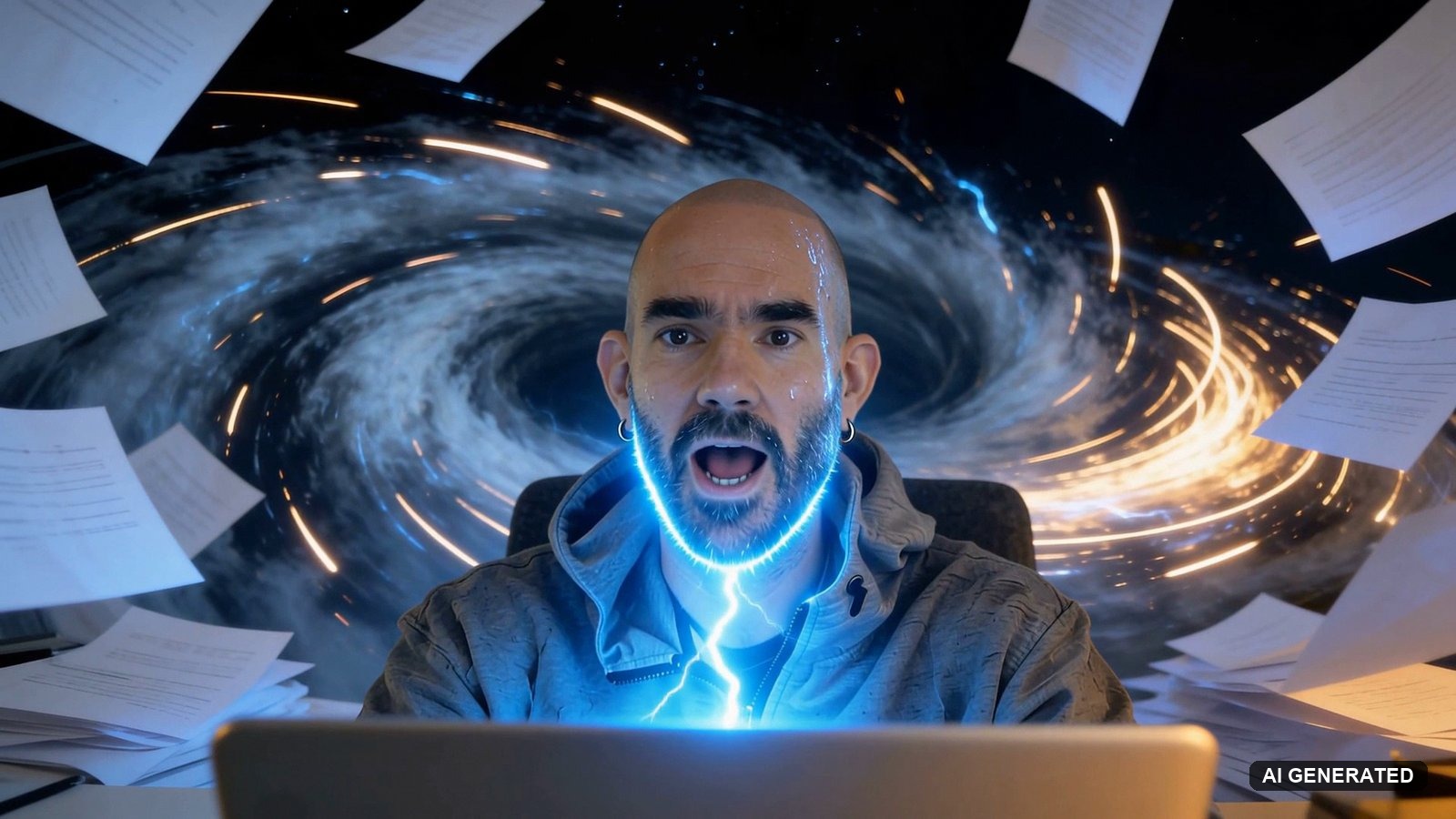
2:15 · My SoundBoost film (AI-generated)
-
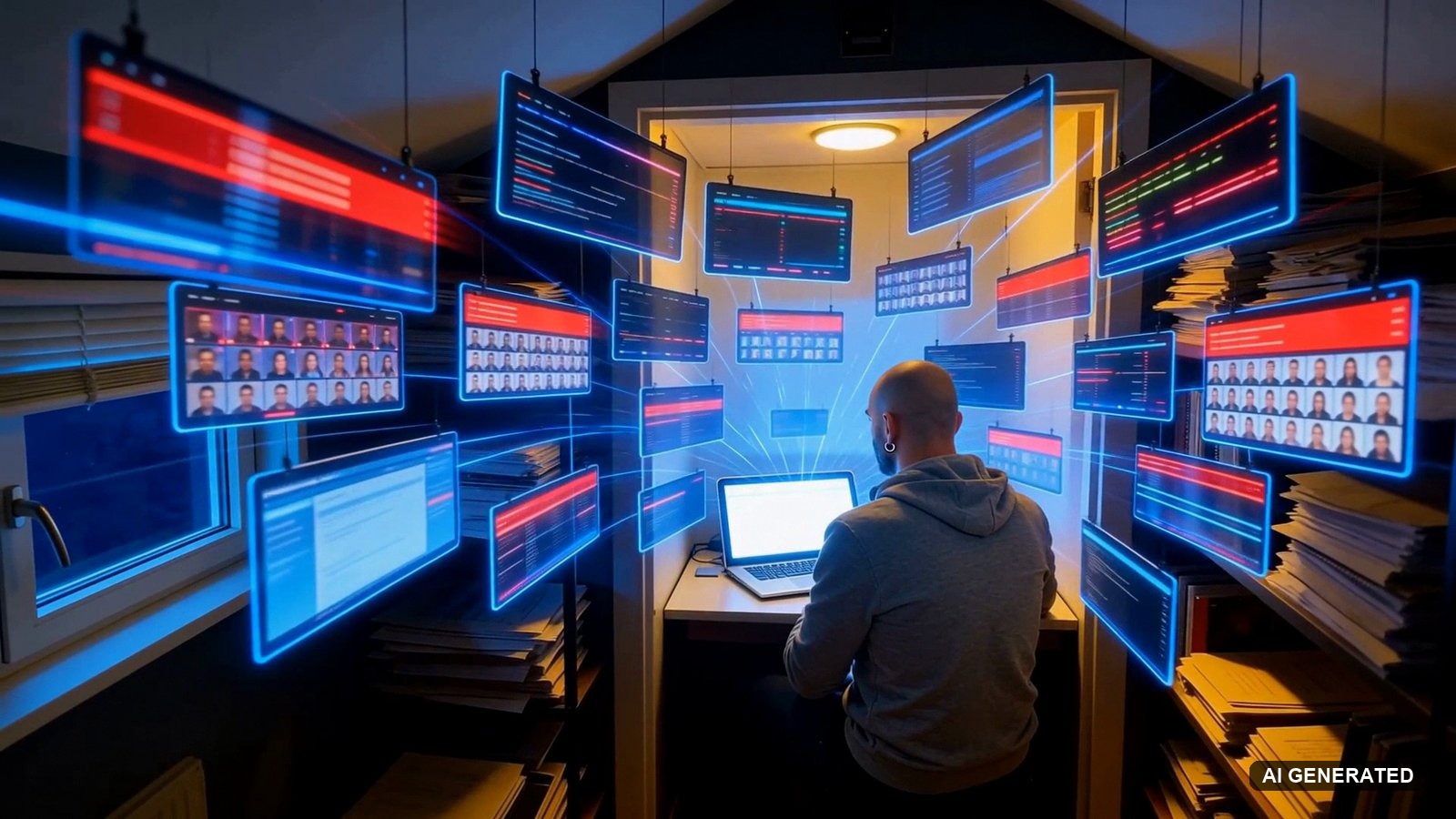
0:41 · My SoundBoost film (AI-generated)
-
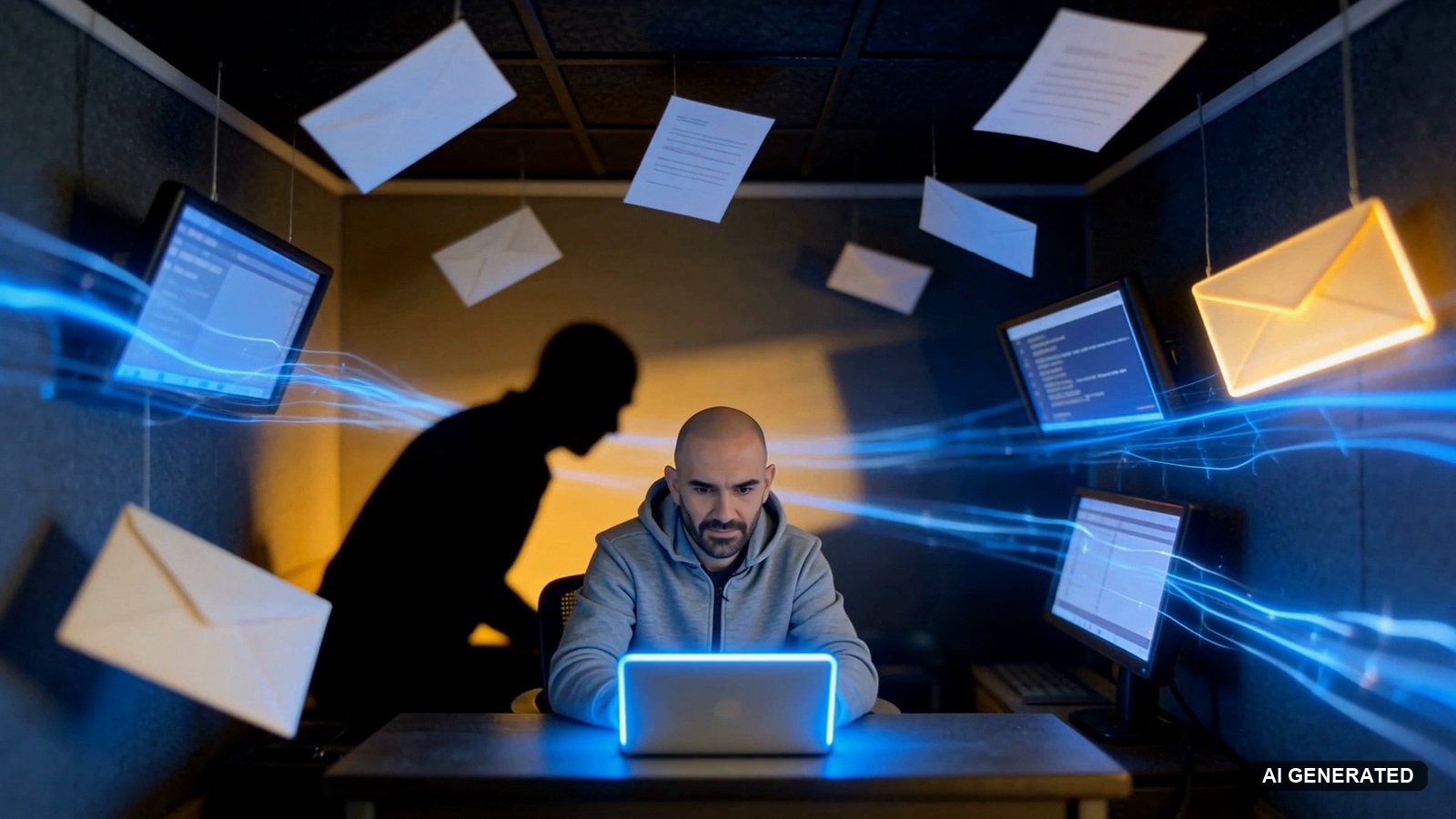
2:26 · My SoundBoost film (AI-generated)
-
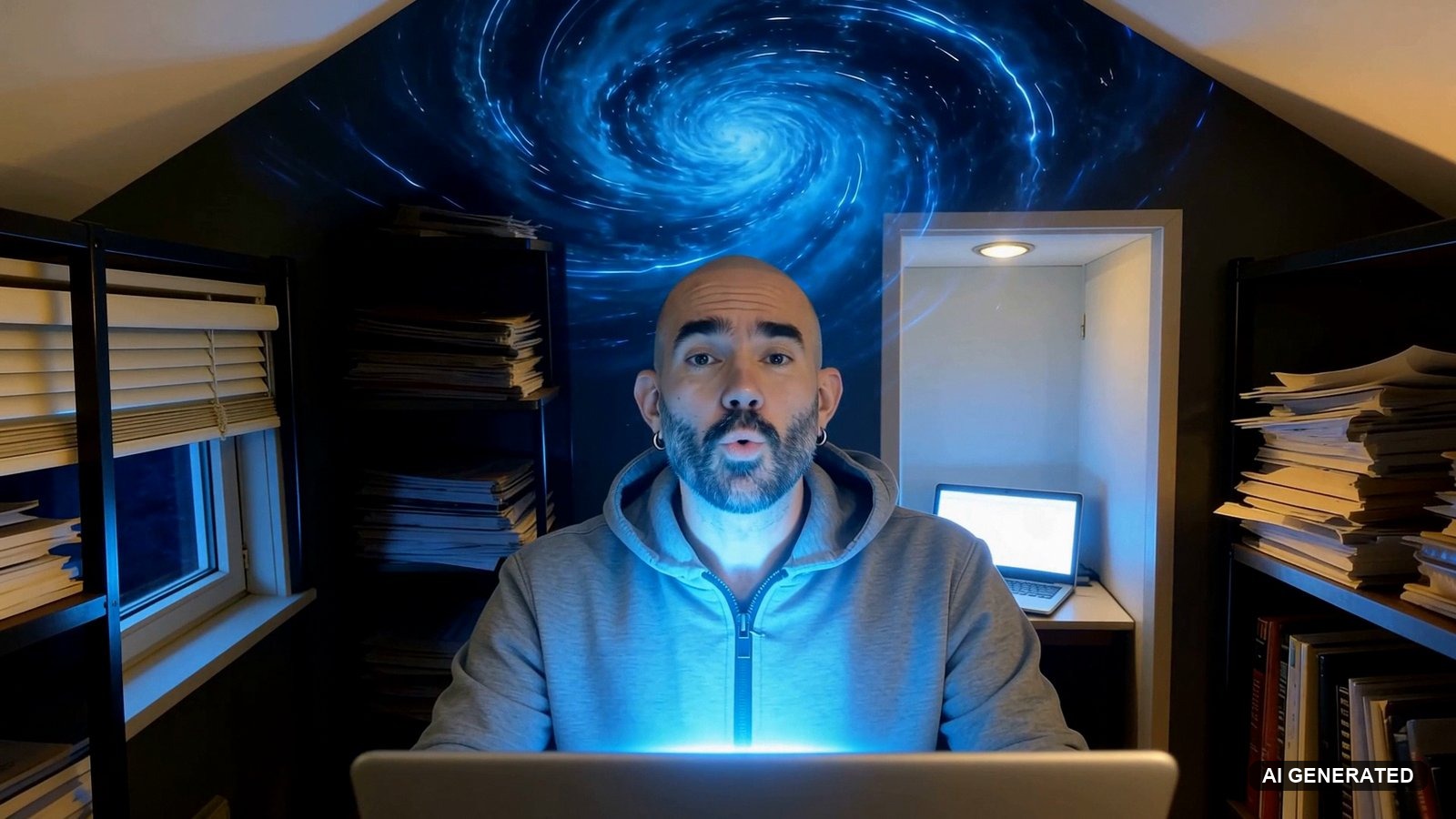
0:56 · My SoundBoost film (AI-generated)
-
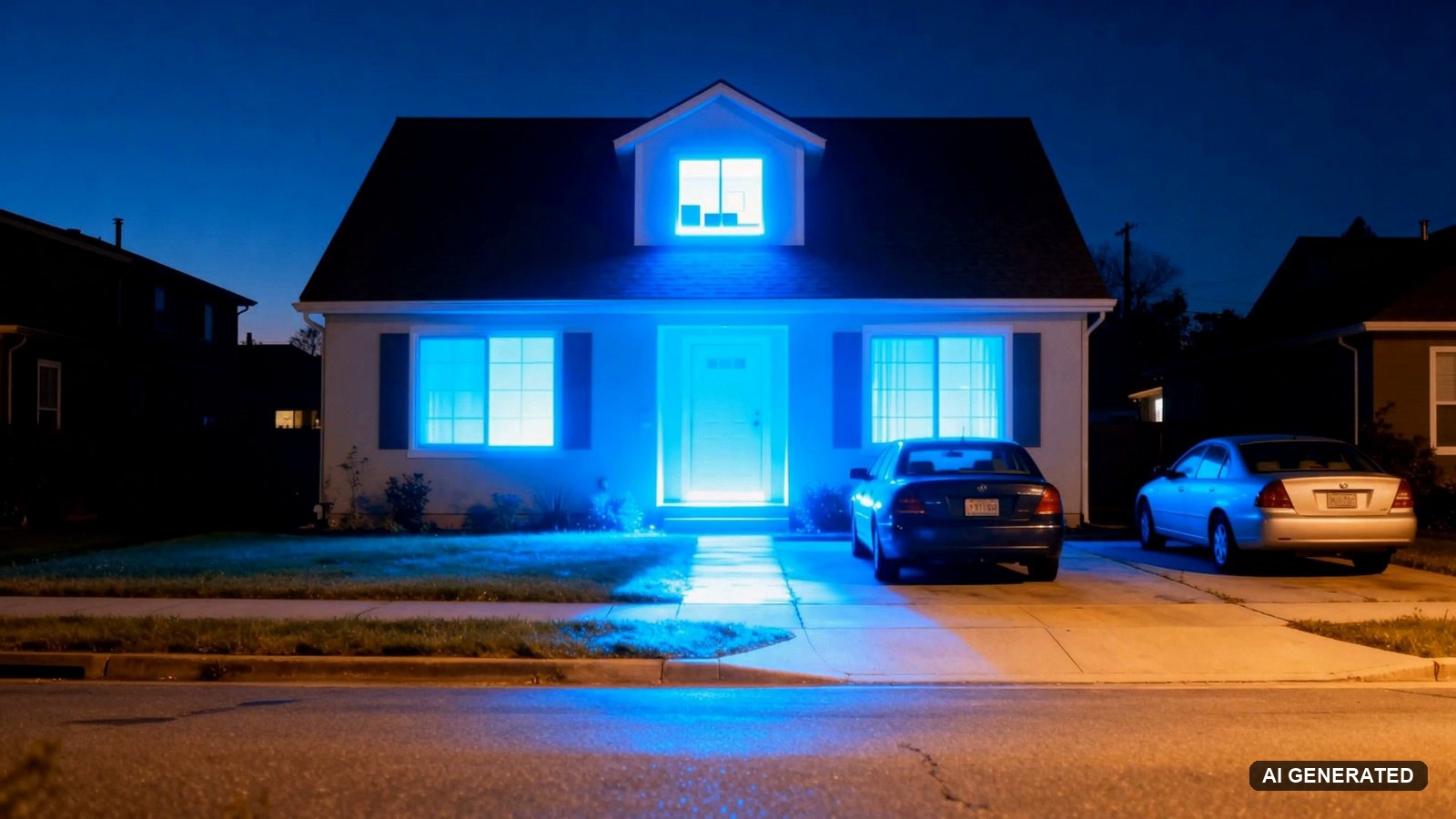
1:02 · My SoundBoost film (AI-generated)
How I tested SoundBoost
- Music Video Generator, live since September 13, 2026
- Creator, monthly ($69 launch price, 4,000 credits)
- My song Laptop Light, a 3:32 Suno Studio export of my own track (MP3), and 4 photos of me
- Made 1 full film for the whole song, 58 scenes, at 1080p Cinematic with lip sync on, on the default video model (H3)
- Fixed the storyboard with Talk to your storyboard and 1 image edit
- Logged my credit balance from 4,000 down to 1,264
SoundBoost isn’t a high-end filmmaking platform, and it isn’t trying to be one. So I’m not judging it like one. I judge it on 3 things: how easy it is, how good the video is, and what it costs, because that decides whether it’s worth it for your song.
What you need to make a music video with AI in SoundBoost
You need 4 things before you open SoundBoost:
- A finished song. MP3, WAV, FLAC and more, up to 1 GB. The film plays over exactly this file, so upload the release mix. Mine was an MP3, and a WAV would have carried better audio into the film.
- The rights to that song. SoundBoost’s licence assumes you hold them. If you make the song in Suno, you need a paid plan and the downloaded file, not a link.
- 1 to 5 photos of your main character. Different angles of the same face.
- A plan with credits. A free account only previews the storyboard. A full film like mine at 1080p needs the Creator plan or higher, and at 768p Starter can be enough (the numbers are in the cost section below).
Suno users, check Suno’s download caps before you start, because your plan decides which file you can export.
No editing experience needed. Most of your time goes into the storyboard, not the render.
Why make your music video in SoundBoost’s storyboard-first generator?
SoundBoost started as a mastering tool (my SoundBoost tool page covers that side), and the video generator sits in the same account. It listens to your song first, writes one story for the whole track, shows you every scene as a still with a timecode, and only shoots motion once you say go.
That order matters because of where the credits go. Here’s my run, split by stage:
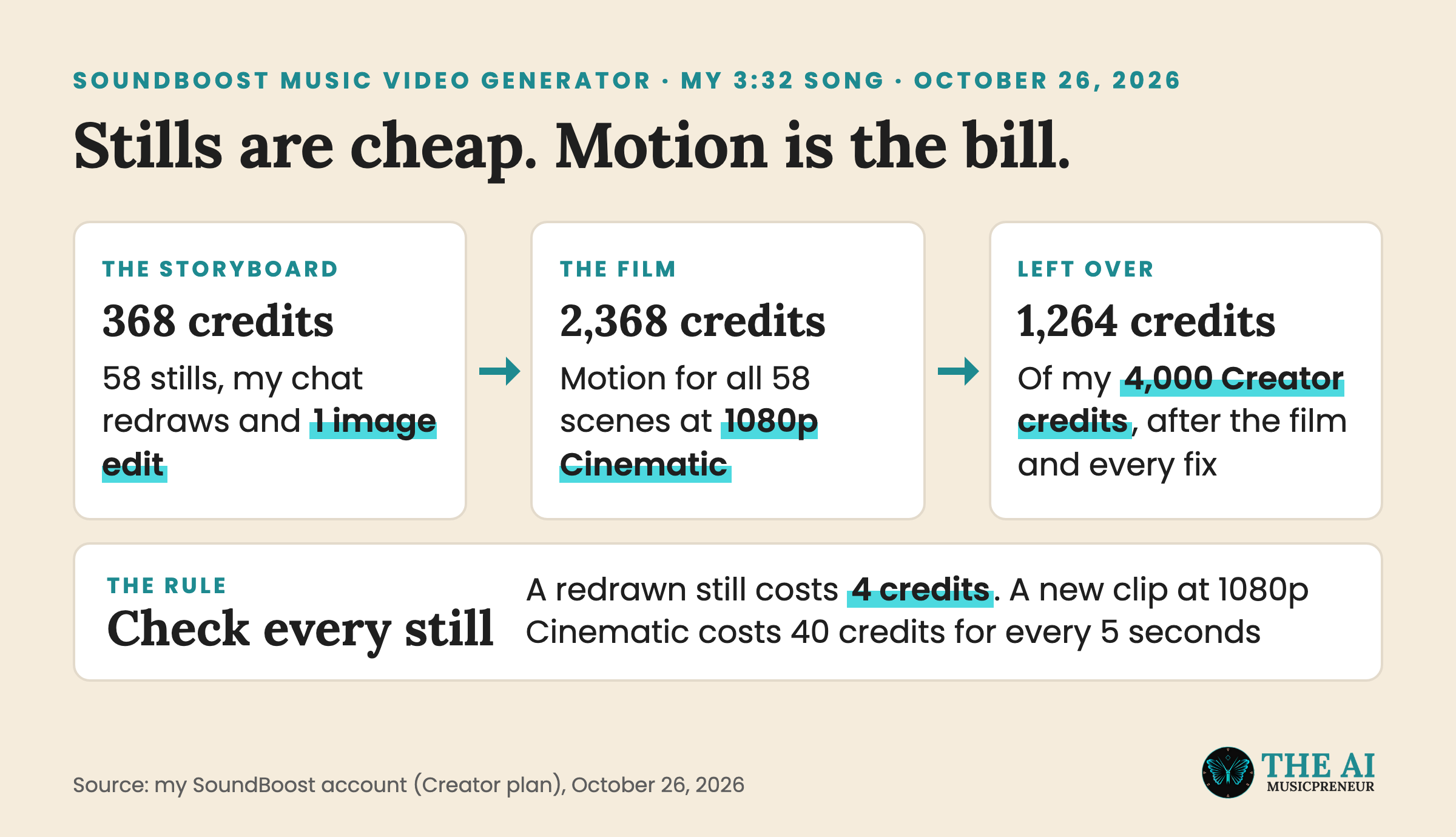
So the whole tutorial comes down to one habit: review every still thoroughly, and fix it while it’s still a picture.
SoundBoost released version 1.2 of the generator on October 21, 2026. Here’s its launch tour: lyrics that move with the film, a chat that changes the finished film, and new camera moves:
That’s SoundBoost showing off its own update. These 3 films are by SoundBoost users, posted on X, and each one runs about 4 minutes, so whole songs, not teaser clips: The Flapslack Show’s Halloween song, a track by Saints of the Sage, and Pastor’s black-and-white trap metal test.
-
Made a Halloween song and a quick slop music video-my first time using SoundBoost. @soundboostcom The scariest part was realizing I'd spent hours choosing underwear for serial killers. Next on the list to try is SlopCannon
— The Flapslack Show (@flapslack) October 26, 2026 -
No Ai - Created with SoundBoost Music Generator
— Saints of the Sage (@saintsofthesage) October 21, 2026 -
Continuing to test out @soundboostcom's Music Video Generator, this time let's see how it handles a monochromatic aesthetic with some trap metal.
— Pastor (@FussyPastor) September 20, 2026
Step 1: Open SoundBoost’s Music Video Generator and upload your song
There are 3 ways into the generator from the dashboard:
- Click Music Videos in the tabs at the top.
- Click Music Video Generator in the sidebar.
- Click Make a music video under the mastering upload.
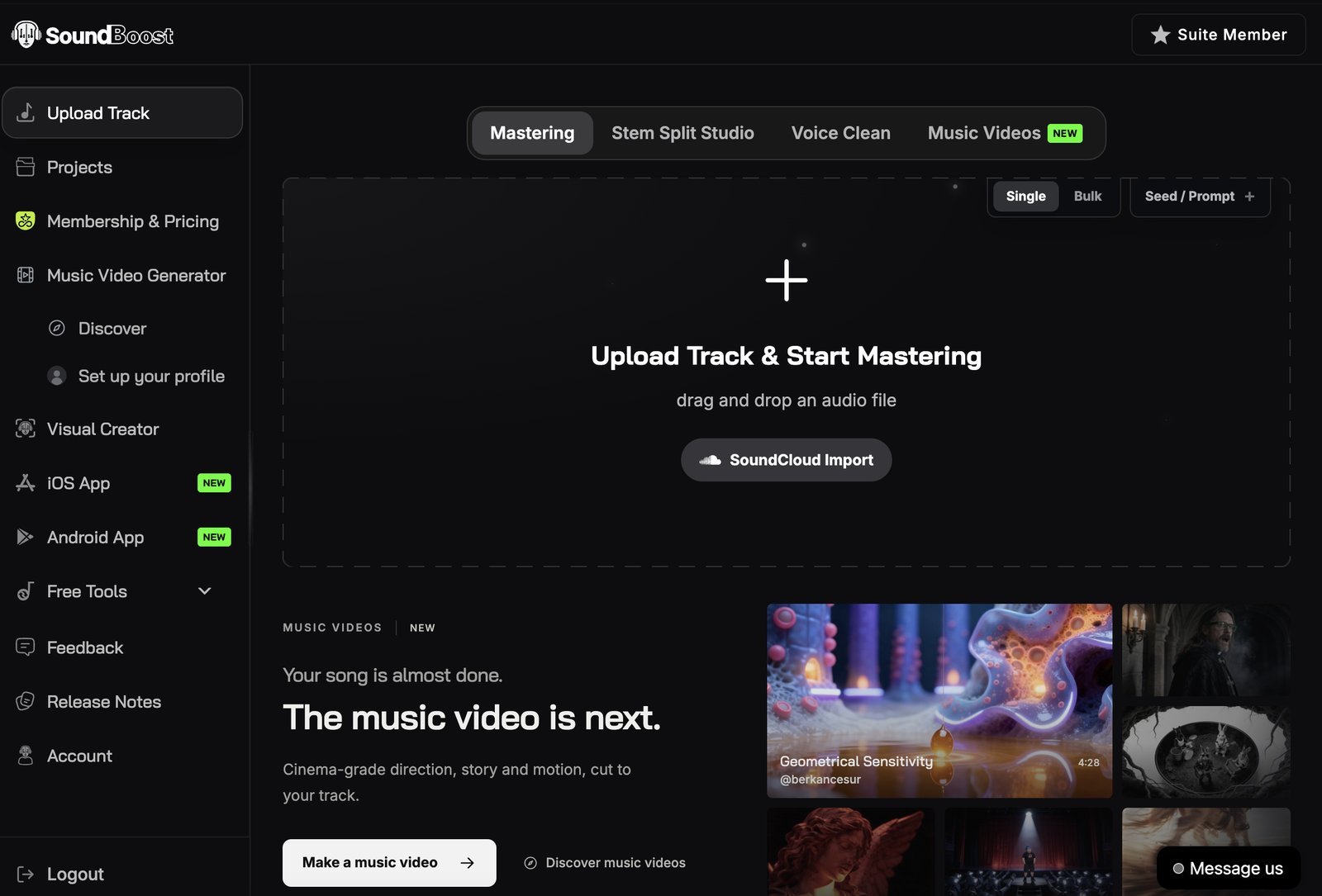
If you master the song first in SoundBoost, its wiki says you can open Projects and pick Generate music video from the master’s menu, with no download in between.
Then drop your file on Upload Track & Create a Video. If the song has vocals, tick Use song’s lyrics as inspiration. SoundBoost hands the words to its director as story material and never prints them on screen.
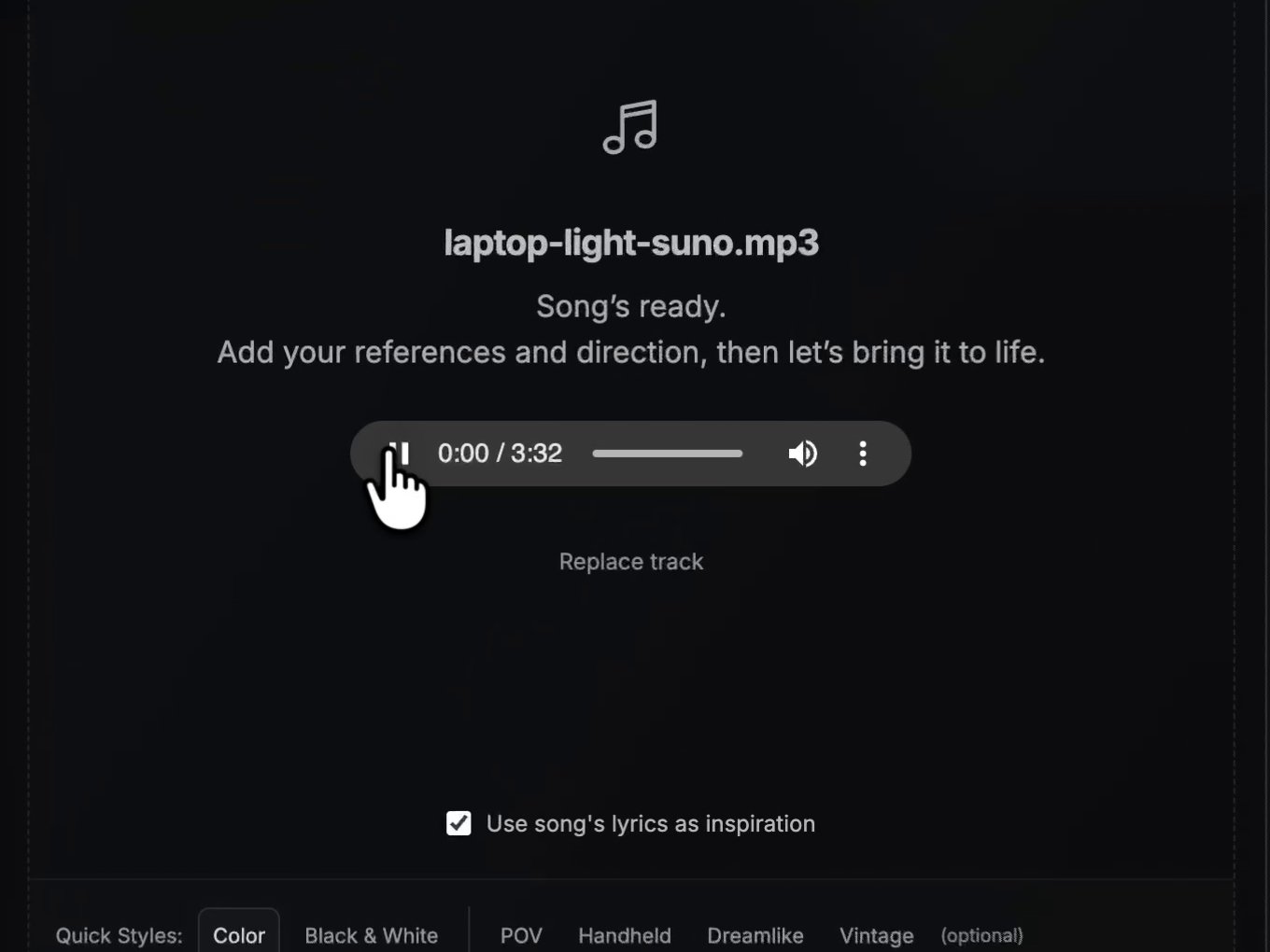
Step 2: Set the look with Quick Styles and style references
Under your song you’ll find the Quick Styles:
- Color or Black & White (one or the other).
- POV, Handheld, Dreamlike and Vintage, which you can stack.
SoundBoost’s wiki calls them “a nudge, not a lock”, so a direction that says “static, tripod” beats the Handheld toggle.
On the right, Style references takes up to 8 images (JPG, PNG or WebP, 12 MB each) on Starter and up: colours, textures, places. There’s also a YouTube Reference button, which I didn’t use.
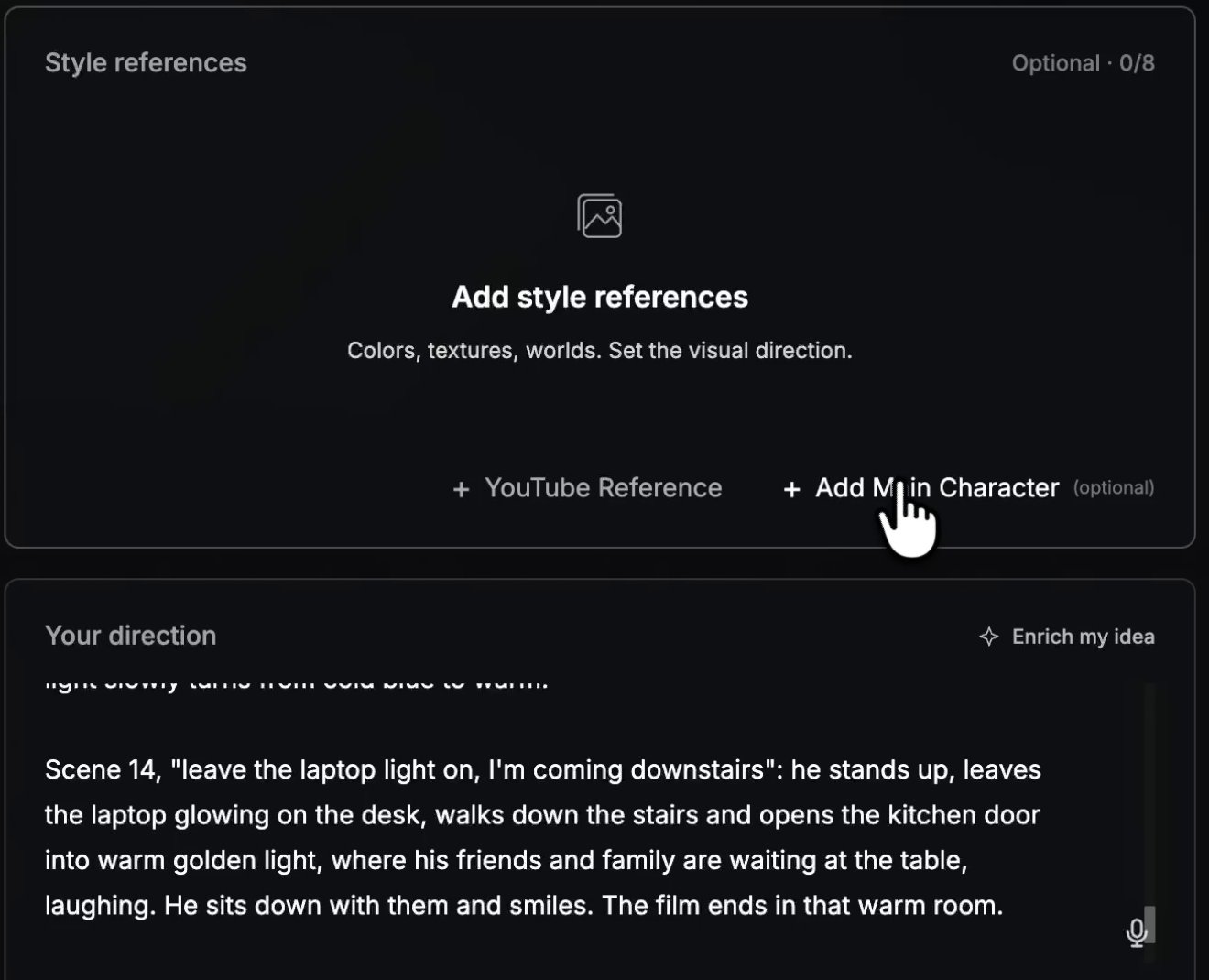
I left Quick Styles on Color and added no references. My direction carried the whole look, and the film still came out as realistic as I asked for.
Step 3: Add yourself as the main character
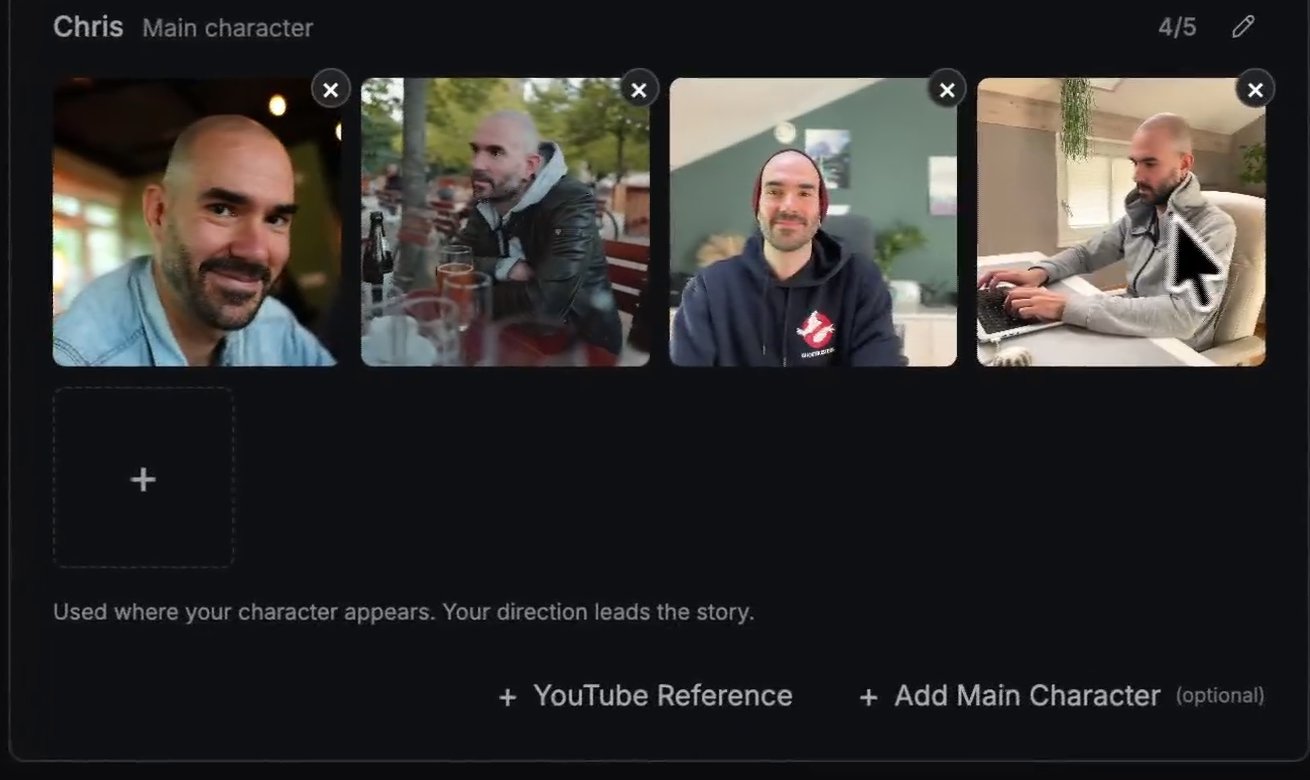
Click + Add Main Character. SoundBoost asks for a name first, then up to 5 photos.
- Name the character the way you’ll write it in the direction. Mine is “Chris”, and “Chris” appears in every scene of my direction.
- Upload different angles of the same face: front, side, profile. I used 4.
Step 4: Write your direction and decide on lip sync before the storyboard
The direction guide asks for 5 things: a place and a time, what happens, where it arrives, the look named once, and who is in it.
My one change to that recipe: I didn’t write “chorus” or “verse”. The director hears the lyrics (that’s the inspiration box from Step 1), so I anchored every scene to a lyric line instead. “Laptop Light” is about spending so many hours behind a screen that you miss what’s happening outside it, and the direction follows that line by line.
Here it is, all 3,295 characters, so you can copy the structure:
Chris, a music creator, alone in a small home office in a quiet house, lit only by his laptop. The film follows the lyrics line by line.

Scene 1, before the first words: a dark house at night, one cold blue glow under an upstairs door. The camera drifts up the stairs towards it.

Scene 2, "six a.m. blue on the wall, coffee cold in the cup": Chris at his desk, blue screen light on the wall behind him, a full cup of coffee gone cold, dawn breaking outside a window he never looks at.

Scene 3, "thirty-one unread, none of them work, I leave them there": glowing envelopes and red notification badges pile up around the laptop like a wall. He pushes them aside and keeps typing.

Scene 4, "the machine says faster, the machine says more": the screen pours everything into the room: breaking news, endless requests and deadlines, the social media pile-on, trolls and strangers judging him and what he makes. Show it as floating screens, red badges and faceless shadow figures pressing in from the dark corners. Clock hands spin. On "of what, of who" he looks up, lost.

Scene 5, the first "what's a life, what's a life, if the only light's the laptop light": the laptop light swells into a cold blue storm that fills the whole house until it is the only light left. Chris sings straight into the camera from the middle of it. Make it feel enormous.

Scene 6, "I'll be fine if you're here tonight": for a moment a warm glow shows under the kitchen door downstairs. He sees it, then turns back to the screen.

Scene 7, "sixty on the calendar, awards on the shelf, dust": weeks pass in the same chair. Sixty days crossed off a wall calendar, his awards greying under dust, the room getting messier.

Scene 8, "my mother's voicemail still saved, I never call back": his phone lights up with a call from his mother. He turns it face down and lets it ring.

Scene 9, the second "the machine says faster": the pressure doubles. More screens, louder, the shadow figures closer, the walls of the office closing in on the desk.

Scene 10, the second "what's a life": the blue storm again, bigger, papers and light whirling around him as he sings to camera, alone.

Scene 11, the instrumental break with no words: the screen glitches and the whole room freezes mid-motion, everything hanging in the air.

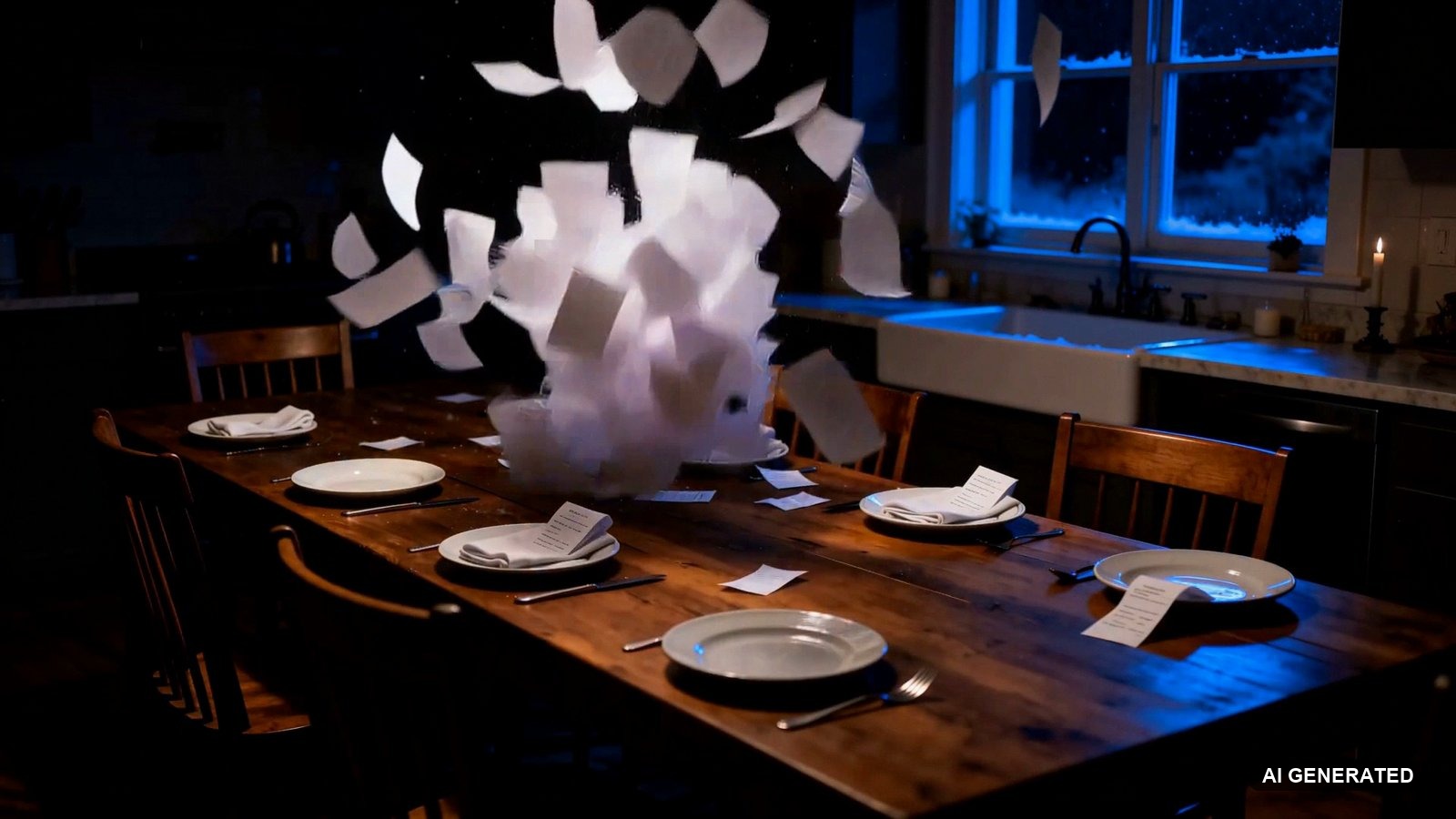
Scene 12, the whispered "I said it was for you, it was never for you, I kept every receipt and lost every Sunday": total darkness, almost still, close on his face. Receipts drift down like snow over an empty Sunday dinner table with the chairs pushed in.

Scene 13, the last "what's a life": he closes his eyes and the noise falls away. The light slowly turns from cold blue to warm.

Scene 14, "leave the laptop light on, I'm coming downstairs": he stands up, leaves the laptop glowing on the desk, walks down the stairs and opens the kitchen door into warm golden light, where his friends and family are waiting at the table, laughing. He sits down with them and smiles. The film ends in that warm room.

Look: photorealistic, cold blue screen light against warm tungsten, handheld 35 mm, tight and claustrophobic upstairs, wide and calm in the kitchen, subtle film grain. No readable text, logos or app names on any screen. Chris is the only main character; his photos only keep his face and hair.
Does that level of detail pay off? Scene 12 asked for receipts drifting down like snow over an empty Sunday dinner table. This is the frame SoundBoost made for that line, at 2:43 in my film:
Before you click Next, look at the row of options under the direction:
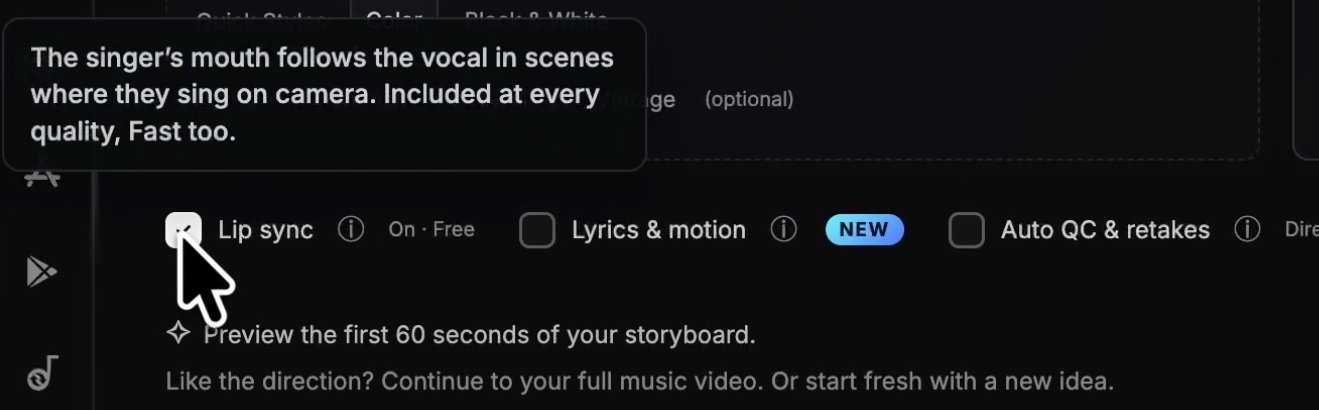
- Lip sync is on by default and free. The tooltip says “Included at every quality, Fast too.” Decide now, because SoundBoost’s lip sync guide says it’s chosen on this screen only, and on the storyboard page it’s greyed out.
- Lyrics & motion puts your lyrics on screen: Simple (free), Karaoke or Dynamic Motion. I left it off. It also shows up again on the finished film page.
- Auto QC & retakes checks every frame for 15 credits a scene, on Director and up.
- Enrich my idea (top right of the direction) turns a short idea into a full treatment and keeps your words. My direction was already long, so I skipped it.
Step 5: Fix the SoundBoost storyboard scene by scene before you pay for motion
The storyboard page has 3 parts: The story (the treatment SoundBoost wrote from your direction), The cast, and Scenes. You get a 60-second preview first (18 scenes for me), then Unlock the rest for the full song. Mine ended at 58 scenes.
Every scene card has a timecode, a title, one line of story, a Take dropdown and 5 actions: Retake image, Edit image, Rewrite, Upload image and Share.
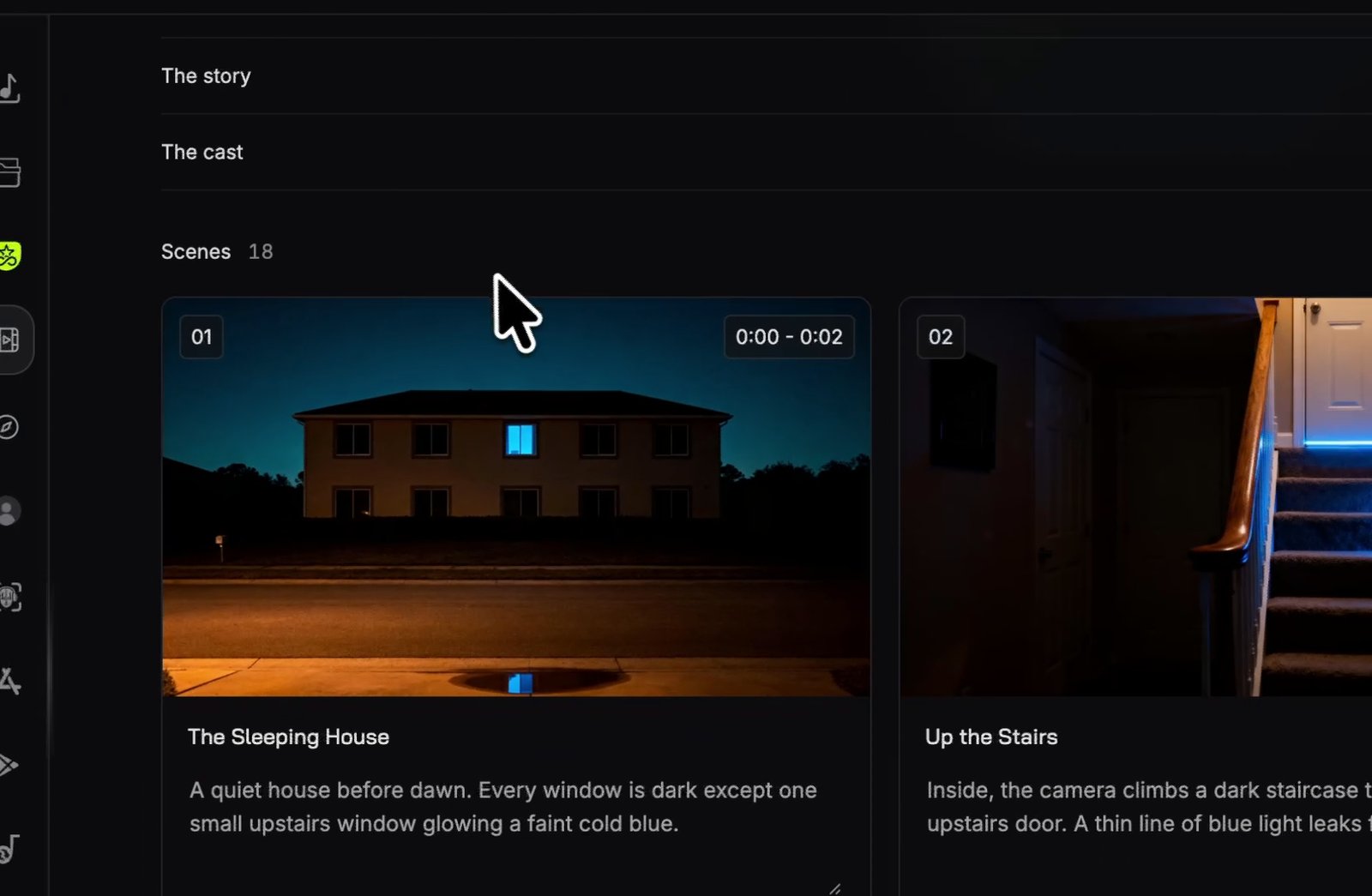
My scene titles followed the direction in order: The Sleeping House, Up the Stairs, Six A.M. Blue, Thirty-One Unread, The Machine Says Faster. So the lyric anchors worked.
Check every still for 4 things: is the face yours, is the room the same room, do the props keep their size, and does the scene fit the lyric at that timecode?
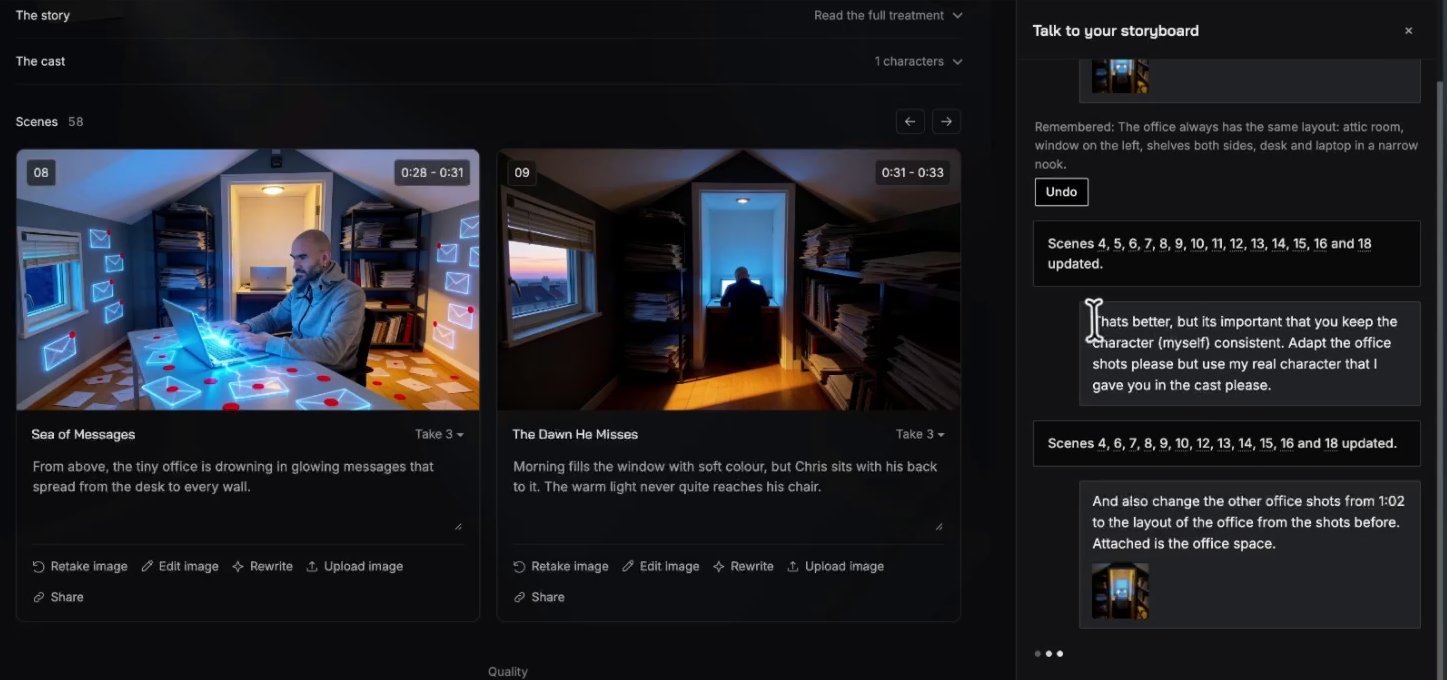
Fix a room across every scene with Talk to your storyboard
My office didn’t look the same from one scene to the next. So I opened Talk to your storyboard and asked it to lock the office layout, with a screenshot of one office scene attached.
SoundBoost saved a rule (“Remembered: The office always has the same layout”), showed an Undo button, and priced the redraw before running it: Apply · 56, which is 14 scenes at 4 credits each.
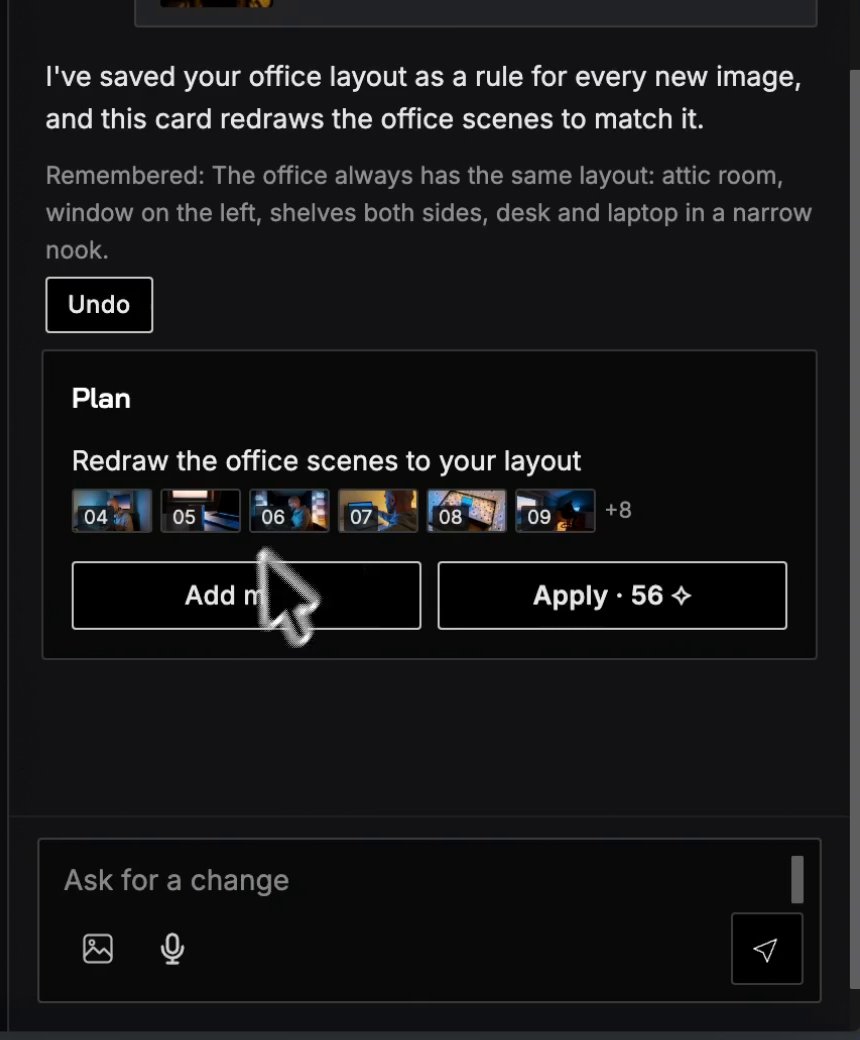
The office came back consistent. But my face had changed!
A second message fixed it: “That’s better, but it’s important that you keep the character (myself) consistent.” Face back, office kept. So now every chat message I send names what has to stay the same:
Keep [the location] exactly the same in every scene: [what it looks like]. Keep [character name]'s face, hair and clothes the same as the character photos in every scene. Only change [the thing you want changed].
Change one scene with Edit image
For a single scene, Edit image is faster. You type what to change, tap a character photo if the face should follow it, and pick Fast (4 credits) or Pro (12 credits).
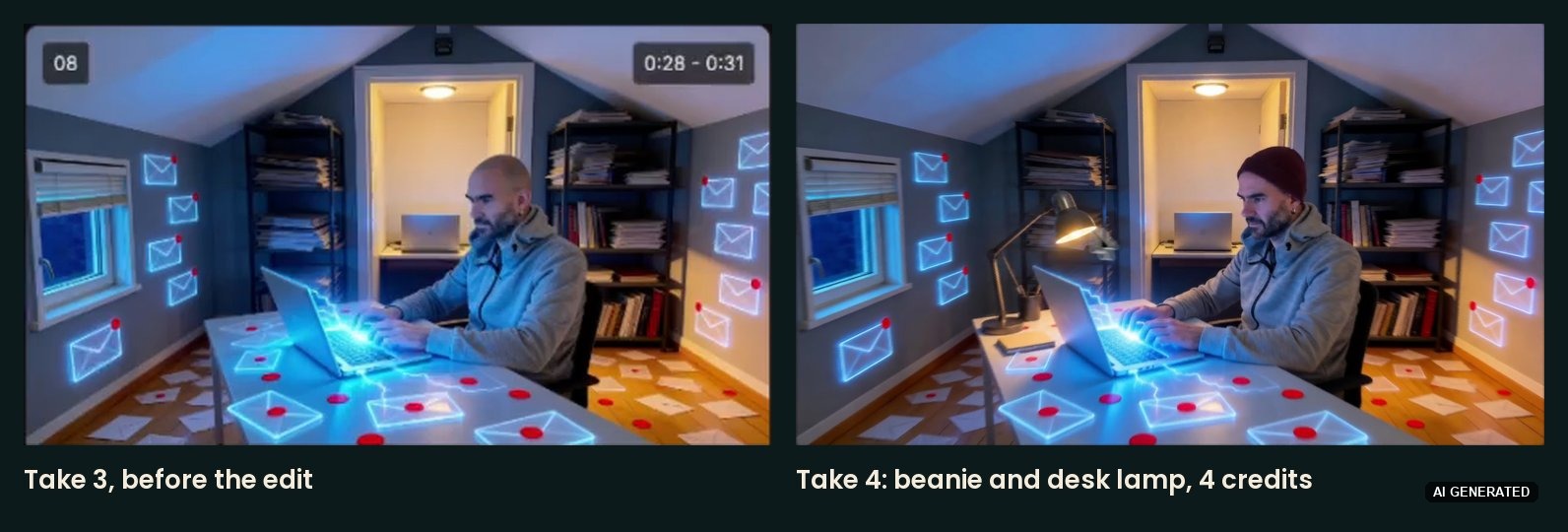
On scene 08 I typed “Add a beanie hat to my head please and put a lamp on the desk.” Take 4 came back with both, same framing, same office, and it worked perfectly. Every earlier take stays in the Take dropdown.
Step 6: Pick a video model and a quality, then make the film
Once you’ve reviewed the storyboard, look at the bar under it. On the left is a row of video models, and next to it sit the quality dropdown and the Make the film button.

Hover over a card and it shows what the model is for and what it costs. Here’s the whole row, left to right:
| Model | What it does | Credits per 5 seconds |
|---|---|---|
| H3 (default) | The default, and the fastest on SoundBoost’s speed bar | 20 at 768p Cinematic, 40 at 1080p |
| H3 + Kling 4 | Kling 4 on the scenes that matter most, about 25% of the film, H3 on the rest | 31 at 768p |
| Seedance 2 | “Smooth, natural motion with a filmic feel” | 59 at 720p Cinematic (48 Fast, 31 Mini) |
| Kling 4 | “Physical, detailed motion” | 61 at 720p |
| Kling 4 + Seedance 2.5 | Seedance 2.5 on the scenes that matter most, about 25% of the film, Kling 4 on the rest | 68 at 720p |
| Seedance 2.5 | “The newest Seedance, with the finest detail” | 89 at 720p |
Seedance 2, Kling 4 and Seedance 2.5 also warn that each scene takes a few minutes to generate.
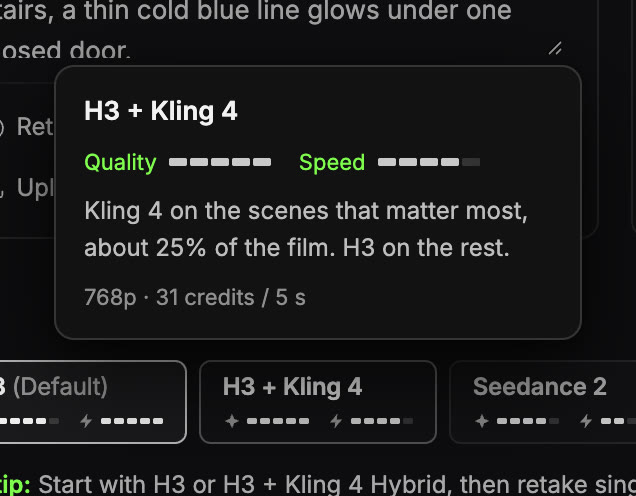
Each card rates its model on quality and speed. And SoundBoost’s own pro tip sits right under the row: “Start with H3 or H3 + Kling 4 Hybrid, then retake single scenes with a stronger model for the best result per credit.”
I left this row on the default on my run, so my whole film was shot on H3. Every film frame in this article comes from H3.
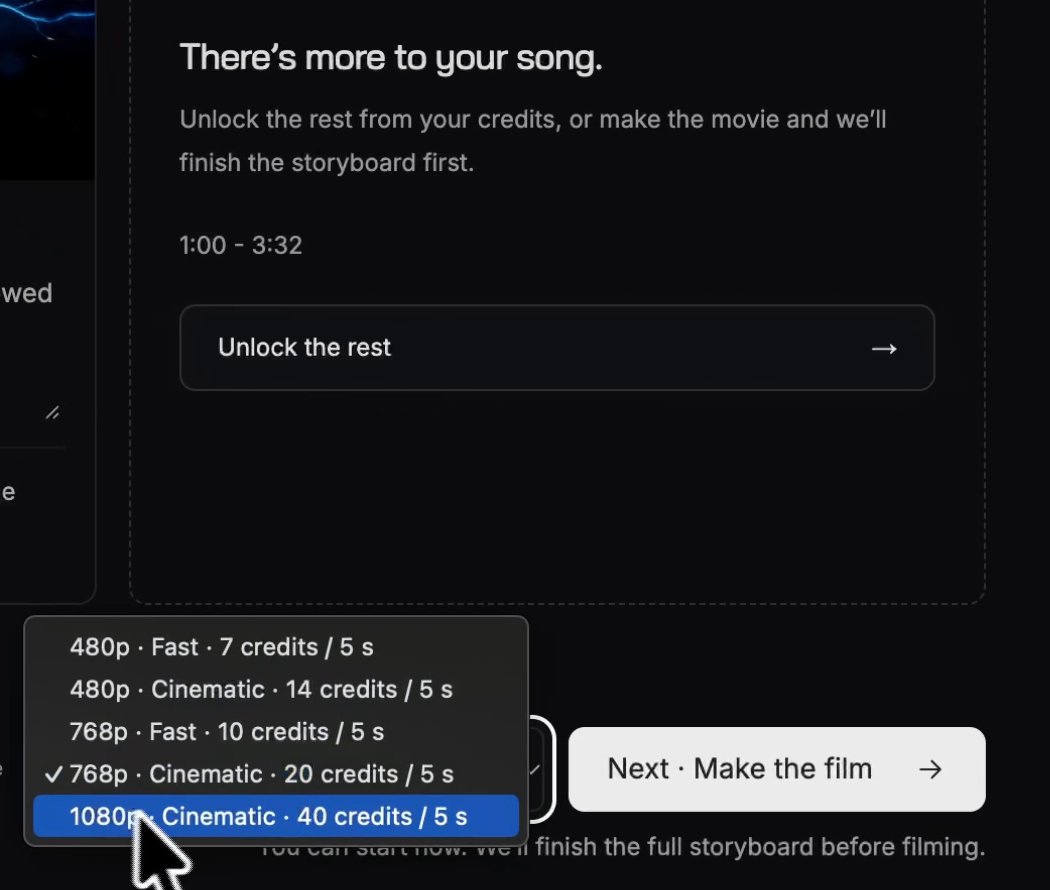
With H3 selected, the quality dropdown shows these prices per 5 seconds of film:
- 480p Fast: 7 credits
- 480p Cinematic: 14 credits
- 768p Fast: 10 credits
- 768p Cinematic: 20 credits (the default, and the one SoundBoost says most of its users pick)
- 1080p Cinematic: 40 credits
I picked 1080p Cinematic, double the default, and clicked Next · Make the film. For your first film, 768p Cinematic halves the bill (the cost section below has both numbers for my song). You can click Make the film before the full storyboard is done: SoundBoost says it finishes the storyboard first.
How many credits does a full SoundBoost music video cost?
My full music video for a 3:32 song cost 2,368 credits for the film, on H3 at 1080p Cinematic with lip sync on. The whole project, storyboard and fixes included, took my balance from 4,000 to 1,264 credits, so 2,736 in total.
In money, on the Creator plan at $69 a month for 4,000 credits, the film comes to about $41 and the whole project to about $47. Billed yearly, Creator works out at $49 a month, and the film drops to about $29.
These are the launch prices in my account on October 26, 2026, with a 30% launch discount that SoundBoost labels as limited time:
| Plan | Monthly | Yearly, per month | Credits a month | Main characters |
|---|---|---|---|---|
| Starter | $39 | $29 | 2,000 | 1 |
| Creator (my plan) | $69 | $49 | 4,000 | 1 |
| Director | $119 | $99 | 8,500 | 2 |
| Professional | $249 | $199 | 18,000 | 3 |
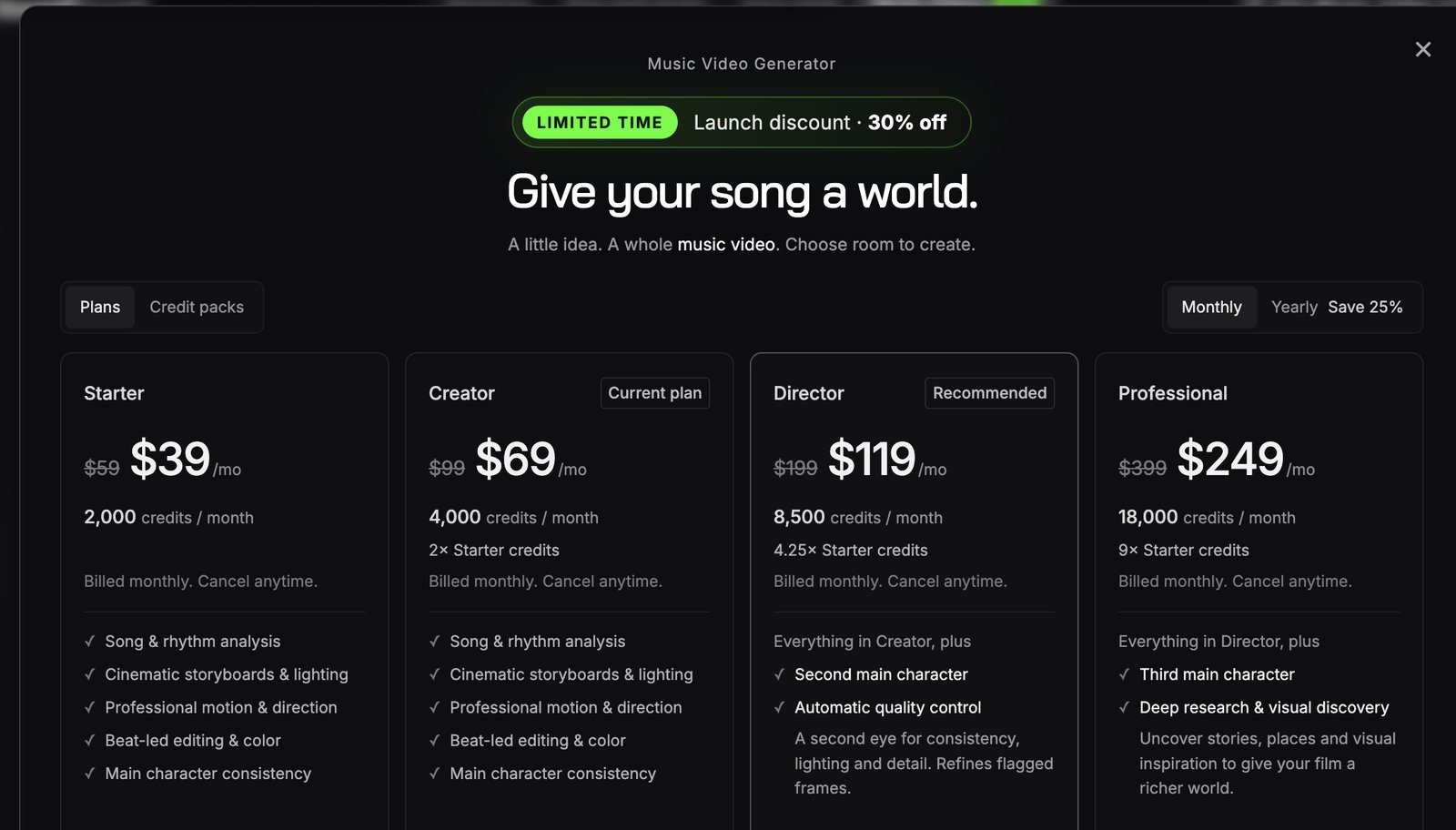
So which plan? If you make 1 video a month at 1080p, take Creator. Starter’s 2,000 credits don’t cover a film like mine at 1080p, and Creator’s 4,000 leave room for storyboard fixes, chat changes and regenerations. But 4,000 won’t stretch to 2 films like mine, so if you make more, go Director or Professional. The account says credits never expire, and the plans and credit prices page lists every rate.
How do my numbers compare? DIY AI’s hands-on test spent 665 credits on a 96-second instrumental at 768p Cinematic (October 20, 2026). DeinKIGuide’s German walkthrough put its full film at about 2,000 credits with retakes at 1080p, plus about 1,300 for the 4K upscale (my translation).
How much would the same film cost at 768p instead of 1080p?
I rendered on H3 at 1080p, but SoundBoost says most of its users pick 768p Cinematic, the default. It costs half as much per 5 seconds, so here’s my film both ways:
| 1080p Cinematic (my film) | 768p Cinematic (most users) | |
|---|---|---|
| Credits per 5 seconds | 40 | 20 |
| Dropdown math for 3:32 | about 1,700 | about 850 |
| The film | 2,368 (measured) | about 1,200 (estimate) |
| Film plus my storyboard (368) | 2,736 | about 1,550 |
| Film on Creator, monthly | about $41 | about $20 |
| Film on Creator, yearly | about $29 | about $15 |
I didn’t render at 768p, so that column is my estimate: the rate is half, so I halved my measured bill, which already includes the extra over the dropdown math.
At 768p, a film like mine fits Starter. About 1,550 credits with the storyboard, against Starter’s 2,000 a month, is about $30 of a $39 month, with less room for fixes. And Creator’s 4,000 would stretch to about 2 films like mine.
How much does the video model change the cost of a SoundBoost music video?
A lot. Here’s my 3:32 film on every model in the row, using the price each card shows:
| Model | Credits per 5 seconds | Film for my 3:32 song | On Creator, monthly |
|---|---|---|---|
| H3, 1080p Cinematic (my film) | 40 | 2,368 (measured) | about $41 |
| H3, 768p Cinematic | 20 | about 1,200 | about $20 |
| H3 + Kling 4, 768p | 31 | about 1,800 | about $32 |
| Seedance 2 Cinematic, 720p | 59 | about 3,500 | about $60 |
| Kling 4, 720p | 61 | about 3,600 | about $62 |
| Kling 4 + Seedance 2.5, 720p | 68 | about 4,000 | about $69 |
| Seedance 2.5, 720p | 89 | about 5,300 | about $91 |
Only the first row is measured. The rest scale my bill by each model’s price per 5 seconds, so treat them as estimates.
So a whole film on Seedance 2 or Kling 4 takes almost a full Creator month of 4,000 credits once you add the storyboard, and Seedance 2.5 alone needs more than a month. That’s why SoundBoost’s tip makes sense: make the film on H3 or H3 + Kling 4, then retake only the scenes that need a stronger model.
Step 7: Change scenes after the film with Talk to your film
The film page says it plainly: “Edit any scene, then regenerate your film with the changes.” Click Edit to chat or change a scene, and the Talk to your film panel opens on the right.
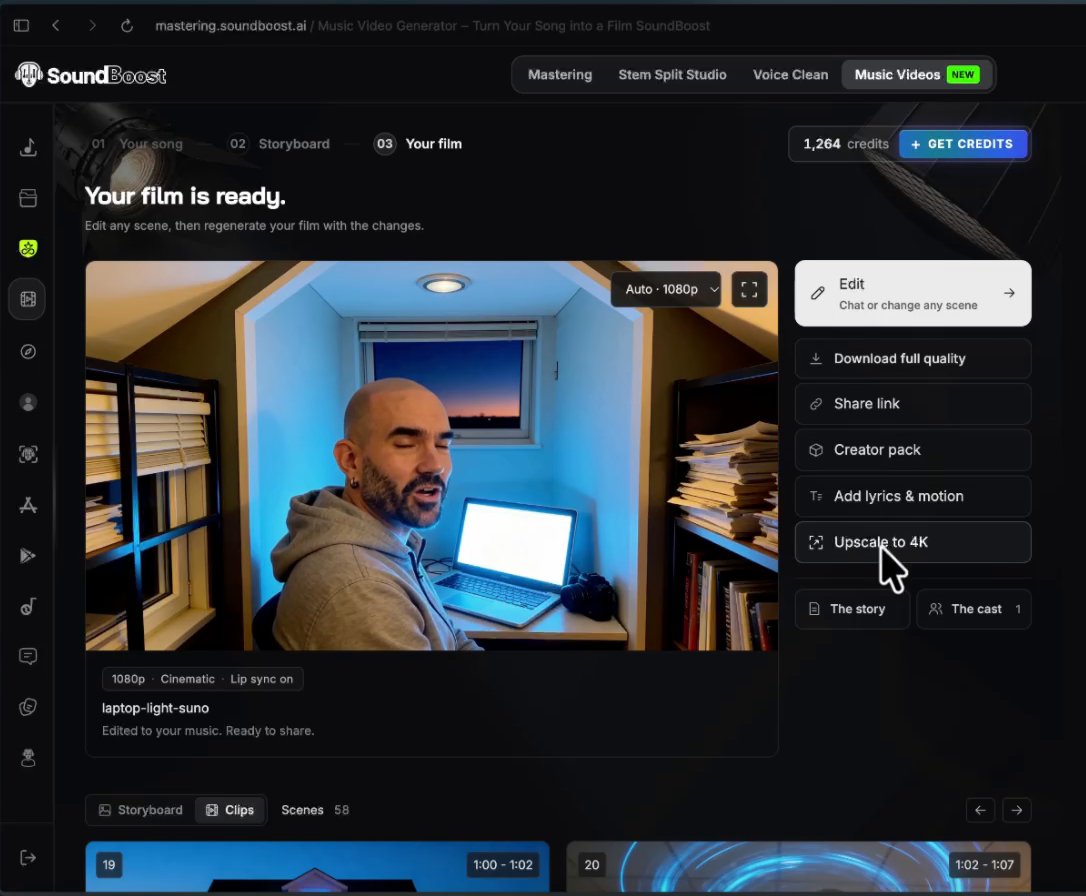
It works like the storyboard chat: you describe the change, and SoundBoost shows a plan with a price for each part before anything runs. Here’s SoundBoost’s own demo of the film chat, from the 1.2 launch:
You can also retake a single clip with a stronger video model here. SoundBoost says that works even if the film started on H3, so your key scenes can get Kling 4 or Seedance while the rest stays on H3.
The difference is what you pay for. Here the changed scenes are generated again as video, at motion prices. A fix on a still costs 4 credits, and a new clip at 1080p Cinematic costs 40 credits for every 5 seconds. That’s why Step 5 matters most.
Step 8: Download your SoundBoost music video and publish it on YouTube
The film page has 5 buttons under Edit:
- Download full quality. My file was a 1920x1080 MP4 at 30 fps, H.264, about 1.5 GB for 3:33, with no watermark.
- Share link to send the film without the file.
- Creator pack. SoundBoost says it holds the clean cut, every still and clip, the stems and an editor timeline with beat markers. I didn’t download it.
- Add lyrics & motion if you skipped on-screen lyrics in Step 4.
- Upscale to 4K for extra credits. I didn’t use it.
Then upload it to YouTube. SoundBoost says every film carries a commercial licence, as long as you hold the rights to the song. If the film looks realistic, tick the altered or synthetic content box in YouTube Studio, which YouTube’s GenAI disclosure rules ask for.
What common SoundBoost music video mistakes trip people up, and how do you fix them?
These are the ones I hit, plus the ones the setup makes easy:
- A chat fix breaks something else. My office fix changed my face. Fix: name what stays the same in the same message (the chat pattern in Step 5).
- The room changes from scene to scene. The preview stills didn’t keep my office the same. Fix: one Talk to your storyboard rule before you make the film.
- Generating before the stills are right. Every scene you change after the film is generated again at motion prices. Fix: review every still thoroughly before you click Make the film.
- No lip sync in the film. It’s chosen on the first screen only. Fix: decide before you create the storyboard.
- Expecting a vertical file. It’s 16:9 only. Fix: reframe in an editor.
- Budgeting with the per-second rate. My film cost about 670 credits more than that math. Fix: keep headroom on top of the dropdown price.
How do you get the best results out of SoundBoost’s music video generator?
My top 5, ordered by impact:
- Anchor scenes to lyric lines, not song sections. “Scene 12, the whispered ‘I said it was for you’” lands. “The bridge” might not.
- Say what stays the same in every chat message, not only what should change.
- Review every still thoroughly before you generate. A 4-credit fix on a still beats paying 40 credits per 5 seconds for a new clip at 1080p Cinematic.
- Use the same character name on the card and in the direction.
- Run the 60-second preview first and read The story before you click Unlock the rest.
What to avoid: readable text on screens. AI video garbles writing, so my direction banned it.
Time savers: send a SoundBoost master straight from Projects, and leave the page while the storyboard writes. SoundBoost keeps working in the background.
Is SoundBoost’s music video generator good enough for your first AI music video?
Yes. For anyone who has never used an AI music video generator and wants an easy tool to make their first AI music video, SoundBoost delivers, and I’d recommend trying it.
It has what creators usually ask for: lip sync, character consistency, lots of styles, a choice of video models, a storyboard with preview stills before you generate, and your song’s lyrics as inspiration. It isn’t a high-end filmmaking platform, and it isn’t trying to be. Its job is to make an AI music video easy, cheap and efficient, and it does that well.
And you get more control than I first noticed. You direct the story and approve every frame, and you also pick the video model, from H3 to Kling 4 and Seedance, for the whole film or for one scene at a time.
The video mark, checked point by point:
- Character consistency: pass. It nailed my face.
- World consistency: needed a fix in the storyboard chat.
- Lip sync: pass in the scenes where I used it.
- Realism: pass. I asked for realistic and got realistic.
- Creativity: pass. It followed my prompt closely and took a few turns I liked, like the paper tornado over the house at 2:11.
- Cuts on the beat: not measured yet.
Your next step: run the 60-second preview on your own song in SoundBoost’s Music Video Generator, fix the stills, and only then pay for motion. And if the video is part of a launch, here’s how to release a single in 30 days around it.
Frequently asked questions
Is the SoundBoost Music Video Generator free?
No, not for a finished film. A free account can preview the storyboard for the first 30 seconds of a song, according to SoundBoost's plans page, but the film itself needs a Music Video plan. On October 26, 2026 the launch prices in my account started at $39 a month for 2,000 credits (Starter).
Can SoundBoost make a music video from a Suno song?
Yes. My test song was a Suno Studio export of my own track, uploaded as an MP3, and SoundBoost turned it into a 3:32 film with lip sync. You need the downloaded file, not a Suno link, and the rights to the song, which on Suno means making it on a paid plan.
Can I use a SoundBoost music video commercially on YouTube?
Yes. SoundBoost says every film carries a commercial licence, as long as you hold the rights to the music you upload. If the film looks realistic, YouTube asks you to tick the altered or synthetic content box in YouTube Studio when you publish it.
Can SoundBoost export a vertical music video for TikTok, Reels or YouTube Shorts?
No. SoundBoost exports 16:9 only, so a vertical version for TikTok, Reels or Shorts needs a reframe in an editor. My download was a 1920x1080 MP4 at 30 fps.
Can I edit a SoundBoost music video after it has rendered?
Yes. The finished film page has an Edit button and a Talk to your film chat, and SoundBoost prices every change before it runs. Changes after the film cost more than changes to the stills, because the changed scenes are generated again as video.
Can I choose the video model in SoundBoost's Music Video Generator?
Yes. After the storyboard, a row of video models sits next to the quality dropdown: H3 (the default), H3 + Kling 4, Seedance 2, Kling 4, Kling 4 + Seedance 2.5 and Seedance 2.5. They range from 20 credits per 5 seconds for H3 at 768p to 89 for Seedance 2.5 at 720p. SoundBoost's tip is to start with H3 or the hybrid and retake single scenes with a stronger model, which SoundBoost says works even if the film started on H3.
About the author

Covering AI music tools, industry shifts, and news for music creators and professionals. Twice-weekly newsletter at aimusicpreneur.com.