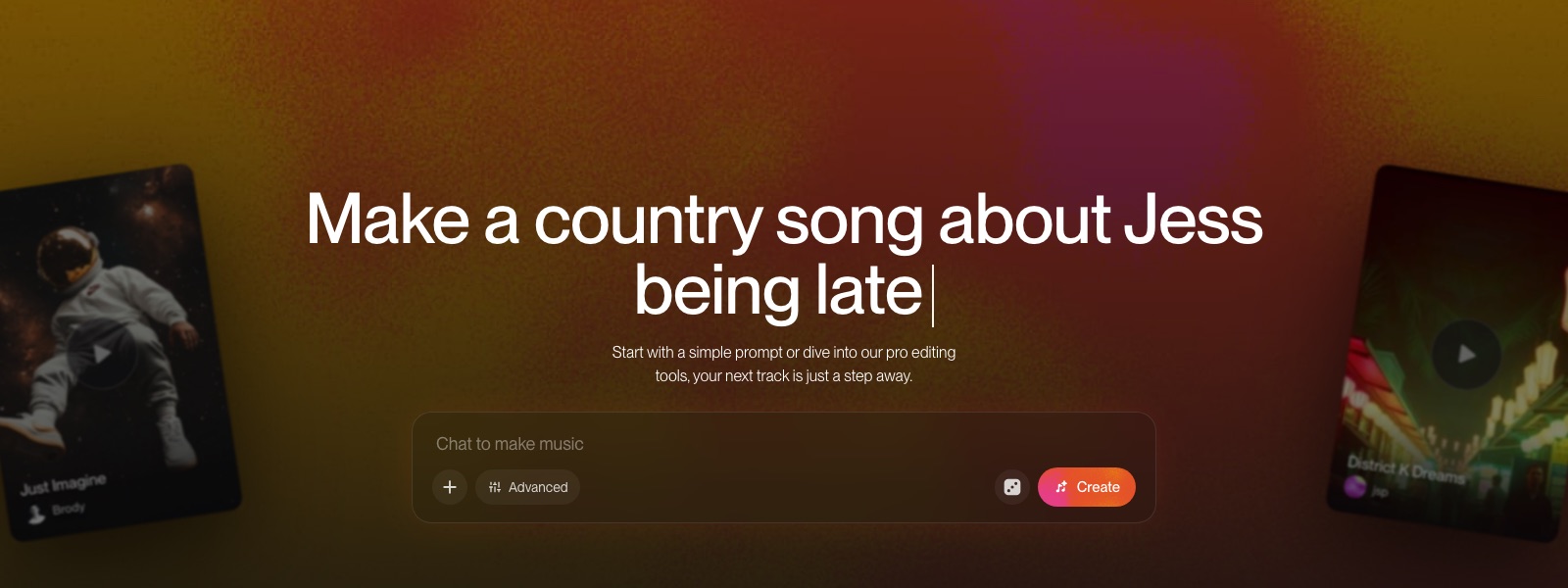
Suno AI Tutorial: Here’s how to create an AI song in seconds with Suno
My stack My fav 6 tools for AI music after testing 70+
-
 ElevenMusic · Music generation
 -
 Moises · Stem separation
 -
 Controlla · Voice swap & cloning
 -
 Cryo Mix · Mixing + mastering
 -
 Neural Frames · Music videos
 -
 ONCE · Distribution
Some links are affiliate links — I earn a commission at no cost to you. Every tool here is one I run myself and truly believe in. This stack is proven.
Whether you’re a seasoned musician looking to prototype songs before hitting the studio, or someone wanting to create a special birthday tune for a loved one, Suno transforms your ideas into fully produced songs in seconds.
This AI-powered music generator handles the technical complexities of production, letting you focus purely on creativity.
From quick song sketches to custom soundtracks, Suno empowers everyone to bring their musical visions to life—no instruments or studio required.
Table of Contents
What is Suno AI?
Suno AI transforms simple text descriptions into fully produced songs in seconds, complete with vocals, instruments, and lyrics.
As one of the leading AI music generators alongside Udio, Beatoven and others, it makes music creation accessible to everyone.
Whether you’re a professional musician prototyping ideas or someone wanting to create a custom song for a special occasion, Suno handles the technical complexities so you can focus on creativity
Use cases for Suno AI to create AI music
| Professional Use Cases | Personal Use Cases |
|---|---|
| YouTube soundtracks | Meditation tracks |
| Marketing jingles | Personalized lullabies |
| Game soundscapes | Custom workout music |
| Commercial tracks | Turn memories into songs |
| Podcast theme music | Educational tunes |
| Cinematic scenes | Wedding music |
How to create a song with Suno AI:
1/ Head to Suno, login & click “Create.”
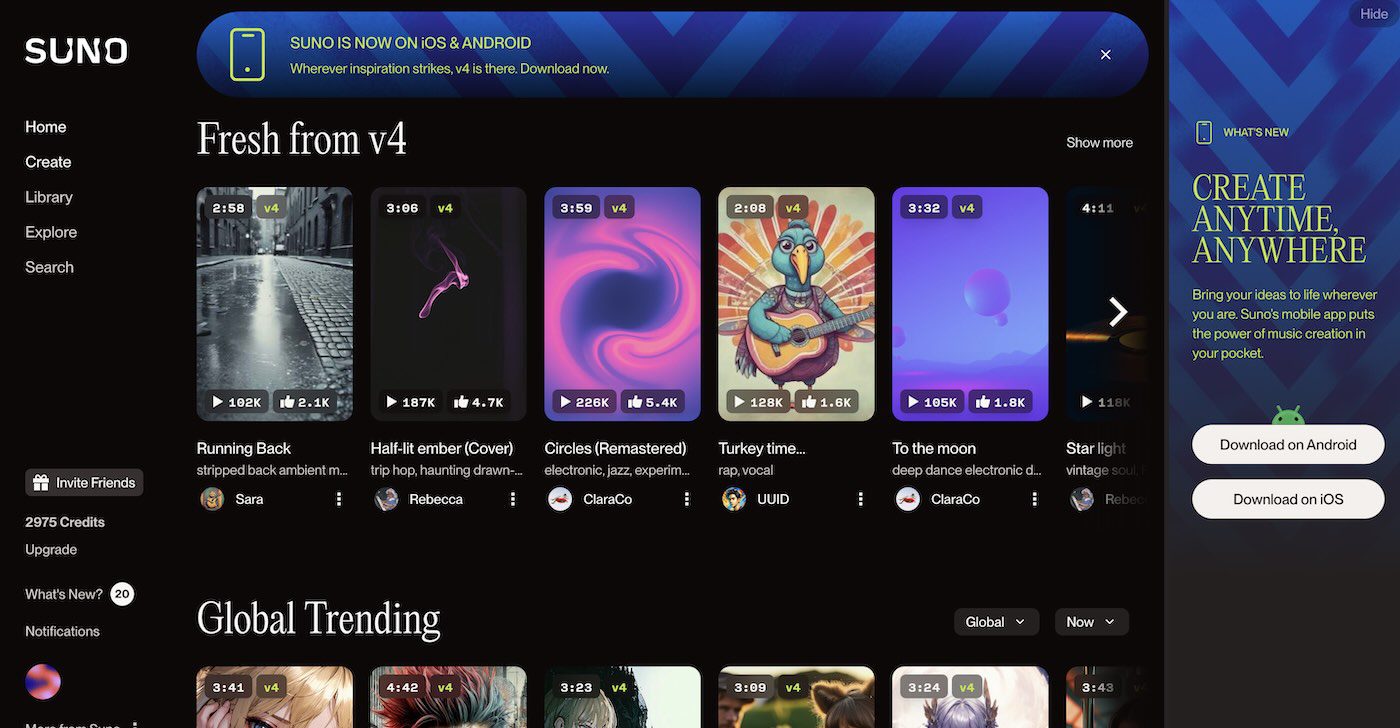
2/ Insert a song description:
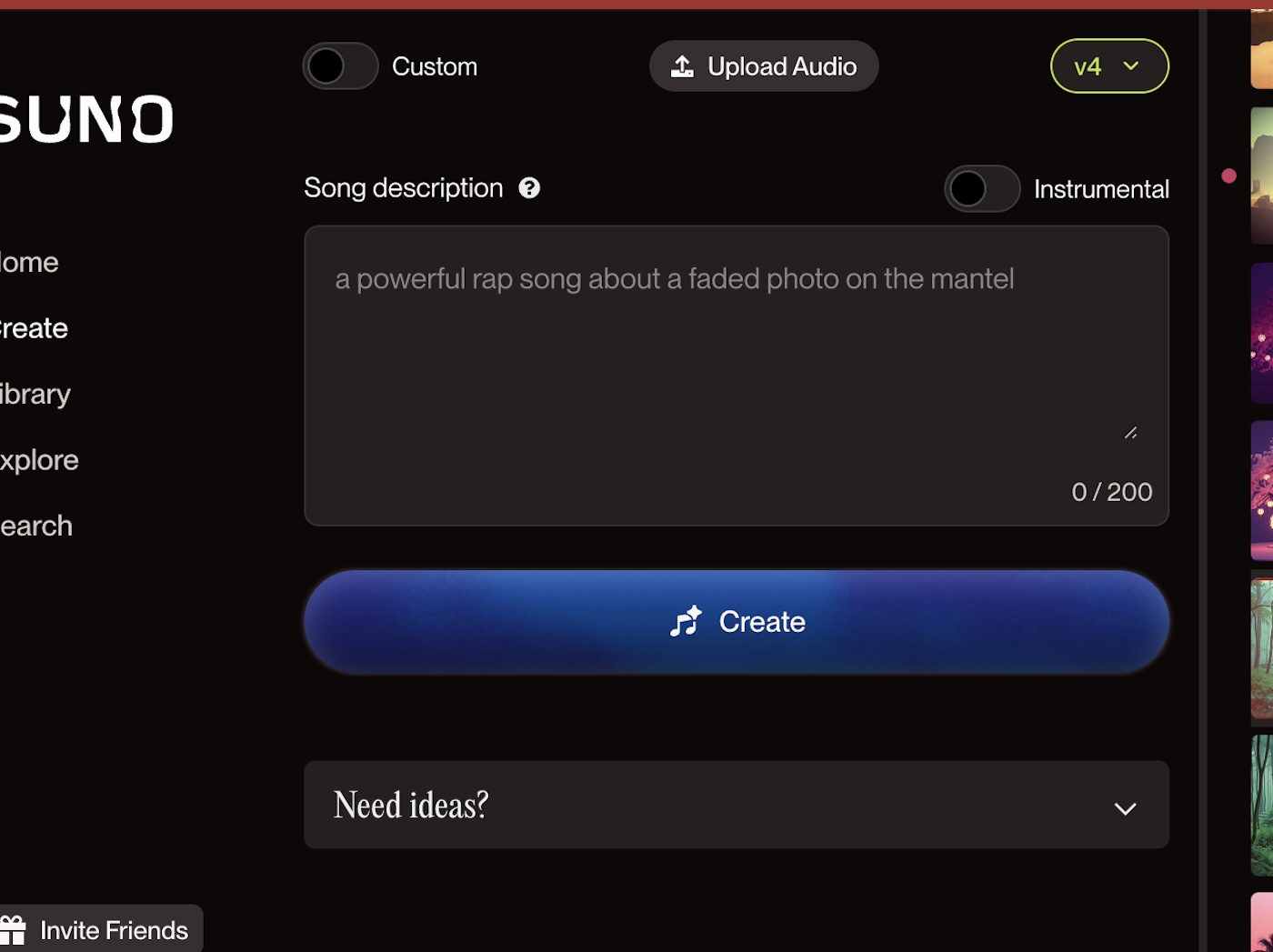
Here’s how to create a simple song with Suno AI:
- Navigate to Suno’s creation interface
- Toggle “Custom” mode if you want full control
- In the “Song description” field, write your prompt using this simple formula:
Create a [genre] track with elements of [subgenre 1] and [subgenre 2] about [topic]. Include [specific musical elements] - Keep your description clear but detailed within the 200-character limit
- Toggle “Instrumental” if you want only music without vocals
- Click the blue “Create” button to generate your song
Stop struggling to find music genres on Suno. Use this Suno cheatsheet
💡 Suno music genre cheatsheet
Here are 2 examples:
Genre + topic:
Create a [metal] track with elements of [Nu Metal] and [Rap] about [someone moving abroad and having to find their way around. The struggle of making connections and fitting in.]
Genre + topic + specific musical elements:
Create a [blues rock track] with elements of [soul] and [pop] about [finding yourself on a summer evening]. Include [smooth electric guitar solos, and mellow grooves. Add reverb-soaked guitar riff]
💡 Pro tip: You can also upload existing audio to influence the style of your creation using the “Upload Audio” button in the top right.
How to extend a song on Suno
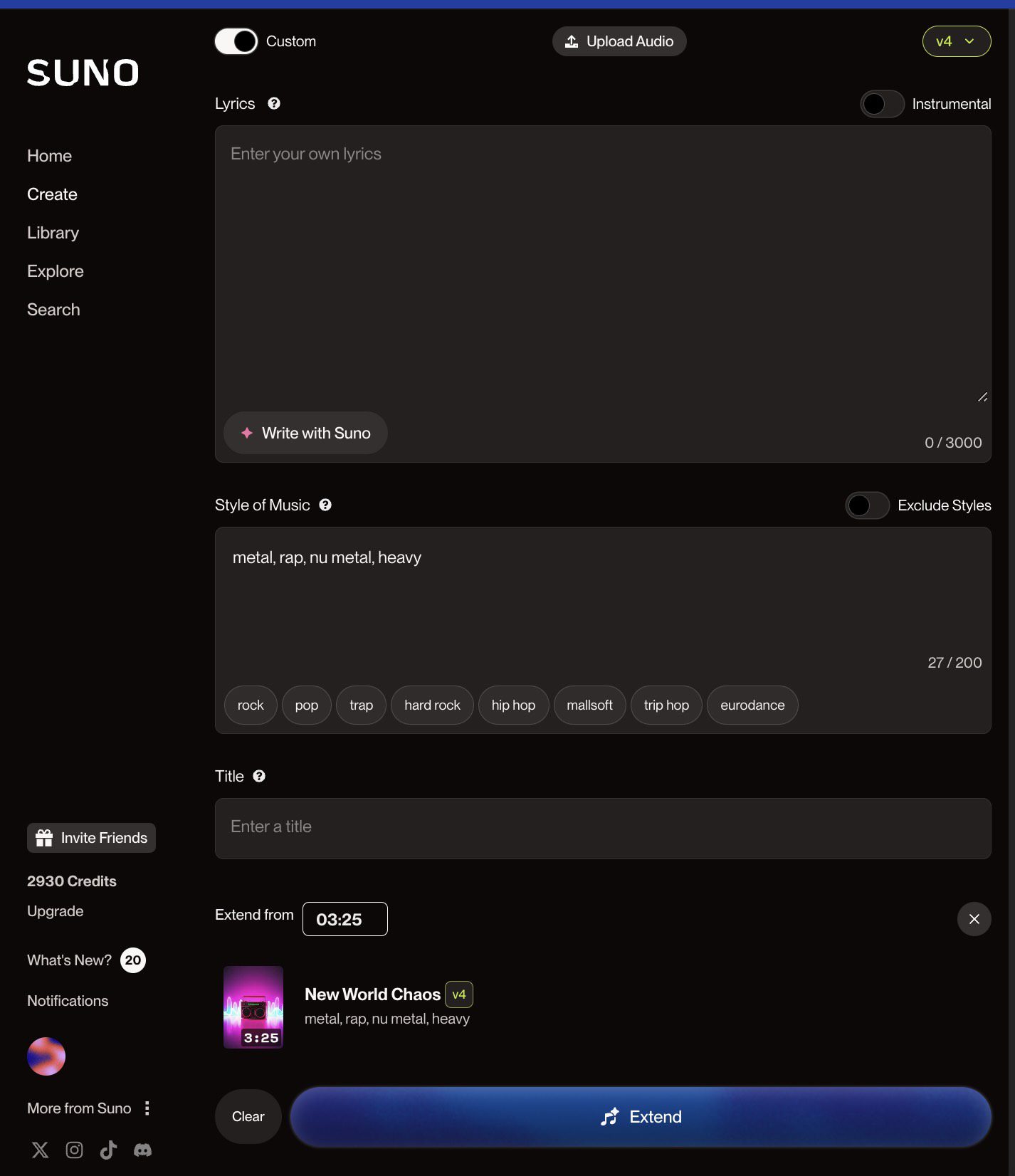
- Find the song you want to extend in your library.
- Look for the “Extend” option and click on it
- The current length (e.g., 03:25) will be displayed
- Add or modify lyrics in the lyrics field (up to 3000 characters)
- Adjust the musical style by adding or removing genre tags
- Click the “Extend” button to generate a longer version of your song
- Wait for the new extended version to be created
The extension feature uses your original song’s style and elements to create a seamless longer version while maintaining musical consistency.
Suno AI song generation with lyrics
Would you like to create your own lyrics? Choose “Custom mode” to activate entering lyrics, style of music and using a Suno persona.
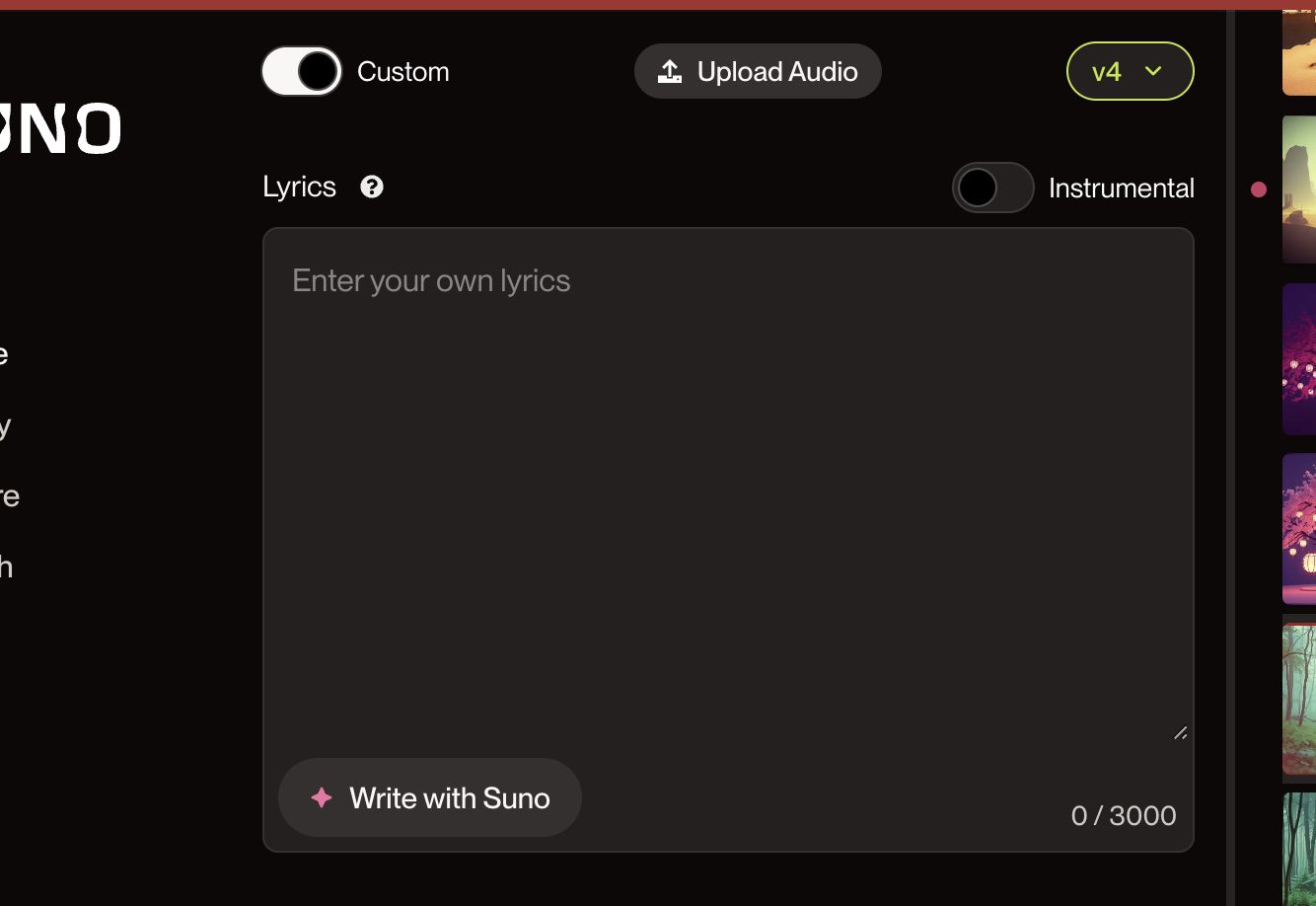
Here’s how to use Suno AI’s custom mode:
- Toggle “Custom” mode in the top left
- Enter your lyrics in the lyrics field (up to 3000 characters)
- Choose your musical style or add genre tags (like “contrabass,” “drone,” “soul”)
- Select a Persona (optional, currently in Beta)
- Add a title for your creation
- Toggle “Instrumental” if you want no vocals
- Click the blue “Create” button to generate your song
For best results, be specific with your style choices and keep descriptions clear and focused.
Suno AI – How much does it cost?
| Plan | Price | Features |
|---|---|---|
| Basic | $0/month | • 50 credits daily (10 songs) |
| Pro | $10/month | • 2,500 credits monthly (500 songs) |
| Premier | $30/month | • 10,000 credits monthly (2,000 songs) |
Save 20% with yearly billing on both paid plans. The Pro plan offers the best value for most creators, while Premier is ideal for high-volume users needing maximum generation capacity.
Frequently asked Questions about Suno AI
Do I need to credit Suno AI if sharing songs online?
Free users must credit Suno on all shares. Paid subscribers are strongly encouraged to credit as a courtesy.
Can I monetize songs on YouTube with Suno AI?
Yes, if you have a Pro or Premier subscription and comply with Suno’s terms of use.
Who owns songs made with Suno AI?
Paid subscribers own songs created during their subscription, per Suno’s terms. Free users grant Suno ownership but can use songs non-commercially if terms are followed.
What’s Suno AI best for?
Suno works most effectively when combining new text prompts with original compositions, rather than borrowing existing copyrighted works without permission. Always follow Suno’s terms for content ownership and usage guidelines.
Are Suno songs protected by copyright?
Copyright of AI-generated works is evolving rapidly by jurisdiction. Consult an intellectual property lawyer for clarity on your content’s protection and Suno’s latest policies. Suno’s terms provide a starting point but legal advice is recommended.
About the author

Covering AI music tools, industry shifts, and news for music creators and professionals. Twice-weekly newsletter at aimusicpreneur.com.