
How to upload MIDI to Suno Create: export, attach and prompt a .mid file in 6 steps

SIQA Summit, LA, 12th November 2026 Ozzy Osbourne's former bassist is sharing a stage with Suno. I'm moderating:


Blasko
Bassist (Ozzy Osbourne, Rob Zombie)

Sam Berger
Artist Partnerships at Suno

RoccStar
Grammy Award-winning producer and songwriter

Drake Murphy
A&R at PlayPulse / Create Music Group

Janie Jennings
Founder, Creative's Flow Ecosystem

Chris Wieduwilt
Moderator
Limited capacity only
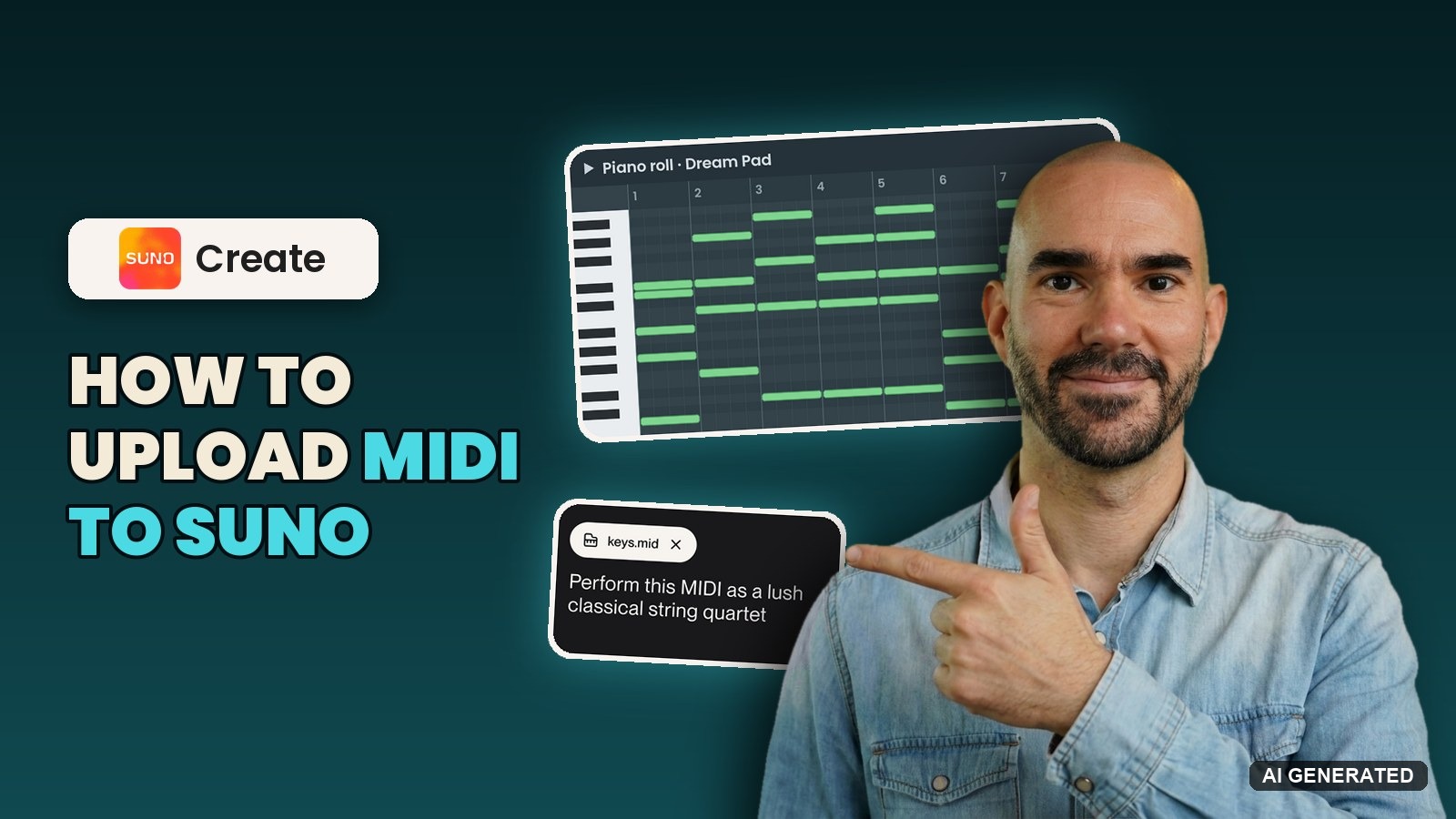
You’ve got a chord progression sitting in an old FL Studio session. You wrote it, you like it, and you’ve never heard it played by anything but a stock synth.
Since November 4, 2026, you can hand that part straight to Suno. You export it as a MIDI file, drop it into Suno Create, and describe the sound you want. Suno’s Help Center puts it in one line: “Your MIDI shapes the bones of the song. Your prompt shapes everything else.”
This guide walks you through all 6 steps, from your DAW’s piano roll to a finished song. I covered the launch itself in my news piece on MIDI in Create.
What you need before you upload MIDI to Suno
The list is short:
- A Suno Pro or Premier plan. Suno’s Help Center says “MIDI upload is available on desktop web on Pro and Premier plans.” Pro is $8 a month and Premier $24, both billed annually.
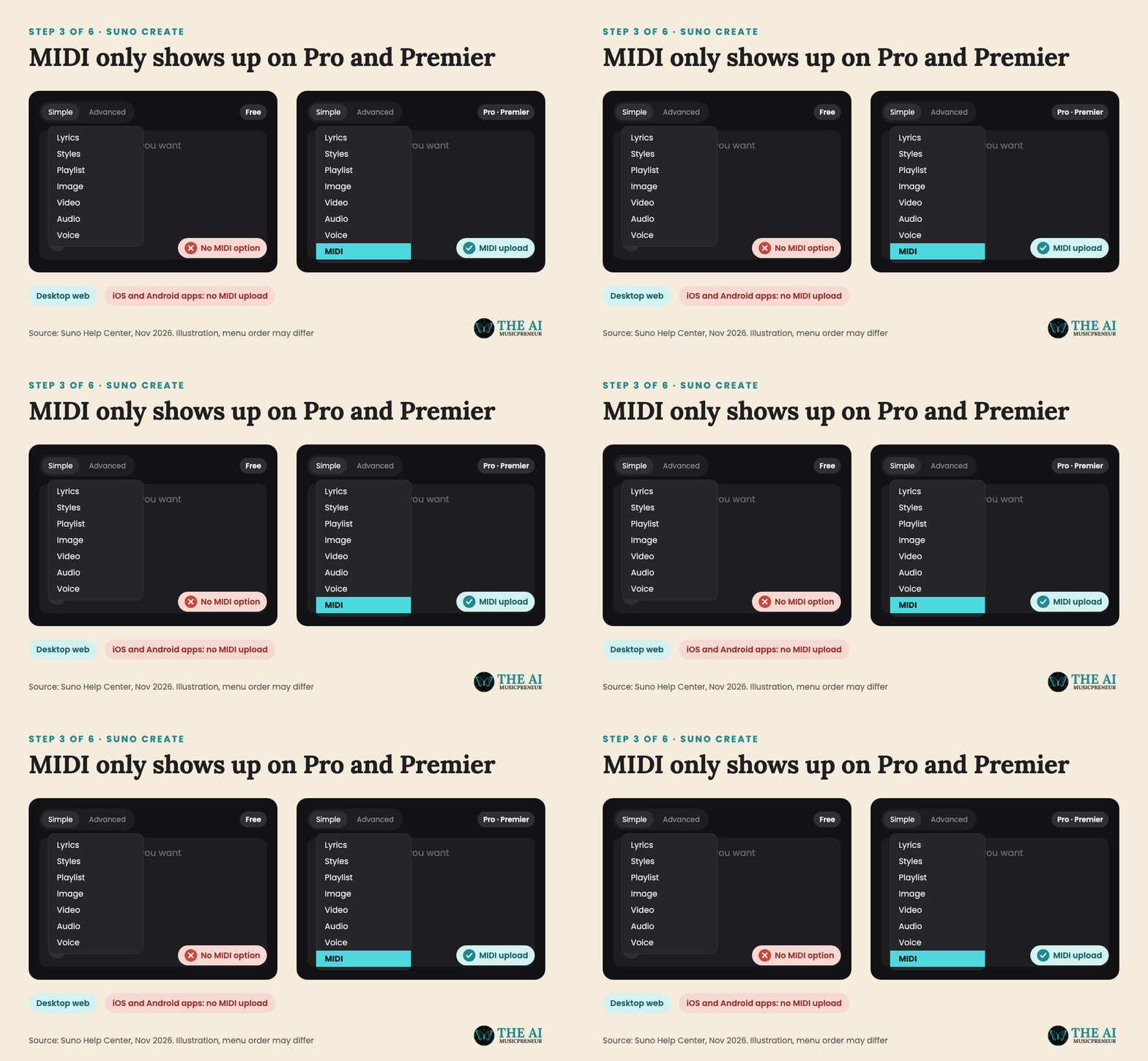
- A desktop browser. The iPhone and Android apps don’t take MIDI files.
- A .mid or .midi file. Any DAW or notation app can make one. You don’t need a MIDI keyboard.
- About 10 minutes, most of it spent on the prompt.
If you already make music in a DAW, you have everything except maybe the plan.
When should you use a MIDI upload instead of an audio upload in Suno Create?
Use MIDI when you care about the exact notes. A MIDI file holds no sound, just instructions: which notes play, when, how long and how hard. Think of it as sheet music a computer can read.
That’s the difference from Remix and Cover in Create, which adapt an uploaded WAV or MP3. Suno’s Start Songs with MIDI post explains why: “MIDI is conveying exact note and timing information, from which you can get very precise control over your songs.”
If you want to edit the notes inside Suno, play them in live or pull MIDI back out, that’s Suno Studio, which is Premier-only. I wrote a separate guide on how to use MIDI in Suno Studio. Create is the faster route: one file, one prompt, one click.
How to upload MIDI to Suno Create, step by step
6 steps take you from your piano roll to a generated song.
Step 1: Export your idea as a MIDI file from your DAW
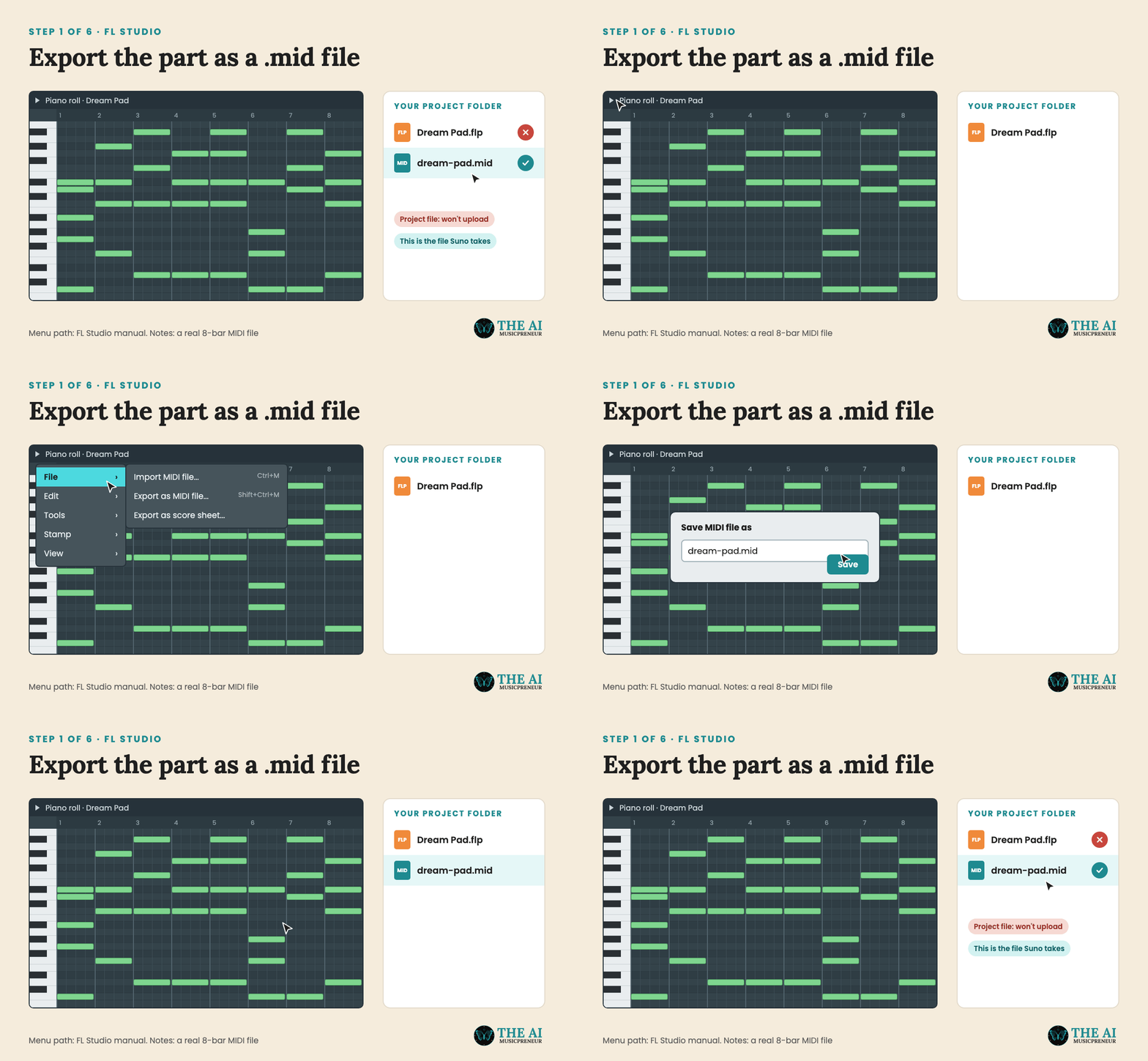
In FL Studio, open the piano roll with the part you want. Click the small arrow in the top-left corner (the piano roll’s main menu), then pick File, Export as MIDI file. The FL Studio manual says this “saves the current Piano roll data to a single MIDI file (.mid)”, and the shortcut is Shift+Ctrl+M.
Other DAWs have the same option in a different place:
- Ableton Live: select the MIDI clip and choose Export MIDI Clip from the File menu (Cmd+Shift+E on a Mac), as Sound on Sound explains.
- Logic Pro: select the MIDI regions, then pick File, Export, Selection as MIDI File, as Apple’s Logic Pro guide describes.
- Notation apps: export the score as MIDI. Suno’s blog suggests exactly this for work-in-progress scores.
Step 2: Clean up the MIDI file before you upload it to Suno
A MIDI file can carry a lot. Suno’s blog says one file can hold up to 16 channels of pitch and timing data, each with up to 120 controller lanes for things like modulation, volume and sustain.
More isn’t better here. Before you export, do this in your DAW:
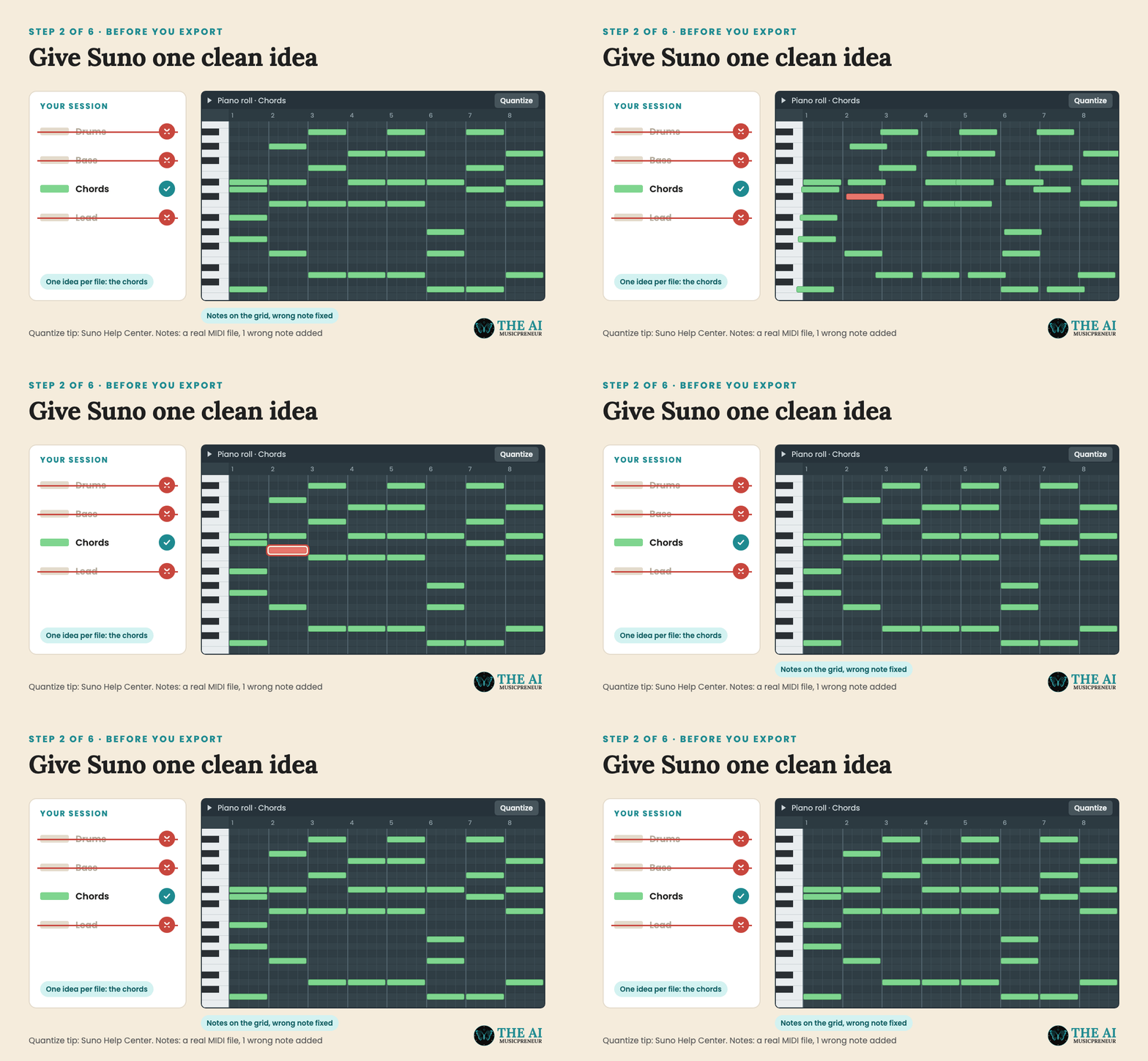
- Keep one musical idea per file, like the chord progression or the hook, not the whole session.
- Fix wrong notes and timing. Suno’s Help Center suggests quantizing the notes, or nudging them slightly off the grid for a more human feel.
- Set the key you want. Suno plays what’s in the file, so a wrong note in the file is a wrong note in the song.
Step 3: Open Suno Create in Simple mode on desktop
Go to suno.com/create in a desktop browser and switch the toggle at the top to Simple. At launch, MIDI only works in Simple mode, according to Suno’s blog.
Step 4: Attach the MIDI file to the Suno Create prompt
You’ve got 2 ways in:
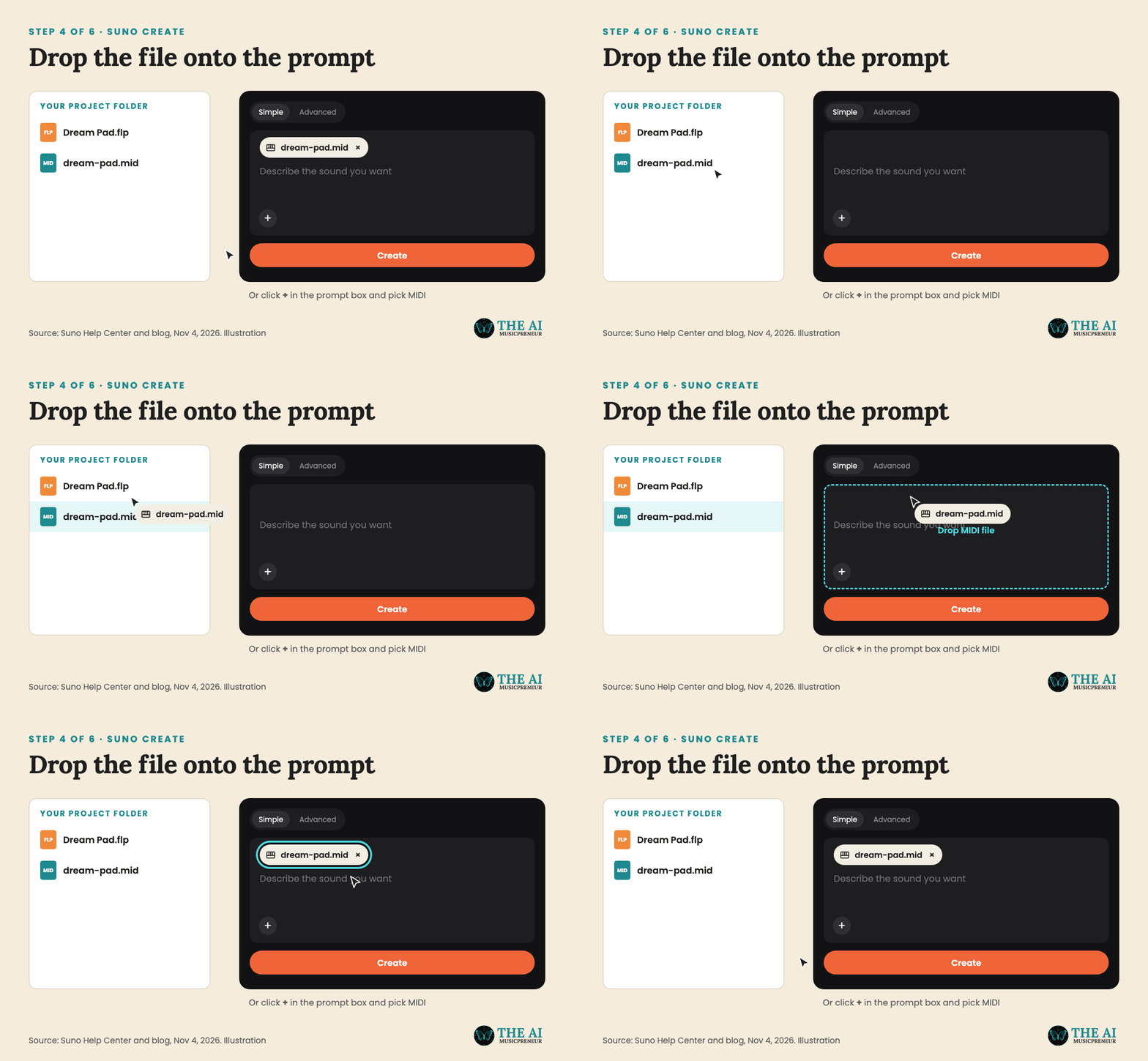
- Drag the .mid file from your desktop straight onto the Create prompt.
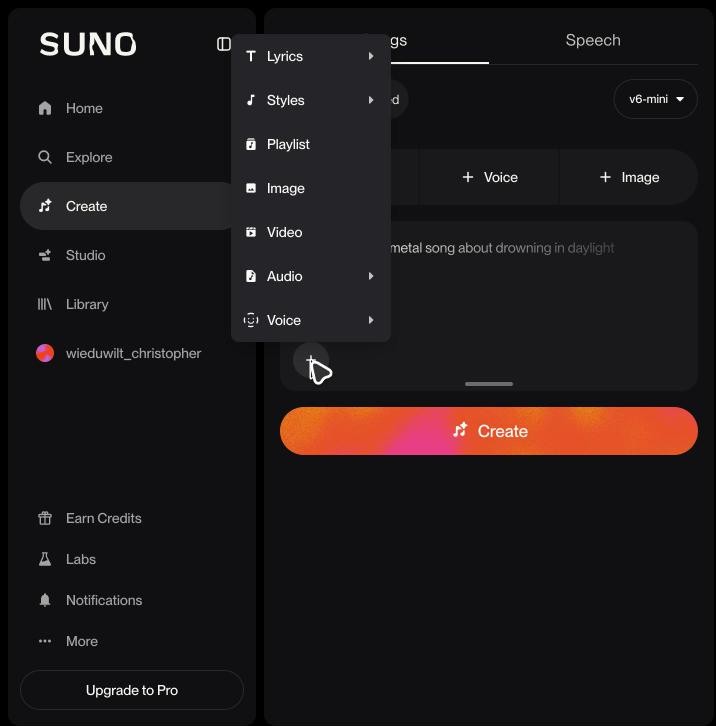
- Or click the + button in the prompt box and pick MIDI, then choose the file.
Step 5: Write a prompt that tells Suno how to use your notes
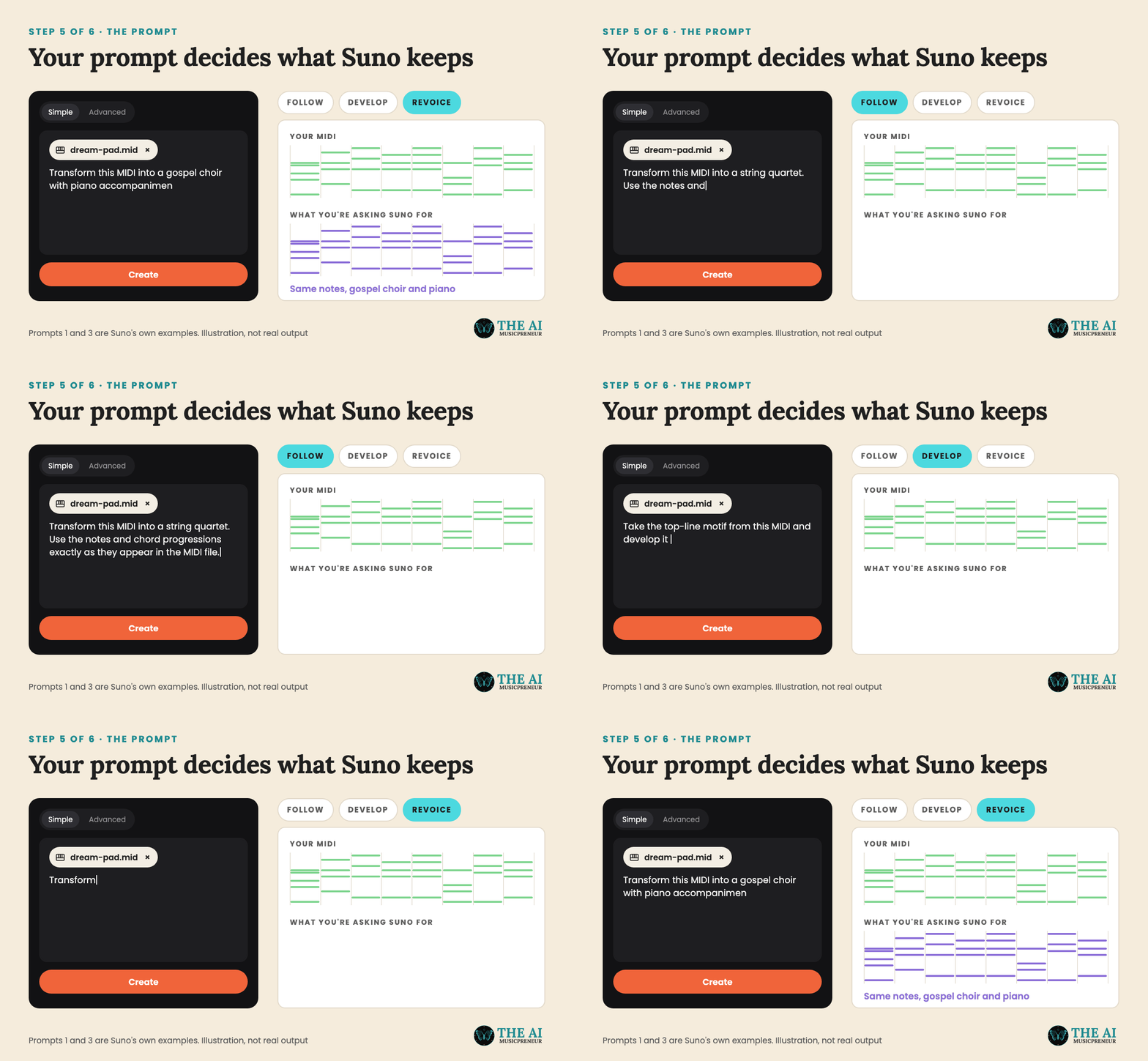
This is the step that makes or breaks the result. Suno’s blog lists 3 ways to point the model at your file: follow the notes exactly, take the top-line motif and develop it into new ideas, or play it on new instrumentation.
Suno’s own example prompts are a good template:
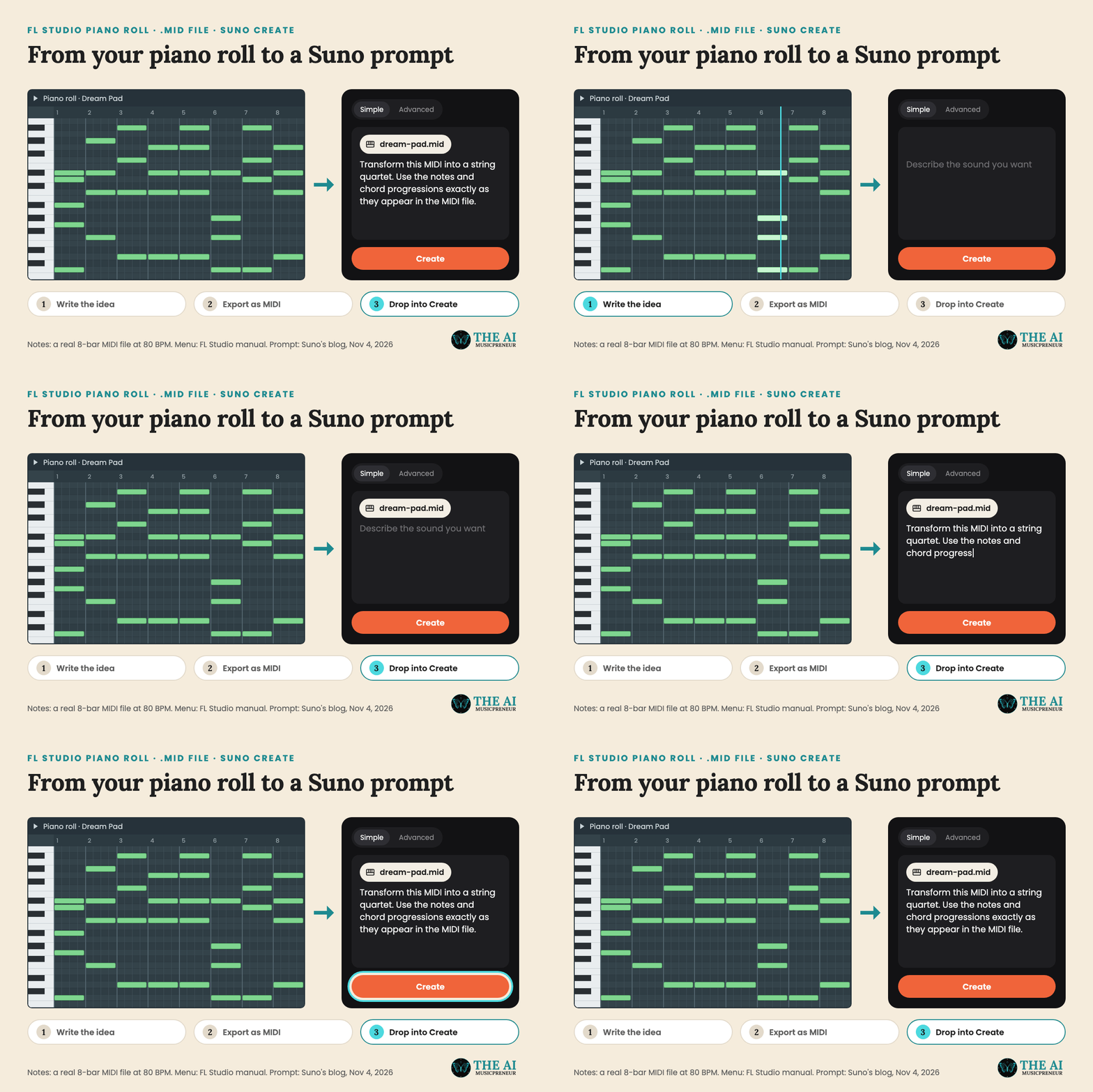
- “Transform this MIDI into a string quartet. Use the notes and chord progressions exactly as they appear in the MIDI file.”
- “Arrange this MIDI for a full orchestra, with strings, brass, woodwinds and percussion.”
- “Transform this MIDI into a gospel choir with piano accompaniment.”
The Help Center adds 2 tips. Name your instruments, because “the file tells Suno what to play; the prompt tells it what to play it on.” And describe the feel, not just the genre.
"Late-night, loose, brushed drums" could get you further than just "jazz."
Step 6: Hit Create and check the result against your MIDI
Click Create. When the song lands in your workspace, play it next to your original part in your DAW.
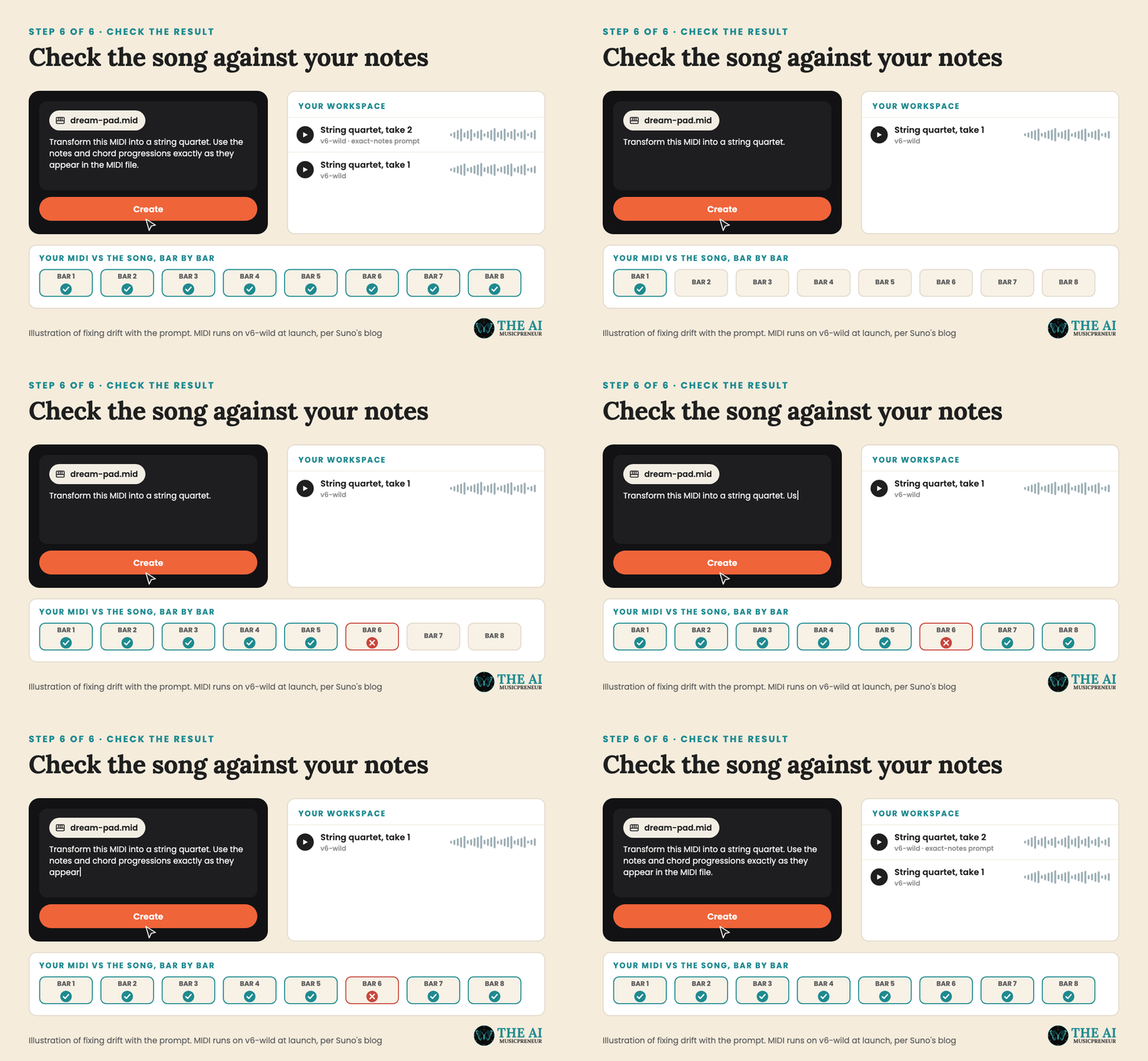
Remember which model you’re on. At launch, MIDI runs on v6-wild, which Suno pitched as the less predictable, more experimental side of the v6 model family. So some drift is expected, especially with a loose prompt.
What common Suno Create MIDI upload mistakes trip people up, and how do you fix them?
The 5 problems you’re most likely to hit, with the fix for each:
- No MIDI option in the + menu. You’re on the free plan or in the mobile app. Use desktop web on Pro or Premier.
- The file won’t upload. It’s probably a project file or audio file. Export a .mid or .midi from your DAW (Step 1).
- The song sounds nothing like your part. v6-wild took creative liberties. Ask for the notes “exactly as they appear in the MIDI file”.
- The instruments are wrong. A MIDI file has no sound in it, so Suno can’t tell a piano part from a string part. Name the instruments in the prompt.
- There’s no lyrics box. MIDI only works in Simple mode at launch, so the separate lyrics field from Advanced mode isn’t there.
If a file still misbehaves, cut it down to 4 or 8 bars of one part and try again. A short, clean file tells you fast whether the problem is the file or the prompt.
How do you get the best results out of MIDI in Suno Create?
5 habits that make the biggest difference, in order:
- Name every instrument you want. The file only carries notes.
- Describe the feel. Tempo, mood and energy words steer the arrangement more than a genre label.
- One idea per file. A clean chord progression gives Suno less to misread than a full session export.
- Fix the notes before you upload. Suno plays what’s in the file, mistakes included.
- Test literal first, then loosen. Run the “exactly as they appear” prompt once, then try “develop” or new instruments.
And one thing to avoid: don’t expect Suno to keep your synth sound. MIDI carries no audio, so the sound always comes from the prompt.
Is Suno Create’s MIDI upload worth it for producers with old sessions?
Suno says the feature is for producers “with a drive full of half-finished sessions,” composers who want to hear a score as a full ensemble, and teachers and students. If that’s you, it’s the fastest way to hear an old idea with real-sounding instruments, and you keep the notes you wrote.
Suno also says it plans to expand MIDI over time, so Advanced mode and other models may come later. For now, export one part from an old session, try the string quartet prompt above, and compare it to what your stock synth did. If you want more control after that, my Suno Studio guide is the next step.
Frequently asked questions
Which Suno model runs MIDI uploads in Suno Create?
v6-wild. Suno's blog says MIDI uses Simple Create mode with v6-wild at launch, and that it plans to expand MIDI over time. Suno describes v6-wild as the more experimental sibling of the flagship v6 model.
Can I add my own lyrics to a MIDI upload in Suno Create?
Not at launch. MIDI only works in Simple mode, where you describe the song in a single prompt. Advanced mode, which has the separate lyrics box, doesn't take MIDI files yet, and Suno hasn't said when it will.
Can you export MIDI back out of Suno Create?
No. Suno Create has no MIDI export. MIDI downloads live in Suno Studio on the Premier plan, where you can download a MIDI clip or convert audio into editable notes first.
What can I use to make a MIDI file for Suno Create without a DAW?
Any music or notation app that saves a .mid or .midi file works. Suno's own blog suggests exporting work-in-progress scores from notation software as MIDI, and many free piano roll apps export MIDI too.
About the author
Covering AI music tools, industry shifts, and news for music creators and professionals. Twice-weekly newsletter at aimusicpreneur.com.