I tested Suno v4.5+ and it’s a HUGE upgrade – Here’s everything you need to know:
My stack My fav 6 tools for AI music after testing 70+
-
 ElevenMusic · Music generation
 -
 Moises · Stem separation
 -
 Controlla · Voice swap & cloning
 -
 Cryo Mix · Mixing + mastering
 -
 Neural Frames · Music videos
 -
 ONCE · Distribution
Some links are affiliate links — I earn a commission at no cost to you. Every tool here is one I run myself and truly believe in. This stack is proven.

This new model is an upgrade of the existing Suno v4.5 model, bringing major improvements over the previous v4 version – to see exactly how much better v4.5 was compared to v4, check out our detailed Suno v4.5 vs v4 comparison.
The new model lets you add vocals to instrumentals, turn voice recordings into full songs, and create tracks based on your playlists.
In this guide, I’ll show you what’s new in Suno v4.5+ and how to use these features to make professional music in minutes.
Prerequisites
- A computer or mobile device with internet access
- A Suno Pro account (required for v4.5+ features)
- Basic understanding of uploading audio files
- No musical training needed
- Time commitment: 5-15 minutes per song
Why Suno v4.5+ Works Better
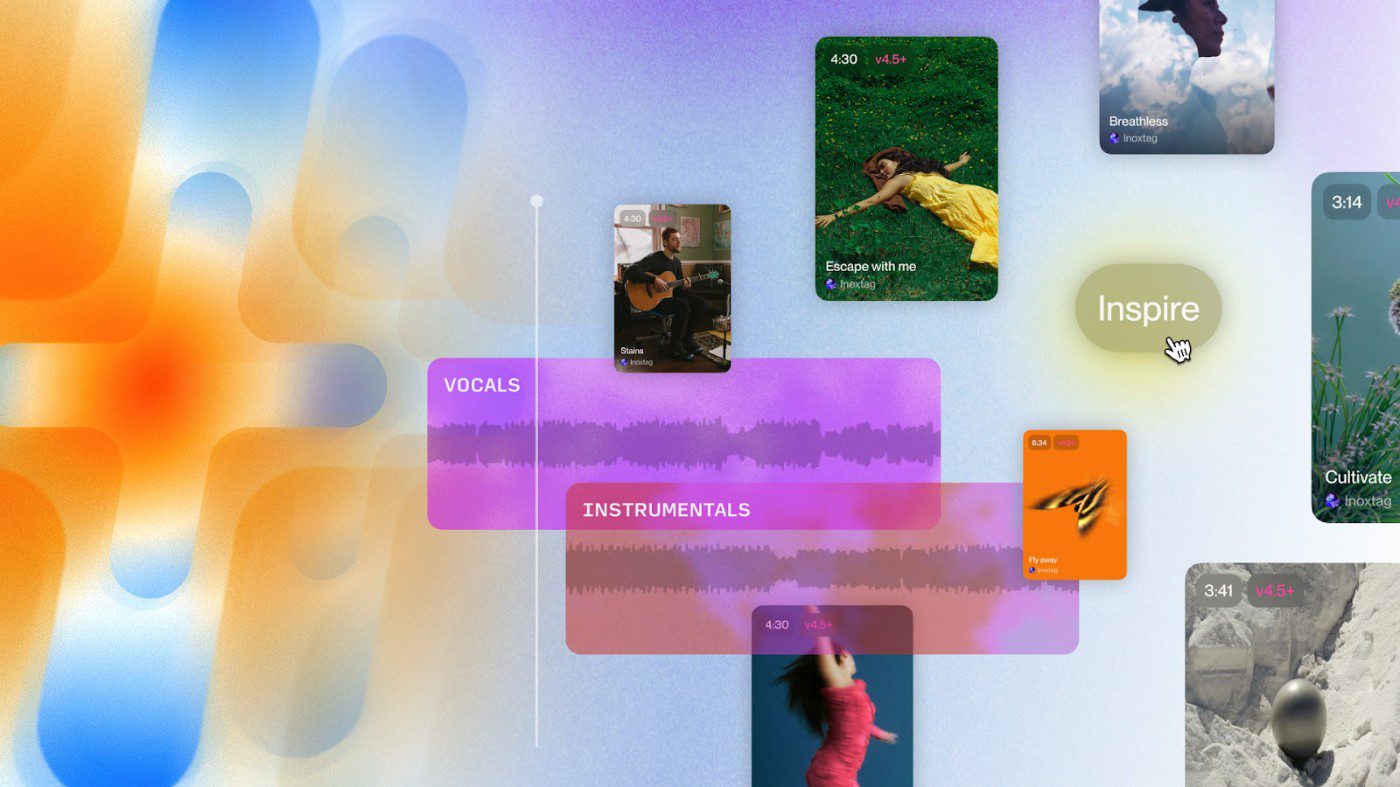
Suno v4.5+ delivers what CEO Mikey Shulman calls “a glimpse of the future.” The model produces much clearer vocals and richer sound quality compared to previous versions. As one reviewer noted: “I can’t tell that’s AI generated. That’s what’s getting quite scary about this.”
Unlike other AI music tools that only work with text prompts, Suno v4.5+ lets you upload your own audio files and build on them. The model supports a wide range of music genres to choose from. This means you can start with a simple voice recording and turn it into a full production, or take an instrumental track and add professional vocals.
Step-by-Step instructions for Suno v4.5+
Step 1: Access Suno v4.5+ features

Log into your Suno Pro account and look for the red “v4.5+” indicator at the top of the interface. This model supports up to 8 minutes of audio generation, which is perfect for full-length songs.
Pro tip: Make sure you’re using the Pro version, as v4.5+ features are only available to paid subscribers.
Step 2: Choose your creation method
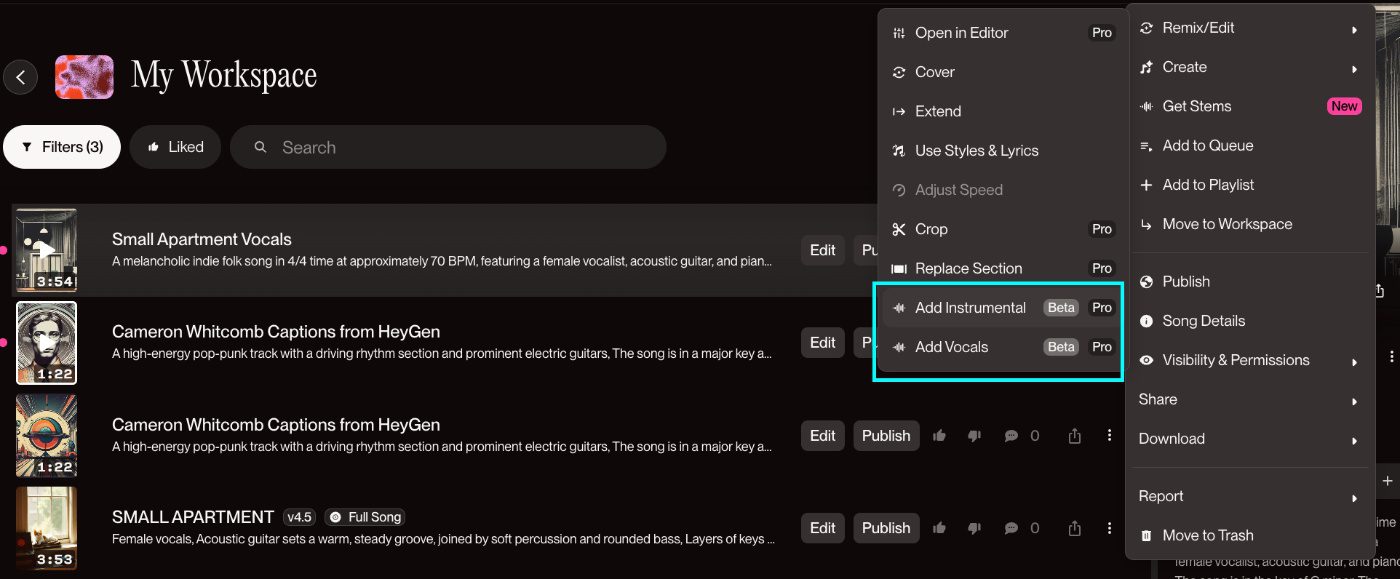
Upload an audio (your vocals or an instrumental track).
After you have three main options:
- Add Vocals: Start with an instrumental and layer vocals on top
- Add Instrumentals: Begin with a voice recording and add backing music
- Inspire: Create songs based on your playlist vibes
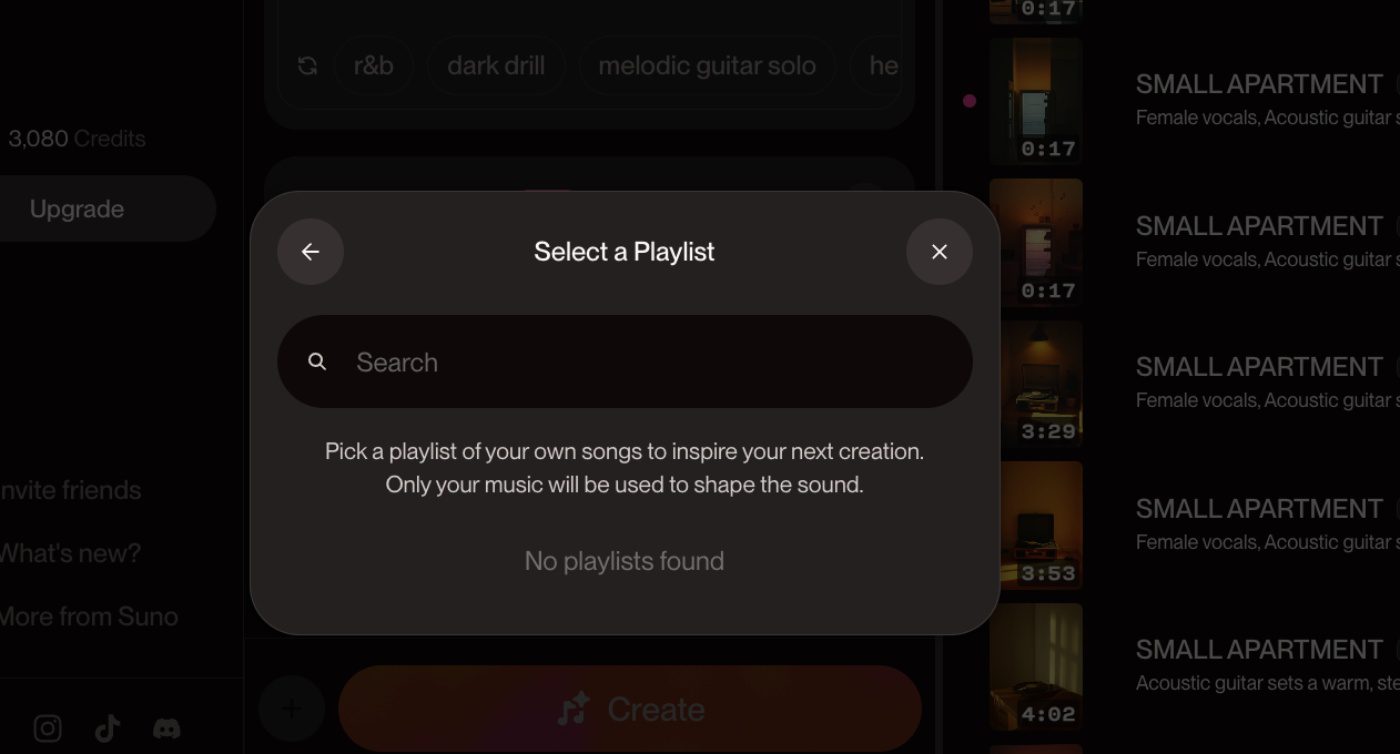
Pro tip – Advanced Options: Look for the “Advanced Options” section (marked with a “NEW” tag) where you can fine-tune your creations:
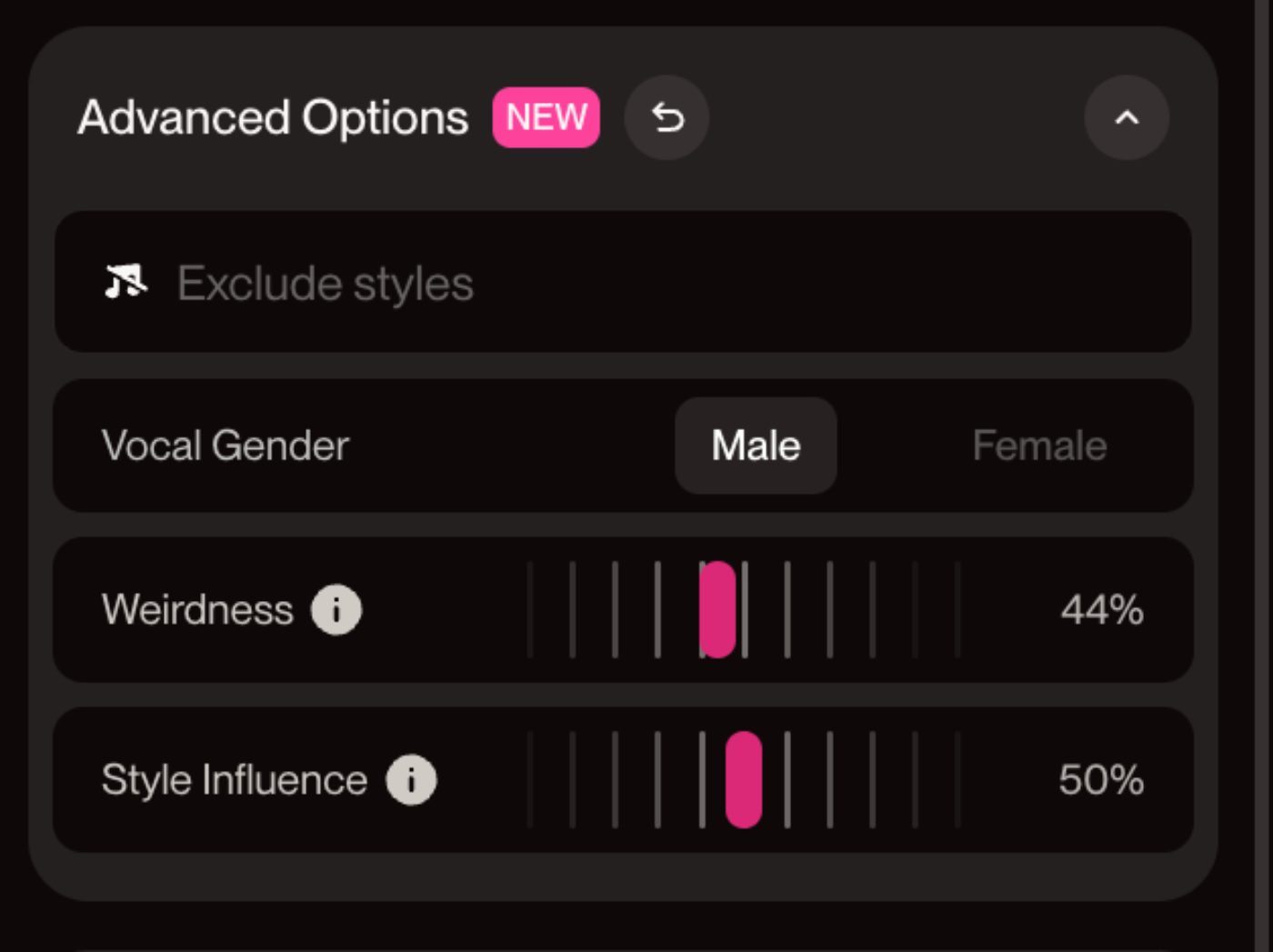
- Vocal Gender: Choose between male or female vocals directly
- Weirdness: Control how experimental or conventional your output sounds (0-100% scale)
- Style Influence: Adjust how strongly the AI follows your style prompts (0-100% scale)
These controls give you much more precision over the final result, especially when you want consistent vocal characteristics or need to dial in the perfect balance between creativity and your intended style.
Common pitfall: Don’t try to use the Inspire feature with too many songs at once. Start with 1-2 tracks for better results.
Step 3: Generate your track
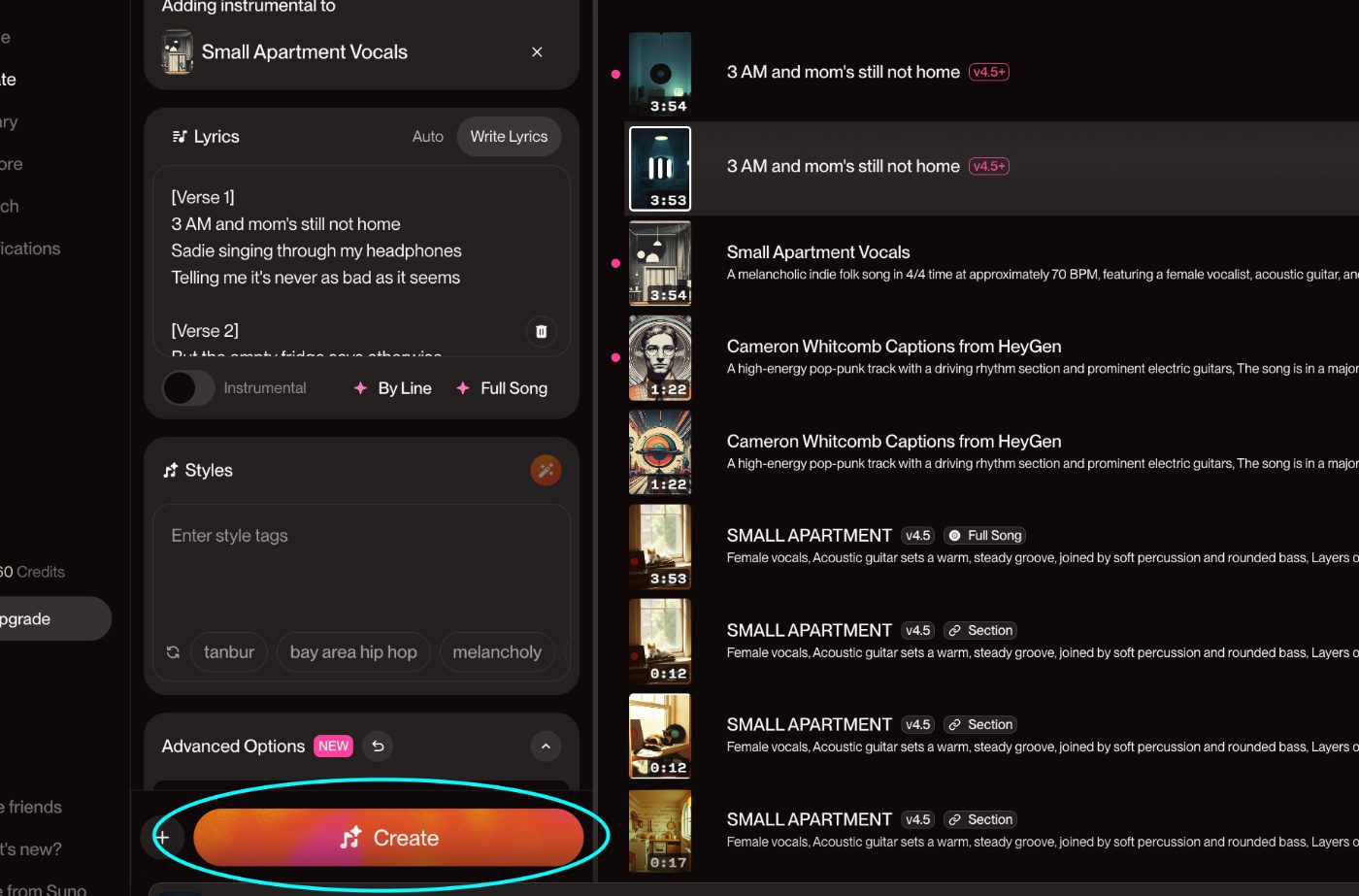
Hit the “Create” button and wait for the AI to work its magic. The generation process is much faster than previous versions, usually taking under a minute.
The find your creations in the library and check them out.
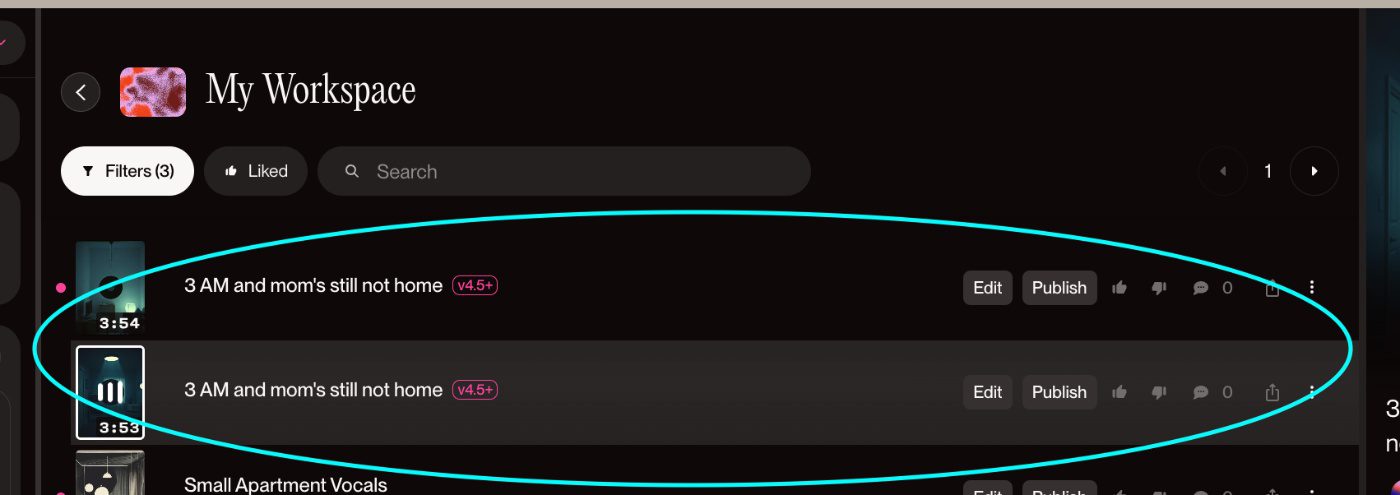
Listen to my output below:
Troubleshooting Guide
Issue 1: “Topic too long” error message
Solution: Shorten your style description or prompt text. The system has limits on text length.
Issue 2: Generated music doesn’t match your uploaded audio style
Solution: Try using fewer reference tracks in your playlist or be more specific with your style descriptions.
Issue 3: Audio quality sounds muffled
Solution: Make sure your original recording is clear and recorded in a quiet environment.
Best Practices
- Start simple: Begin with short voice recordings or basic instrumentals
- Use clear audio: Record in quiet spaces with good microphone placement
- Experiment with styles: Try different genres and moods to find what works
- Master meta tags: Use structured prompts to get more precise results
- Save your favorites: Create playlists of successful generations for future inspiration
- Edit after generation: Use Suno’s built-in editor to fine-tune your tracks
What to avoid: Don’t upload copyrighted music or extremely long audio files on your first attempts.
Conclusion
Suno v4.5+ represents a major leap forward in AI music creation. The improved vocal quality, extended track length, and new workflow options make it easier than ever to create professional-sounding music. Whether you’re a complete beginner or an experienced musician, these tools can help you bring your musical ideas to life faster than ever before.
Start with simple experiments using the Add Vocals or Add Instrumentals features. Once you’re comfortable with the basics, explore the Inspire function to create songs that match your favorite musical styles.
Ready to create your first AI-generated hit?
Sign up for Suno Pro and start experimenting with v4.5+ today.
Frequently asked questions about Suno v4.5+
How does Suno v4.5+ work?
Suno v4.5+ uses advanced AI to analyze and generate music based on your inputs. You can upload voice recordings, instrumentals, or create playlists for inspiration. The system analyzes your audio and creates detailed style descriptions automatically. It then generates new music that matches or complements your input. The model can create up to 8 minutes of audio and produces much clearer vocals and richer sound quality than previous versions. The AI understands musical elements like tempo, key, and genre to create cohesive tracks.
Is Suno v4.5+ free to use?
No, Suno v4.5+ requires a Suno Pro subscription (login to check pricing) to access. The advanced features like Add Vocals, Add Instrumentals, and Inspire are only available to paid subscribers. While Suno offers a free tier, the v4.5+ model and its enhanced capabilities are premium features. The subscription gives you access to longer generation times, higher quality audio, and the newest AI models. You can still use older Suno versions with the free plan, but you’ll miss out on the significant improvements in sound quality and new workflow options.
About the author

Covering AI music tools, industry shifts, and news for music creators and professionals. Twice-weekly newsletter at aimusicpreneur.com.