How to use Suno Visuals: turn your Suno song into a music video in 8 steps

My stack My fav 6 tools for AI music after testing 70+
-
 ElevenMusic · Music generation
-
 Moises · Stem separation
-
 Controlla · Voice swap & cloning
-
 Cryo Mix · Mixing + mastering
-
 Neural Frames · Music videos
-
 ONCE · Distribution
Some links are affiliate links — I earn a commission at no cost to you. Every tool here is one I run myself and truly believe in. This stack is proven.
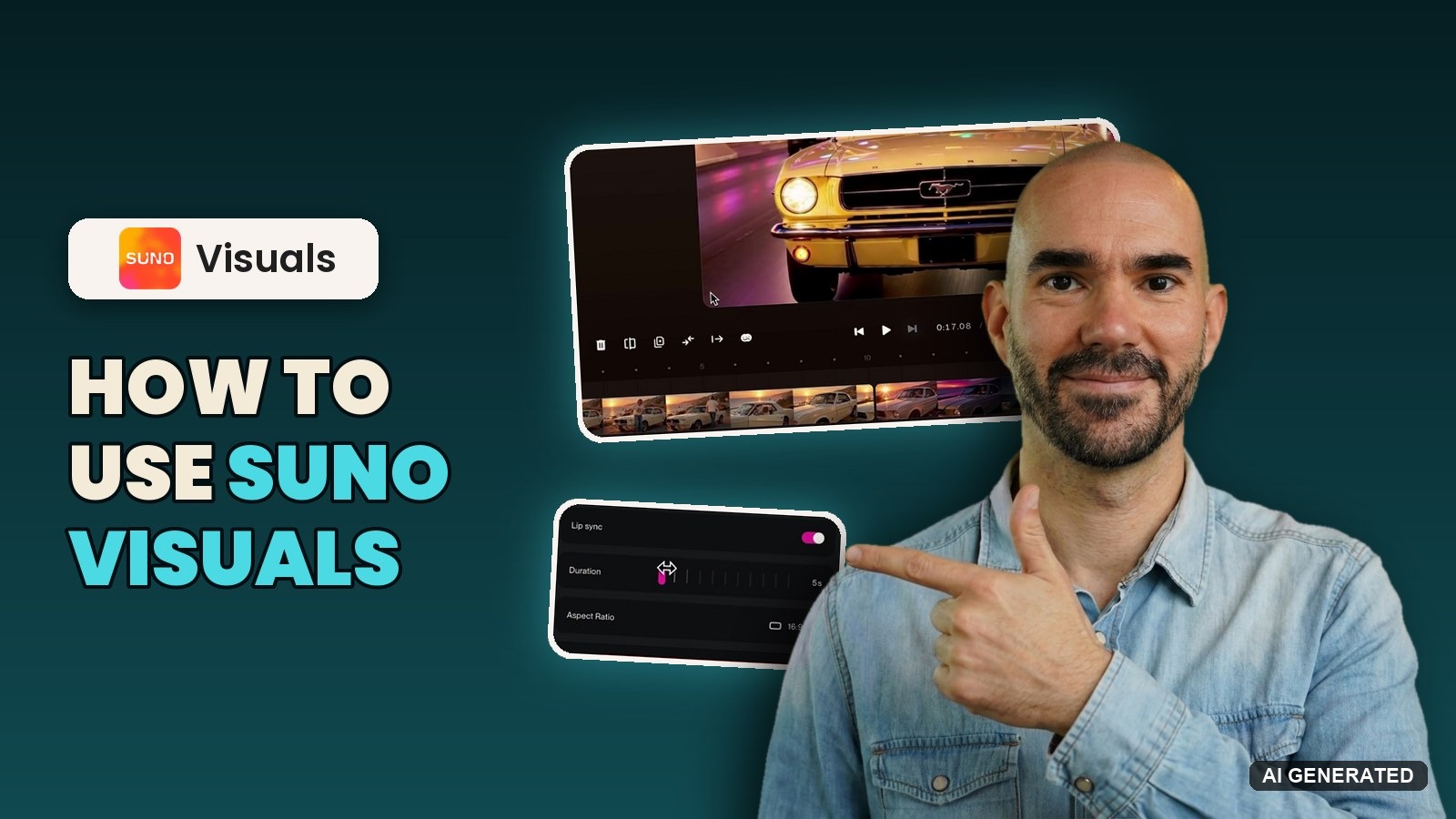
You finished the song in Suno, and now it needs a video. Until today that meant exporting the track, opening a separate video tool and lining the shots up with the music by hand.
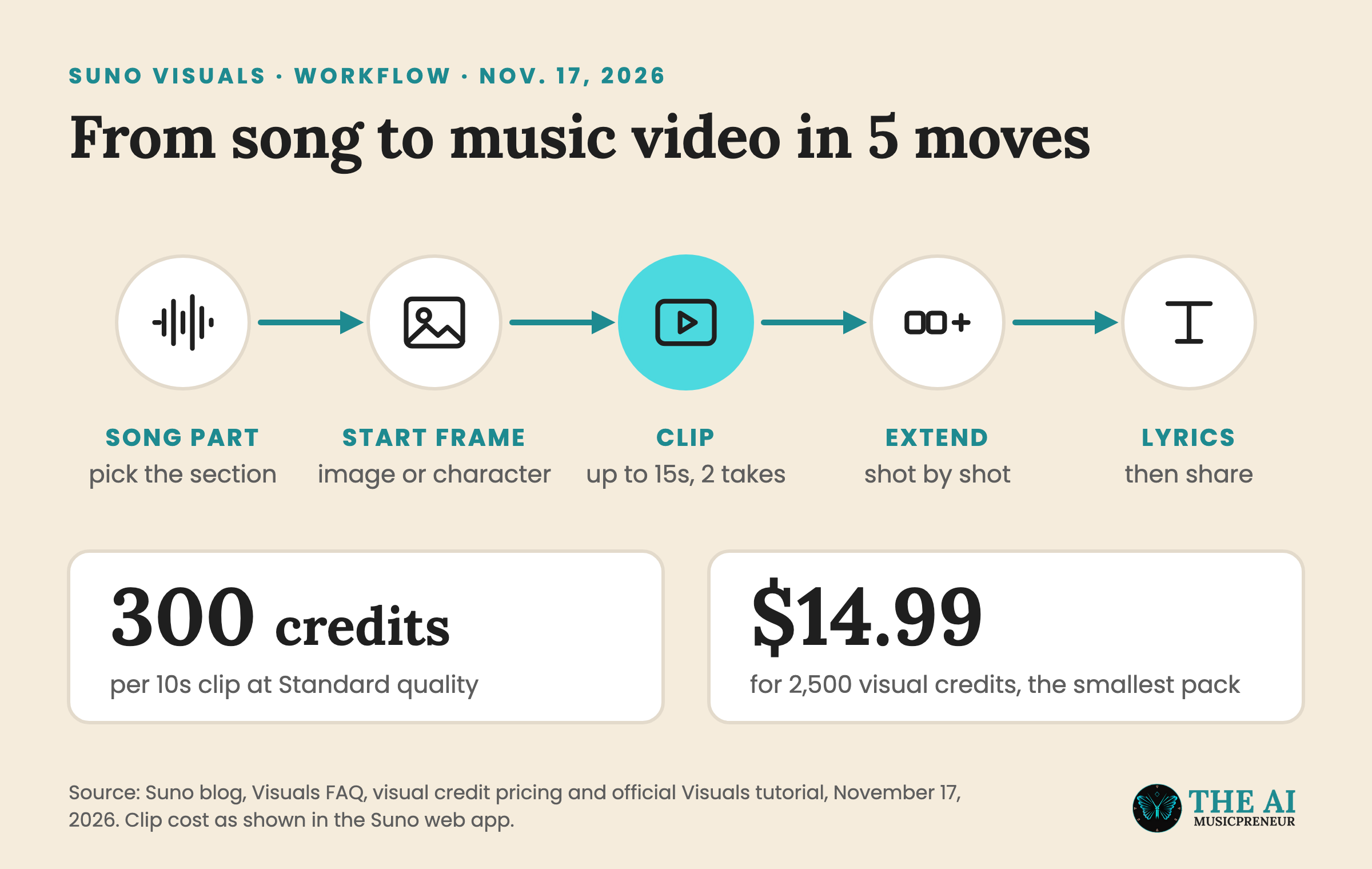
Suno launched Visuals on November 17, 2026, so you can do that inside Suno. You pick a section of your song, give the shot a start frame and a prompt, and Suno makes a clip of up to 15 seconds that can lip sync to your vocal. Then you keep extending it in an editor until the whole song has pictures.
One honest note before you start. I haven’t run my own Suno Visuals test yet, because visual credits are sold separately and my account had none at launch. So this guide follows Suno’s own 11-minute tutorial, plus the Visuals screens in my account. Watch it if you’d like to see every click:
What you need before you use Suno Visuals
Here’s what has to be in place before your first clip:
- A song in your Suno library. Suno’s launch post says you can drag any song from your library into the Visuals tab.
- Visual credits. They’re separate from song credits. Packs on Suno’s visual credits page start at 2,500 for $14.99, and the new Platinum plan includes 20,000 a month.
- A start image, if you have one. A photo, album art or a still from an earlier clip works. If you don’t have one, Visuals can make the image for you.
Budget for it before you start. In my account a 10-second clip at Standard quality costs 300 credits, so the smallest pack covers 8 clips. Fast quality costs less and is meant for quick ideas.
How does Suno Visuals build a music video?
Suno Visuals works in shots, not in one long render. You make one clip for one part of the song, keep the take you like, and build the rest of the video around it on a timeline where your song sits underneath.
That’s also why the music leads. Suno says its model was tuned so clips “follow your song’s structure, pick up on your lyrics and lip sync right along with them.” So where you start the clip in the song decides a lot about what you get.
How to use Suno Visuals, step by step
The steps below follow the web app. The mobile app uses the same order with the same buttons, as Suno’s tutorial shows.
Step 1: Open the Visuals tab in Suno
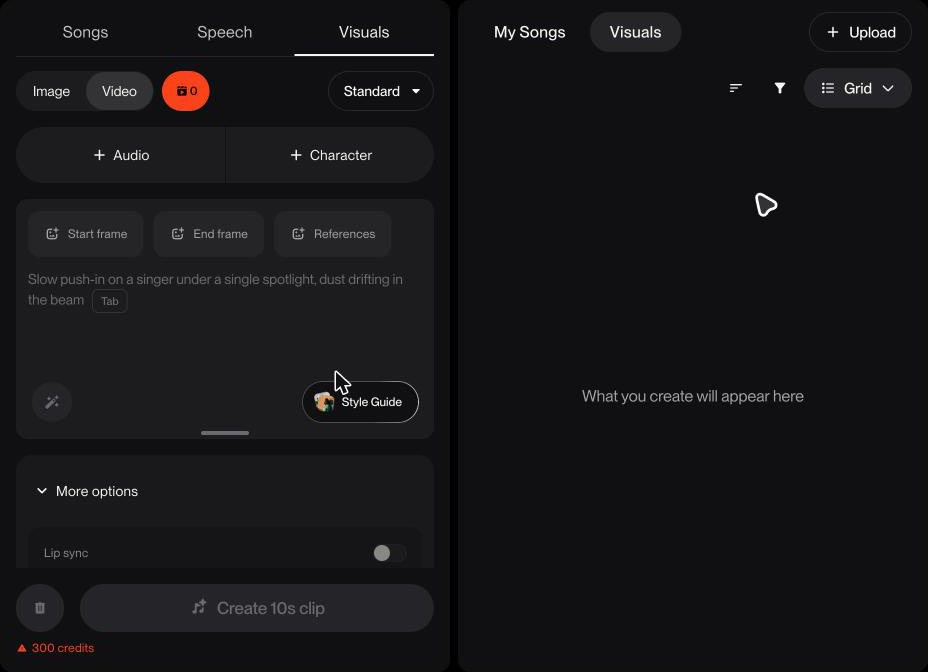
Go to Create and switch to the Visuals tab, next to Songs and Speech. Pick Video with the toggle at the top. If you already know which song you want, there’s a shortcut: open the menu on that song and choose Make video, which loads the song for you.
Step 2: Add your song and pick the section
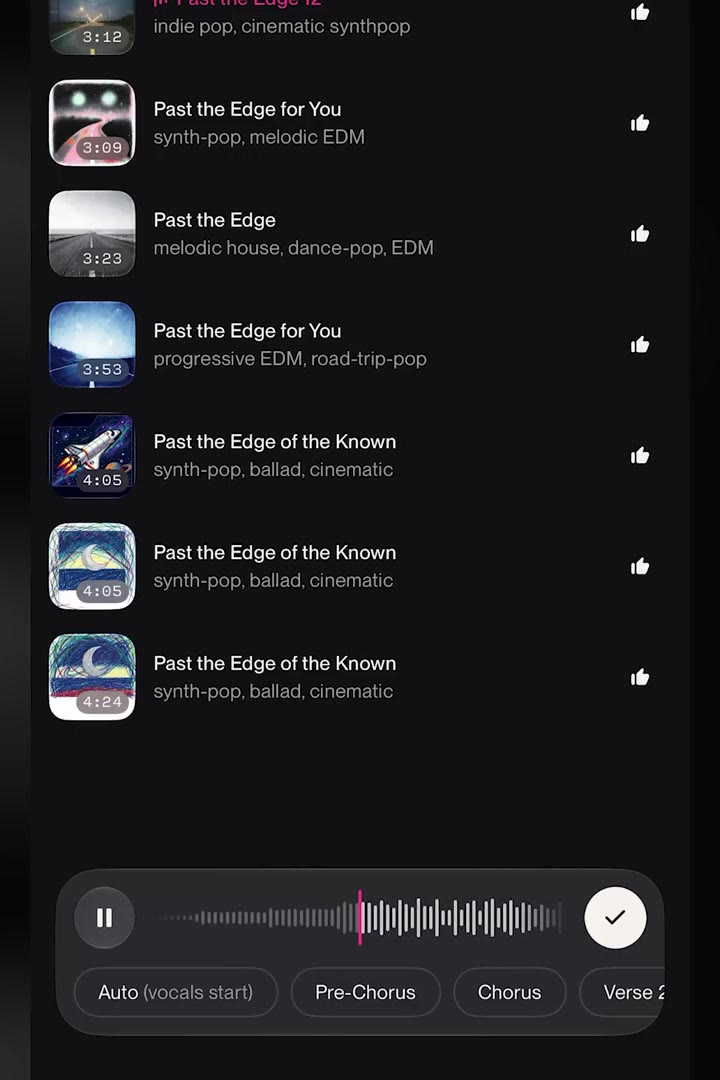
Click + Audio and choose your song. Then scroll the waveform to where the clip should start, or use the section buttons like Pre-Chorus and Chorus to jump there. Confirm with the check mark.
Step 3: Set a start frame or a character
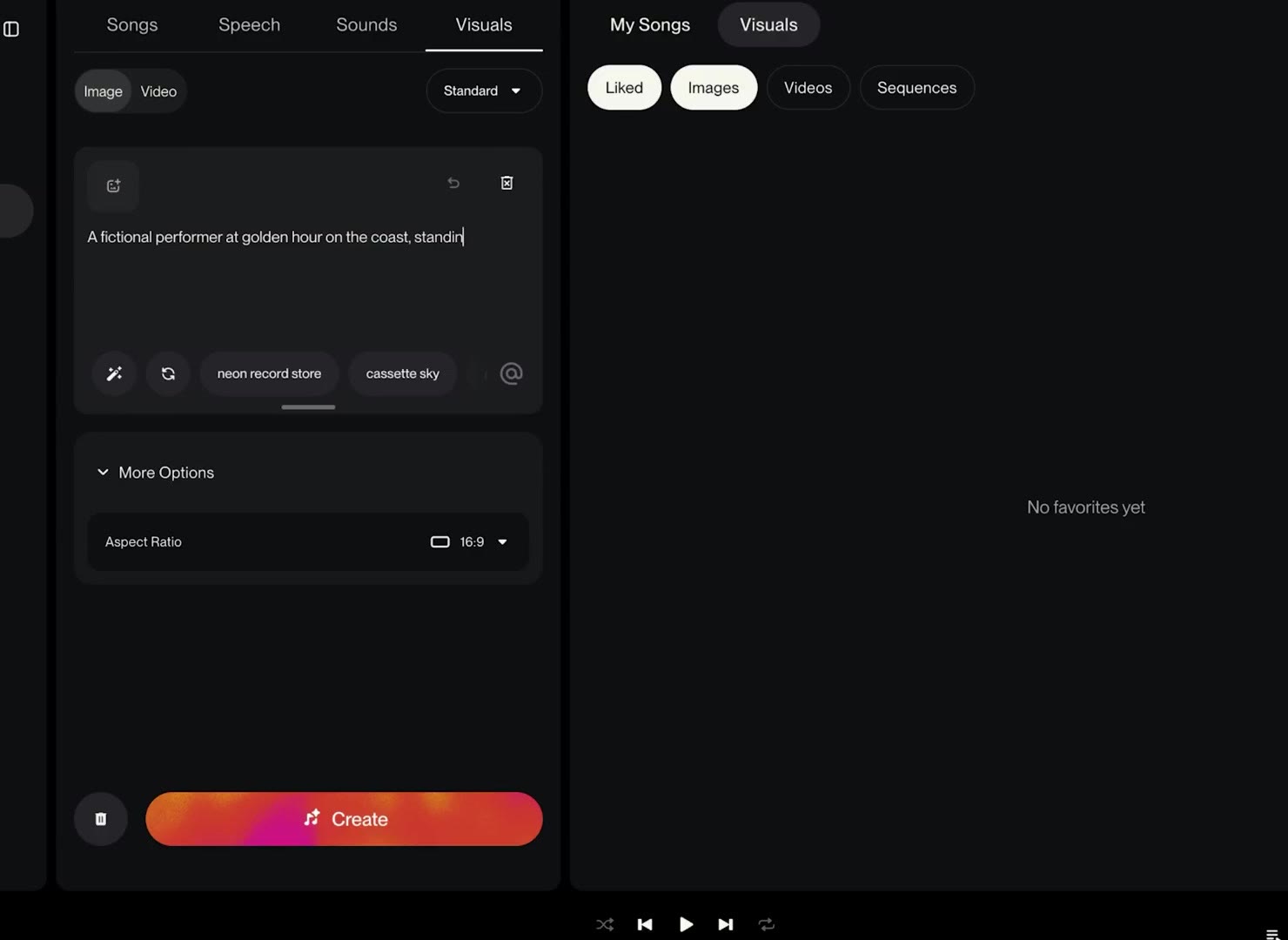
Click Start frame to use one of your images. No image yet? Flip the toggle to Image, describe it and create it right there. Suno’s tutorial makes a fictional performer at golden hour on the coast next to a vintage convertible this way. Or click + Character to use one of Suno’s original characters or your own photo.
Add an End frame too if you want the shot to move toward a second image. Suno says that gives you a way to guide what happens in between.
Step 4: Describe the shot and set lip sync, length and aspect ratio
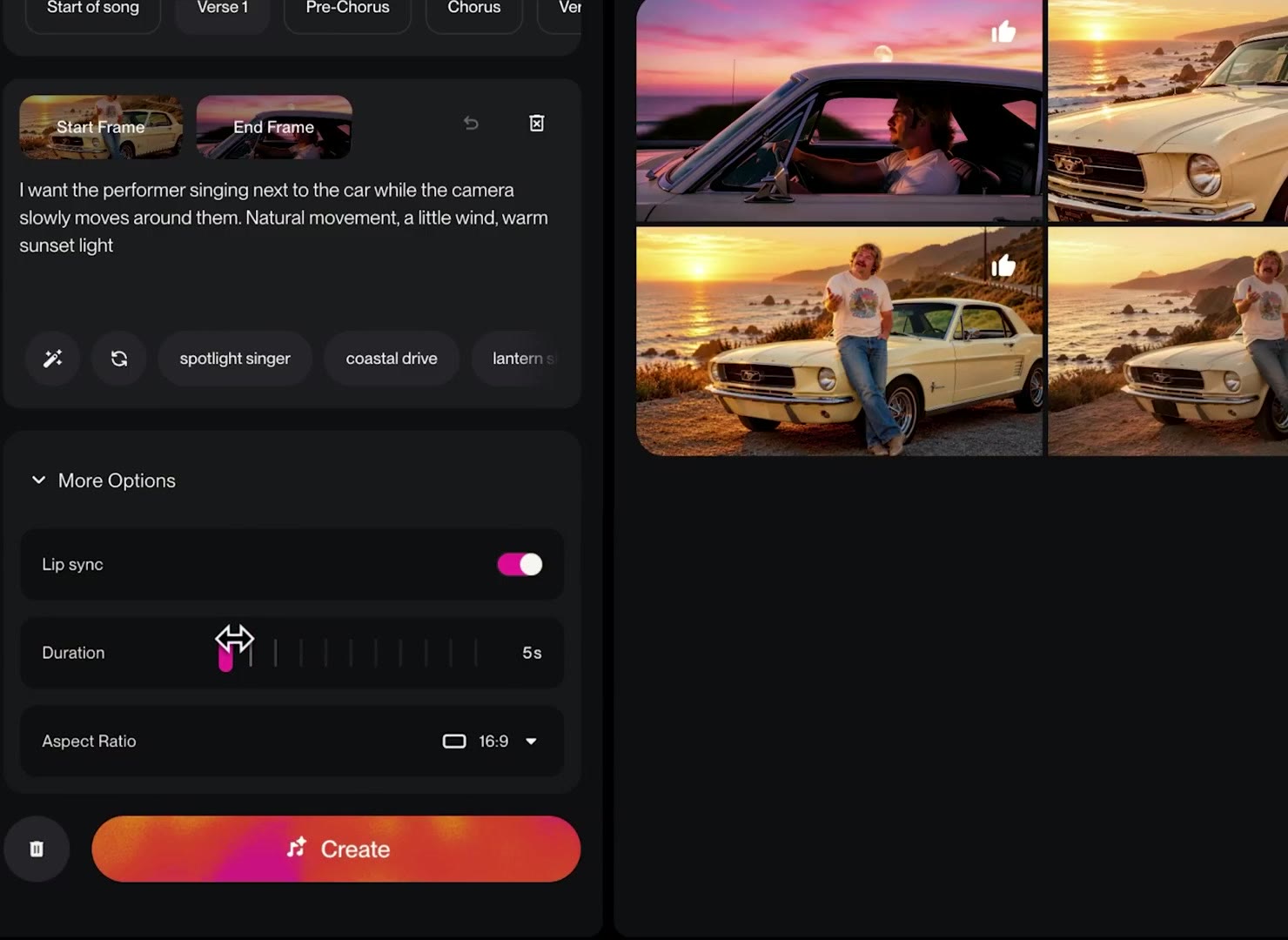
Write what should happen in the shot. Suno’s example: the performer singing next to the car while the camera slowly moves around them, with natural movement, a little wind and warm sunset light. The magic wand expands a short prompt, and the action presets next to it give you quick ideas.
Then open More options:
- Lip sync on, if the section has vocals.
- Clip length up to 15 seconds. The default is 10.
- Aspect ratio 9:16 or 1:1 for Shorts and Reels, or 16:9 for YouTube.
Step 5: Create the clip and pick one of the 2 takes
Click Create. Like with songs, Suno makes 2 takes. Play both, keep the one you like better and build from there. Your clips also land in your Library under Visuals.
Step 6: Open the editor and extend the video shot by shot
Hover over the clip and click Edit, or click the clip and choose Open editor at the bottom right. Your song stays at the bottom of the timeline. Click Extend at the end of the timeline and pick one of 4 options:
- Extend clip continues from the last frame.
- New clip makes a fresh shot from a prompt, with its own start and end image.
- New image creates a still from a prompt.
- Add from Library drops in an image or video you already have.
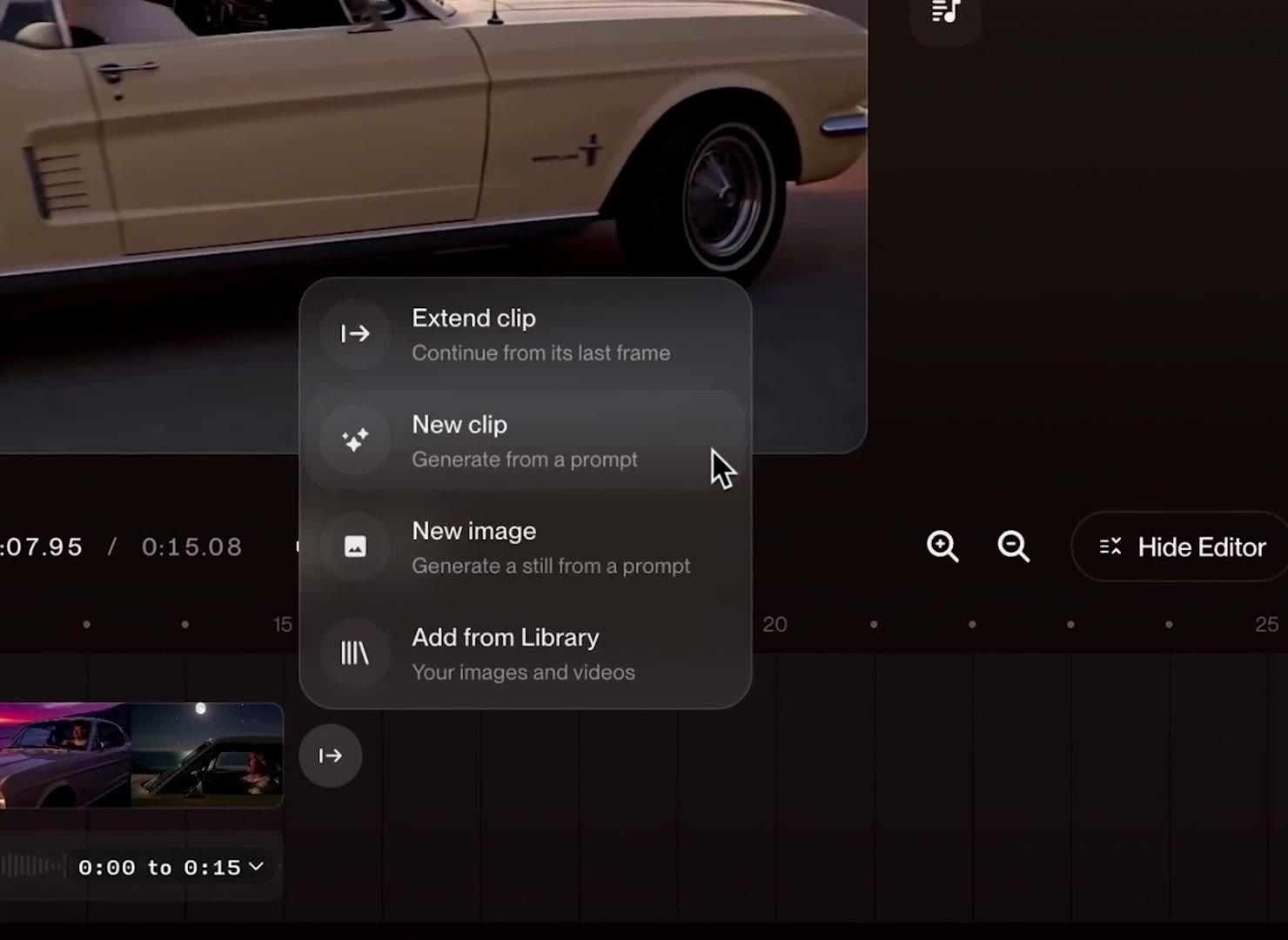
Extend clip keeps a scene going, and New clip is how you change location or character. The timeline tools cover undo, redo, delete, split, duplicate, change and extend, plus loop, zoom and full screen.
Step 7: Add lyrics to the video
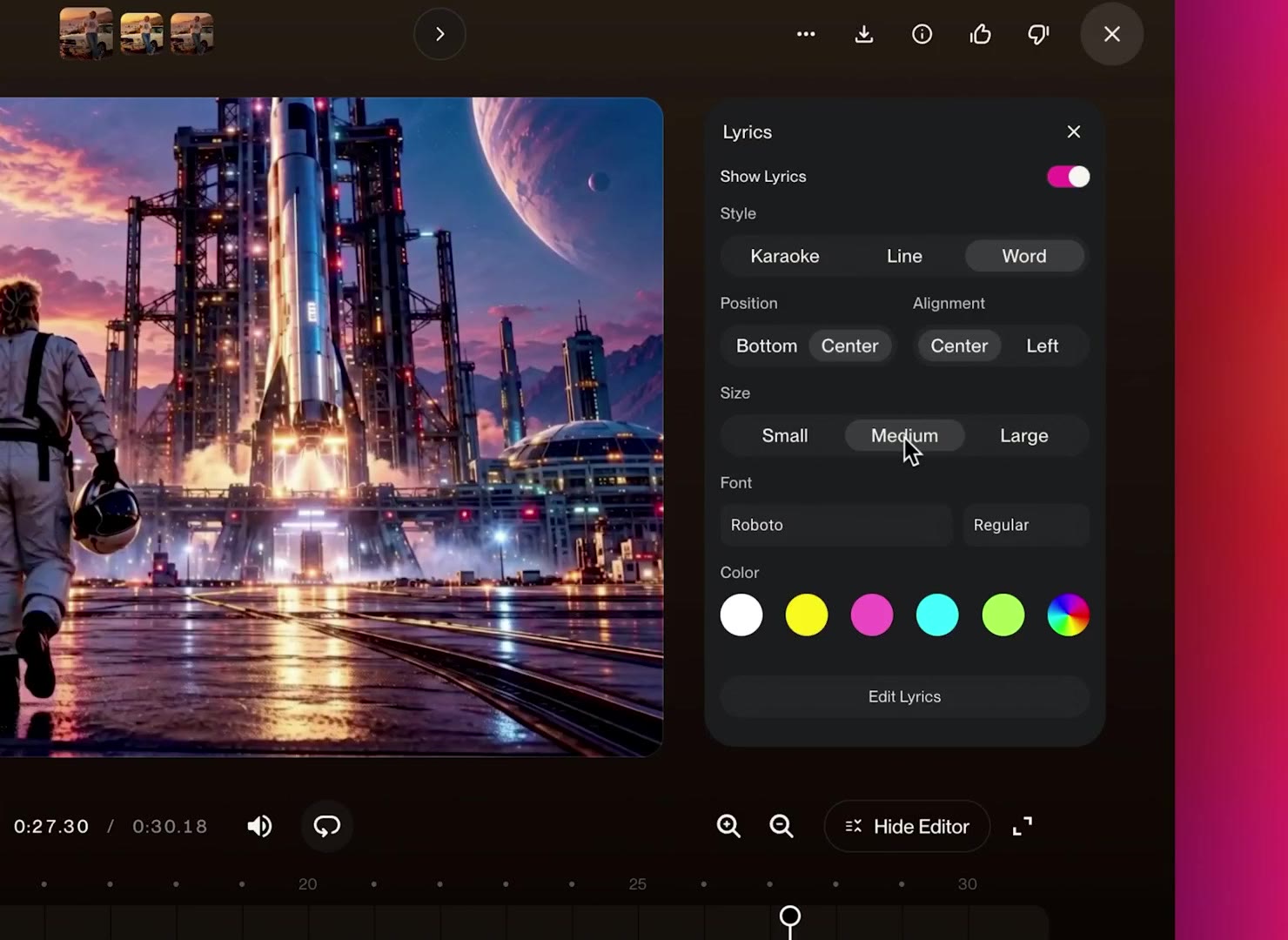
Click the Lyrics button to the right of the video and switch on Show lyrics. Pick the style (karaoke, line or word), the position (bottom or center), the alignment, and the font, size and color.
Step 8: Download the video or share it from Suno
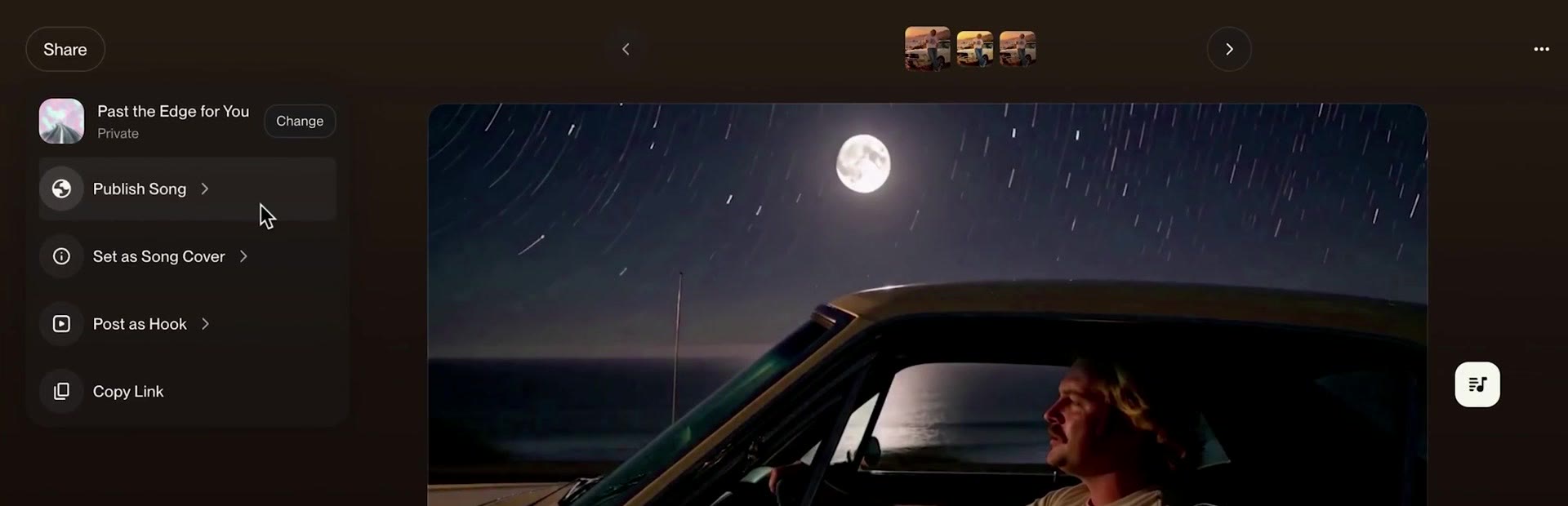
Preview the full video, then download the file. Or open the Share menu to publish the song with it, set it as the song’s cover, post it as a hook or copy a link.
Now you have the whole loop: one section, one shot, 2 takes, then extend until the song is covered. If you want the background on pricing and the model behind it, read my Suno Visuals launch breakdown, and compare it with the dedicated AI music video generators before you buy credits.
Frequently asked questions
How long can a Suno Visuals clip be?
A single Suno Visuals clip runs up to 15 seconds, and the default is 10 seconds. To go longer, you open the clip in the editor and use Extend to add more shots to the timeline.
Can Suno Visuals lip sync a character to my song?
Yes. Under More options you can switch on lip sync, which makes the character sing along with the vocal in the section you picked. Suno's tutorial recommends starting the clip where the vocals begin.
Can I use my own photo as a character in Suno Visuals?
Yes. You can pick one of Suno's original characters or upload a picture of your own as the character or start frame. Suno's filters block images and prompts of specific artists, public figures and copyrighted works, and the first upload asks you to confirm you have the rights.
How do I add lyrics to a Suno Visuals video?
Open the video in the Suno Visuals editor, click the Lyrics button to the right of the video and switch on Show lyrics. You can pick karaoke, line or word style, set position, alignment, font, size and color, and use Edit lyrics to change the text and when it appears.
About the author
Covering AI music tools, industry shifts, and news for music creators and professionals. Twice-weekly newsletter at aimusicpreneur.com.