How to use Suno Bridge in Ableton Live 12: set up Bridge and drop AI stems on your timeline in 8 steps

My stack My fav 6 tools for AI music after testing 70+
-
 ElevenMusic · Music generation
-
 Moises · Stem separation
-
 Controlla · Voice swap & cloning
-
 Cryo Mix · Mixing + mastering
-
 Neural Frames · Music videos
-
 ONCE · Distribution
Some links are affiliate links — I earn a commission at no cost to you. Every tool here is one I run myself and truly believe in. This stack is proven.
Your Ableton session is nearly done, and the chorus needs a guitar part. So you dig through sample packs for something in the right key, or you load a VST and play it in yourself, and by the time it’s done the idea is gone.
Suno launched Suno Bridge on November 13, 2026, to fix exactly that. It’s a free Mac app that runs next to Ableton Live 12 and writes new instrument and vocal parts straight onto your timeline.
Suno’s launch post promises parts that fit “the tempo, key, style, harmonic content and groove of your Ableton session.” The catch: it’s a beta, and it needs a Premier plan at $24 a month.
This guide walks you through all 8 steps, using the screens from Suno’s own launch video. The video is presented by Justin, a producer in the Suno Spark program, and runs 4 minutes:
What you need before you set up Suno Bridge
The beta has 4 hard requirements:
- A Suno Premier plan. Bridge is included with Premier, which costs $24 a month on annual billing or $30 monthly. Free and Pro accounts can’t run it.
- A Mac. The beta is Mac-only. Suno says other operating systems come later.
- Ableton Live 12 or later. No other DAW works yet, and Suno notes Bridge “has been developed independently of Ableton.”
- Suno credits. The app is free, but every generation spends credits, the same way Suno Studio does. Premier comes with 10,000 a month.
Before you start, save a copy of the Live set you want to work on. Bridge drops new tracks into it, and a copy keeps your original clean.
How does Suno Bridge work with Ableton Live?
Suno Bridge flips Suno Studio around. Studio is Suno’s own DAW in the browser. Bridge brings Suno into the DAW you already own, with your plugins, your routing and your shortcuts.
It works in 4 moves. Bridge uploads your Live project to Suno once, so the model hears what’s already there. Then you set a loop in Live, pick an instrument and describe the sound. Suno writes 2 takes that fit that loop, and the one you pick lands on your timeline.
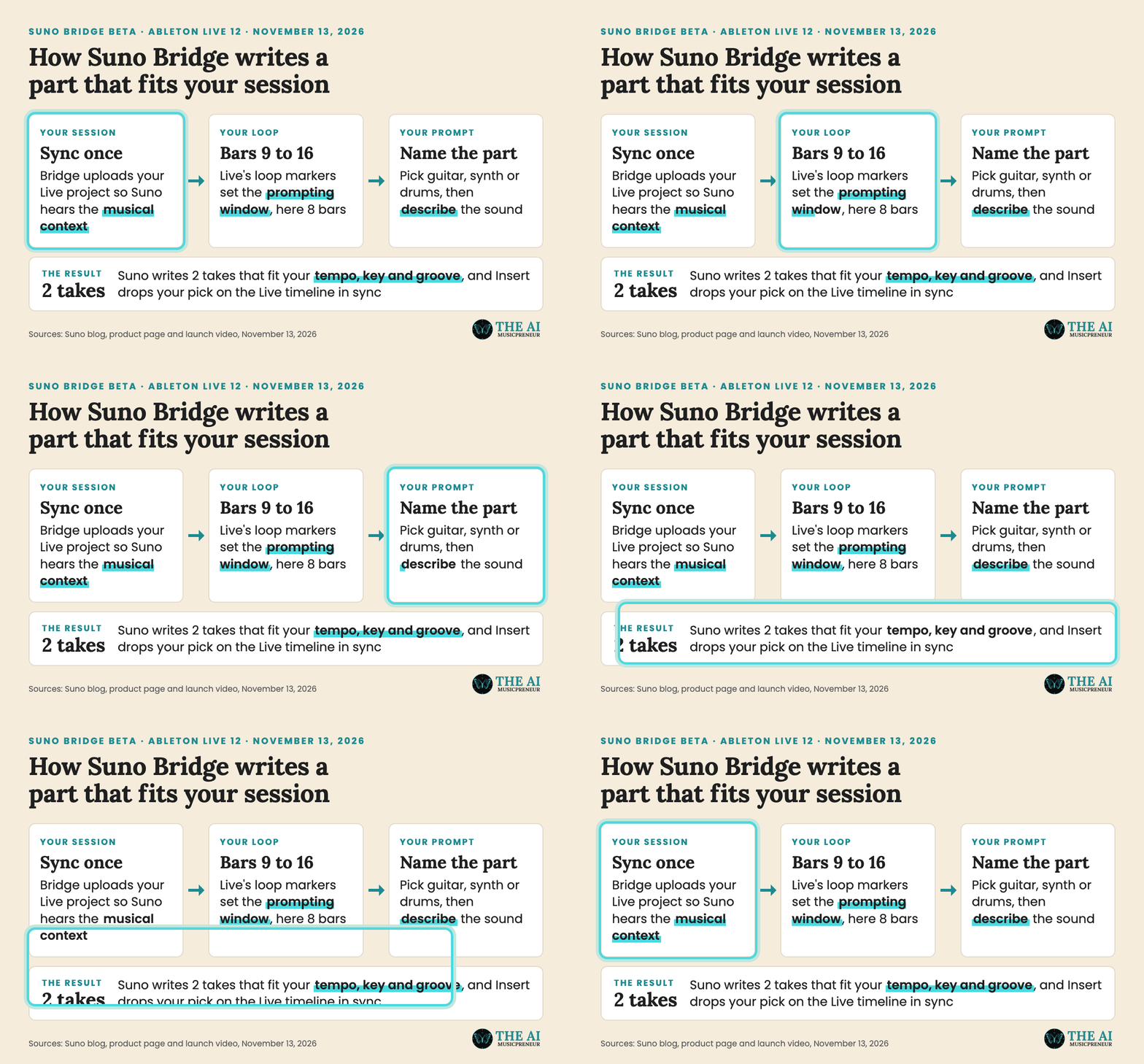
Suno’s blog puts the loop part in numbers: a loop from bar 9 to bar 16 gives you an 8-bar part that starts on the first beat of bar 9. That’s the main difference from a sample pack. Suno’s Bridge page says the new parts match “the key, tempo and feel of your music.”
How to use Suno Bridge in Ableton Live 12, step by step
8 steps take you from the download to a new part playing in your session.
Step 1: Install Suno Bridge on your Mac
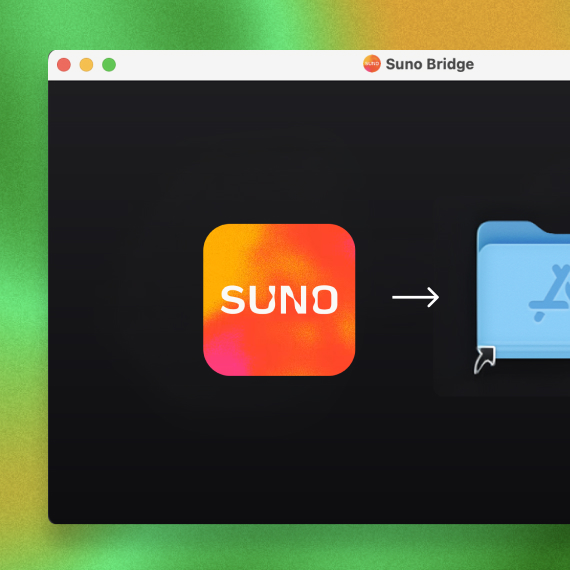
Go to suno.com/bridge and click Download Bridge. You get a .dmg installer. Open it and drag Suno Bridge into your Applications folder.
Step 2: Open Suno Bridge and launch Ableton Live from it
Open Suno Bridge. It shows one screen, “Open a project in Ableton Live”, with a Launch Ableton Live button. Click it, and Live opens. (Suno’s setup guide has you open Live first and Bridge second, which works too.)
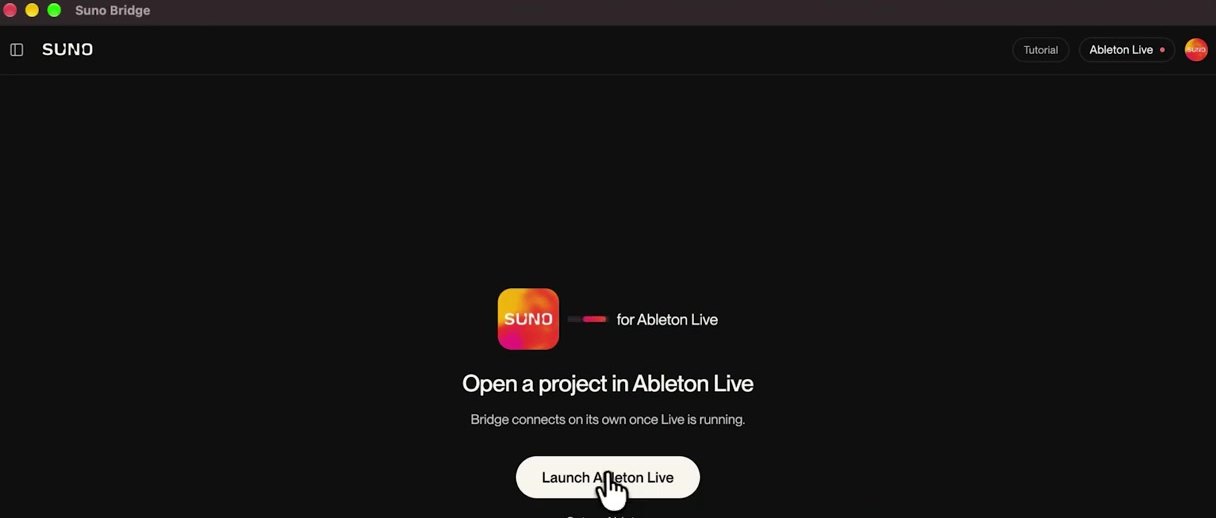
The line under the heading tells you how it works: “Bridge connects on its own once Live is running.” In the top-right corner, a pill shows Ableton Live with a status dot.
Step 3: Freeze your MIDI tracks so Suno Bridge can hear them
This is the step most people will miss, because the launch video only mentions it at the end. Justin says it plainly at 3:32: “If you’re bringing in MIDI, Bridge can only hear the MIDI tracks if you freeze them.”
Freezing turns a MIDI track into audio under the hood, without deleting your notes. Do it for every MIDI track you want Suno to hear:
- Right-click any clip on the MIDI track and pick Freeze Track.
- Or select the track and choose Freeze Track from Live’s Edit menu.
- Or press Cmd+Option+Shift+F, the shortcut in Ableton’s Live 12 manual.
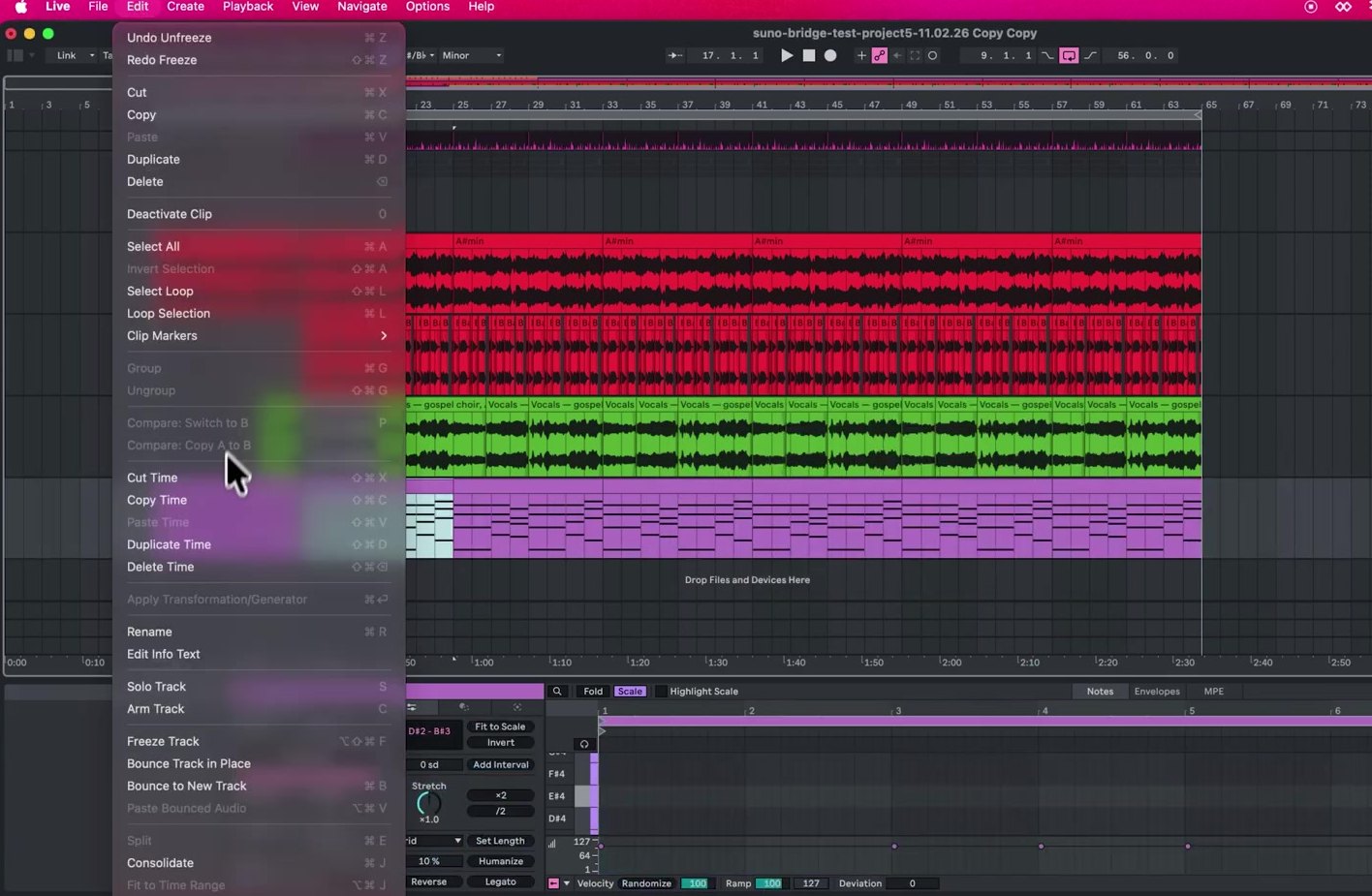
Step 4: Upload your Ableton project to Suno Bridge
With your session open in Live, Bridge switches to a screen that reads “Let Suno hear your project”, with the line “Your Ableton project file will be sent to Suno.” Click Upload project.
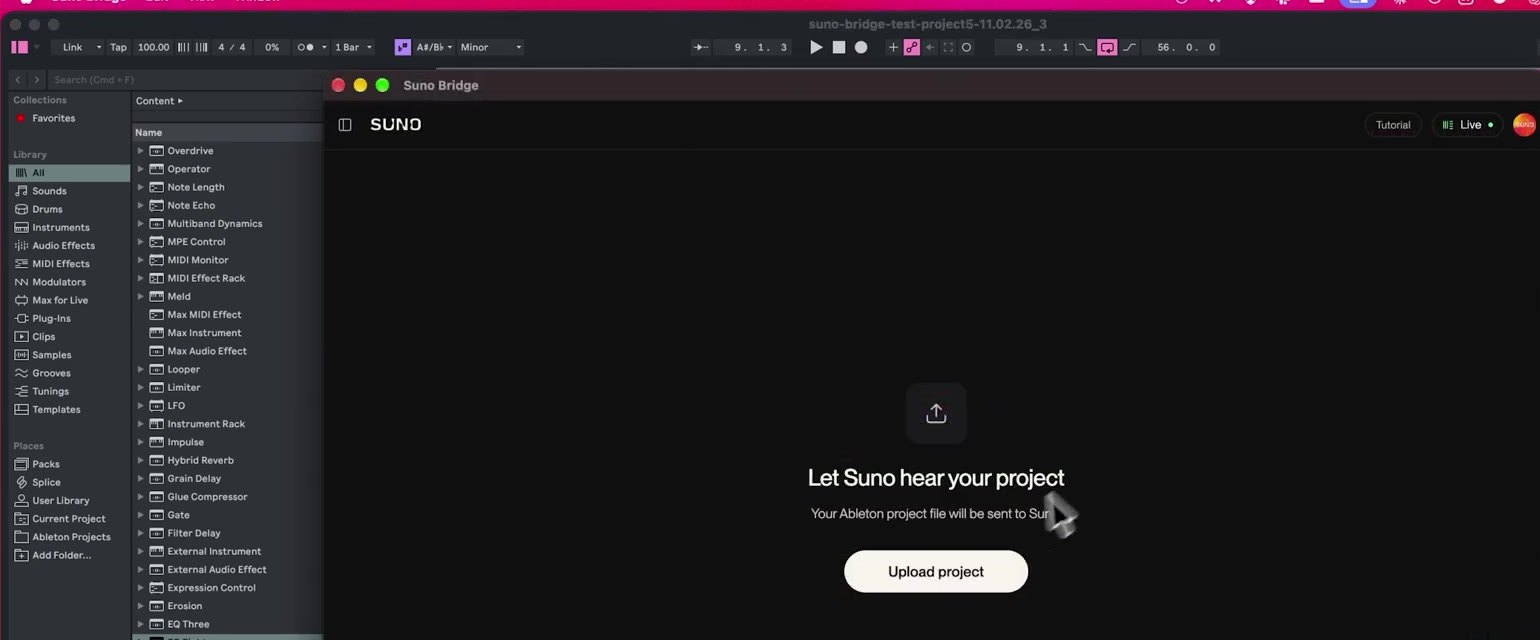
Bridge then shows “Preparing your project” while it analyses the session. Justin’s timing note at 1:04: “It can take a few minutes for a big session, but the good news, you only need to do it once per project.”
Step 5: Set the loop range in Ableton Live to pick the bars
Bridge writes into whatever bars you loop in Live. In Arrangement View, select the section where you want the new part, then press Cmd+L to loop it. Suno’s setup guide names that exact shortcut.
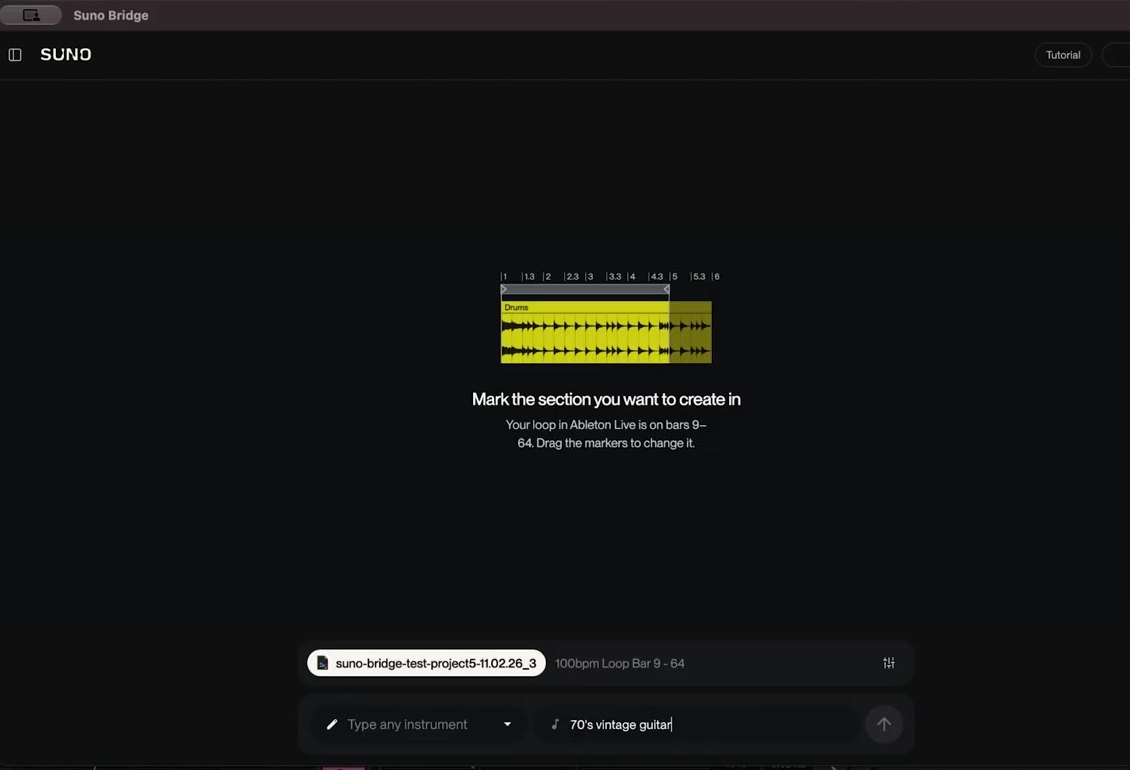
Bridge confirms it with “Mark the section you want to create in” and a line like “Your loop in Ableton Live is on bars 9–64. Drag the markers to change it.” The length of the part follows the loop. In the video, a loop from bar 9 to 64 returns a 56-bar guitar part.
Step 6: Pick an instrument and describe the sound in Suno Bridge
The prompt bar at the bottom of Bridge has 2 fields. The first is the instrument: the video uses Guitar, Synth, Keyboard, Drums and Brass, Suno’s own screenshots show Backing Vocals, and the empty field reads “Type any instrument”. The second is a sound description.
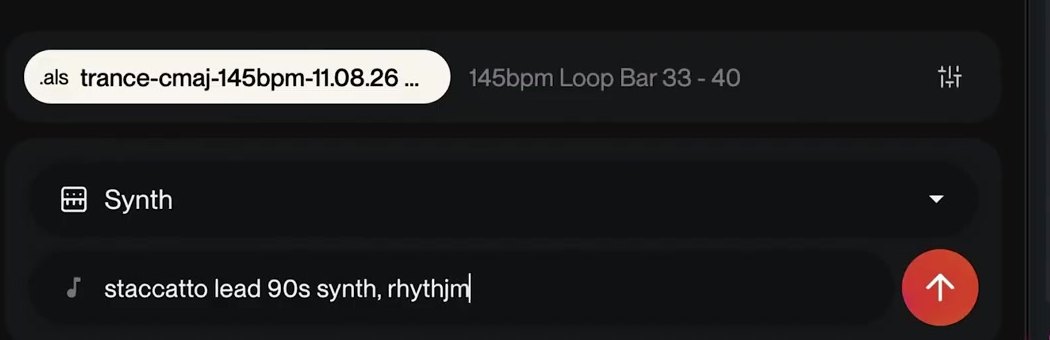
Short descriptions work. These are the ones Suno uses in the video and on the Bridge page:
- Guitar: “70’s vintage guitar, plucked lead, A#min”
- Synth: “staccatto lead 90s synth, rhythmic”
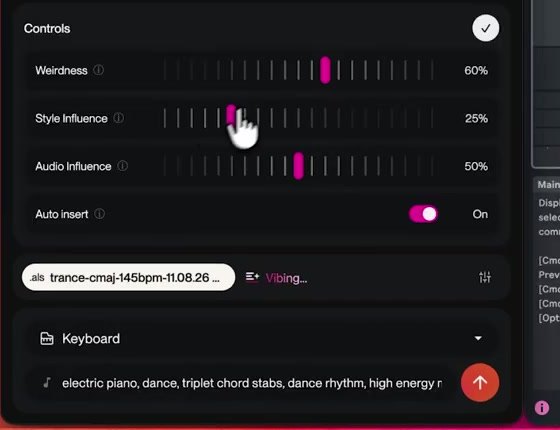
- Keyboard: “electric piano, dance, triplet chord stabs, dance rhythm, high energy”
- Guitar: “wah wah funk guitar clean”
- Backing Vocals: “choir background vocals, 60s gospel, vinyl crackle”
Press the red arrow to generate. Bridge shows a status like “Composing” or “Vibing” while it works.
Step 7: Audition the 2 takes and insert one onto the Live timeline
Every prompt returns Take 1 and Take 2. Press play on each one inside Bridge. When you hear the one you want, click Insert next to it.
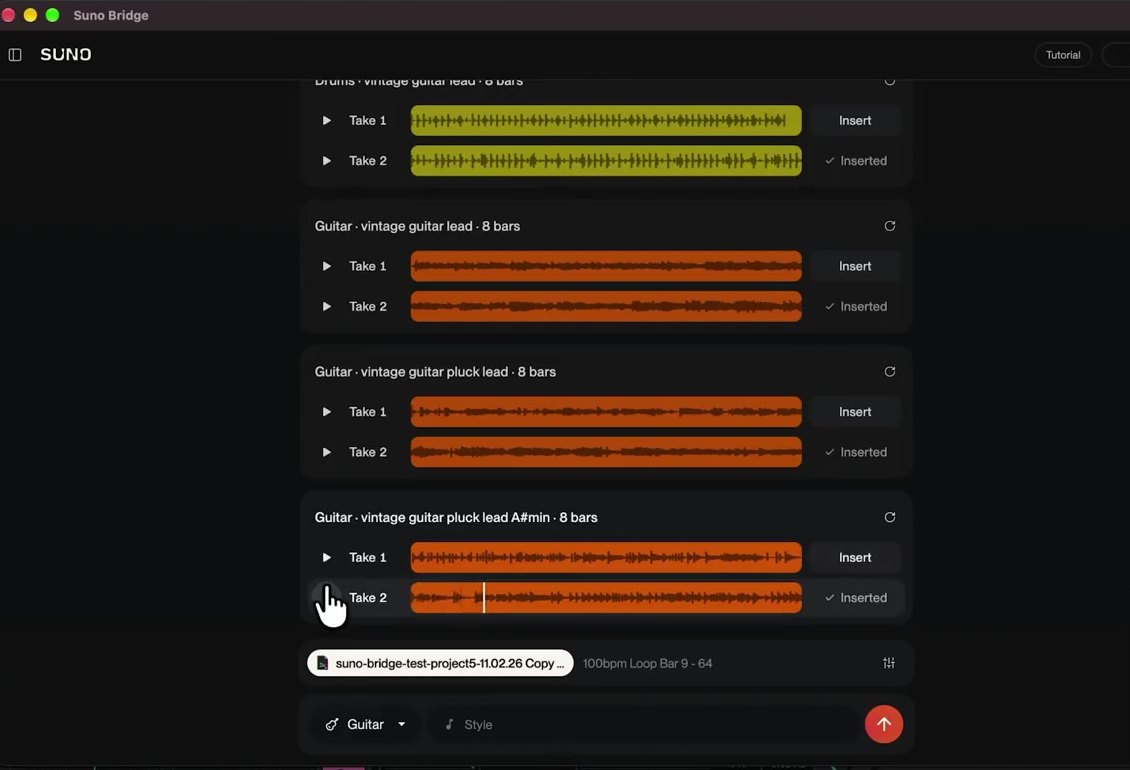
Bridge adds the clip as a new track in Live, starting at your loop’s first bar and named after the instrument, the description and the take. The button then changes to “Inserted”. Suno’s blog sums it up: “No leaving your session, no dragging and dropping, no manual alignment.”
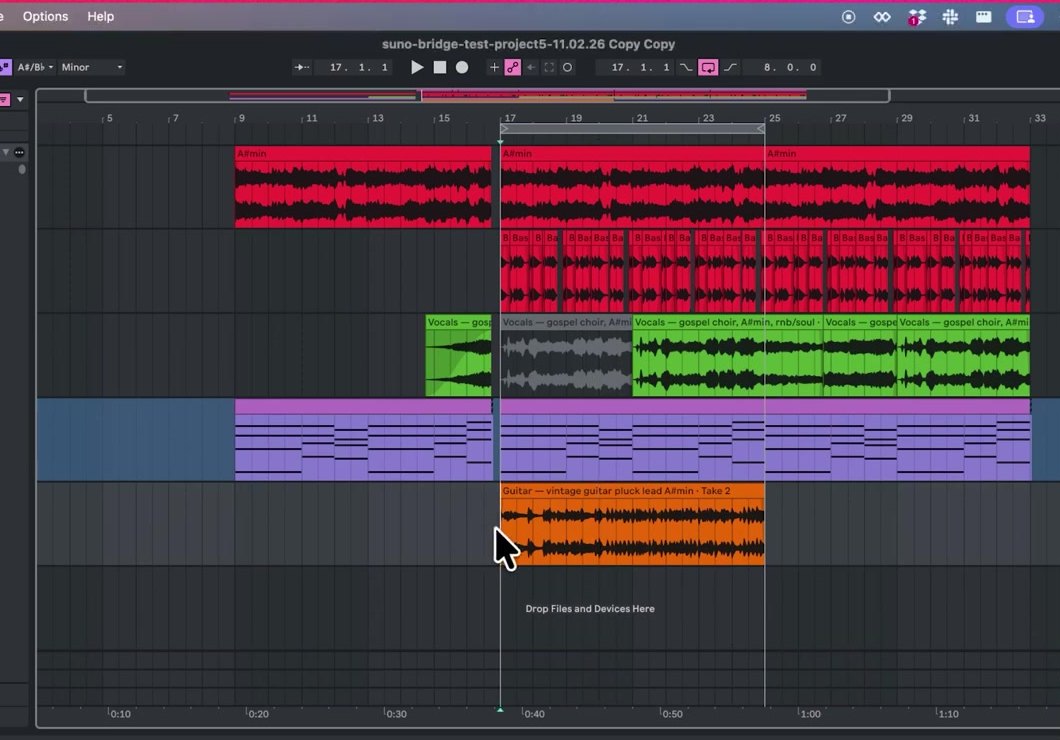
Step 8: Edit the Suno Bridge clip like any other Ableton clip
Once the clip is in Live, it’s an audio clip like every other one in your set. Justin at 3:00: “I can chop it, automate it, process it, or I could just use it as a starting point.”
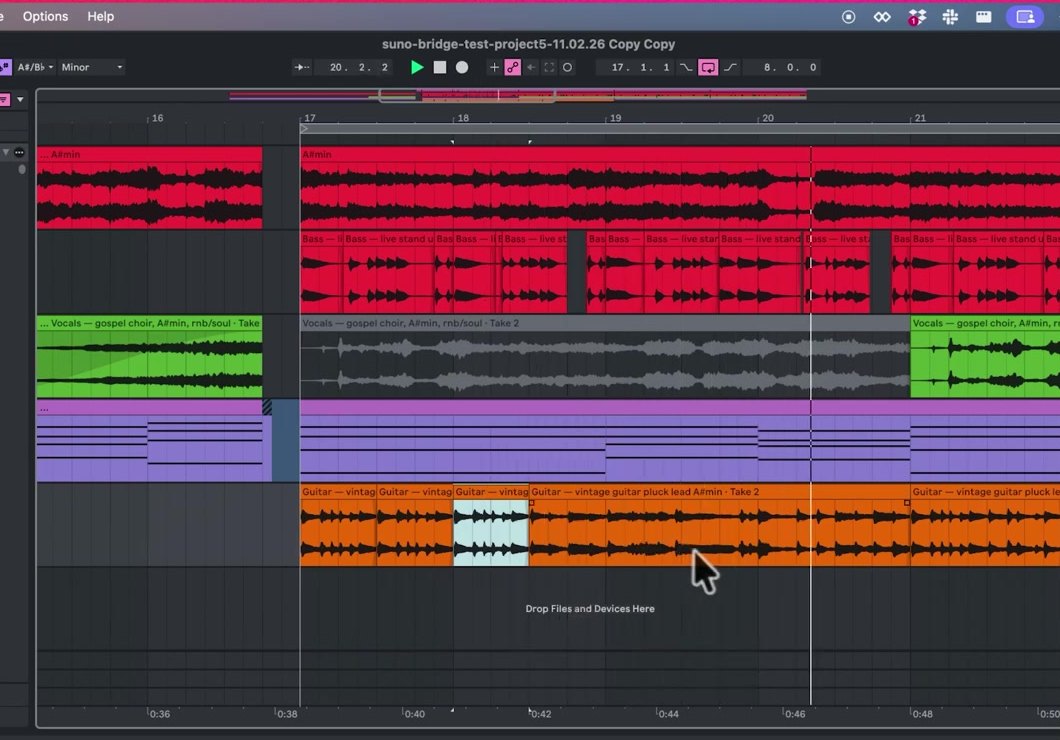
That’s the real point of Bridge over Suno Studio. Your own VSTs and effects sit on the new track, and Justin notes you can even route it to external hardware.
What common Suno Bridge mistakes trip people up, and how do you fix them?
The 6 problems you’re most likely to hit, with the fix for each:
- Bridge doesn’t see Live. Bridge only connects while Live is running. Use Launch Ableton Live on Bridge’s start screen, or the Set up Ableton link right under that button.
- The new part ignores your synth line. That MIDI track isn’t frozen. Freeze it (Step 3) and generate again.
- The part starts in the wrong place or runs too long. The loop is wrong. Bridge writes into the bars between Live’s loop markers, so reset them with Cmd+L.
- The upload takes forever. Big sessions take a few minutes. It happens once per project, so let it finish.
- Some of your audio is missing in Suno. Bridge either couldn’t reach those files and asked your permission, or Suno’s copyright filter blocked material it flagged as someone else’s.
- You can’t find your generations in your Suno library. They’re not there by design. Open the profile icon in Bridge and pick Downloads.
I'd have to grab a VST instrument, figure out the chords, play them in, and when I do that, I just lose my flow, honestly.
How do you get the best results out of Suno Bridge?
5 habits, in order of impact:
- Loop only the bars that need a part. Shorter loops mean quicker takes to judge, and you hear straight away whether the part fits.
- Start broad, then add detail. Justin starts with “70s vintage guitar”, then reruns with “70’s vintage guitar, plucked lead, A#min”. Instrument plus era first, playing style and key second.
- Freeze before you prompt. Any MIDI part Bridge can’t hear is a part the new take can’t follow.
- Type the instrument if it isn’t in the list. The instrument field takes any instrument you type.
- Try a part you’d never play yourself. Suno’s own examples include 60s gospel backing vocals and 90s rave horn stabs, the parts most producers would otherwise skip or hire out.
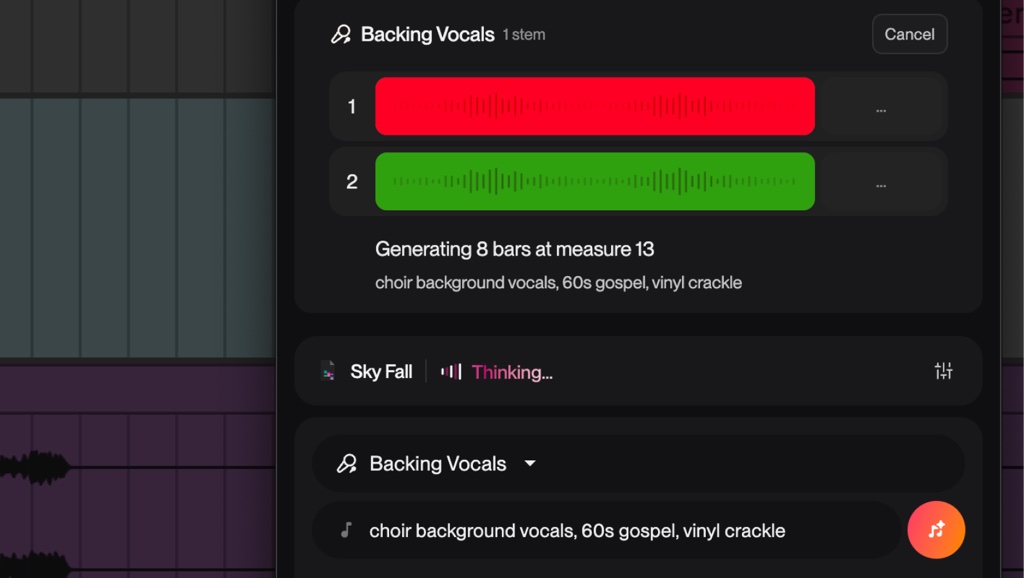
And one thing to avoid: don’t upload sessions full of samples you don’t own and expect them to come through. Suno’s copyright filters block flagged material, and only your original parts get through.
If you want the opposite workflow, pulling parts out of a finished Suno song rather than writing new ones into your session, that’s stem separation. My guide on separating stems with Suno covers it.
Is Suno Bridge worth it for Ableton producers with unfinished sessions?
Suno pitches Bridge at the drive full of half-finished projects: “Dust off the hard drive and bring new energy to the unfinished projects,” in its blog’s words. If you’re already on Premier and in Live 12 on a Mac, it costs you nothing extra but credits, so the test is cheap.
It’s still a beta. Logic, FL Studio and Windows users have to wait, and Suno hasn’t said for how long. If your ideas live in MIDI and you’d rather start a whole song from them, my guide to uploading MIDI to Suno Create works on Pro too.
So here’s the first test: open one old session tonight, loop 8 bars of the chorus, and ask Bridge for one part you’ve never been able to play. You’ll know within 2 takes whether it fits.
Frequently asked questions
Does Suno Bridge work with Logic Pro or FL Studio?
Not yet. At beta launch, Suno Bridge only works with Ableton Live 12 or later. Suno says it plans to add more DAWs soon but has not given a date.
Does Suno Bridge work on Windows?
No. The Suno Bridge beta is Mac-only. Suno says it plans to expand to other operating systems in the future.
How much does Suno Bridge cost?
The Suno Bridge app is a free download, but it only runs with a Suno Premier subscription, which costs $24 a month on annual billing or $30 monthly. Every generation in Bridge uses your Suno credits, the same way Suno Studio does.
Where do Suno Bridge generations show up after you make them?
Not in your Suno library. Suno keeps Bridge generations separate, and you find all of them by clicking the profile icon in Bridge and choosing Downloads.
What happens to your Ableton project when Suno Bridge uploads it?
Bridge uploads the Live project you choose and its audio files to your Suno account, and asks permission before including files it can't access. Every file goes through Suno's copyright filters, and flagged rightsholder material is blocked while your original material goes through.
About the author
Covering AI music tools, industry shifts, and news for music creators and professionals. Twice-weekly newsletter at aimusicpreneur.com.