Music creators face a persistent challenge: generating studio-quality tracks that sound intentional rather than algorithmic. Previous Suno versions produced decent melodies but lacked the nuanced vocal delivery and mix clarity that separates amateur from professional output. Suno v5 changes this equation.
The latest version delivers authentic vocals, precise prompt understanding, and much more. These improvements let you craft tracks that meet commercial release standards.
This guide shows you how to leverage Suno v5’s enhanced features to create more nuanced, customizable music. You’ll learn to write effective prompts, use reference audio to build songs around it, use the new advanced stem separation features, and apply studio techniques that maximize audio quality.
Prerequisites before using Suno v5
 Screenshot
Required tools and versions:
- Suno Pro or Premier subscription (v5 currently unavailable on free tier)
- Web browser with JavaScript enabled
- Audio editing software for final mastering (optional)
Prior knowledge expected:
- Basic music terminology (verse, chorus, stems)
- Familiarity with Suno v4.5+ interface
Time commitment and skill level:
- 30-45 minutes per track for intermediate users
- Additional 15 minutes for stem editing and export
Before you start checklist:
- Log into your Suno Pro or Premier account
- Prepare your lyrics or concept notes
- Clear browser cache if experiencing interface issues
Legal Disclaimer:
Suno faces active litigation from the RIAA and GEMA over AI training on copyrighted music. Suno’s terms grant them broad rights to your submissions. With ongoing lawsuits, there’s real uncertainty about whether AI-generated music could face future copyright challenges. Consult an entertainment attorney before commercial use. This guide is educational only – users assume full legal responsibility.
What’s new in Suno v5?
Suno v5 represents a fundamental upgrade in AI music generation. The model processes prompts with greater precision, meaning fewer iterations to achieve your target sound. The new stem separation technology lets you modify individual instruments without regenerating entire tracks.
CTO Georg Kuscko explains the core advantage: “V5 can take the song apart not just in time, but also by stems and allow people to say, I would like to remove the stem, add a stem, add a certain section of a particular instrument in a particular place.” This granular control eliminates the all-or-nothing approach of earlier versions.
Use this method when you need commercial-quality output or want to iterate on specific musical elements. For quick demos or casual experimentation, v4.5+ remains sufficient and faster to access.
Here’s an overview what’s actually new:
Better prompt understanding – v5 gives you much more control over getting exactly what you want. The model listens better, so you actually need to prompt it less to get the results you’re looking for.
Stem-level editing – You can now add or remove individual stems (drums, vocals, bass, etc.) section by section. This goes way beyond the basic song editor. Disclaimer: I was not able to verify this feature quite yet in the song editor. You can extract stems but you can’t work on them individually in the song editor yet. It appears this is coming with the Suno Studio release.
Sample-to-song expansion – Take something as simple as a drum loop and expand it into a full stem or complete song section. I uploaded a simple drum loop and was prompted to a screen that let’s you extend it further.
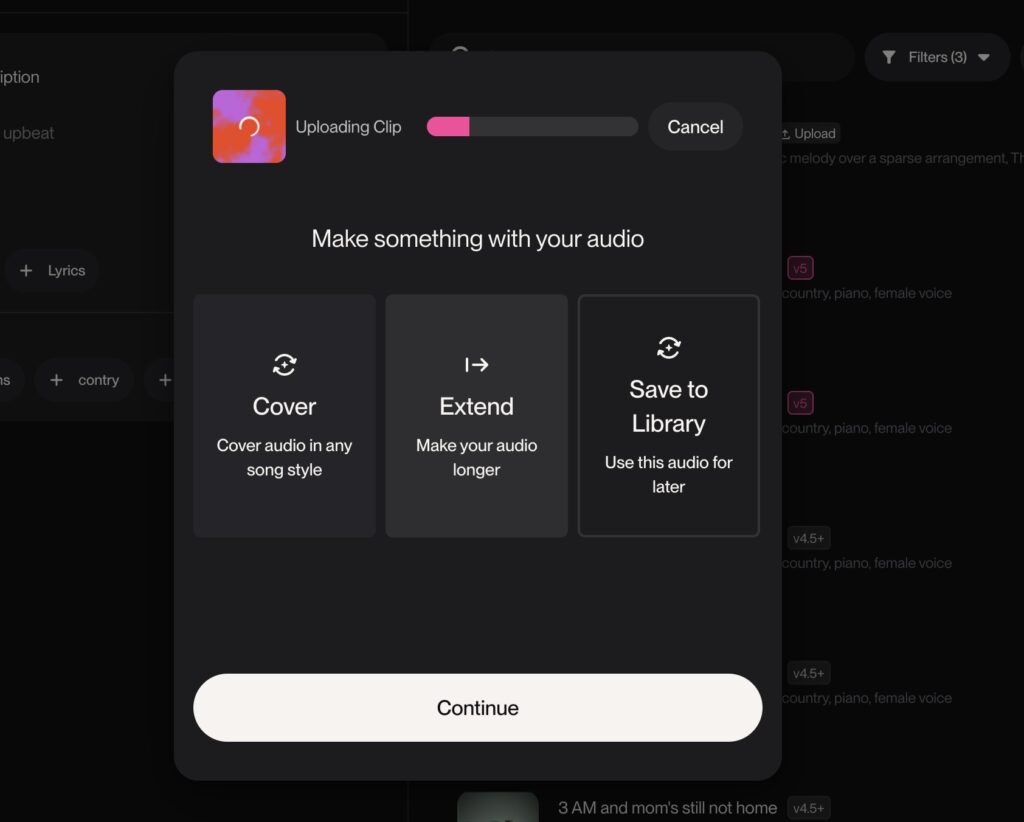 Credit: Suno website
Recording integration – Record your own voice or instruments directly in Studio, then use v5 to iterate on them in different genres and styles.
Coming soon: SFX and sample generation – Create sound effects like “explosion” or “dinosaur roaring in the rain” for intros and creative elements.
I quickly compared Suno v5 vs. v4.5+:
Prompt: singer songwriter, nashville, modern country, piano, female voice
Suno v5:
Suno v4.5+:
Here’s my take:
Suno v5 shows clear improvements over v4.5+.
The vocal melody carries more nuance and variation. One prompt with lyrics generates lines that sound deliberate. The difference is obvious.
The Suno v5 song opening has an 80s vibe. From verse to chorus, the song builds naturally. The instrumental choices lock in with the vocal phrasing. Compared to v4.5+, the melody feels sharper and more inventive.
Suno v4.5+ already delivered strong song structures and convincing arrangements. But the mix often felt weaker.
Suno v5 fixes this. The drums punch harder. The overall mix is clearer. Panning spreads the instruments evenly across the stereo field.
The outro at 2:40 shows the upgrade best. The piano locks with the vocal line in a way that feels intentional. The arrangement sounds carefully designed.
Step-by-Step Instructions using Suno v5
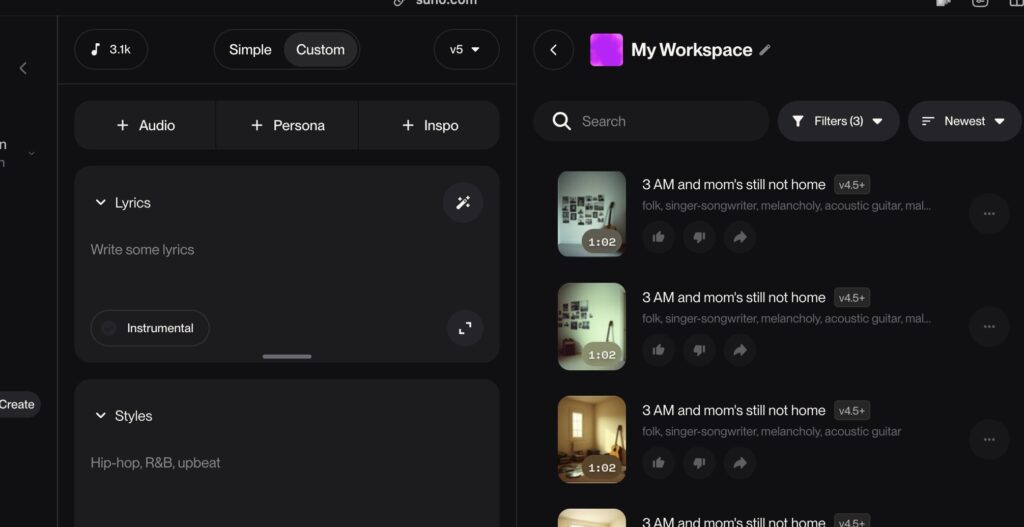 Screenshot
1. Write concise, specific pprompts
Purpose: Generate accurate initial tracks that require minimal revision.
Key prompt elements to include:
- Genre and subgenre (singer songwriter, nashville, modern country)
- Instrumentation (piano, acoustic guitar, strings)
- Vocal style (female voice, raspy, emotional)
- Tempo or energy level (mid-tempo, driving, intimate)
Watch for these pitfalls:
- Over-describing leads to generic output. V5 “”listens better”” so excessive detail flattens nuance.
- Conflicting genre tags confuse the model. Stick to 2-3 compatible styles maximum.
Pro tip: Start with your strongest descriptor first. “Melancholic indie folk” works better than “indie folk, melancholic” because v5 weights early terms more heavily.
Success check: Your first generation should capture 70% of your intended vibe without additional prompting.
2. Generate your base track
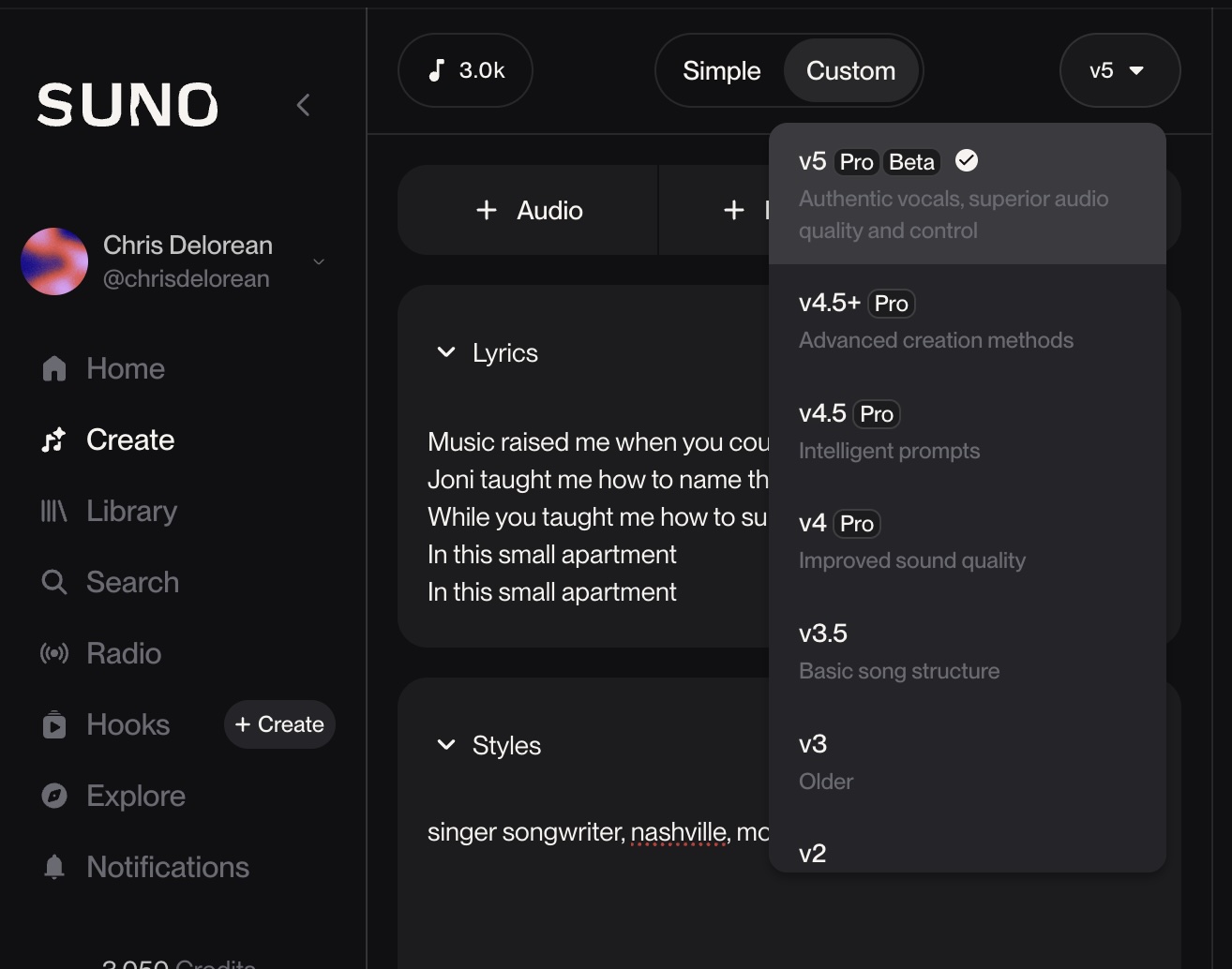 Screenshot
Purpose: Create the foundation track that you’ll refine using stem editing.
Steps to generate your track:
- Enter your refined prompt in the main text field
- Add lyrics if you have them, or select “Create my own lyrics”
- Click “Create” and wait for both variations to complete
- Listen to both outputs and select the stronger version
Example: Using the prompt “singer songwriter, nashville, modern country, piano, female voice” with lyrics about personal struggle generates tracks with authentic vocal phrasing and appropriate instrumental backing.
Quick rule: Choose the version with better vocal melody over better instrumental arrangement. Vocals are harder to fix in post-production.
Success check: You should hear clear vocal separation, balanced instrument levels, and coherent song structure from verse to chorus.
3. Access advanced stem separation features
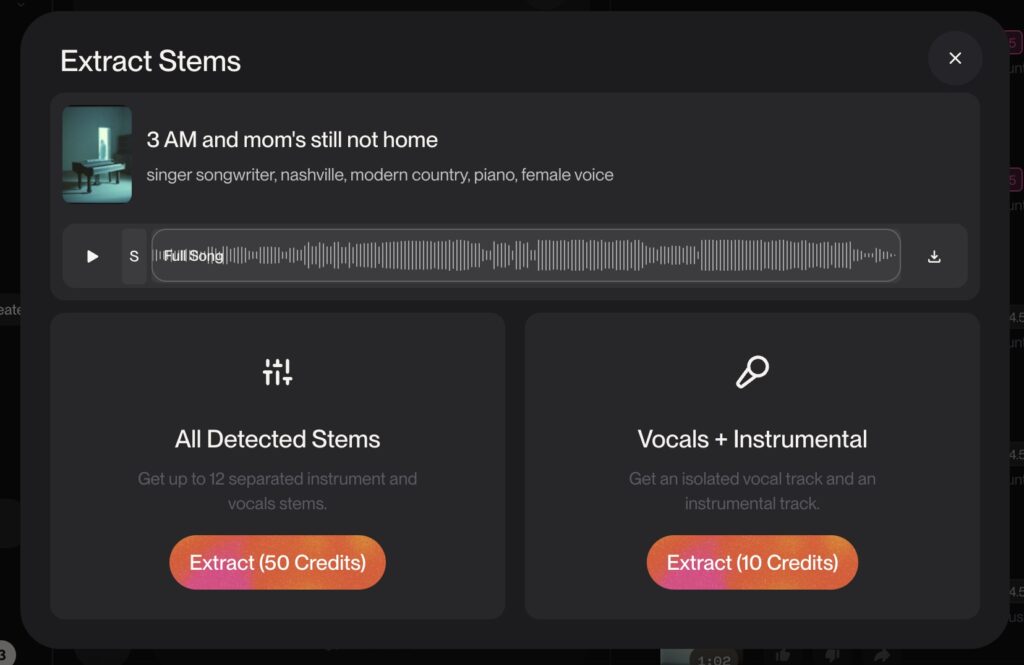 Screenshot
Purpose: Isolate individual instruments for precise modification or replacement.
Navigate to stem controls:
- Click the three-dot menu next to your selected track
- Select “Get Stems” from the dropdown menu
- Choose between:
- All detected stems (up to 12 separated instrument and vocal stems)
- Or Vocals + Instrumental to get an isolated vocal track and instrumental track
- Wait for stem separation processing to complete and download
Watch for these pitfalls:
- Stem separation works best on v5 tracks. V4.5+ tracks may show artifacts or incomplete separation.
- Processing time increases with track length. Expect 2-3 minutes for full songs.
Pro tip: Download stems immediately after separation. The platform doesn’t permanently store separated files, so you’ll need to re-process if you return later.
Success check: You should see separate playback controls for vocals, instruments, and drums with clean audio isolation.
4. Edit your song structure in Suno’s Song Editor
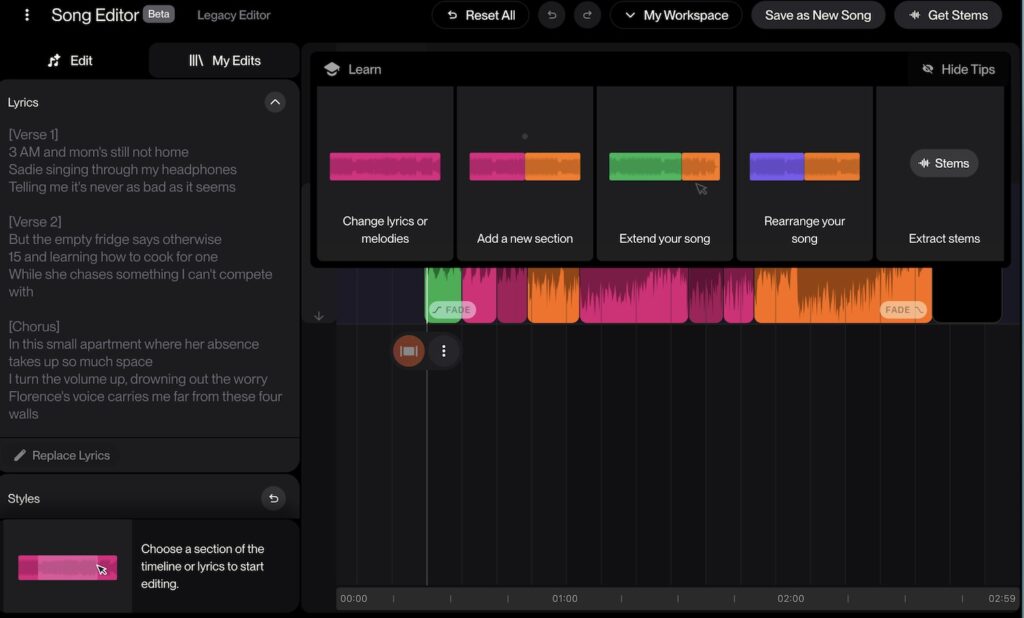 Screenshot
Purpose: Modify your song’s arrangement and content while having the option to extract individual elements for external use.
Song editing options:
- Change lyrics or melodies – Edit vocal content and melodic lines in existing sections
- Add a new section – Insert additional verses, choruses, or bridges to expand your song
- Extend your song – Lengthen the track by adding more content to the timeline
- Rearrange your song – Reorder sections to create different song structures
- Extract stems – Isolate and download individual instrumental and vocal elements as separate audio files
Example: Use “Add a new section” to insert a bridge between your second chorus and final verse, then “Rearrange your song” to move sections around until you find the perfect flow. If you want advanced mixing control, use “Extract stems” to download individual tracks for external editing.
Watch for these pitfalls:
- New sections should maintain consistent key and tempo with existing parts
- Extending songs may require additional credits depending on final length
- Stem extraction provides files for external use, not in-editor multi-track editing
Pro tip: Use the timeline waveform to visualize your song’s structure before making edits. The colored segments help you understand where different musical elements occur, making it easier to decide where new sections will fit best.
The Song Editor gives you control over arrangement and structure, with stem extraction providing a bridge to professional audio software when needed.
5. Apply Studio-Quality Finishing
Purpose: Prepare your track for commercial release or professional presentation.
Final production steps:
- Export individual stems at highest quality (32-bit if available)
- Import stems into your preferred audio editing software
- Apply light EQ to address any frequency imbalances
- Set final levels to -10 LUFS for streaming platform compliance
- Export master file in multiple formats (WAV, MP3 320kbps)
Alternatively choose an existing AI mastering service like Masterchannel or RoEx for both mixing and mastering.
Watch for these pitfalls:
- Over-processing destroys v5’s natural mix balance. Apply subtle adjustments only.
- Loudness standards vary by platform. Research target specifications before final mastering.
Pro tip: A/B test your master against reference tracks in the same genre. Suno v5’s mix quality often requires minimal additional processing.
Success check: Your final master should sound consistent across different playback systems and meet technical specifications for your target distribution platform.
Additional new features
Troubleshooting Guide
Common issues and quick fixes:
- Stem separation fails or shows errors: Refresh the page and try again. Processing servers occasionally timeout during peak usage.
- Uploaded audio doesn’t sync properly: Check that your file matches the track’s BPM and key signature. Use audio analysis tools to verify timing.
- V5 features not visible: Confirm your subscription level. V5 access requires Pro or Premier membership during the beta period.
What to do when progress blocks at a step:
- Save your work frequently using the bookmark feature. Browser crashes can lose unsaved progress.
- Document successful prompt combinations for future reference. V5’s improved consistency makes proven formulas more reliable.
- Contact support through the help center if technical issues persist beyond basic troubleshooting.
Best Practices using Suno v5
Screenshot
Top tips for success with Suno v5:
- Generate fresh tracks instead of covering v4.5+ songs. Each model version responds differently to prompts and covers may not showcase v5’s strengths.
- Test prompt variations systematically. Change one element at a time to understand how v5 interprets different descriptors.
- Use the Upload Audio feature to incorporate your own recordings as starting points for AI expansion.
- Export stems before making major changes. You can always revert to earlier versions if experiments don’t work.
What to avoid during setup and use:
- Don’t rely on the remaster function yet: The feature hasn’t been fully ported to v5, so use “cover with high audio similarity” as a workaround.
- Avoid extremely long prompts: V5’s improved understanding means concise descriptions often produce better results than exhaustive detail.
- Don’t ignore distribution rights requirements: Pro and Premier subscriptions include commercial licensing, but you must own original lyrics and compositions.
Time savers worth adopting:
- Create prompt templates for your most-used styles and save them as text snippets for quick access.
- Batch-generate multiple variations of the same concept, then use stem editing to combine the best elements from each version.
- Set up a consistent file naming system for stems and masters to streamline your workflow across multiple projects.
So, is Suno v5 a leap forward?
Suno v5 delivers the control and quality that serious music creators need for professional output. The enhanced prompt understanding reduces iteration time, while stem-level editing provides unprecedented flexibility for customization. Combined with studio-quality audio generation, these features position v5 as a legitimate tool for commercial music production.
The AI music market continues expanding rapidly, with projected growth to $2.79 billion by 2030. Early adopters who master v5’s capabilities will have significant advantages in this evolving landscape.
Start with simple prompt experiments to understand v5’s response patterns, then gradually incorporate stem editing and professional finishing techniques. Your next step should be generating your first v5 track using the methods outlined above.
Frequently asked questions
When is Suno v5 coming out?
Suno v5 was released on September 23, 2025 and is currently available to Pro and Premier subscribers. The new version features improved vocal quality, better prompt understanding, and stem separation capabilities. Free tier users don’t have access to v5 yet – you’ll need a paid subscription to use the latest features.