How to build a FREE Suno Wiki AI assistant in 10 minutes using NotebookLM and YouTube:
My stack My fav 6 tools for AI music after testing 70+
-
 ElevenMusic · Music generation
 -
 Moises · Stem separation
 -
 Controlla · Voice swap & cloning
 -
 Cryo Mix · Mixing + mastering
 -
 Neural Frames · Music videos
 -
 ONCE · Distribution
Some links are affiliate links — I earn a commission at no cost to you. Every tool here is one I run myself and truly believe in. This stack is proven.
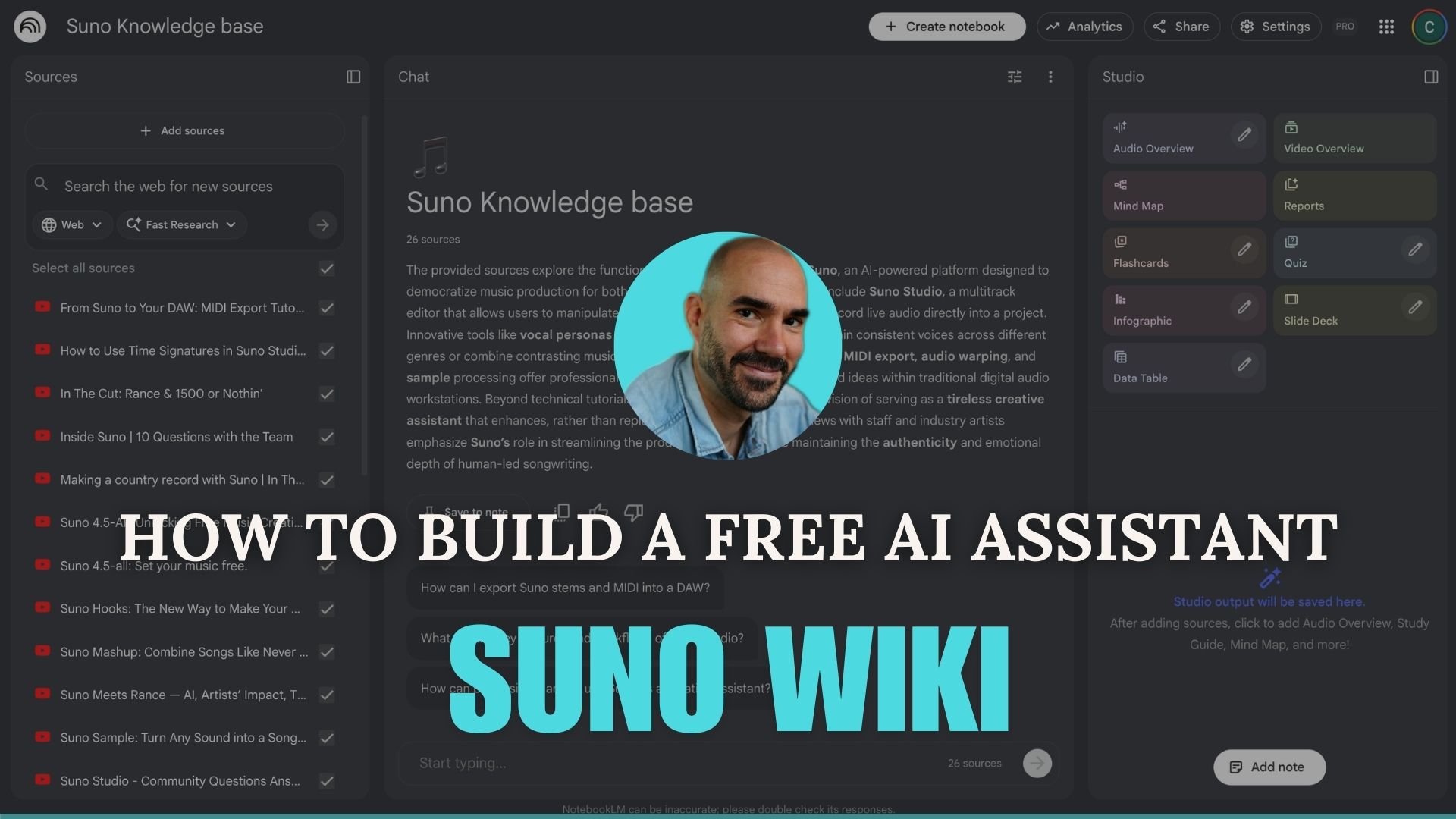
What if you had a Suno expert available 24/7, for free? Most musicians waste hours reading documentation or watching tutorial videos to find one answer. You spend more time searching than creating.
This guide shows you how to build a personal AI assistant that functions as your own Suno wiki. Using NotebookLM and a free Chrome extension, you create a searchable brain that knows everything about Suno. If you need the basics first, start with this Suno AI tutorial before building your assistant.
Why You Need a Suno Wiki AI Assistant
The Suno help center contains over 100 articles across categories like Making Music, Rights and Ownership, and Studio features. Reading through all of it takes hours. Add YouTube tutorials and community guides, and you face days of content to absorb.
A Suno AI assistant gives you instant answers from YouTube tutorials, official docs, and community guides in one place. Ask a question, get a direct answer. No more digging through 50 videos for one tip.
What You’ll Need to Build Your Suno Knowledge Base
Gather these free tools before starting:
- Chrome browser on desktop
- Instant Data Scraper extension
- Google NotebookLM account
- 10 minutes of setup time
Pro tip: NotebookLM works best with a Google account you already use. Sign in before starting to skip extra authentication steps.
Step-by-Step Guide to build a Suno Wiki AI assistant:
Step 1: Scrape the Suno YouTube Channel
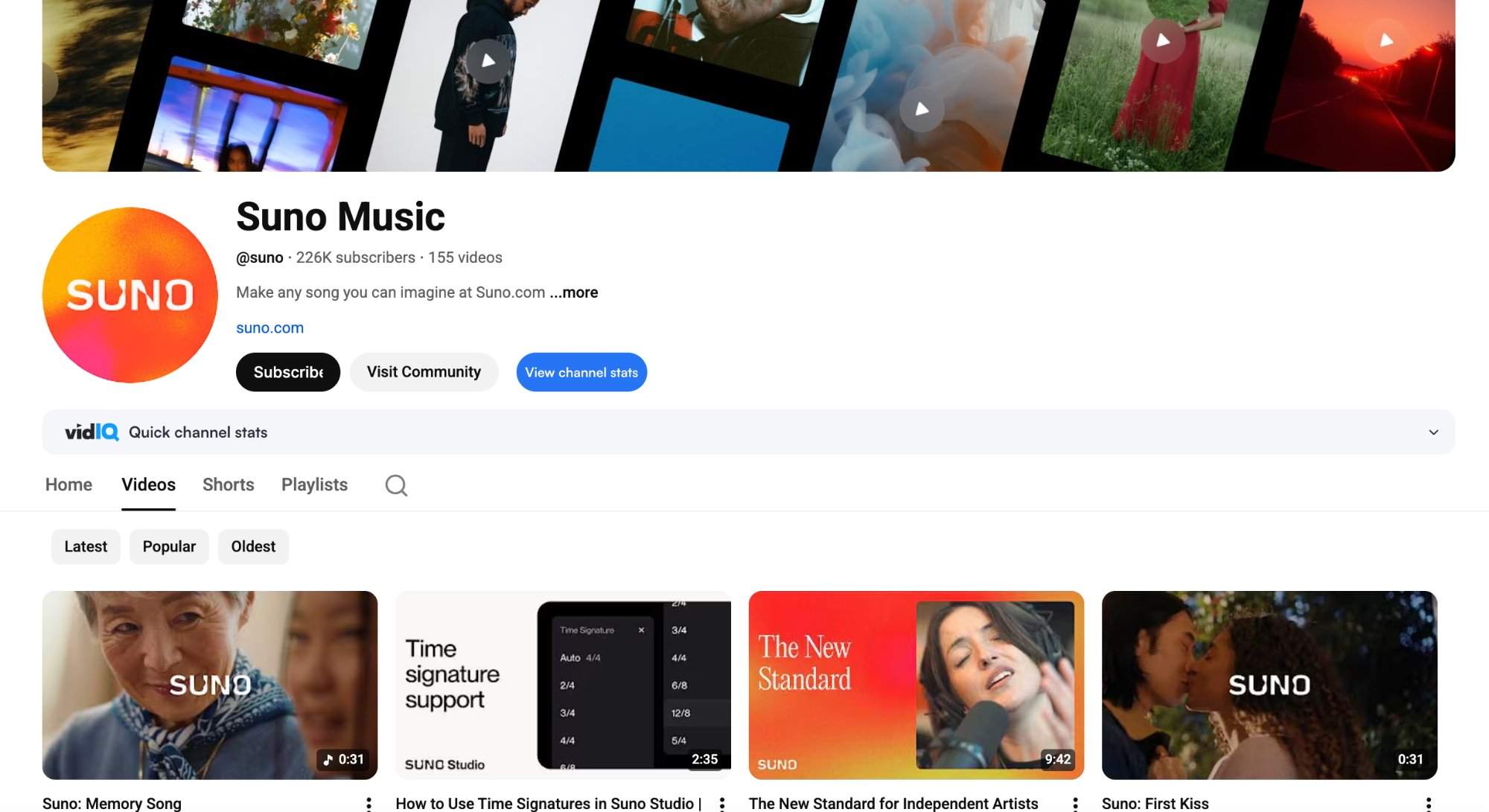
Purpose: Export every video URL from the official Suno channel to feed your knowledge base.
Follow these steps to gather video links:
- Navigate to Suno’s YouTube channel in Chrome.
- Click the Instant Data Scraper extension icon in your toolbar.
- Wait for the extension to detect the video list on the page.
- Scroll down the channel page to load more videos.
- Click Export to download all video URLs as a CSV file.
Watch for these pitfalls:
- Extension not detecting videos: Scroll the page first to trigger content loading.
- Missing videos: Make sure you scroll to the bottom of the channel to capture the full library.
Success check: You should see a downloaded CSV file containing 20 or more video URLs from the Suno channel.
Step 2: Build Your Suno Wiki in NotebookLM
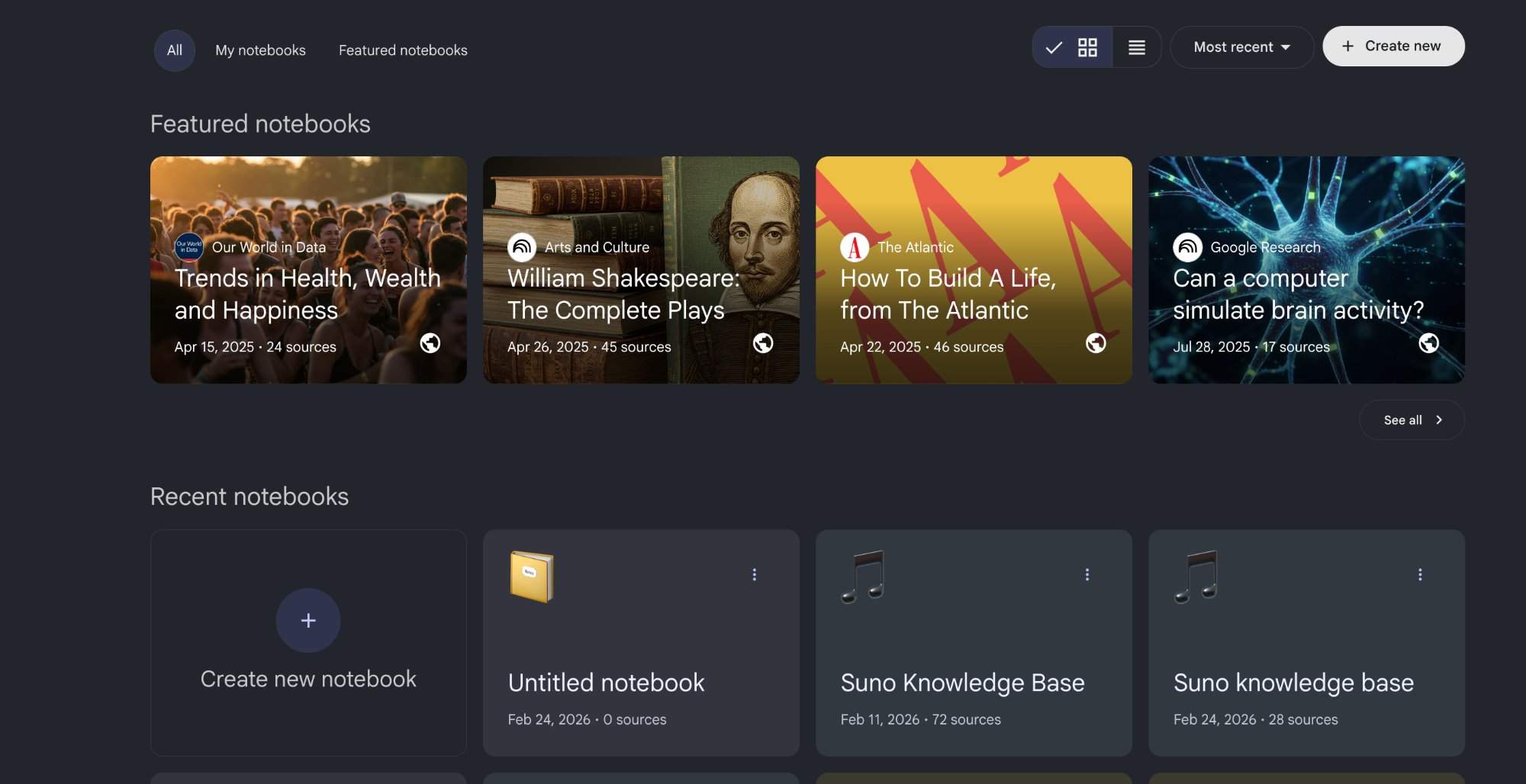
Purpose: Create a searchable knowledge base by importing YouTube links, official docs, and community resources.
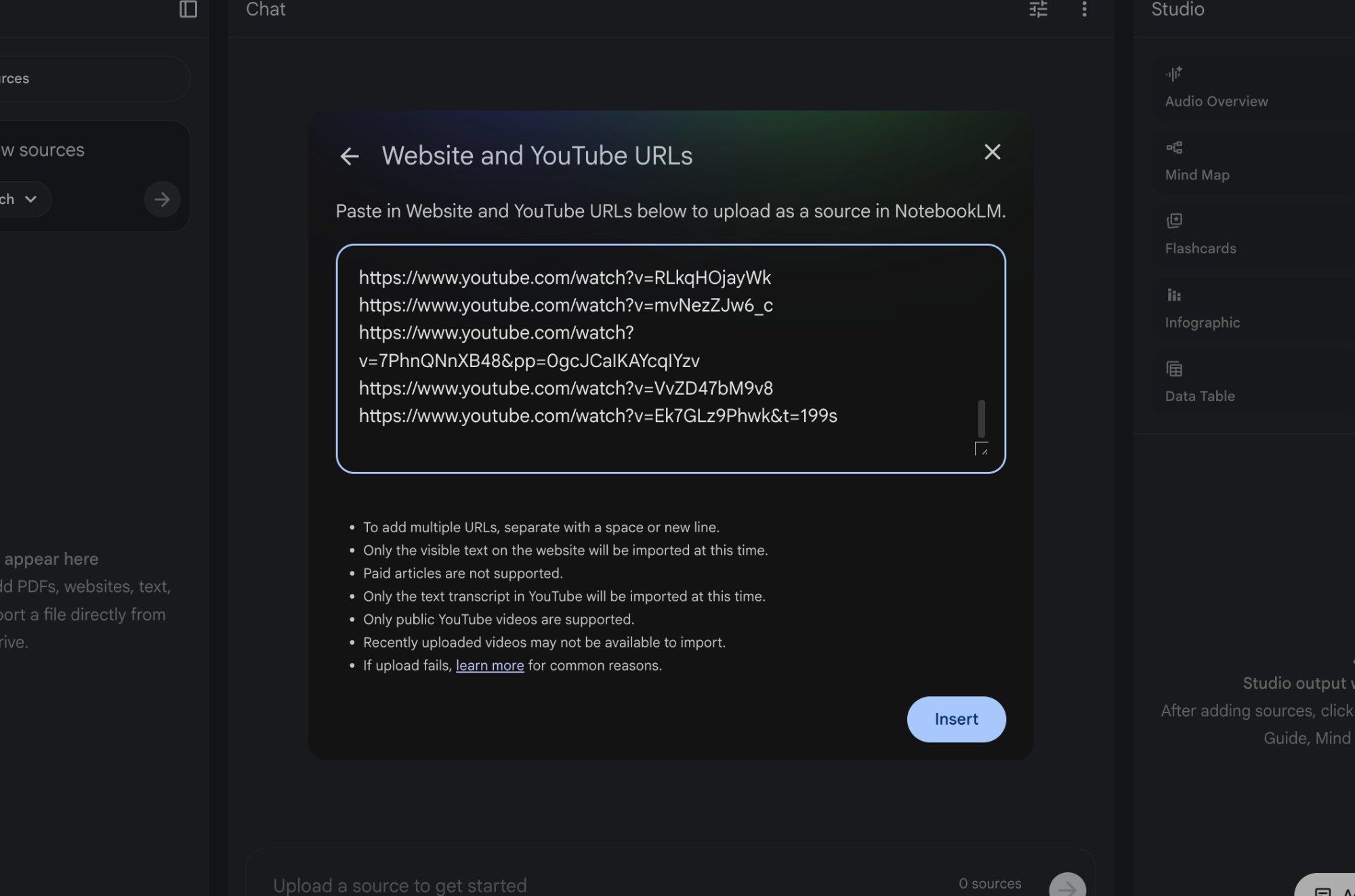
Add these sources to NotebookLM:
- Open NotebookLM and create a new notebook.
- Paste all YouTube video URLs from your exported CSV.
- Add article links from the Suno help center.
- Include guides on Suno meta tags for structure and mixing questions.
- Add the Suno music styles guide for genre-specific prompts.
- Import Suno v5 features documentation for the latest capabilities.
- Include the Suno Sample guide for audio input workflows.
Watch for these pitfalls:
- NotebookLM has source limits. Prioritize official docs and high-value tutorials first.
- Some YouTube links fail to process. Remove broken links and re-add them individually.
Success check: You should see all sources listed in your NotebookLM sidebar with green checkmarks indicating successful processing.
Step 3: Ask Your AI Assistant Anything
Purpose: Query your knowledge base for instant answers instead of searching manually.
Try these example questions to test your assistant:
- “What are 3 ways to write better style prompts?”
- “How do I extend a song without losing the vibe?”
- “What settings produce the cleanest vocals?”
- “How do Suno metatags work for song structure?”
- “What Suno genres work best for cinematic music?”
NotebookLM pulls answers from every source you added. Each response includes citations so you know where the information came from. For broader guidance on using AI tools for music growth, explore AI music mentorship strategies.
Pro tip: Ask follow-up questions in the same chat thread. NotebookLM remembers context and gives more specific answers with each exchange.
Success check: You should see detailed answers with source citations appearing within seconds of each question.
Build Once, Use Forever
Your personal Suno wiki now answers questions instantly from official documentation, YouTube tutorials, and community guides. No more skimming articles for one tip or scrubbing through video timelines.
Build this system once and use it for every project. Your next song will sound like you have been using Suno for years.
About the author

Covering AI music tools, industry shifts, and news for music creators and professionals. Twice-weekly newsletter at aimusicpreneur.com.