You have a finished track. You KNOW it needs a video. But the thought of hiring a crew, renting gear, and spending thousands of dollars makes you want to skip the whole thing.
Here is the reality: algorithms on TikTok, Instagram Reels, and YouTube Shorts demand constant visual content. A track without a video gets penalized by the attention economy. The Neural Frames AI music video generator changes this equation. It turns visuals from a luxury into a scalable utility you control from your laptop.
This tutorial walks you through the complete four-stage workflow: Music, Track, Storyboard, and Video. By the end, you will know how to create AI generated music videos that sync with your sound and build a consistent visual identity across your releases. Neural Frames is one of the top AI tools for indie musicians reshaping how artists approach visual content.
Jump marks:
What You Need Before Creating Your AI Music Video from Audio
Gather these items before you start:
- Audio file in MP3 or WAV format
- Neural Frames account with an active subscription
- Optional: up to 4 reference images (JPEG, PNG, or WEBP) to guide visual style
- Optional: lyrics file with timestamps for lyric-based videos
- A rough idea of your visual direction or character concept
Pro tip: Prepare your visual concept before uploading. Artists who define their aesthetic upfront create more cohesive videos than those who improvise during generation.
Can I Upload My Own Music to an AI Video Generator?
Yes. Neural Frames accepts your own audio uploads directly. When you upload a track, the platform analyzes it automatically and extracts BPM, musical key, and mood. This differentiates it from template-based tools that force you into preset visuals. The Neural Frames official help center provides detailed specifications for supported formats and upload requirements.
Step by Step Guide to create an AI music video with Neural Frames
Step 1: Upload Your Music Track:
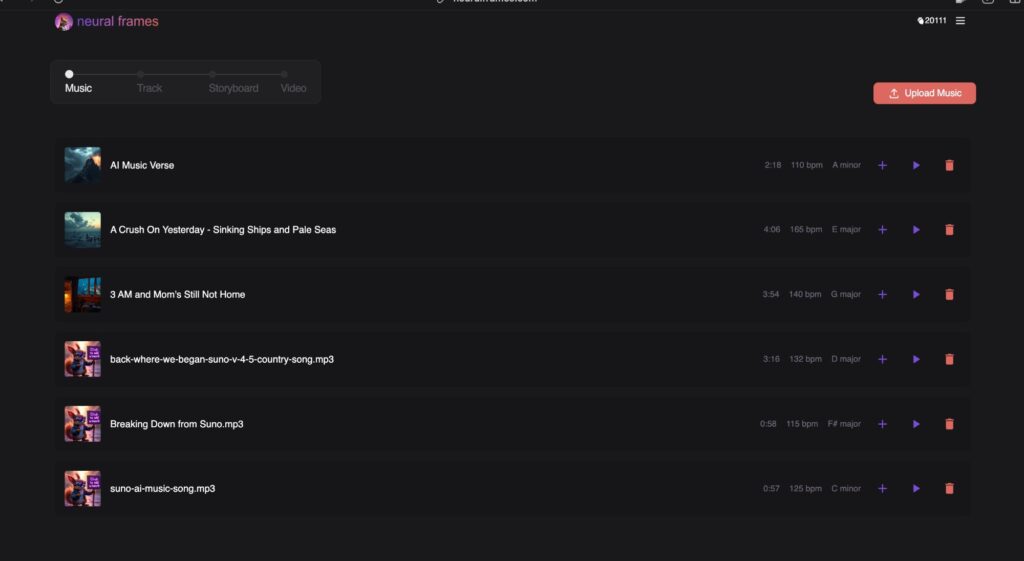
Purpose: Get your audio into the platform and let the AI analyze its musical properties.
The Music stage is your starting point:
- Click the Upload Music button (pink/coral, top right corner) to add a new track
- Or click the + icon on any existing track in your library to select it
- Each track displays its name, duration, BPM, and musical key (for example, “AI Music Verse, 2:18, 110 bpm, A minor”)
- After selection, you see a waveform visualization and time selection bar
Watch for these pitfalls:
- Uploading compressed audio with artifacts affects the AI’s stem analysis
- Tracks longer than 10 minutes require more credits and processing time
Success check: You should see your track’s waveform displayed with BPM and key information detected automatically.
How Long Does It Take to Create an AI Music Video?
Upload is instant. Full video generation depends on track length and the video model you select. The Autopilot feature enables sub-10-minute creation for standard-length tracks. Faster models like Seedance Pro Fast render quicker than higher-quality options like Kling 3.0 Pro. A 2-minute video with Autopilot typically completes in under 10 minutes.
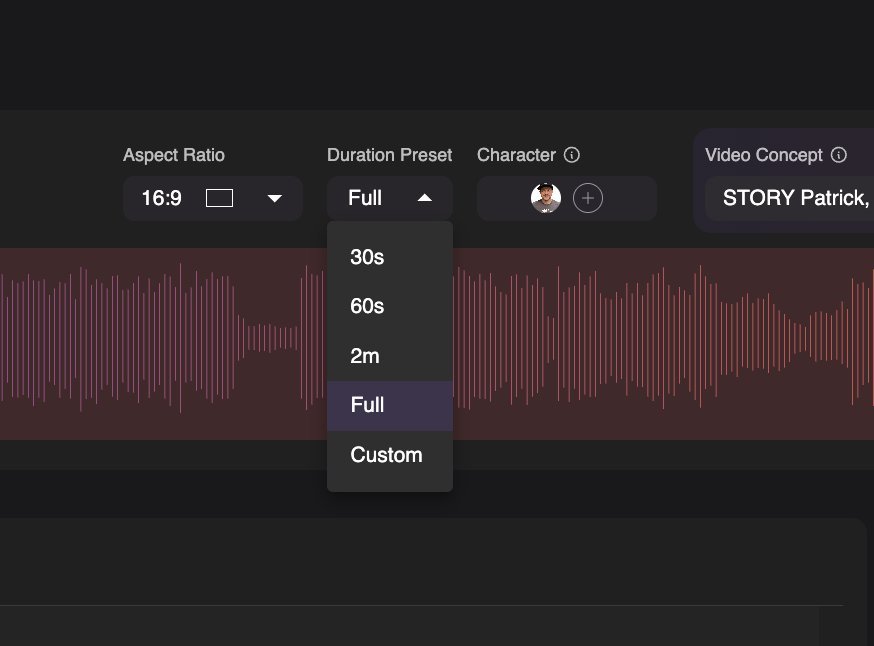 Neural Frames duration preset selection showing 30s, 60s, 2m, Full, Custom options
Purpose: Make all creative decisions before the AI generates your storyboard.
This is where you shape the visual direction of your video. The Track stage offers several configuration options:
Aspect Ratio settings for different platforms:
- 16:9 for YouTube and standard widescreen
- 9:16 for TikTok and Instagram Reels
- 1:1 for Instagram feed posts
Duration Preset options:
- 30s, 60s, 2m, Full (entire track), or Custom
- The waveform shows your selected portion (for example, “Selected: 0:00 to 2:17”)
Video Technique choices:
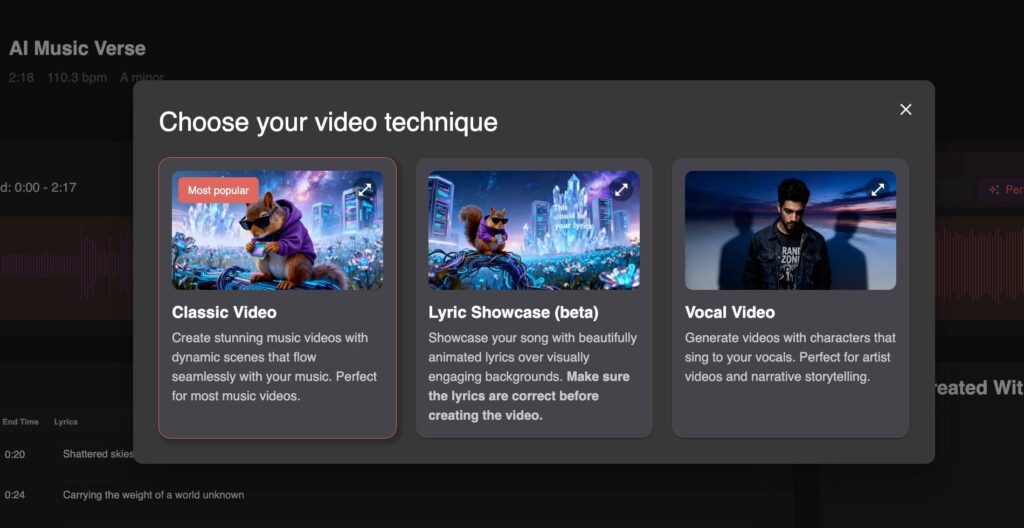 Neural Frames video technique selection showing Classic Video, Lyric Showcase, Vocal Video options.
- Classic Video (Most popular): Creates dynamic scenes that flow with your music. Works for most music videos.
- Lyric Showcase (beta): Animates lyrics over visual backgrounds. Verify lyrics accuracy before generating.
- Vocal Video: Generates characters that sing to your vocals. Ideal for artist videos and narrative storytelling.
Character Selection allows you to maintain visual consistency:
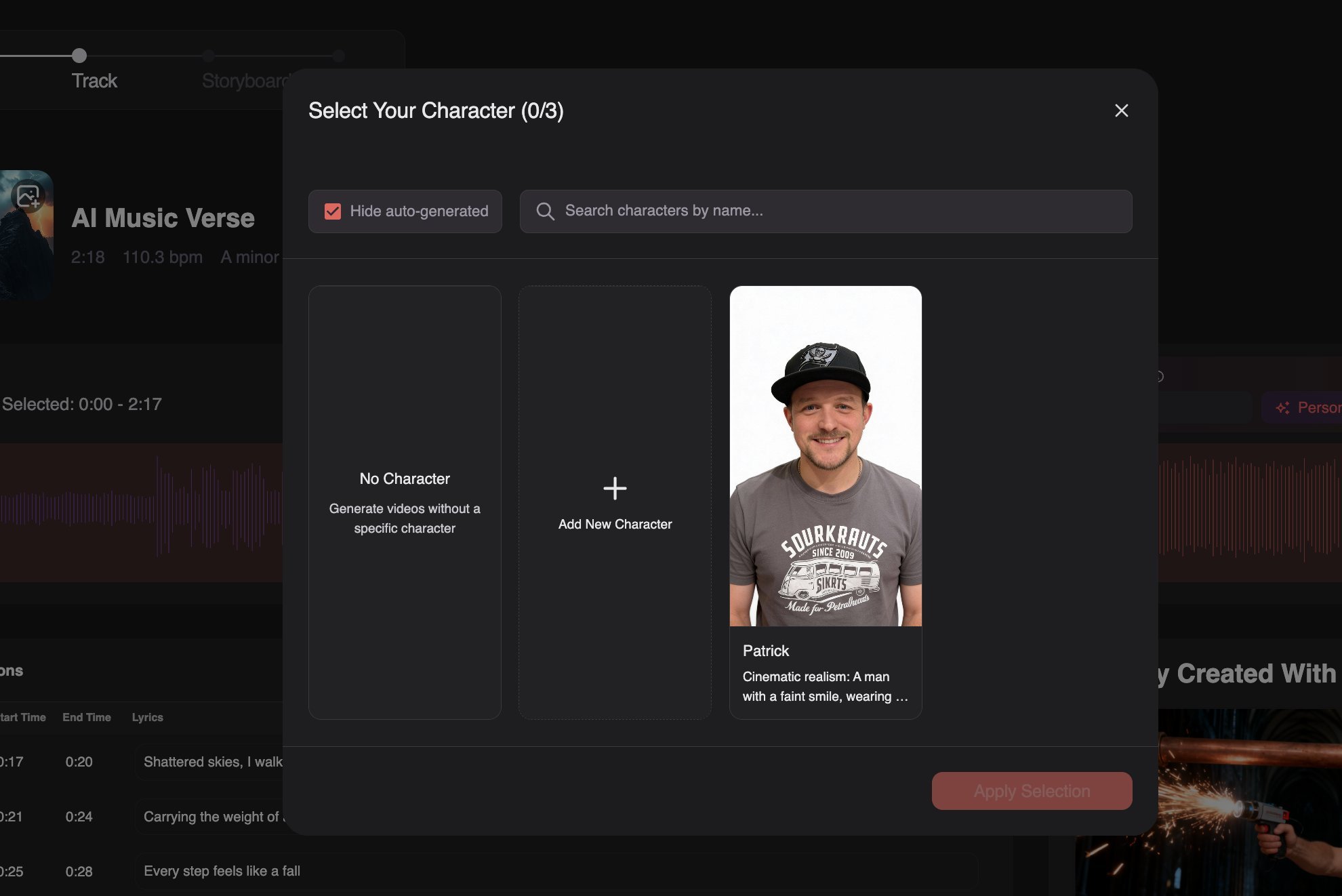
- Choose No Character for abstract visuals
- Add New Character by uploading your own image
- Select up to 3 previously created characters
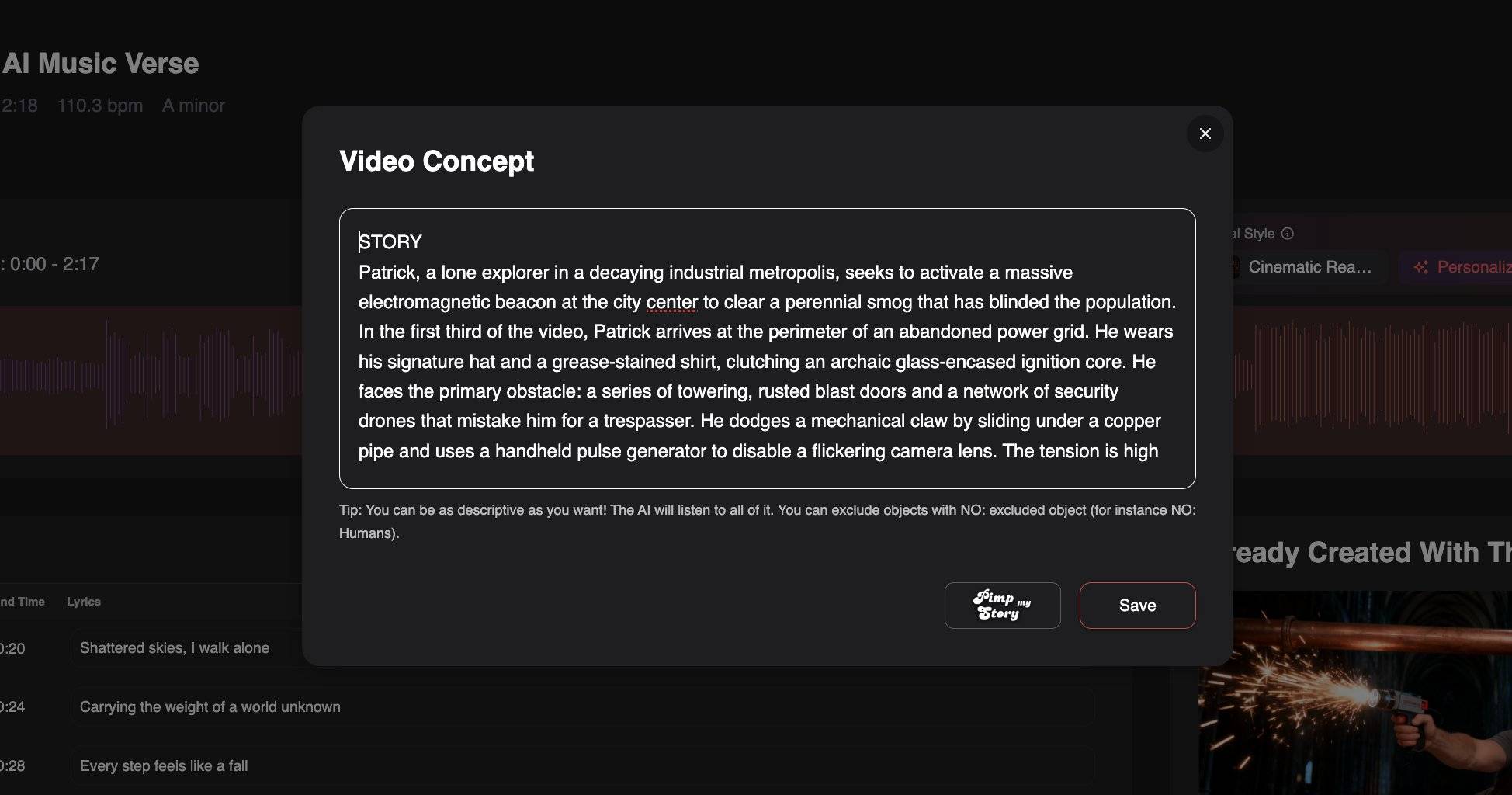
Video Concept is a free-text field where you describe your narrative. The interface tip states: “You can be as descriptive as you want! The AI will listen to all of it. You can exclude objects with NO: excluded object (for instance NO: Humans).” The “Pimp my Story” button helps enhance your concept.
Reference Images let you upload up to 4 images to guide style. Click “Analyze images” to let the AI interpret your references.
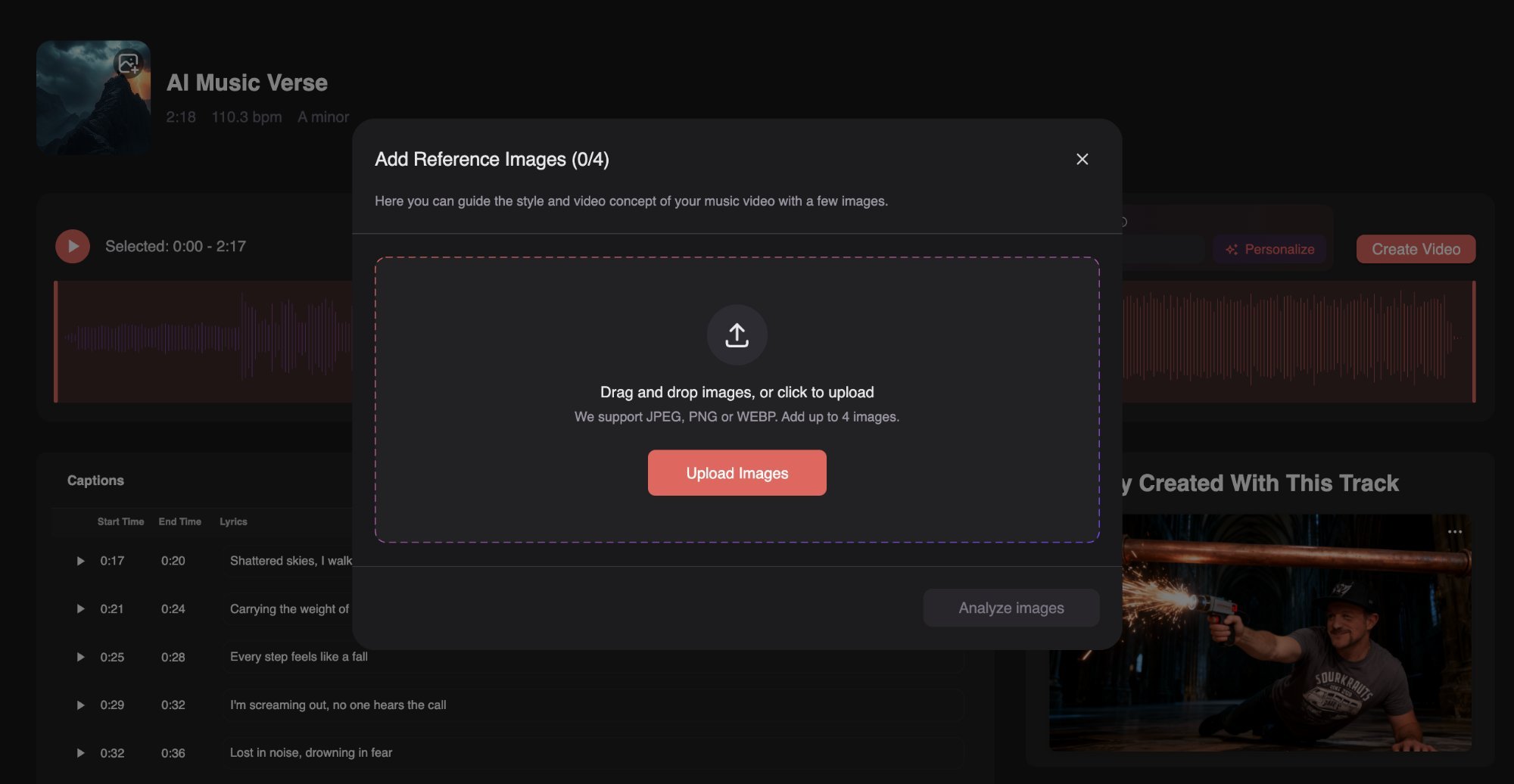 Neural Frames reference images upload dialog for guiding video concept and style.
Can AI Generate Music Videos from Lyrics?
Yes. The Lyric Showcase feature syncs visuals to your lyrics using a timestamped panel. Each line shows Start Time, End Time, and Lyrics (for example, “”0:17 to 0:20: Shattered skies, I walk alone””). The AI aligns visual transitions with lyrical content. For a deeper comparison of lyric-focused tools, see this guide to AI lyric video generators.
What Video Styles Can AI Music Video Generators Create?
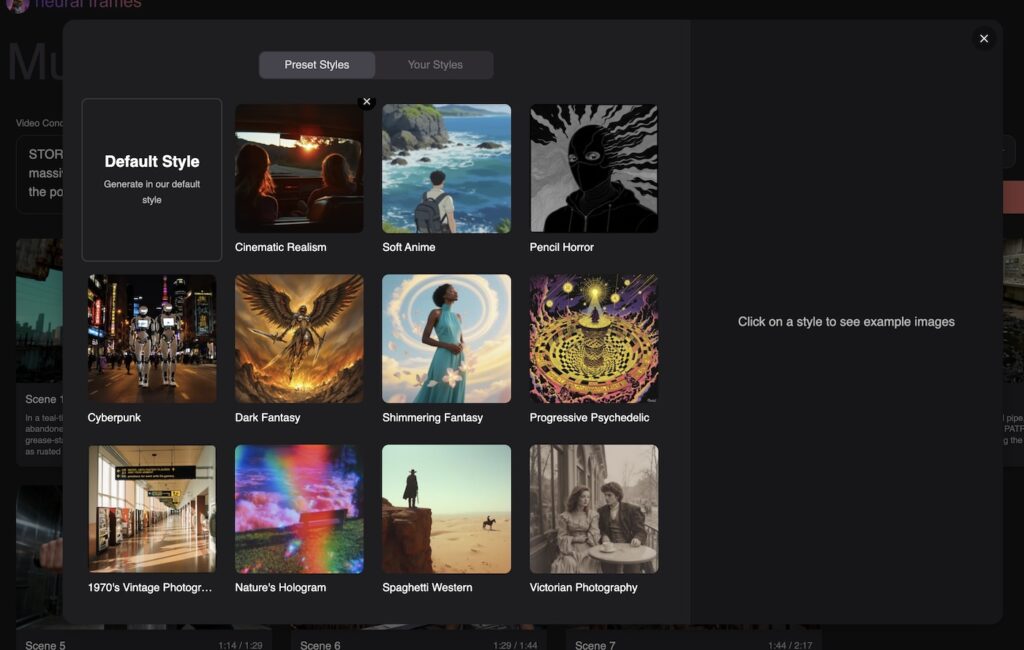
Neural Frames offers these preset styles:
- Default Style
- Cinematic Realism
- Soft Anime
- Pencil Horror
- Cyberpunk
- Dark Fantasy
- Shimmering Fantasy
- Progressive Psychedelic
- 1970’s Vintage Photography
- Nature’s Hologram
- Spaghetti Western
- Victorian Photography
You can also create and save custom styles. Choose a style that matches your music’s genre and mood.
How Do I Make My AI Music Video Match the Beat of My Song?
Neural Frames extracts audio stems from your track, isolating drums, bass, vocals, and melody. You map these elements to visual triggers. A kick drum triggers a camera zoom. A bassline shifts the color palette. Vocals drive character movement. This audio-reactive video generation creates a visceral, rhythmic connection between sound and image. A stylized video that pulses with the beat outperforms a static, hyper-realistic one every time.
Pro tip: Focus on audio-reactivity over photorealism. Fans respond to videos that feel the music, not videos that look like photographs.
Success check: You should see all your settings summarized before proceeding to storyboard generation.
Step 3: Review and Customize Your AI-Generated Storyboard
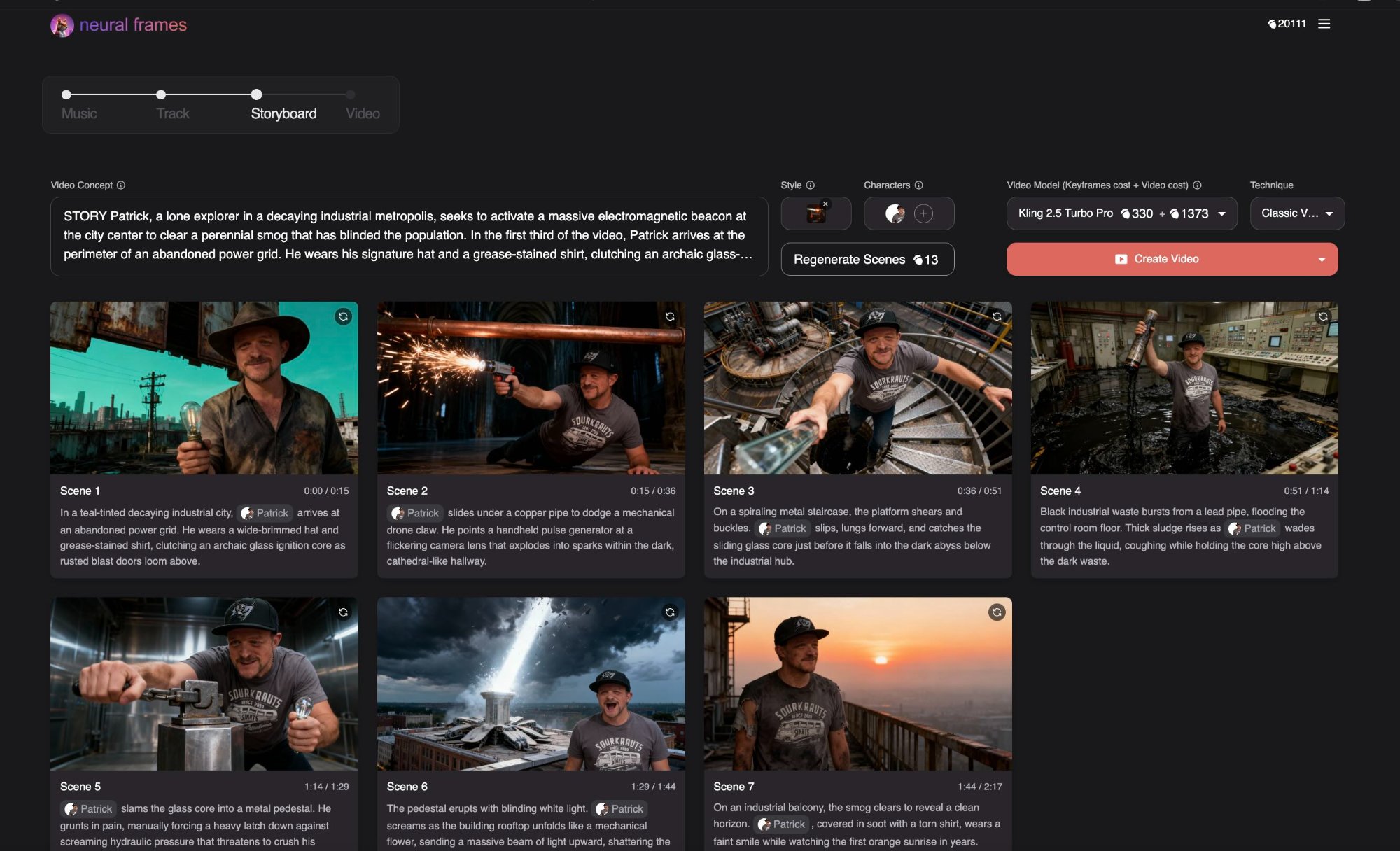
Purpose: Review the AI’s visual interpretation and make adjustments before rendering.
After configuring your settings, the AI generates a visual storyboard. The storyboard view displays:
- Your full video concept text at the top
- All settings (Style, Characters, Video Model, Technique)
- A grid of generated scenes with thumbnail images, scene numbers, timestamp ranges, and descriptions
Style Selection lets you choose from Preset Styles or Your Styles (custom creations). Click any style to preview example images.
Video Model Selection determines quality and credit cost. Each model shows Keyframes cost plus Video cost:
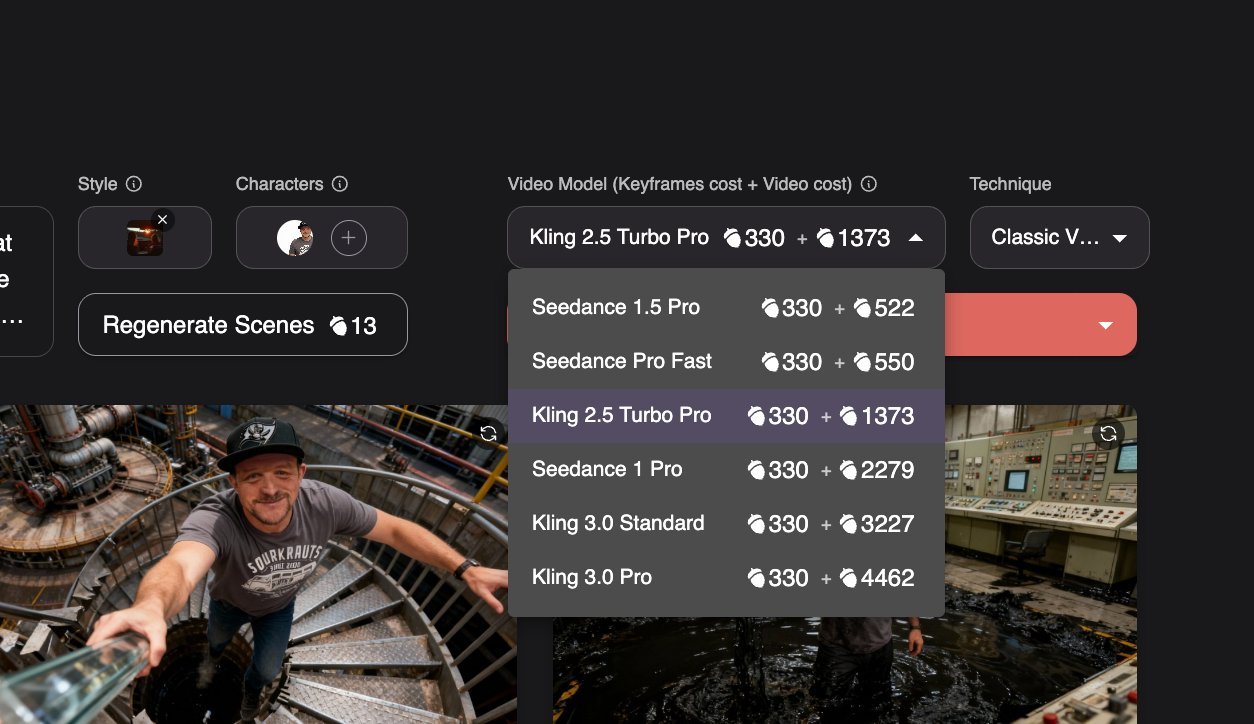
- Seedance 1.5 Pro (330 + 522 credits)
- Seedance Pro Fast (330 + 550 credits): fastest option
- Kling 2.5 Turbo Pro (330 + 1,373 credits)
- Seedance 1 Pro (330 + 2,279 credits)
- Kling 3.0 Standard (330 + 3,227 credits)
- Kling 3.0 Pro (330 + 4,462 credits): highest quality
Regenerate Scenes refreshes your storyboard if you want different visuals. This costs additional credits.
Technique Switching remains available. You can still change between Classic Video, Lyric Showcase, and Vocal Video at this stage.
For a broader comparison of platforms, check this roundup of the best AI music video generators.
What Is the Best AI Music Video Generator for Beginners?
Neural Frames works well for beginners because of its Autopilot feature, intuitive four-stage workflow, and preset styles. You do not need editing skills for basic videos. The storyboard preview lets you review AI decisions before committing credits. If something looks off, regenerate before rendering.
Do I Need Editing Skills to Make an AI Music Video?
No for basic videos. Autopilot handles everything from upload to final render. Yes if you want granular control over individual clips. The storyboard stage offers a middle ground: review what the AI created, regenerate scenes you dislike, and proceed without manual editing.
Success check: You should see a complete storyboard with scene thumbnails matching your concept before clicking Create Video.
Step 4: Edit Individual Scenes and Fine-Tune Your Video Clips
 Screenshot
Purpose: Make precise adjustments to specific clips for maximum creative control.
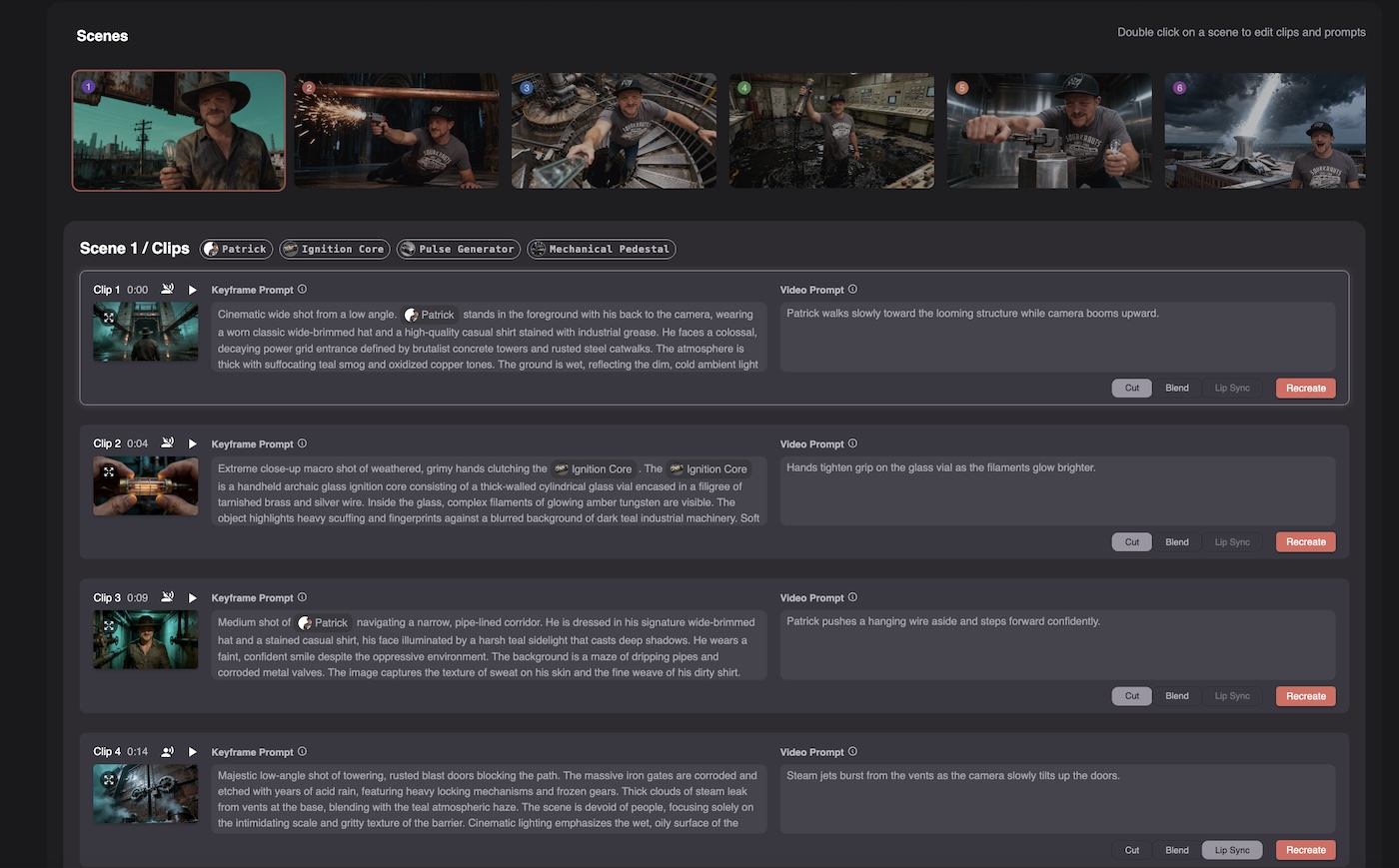
Double-click any scene to access clip-level editing. Each scene breaks into multiple clips (for example, Clip 1 at 0:00, Clip 2 at 0:04).
For each clip you can edit:
- Keyframe Prompt: Detailed text describing visual composition, camera angle, lighting, atmosphere, and character appearance for the still keyframe image
- Video Prompt: Shorter description of motion and action (for example, “Patrick walks slowly toward the looming structure while camera booms upward”)
Action buttons for each clip:
- Cut: Remove unwanted sections
- Blend: Create smooth transitions
- Lip Sync: Sync character mouth movements to vocals
- Recreate: Regenerate that specific clip
Tagged elements appear at the top of each scene, showing characters and objects (for example, “Patrick,” “Ignition Core,” “Pulse Generator”). A filmstrip of scene thumbnails runs along the top for quick navigation.
Pro tip: Build a visual universe, not isolated videos. Use the same character and style prompts across an entire album cycle. A recognizable visual identity is more valuable for brand building than ten disconnected videos.
Success check: You should see your edited clips reflected in the scene preview before final rendering.
How Much Does Neural Frames Cost? Pricing and Plans Explained:
Neural Frames offers four subscription tiers with monthly and yearly billing options.
Monthly billing rates:
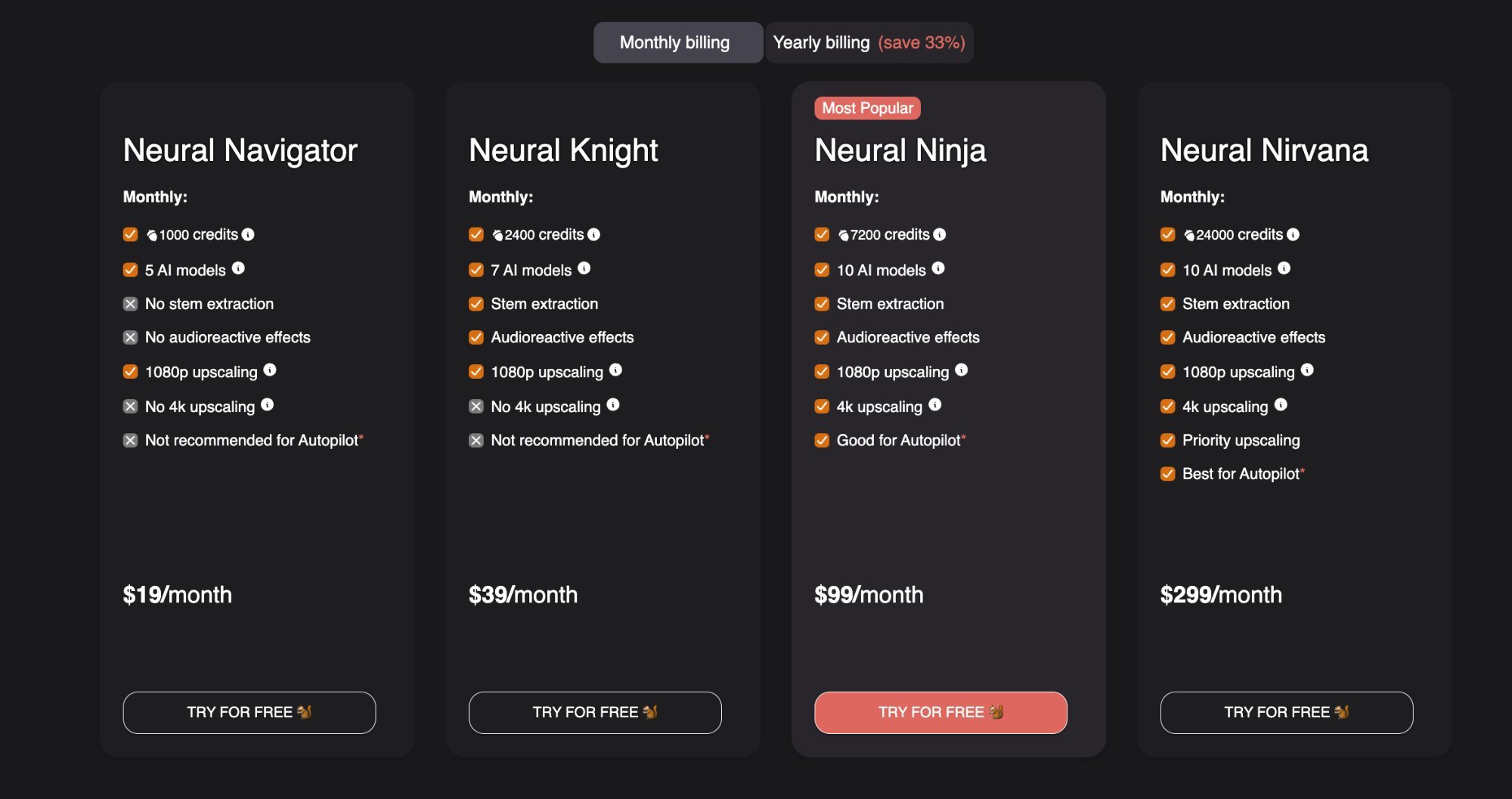
- Neural Navigator: $19/month (1,000 credits, 5 AI models)
- Neural Knight: $39/month (2,400 credits, 7 AI models)
- Neural Ninja: $99/month (7,200 credits, 10 AI models): Most Popular
- Neural Nirvana: $299/month (24,000 credits, 10 AI models)
Yearly billing saves 33%:
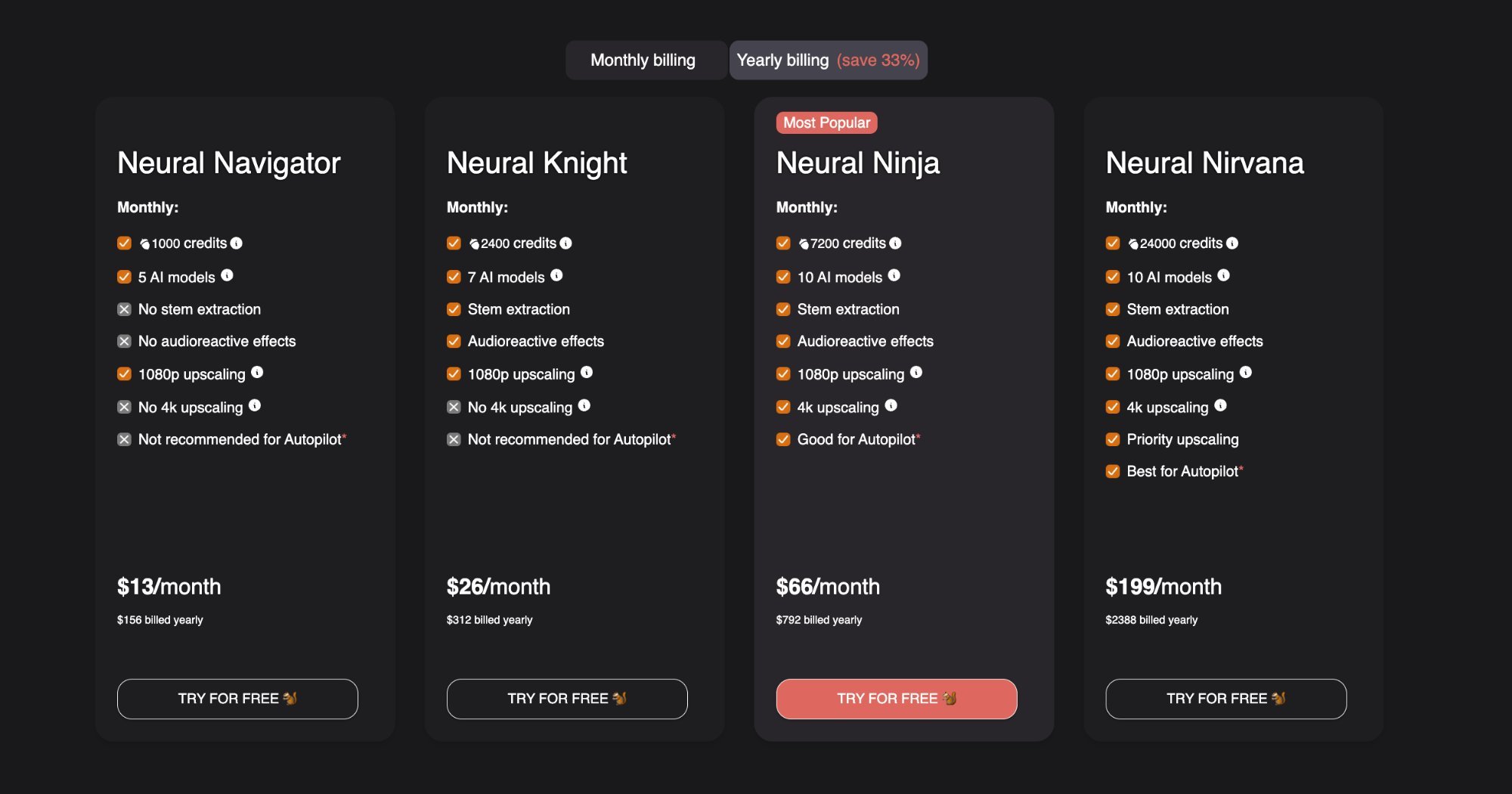
- Neural Navigator: $13/month ($156 billed yearly)
- Neural Knight: $26/month ($312 billed yearly)
- Neural Ninja: $66/month ($792 billed yearly)
- Neural Nirvana: $199/month ($2,388 billed yearly)
Tier differences: Lower tiers lack stem extraction and audioreactive effects. Neural Ninja introduces 4K upscaling and Autopilot support. Neural Nirvana adds priority upscaling and is positioned as best for Autopilot use.
Is Neural Frames Free to Use?
No permanent free tier exists. Compare this to traditional video production costs. According to music video production economics, a low-budget indie music video costs $1,000 to $10,000, while mid-tier professional videos run $10,000 to $50,000. High-end major label videos reach $50,000 to $500,000 or more. Even the $19/month Neural Navigator tier provides significant capability compared to hiring a videographer for a single shoot.
How Much Does It Cost to Make an AI Music Video?
Cost depends on your subscription tier and video model choice. On the Neural Ninja tier at $99/month, you receive 7,200 credits. A video using Seedance Pro Fast costs approximately 880 credits total (330 keyframes plus 550 video). You could generate multiple 4K videos for an entire EP on a single month’s subscription. Traditional production for a comparable indie video would cost $2,000 or more minimum.
| Feature | Neural Frames | Pika | RunwayML | Kaiber |
|---|
| Music Specialization | ✅ Dedicated music video focus | ❌ General video | ❌ General video | ⚠️ Limited music features |
| Autopilot Feature | ✅ Two-click video creation | ❌ No | ❌ No | ❌ No |
| Consistent Characters | ✅ Advanced character consistency | ❌ No | ⚠️ Basic | ❌ No |
| Audio-Reactive | ✅ Advanced stem separation | ⚠️ Basic beat matching | ⚠️ Basic lip sync | ⚠️ Limited audio features |
| Frame Rate | 25 fps | 30 fps | 24 fps | 24 fps |
| Starting Price | $19/month | $8/month | $12/month | $15/month |
| Free Tier | 10-second trial | 150 credits/month | Basic features | Free trial |
| Resolution | Up to 4K HDR | Up to 4K | Up to 1080p | Up to 4K |
Why Neural Frames leads for music videos:
- Immediate access – no waitlists
- Music-specific features like Autopilot and audio-reactivity
- Breakthrough technology with consistent characters
- Budget-friendly options with Seedance 1.0
- Professional quality with 4K HDR output
Using Your AI Music Video on Spotify Canvas and YouTube
Your finished video works across multiple platforms with different format requirements.
Platform-specific applications:
- Spotify Canvas: Export short loops (3 to 8 seconds) for streaming visualization
- YouTube: Full videos, Shorts (vertical format), premiere strategy
- TikTok and Instagram Reels: Vertical cuts, hook-focused clips
- Instagram Feed: Square 1:1 format
Generate multiple formats from one session by adjusting aspect ratio settings. Create 16:9 for YouTube, 9:16 for TikTok, and 1:1 for Instagram from the same concept.
Final Thoughts: Build Your Visual Universe with AI
Do not use AI to make generic videos. Use it to build a consistent visual identity.
When you reach the Track stage, use the Character and Style consistency features heavily. Upload reference images of yourself or a specific aesthetic. Use that exact same prompt and character across an entire album cycle. A recognizable visual brand is more valuable than ten disconnected videos.
Looking ahead: In 6 to 12 months, animated visualizers will become baseline for any track release. The Lyric Showcase feature will be as standard as uploading cover art. In 2 to 5 years, real-time AI generation for live environments will emerge. Artists will feed live audio stems from the stage directly into an AI engine, generating reactive 4K visuals on the fly.
The Neural Frames AI music video generator represents the bedroom producer revolution for video. Every dollar you save on video production redirects into marketing, playlist pitching, or touring.
Start with one track. Experiment with Autopilot. Iterate on your visual brand. For a full comparison of available tools, review the best AI music video generators before committing to a platform.
Frequently Asked Questions About AI Music Video Generation
Can I Use AI Music Videos on Spotify and YouTube?
Yes. You own the output from Neural Frames. Check platform-specific requirements for dimensions and file formats. Visual content improves algorithm performance on both platforms. Tracks with videos get more engagement than audio-only releases. For a complete framework on incorporating AI visuals into your release plan, see this song release strategy with AI.
Building a consistent visual identity across releases matters more than creating one viral video. Use the same character and style settings throughout an album cycle. For broader promotion tactics using AI-generated content, explore how to promote your music with AI.
What Is Audioreactive Video and How Does It Work?
Audioreactive video responds dynamically to audio elements in real time. Neural Frames uses stem separation technology to isolate drums, bass, vocals, and melody from your track.
How the mapping works:
- Kick drum triggers camera zoom or scene cuts
- Bassline shifts color palette or visual intensity
- Vocals drive character movement or lyric appearance
- Melody influences camera panning or environmental changes
This creates a visceral connection between sound and image. The video feels the music rather than playing alongside it. A highly stylized, slightly glitchy video that pulses perfectly with the beat outperforms a static, hyper-realistic AI video every time.
The historical parallel: What we see with AI video generation mirrors the DAW revolution of the 2000s. Software like Ableton and Logic democratized audio production, giving rise to the bedroom producer. Neural Frames is the visual equivalent. It is a synthesizer for the visual world.
How Do I Make an AI Music Video from My Song?
Quick-reference summary of the four-step process:
- Upload your music track and let the AI analyze BPM and key
- Configure video settings: aspect ratio, technique, character, concept, and style
- Review the AI-generated storyboard and regenerate scenes if needed
- Edit individual clips or render directly with Autopilot
Autopilot enables sub-10-minute creation for most tracks.
How Do I Make an AI Music Video from My Song?
Upload your track to Neural Frames. Configure your video settings including aspect ratio, technique, character, and visual concept. Review the AI-generated storyboard. Render your final video. Autopilot handles the entire process in under 10 minutes for standard-length tracks.
Can AI create videos?
Yes, AI can create professional-quality videos. Neural Frames uses advanced AI models like Kling, Runway, and Seedance to generate videos that sync perfectly with music. The technology has advanced to the point where AI-generated videos are indistinguishable from professionally shot content.
Is Neural Frames the best AI video generator for music videos?
Neural Frames is specifically designed for music videos and offers unique features like Autopilot (two-click video creation), consistent characters, and advanced audio-reactive generation. While other platforms exist, Neural Frames is the only one built specifically for musicians with features that automatically sync visuals to music stems.
How does the Autopilot feature work?
Autopilot analyzes your music file to extract lyrics, tempo, and key signature. It then generates a complete storyboard with 5-7 scenes that tell a cohesive story based on your song’s content. The entire process takes 10-15 minutes and requires just two clicks from you.
What makes character consistency important?
Character consistency prevents the jarring experience of having your main character randomly change appearance mid-video. This was AI video generation’s biggest problem – characters would look completely different from scene to scene, breaking immersion and confusing viewers.
Do I own the rights to videos created with Neural Frames?
Yes, you own full commercial rights to all videos created with Neural Frames. The platform doesn’t claim any ownership of your content, making it safe for commercial use, streaming platforms, and social media.