Your song exists. Your audience scrolls past it. 68% of listeners discover music through short-form video, and without a visual component, your track is invisible online.
An AI music video generator bridges this gap. You upload audio, select visual preferences, and the tool produces synchronized visuals with captions. Revid AI is one option indie artists and music creators can consider for cost-effective video creation.
The platform offers customization through presets, character uploads, and visual guidelines. Pricing starts at $39/month for 2,000 credits. A typical 2 -3 minute video costs roughly one month of the Growth plan (note: credits are based on the settings you choose).
Here’s a short clip from a video I created in under 15 minutes:
I used 1 character image only and a song that I uploaded.
This tutorial walks you through every step of creating a music video with Revid AI. You will learn how to configure settings, manage credits, and edit your final output.
Jump marks:
What Is an AI Music Video Generator?
An AI music video generator app analyzes your audio file and produces visuals synchronized to rhythm, lyrics, or beats. The tool detects song structure and generates scenes that match the energy of your track.
Revid AI offers various visual options for your ai music visualizer generator output:
- AI video: Generate unique video clips using AI. Custom visuals created for each section of your song. Higher personalization but uses more credits.
- Moving AI images: AI-generated images with motion effects. Animated still pictures that balance uniqueness and efficiency.
- Stock videos: High-quality stock footage for your videos. Pre-existing footage matched to your music. Fast and reliable.
- Your own media: Upload your own videos and images. Revid AI selects the best of your uploaded media.
- Static / Gameplay: Satisfying videos that grab attention. Works well for specific content types.
Generation takes 2 to 5 minutes depending on song length and visual complexity. This music to video ai converter approach saves hours compared to traditional editing workflows. Short-form video marketing for musicians has become essential for discovery and fan growth.
Why Indie Artists Could Consider Revid AI

Traditional music video production costs $500 to $2,000 for lyric videos and $10,000 or more for full productions. Independent artists face a “Visual Tax” where they need video content to compete but lack the budget for professional production.
Revid AI addresses this barrier. The AI music video creator lets you create music videos with ai at a fraction of traditional costs. You generate multiple visual variations to test which aesthetic resonates with your audience. This approach works well for algorithm testing across TikTok, YouTube Shorts, and Instagram Reels.
The tool is one option among many. Different artists and music creators prefer different workflows based on their specific needs.
Step-by-Step guide on how to use the Revid AI Music Video Generator
1 – Getting Started: Account Setup and File Upload
Step 1: Create Your Account
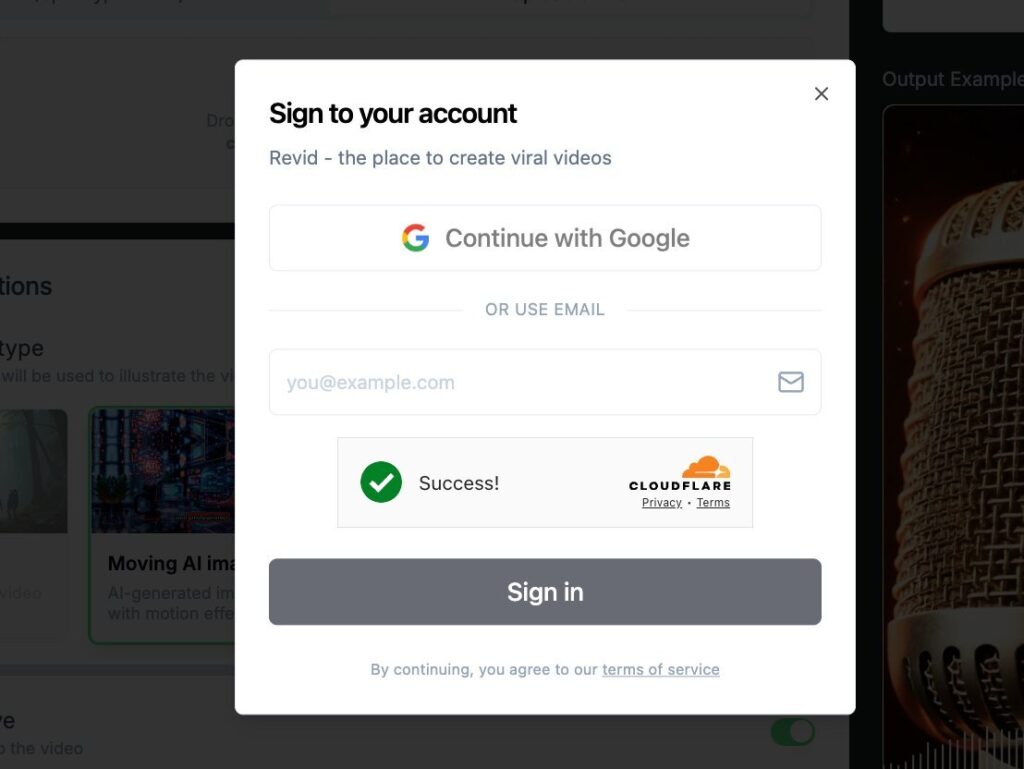
Purpose: Access the Revid AI platform and prepare for video creation. Before you can upload the song you have to sign up or sign in.
Follow these steps to set up your account:
- Visit Revid AI and click “Sign in.”
- Register with your email address or connect your Gmail account.
- Confirm your email if required.
Watch for these pitfalls:
- Using a temporary email address blocks account recovery.
- Skipping email verification delays access to generation features.
Pro tip: Use your primary email for account recovery and credit purchase notifications.
Step 2: Upload Your Audio File
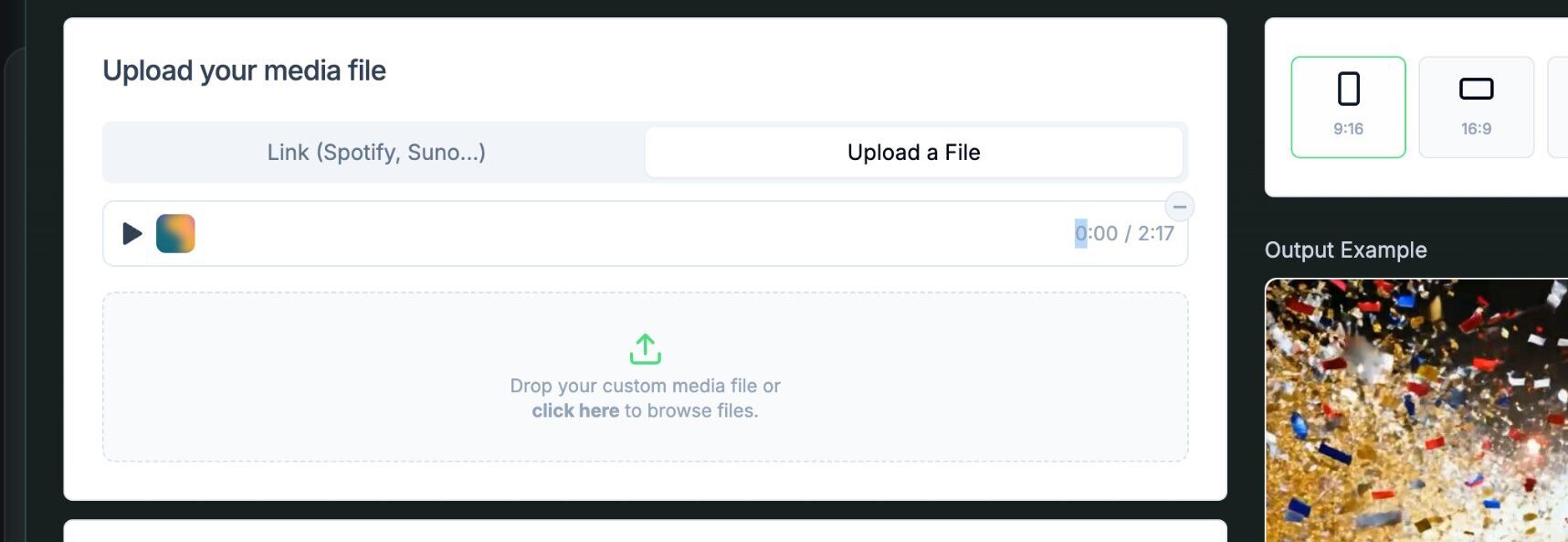
Purpose: Provide the source audio for your AI music video.
Revid AI accepts these audio formats:
- MP3, WAV, AAC, and M4A for audio files
- MP4, MOV, AVI, and WMV for video files
- Direct links from Spotify or Suno
Upload your file using these steps:
- Click “Upload a File” or paste a music link in the designated field.
- Wait for the upload to complete and the waveform to display.
- Verify the track duration matches your original file.
Watch for these pitfalls:
- Low-quality audio produces less accurate lyric synchronization.
- Unsupported formats require conversion before upload.
Pro tip: Use high-quality WAV or MP3 files at 320kbps for best caption accuracy.
Success check: You should see your track name and duration displayed in the upload section.
2 – Configuring Your Video: Core Settings
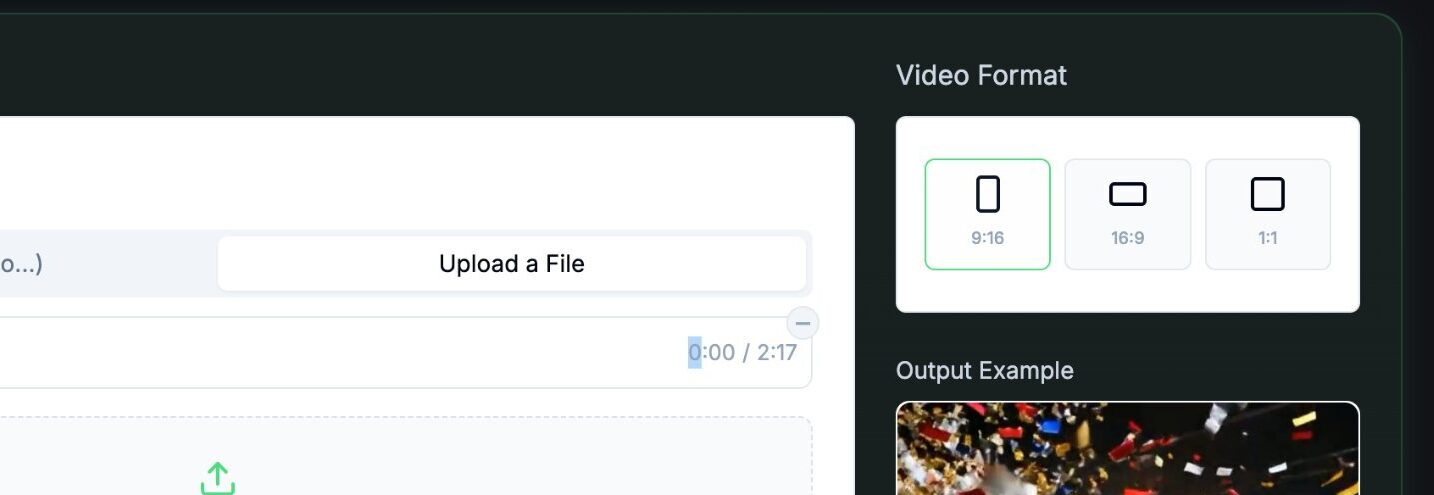
Select the aspect ratio based on your target platform:
- 9:16 (Portrait): TikTok, YouTube Shorts, Instagram Reels
- 16:9 (Landscape): YouTube standard videos
- 1:1 (Square): Instagram feed posts
TikTok recommends portrait format for maximum engagement on short-form platforms.
This AI music video maker offers five media options:
- AI video: Generates unique video clips using AI. Highest customization.
- Moving AI images: AI-generated images with motion effects. Balanced approach.
- Stock videos: High-quality stock footage matched to your music. Fastest option.
- Your own media: Uses your uploaded images or videos.
- Static / Gameplay: Satisfying videos that grab attention. Works well for specific content types.
The sound wave option adds a visual audio representation at the bottom of your video. This works well for electronic and dance music genres.
Sync Options: Lyrics vs. Beats
Choose how the ai aligns visuals to your track:
- Lyrics sync: Produces captions synchronized to your vocals. Best for songs with clear lyrics.
- Beats sync: Aligns visuals to rhythm without generating lyrics. Ideal for instrumentals.
Note: Selecting beats sync will not produce lyric captions.
3 – Choosing Your Generation Preset and Visual Style
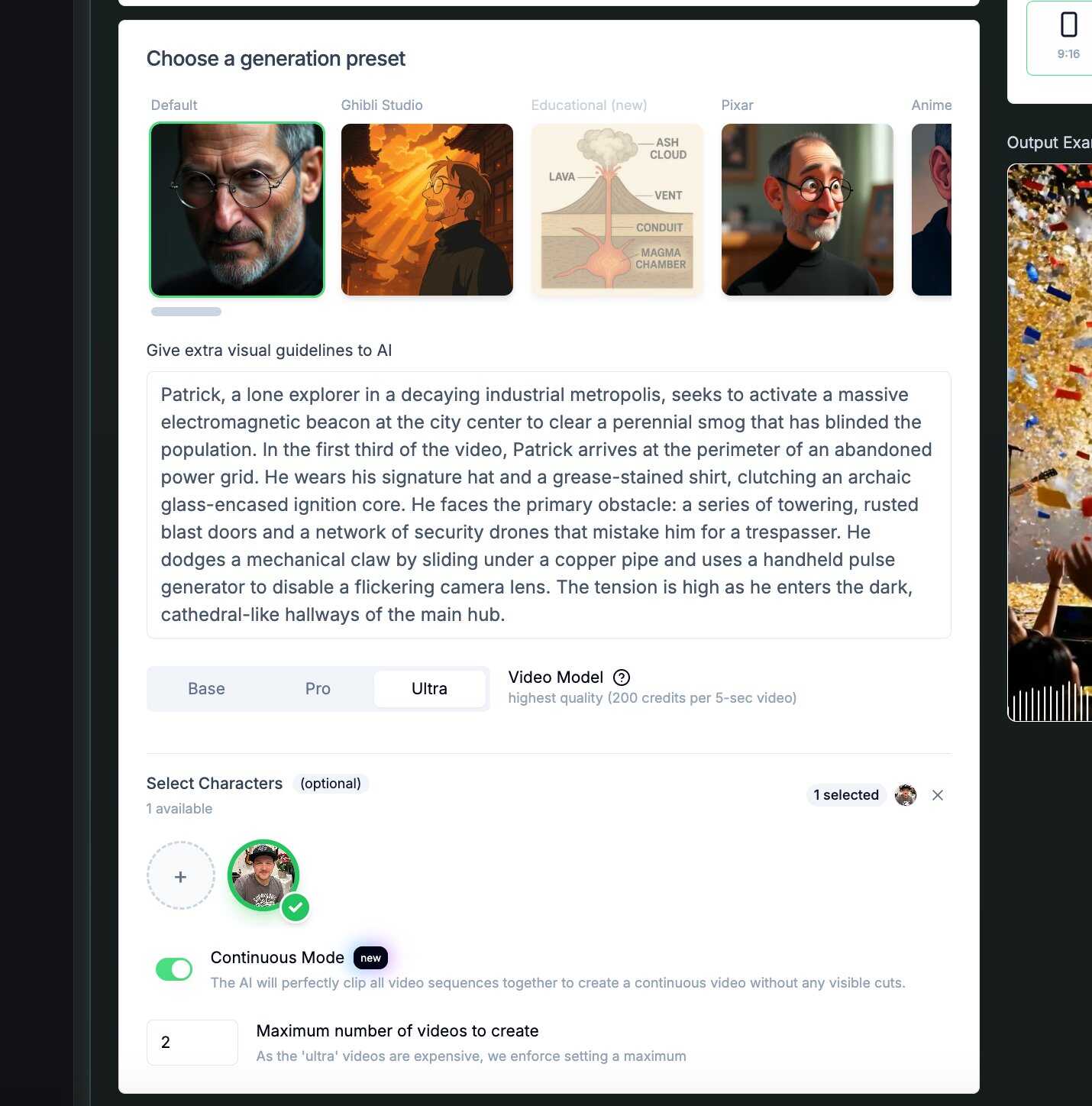
Generation Presets Explained:
Revid AI offers multiple presets that shape your AI generated music video aesthetic:
- Default: Required if uploading a custom character
- Ghibli Studio: Anime-inspired visuals
- Educational: Informational style (Ultra model only)
- Pixar: 3D animated look
- Anime: Japanese animation style
- SciFi: Futuristic environments
- Realist and Ultra Realism: Photorealistic outputs
Each preset produces different visual results.
Test multiple options to find what matches your song’s mood.
Image Generation Models: Base, Pro, and Ultra
Three quality tiers affect output and credit usage:
- Base: Most affordable. Suitable for quick tests and drafts.
- Pro: Balanced quality and cost. 60 credits per 5-second video.
- Ultra: Highest quality. 200 credits per 5-second video.
Adding Visual Guidelines
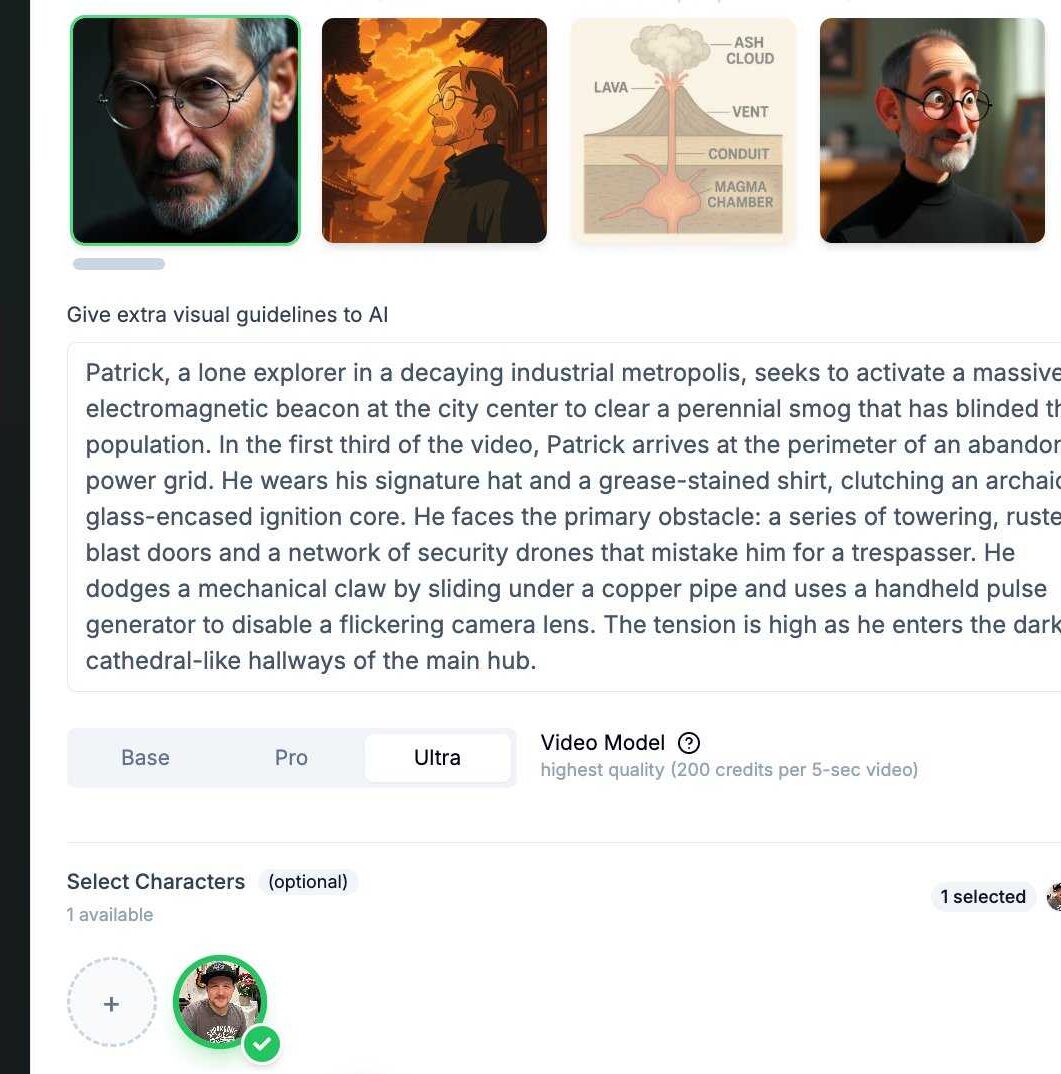
The visual guidelines field accepts descriptive text about mood, character appearance, color palette, and setting. This is a visual guideline and sort of a video concept.
Example input: “Patrick, a lone explorer in a decaying industrial metropolis, wears a signature hat and grease-stained shirt. Dark mood with industrial color palette.”
Detailed guidelines improve AI output accuracy. Include specific character traits, environment details, and color preferences.
4 – Creating or Uploading Your Character
Option 1: Generate a Character from Scratch
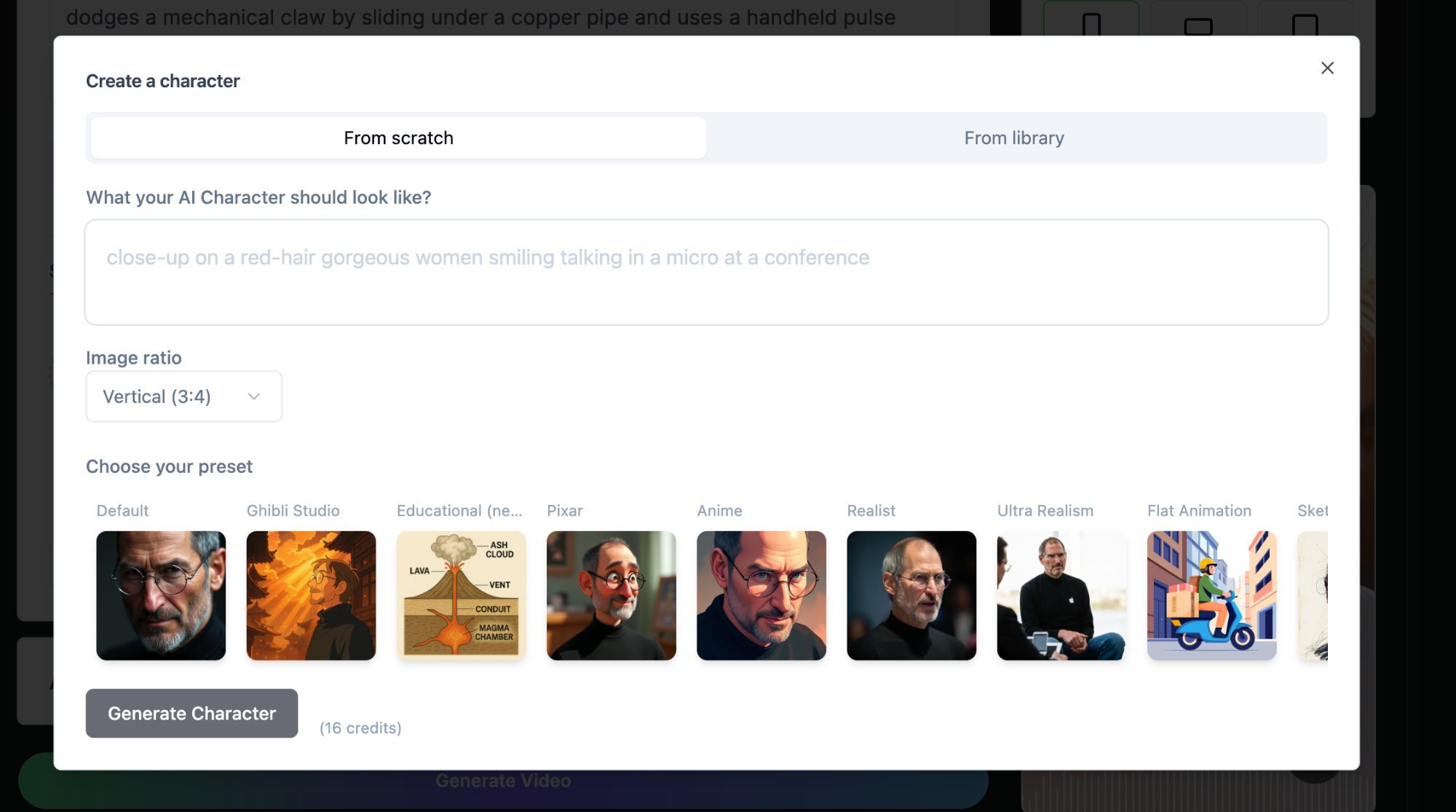
Purpose: Create a custom AI character for your music video.
Use the “Create a Character” feature with these steps:
- Select “From scratch” in the character creation panel.
- Enter a visual description in the text field. Example: “Close-up on a red-hair woman smiling, talking into a microphone at a conference.”
- Choose your image ratio. Vertical (3:4) works best for portrait videos.
- Select a preset style: Default, Ghibli Studio, Pixar, Anime, Realist, Ultra Realism, or Flat Animation.
- Click “Generate Character” (costs 16 credits).
Pro tip: Generate multiple character variations and select the best one before committing to video generation.
Success check: You should see your generated character thumbnail in the selection panel.
Option 2: Upload Your Own Image
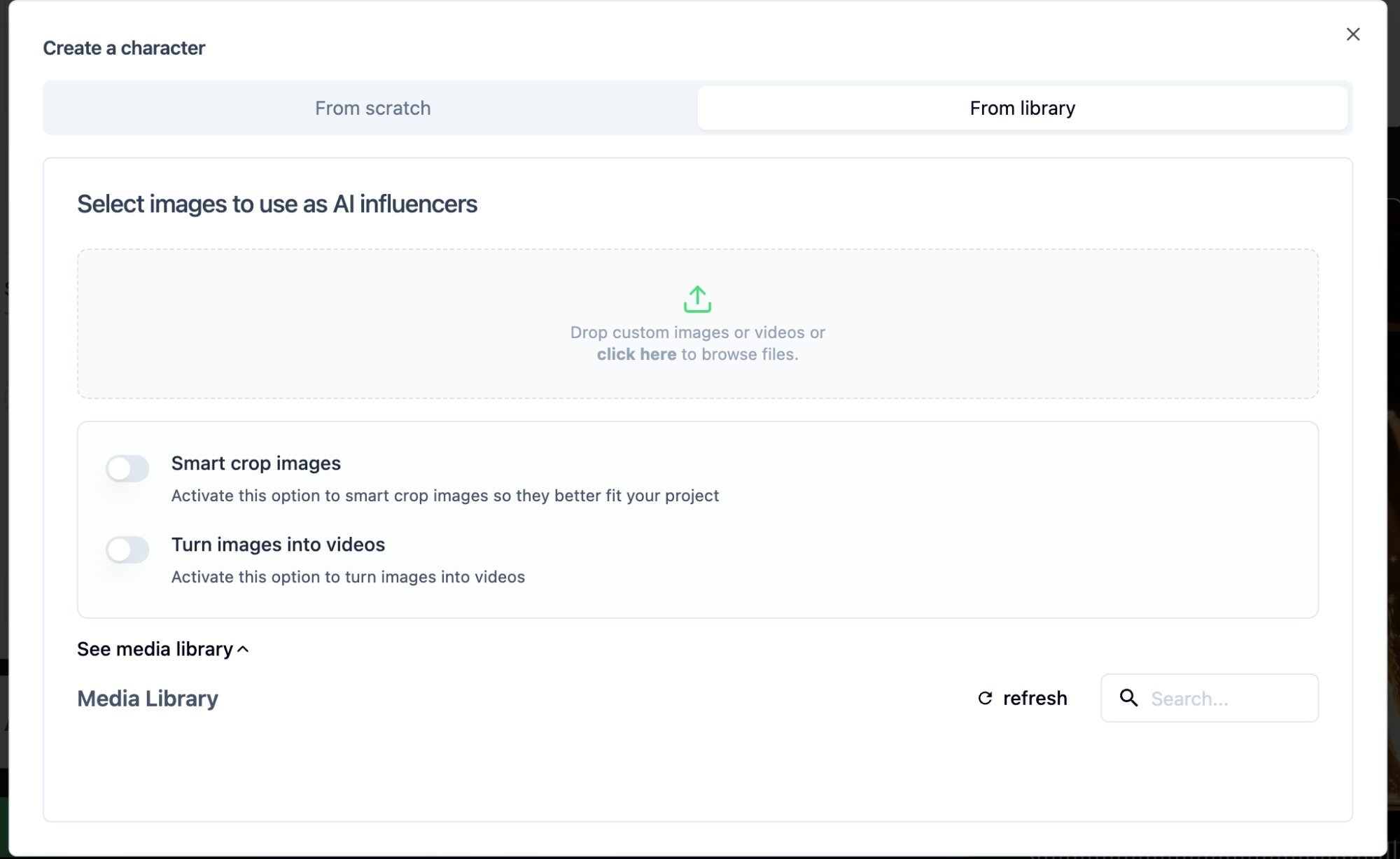
Purpose: Use your own photo or band member image for authenticity.
Upload custom images using these steps:
- Select “From library” in the character creation panel.
- Drag and drop your image or click to browse files.
- Enable “Smart crop images” to optimize for your project format.
- Toggle “Turn images into videos” to convert static images to video clips.
- Select your uploaded image from the Media Library.
Using your own image or a band member’s photo adds authenticity to the AI music video output. AI video generation with lip sync technology enables your character to lip-sync with the audio.
Continuous Mode
Continuous Mode clips all video sequences together without visible cuts. This creates a seamless final video with professional-looking transitions. Enable this option for polished results.
5 – Advanced Options and Fine-Tuning
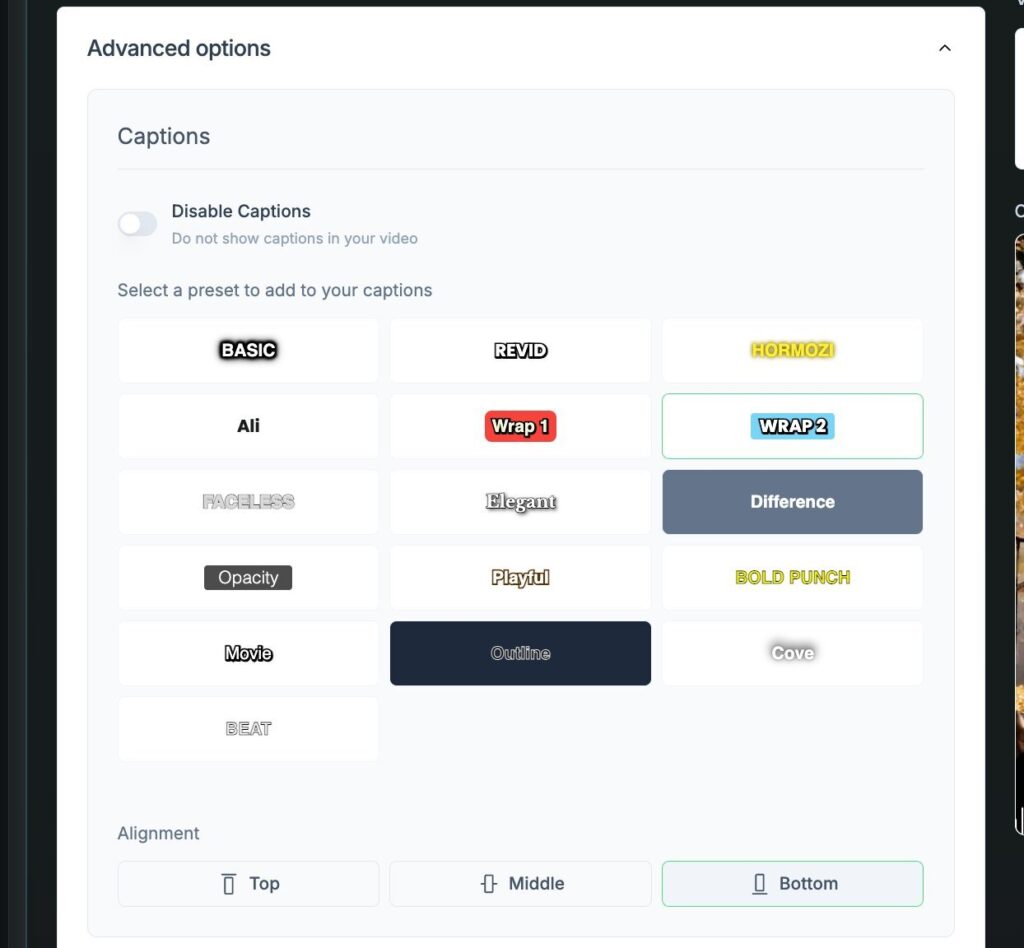
Caption Settings
Select from multiple caption style presets:
- BASIC, REVID, HORMOZI, Ali, Wrap 1, WRAP 2
- FACELESS, Elegant, Difference, Opacity, Playful
- BOLD PUNCH, Movie, Outline, Cove, BEAT
Choose alignment position: Top, Middle, or Bottom. Bottom alignment is the default and works well for most music videos.
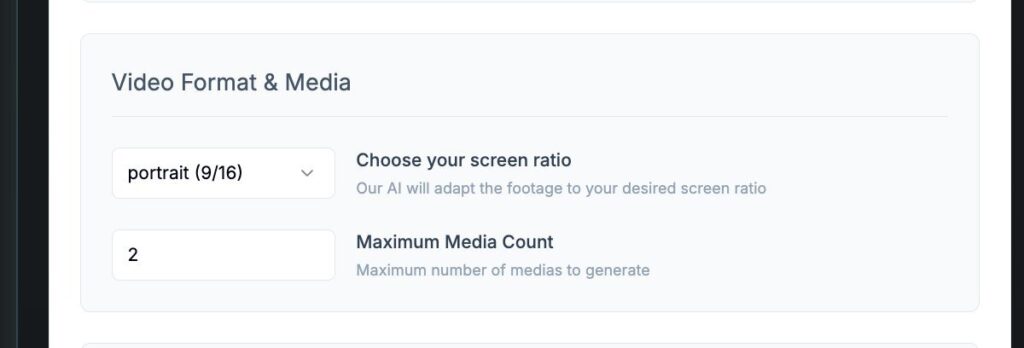
The “Maximum Media Count” setting determines how many assets the AI generates. Higher counts provide more creative variation but consume more credits.
Example: 25 media assets for a 2:17-minute song costs approximately 1,500 credits on the Pro preset.
Start with lower counts (2-5 assets) for testing. Increase to 25 or more for final versions.
Additional Options
Configure these settings based on your needs:
- Image Animation Type: Dynamic (recommended for music videos)
- Add Stickers: Optional enhancement for engagement
- Language: Select English or other languages for caption accuracy
- Generate Cover: Creates a thumbnail image for your video
- Add Watermark: Optional branding element
- Enable Sensitivity Filter: Filters NSFW and violent content
6 – Understanding Revid AI Pricing and Credit System
Subscription Plans Overview
Monthly subscription tiers include:

- Growth: $39/month (regular $99) with 2,000 credits/month
- Elite: $89/month (regular $149) with 5,000 credits/month
- Ultra: $199/month with 12,000 credits/month
Annual billing provides 2 months free:
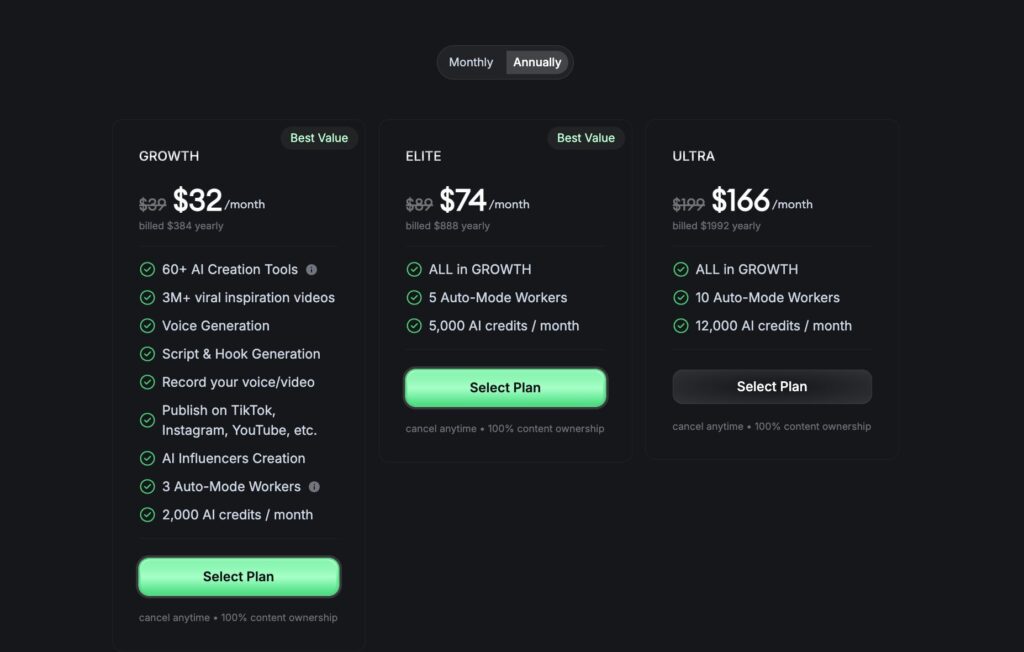
- Growth: $32/month (billed $384 yearly)
- Elite: $74/month (billed $888 yearly)
- Ultra: $166/month (billed $1,992 yearly)
All plans include 60+ AI creation tools, voice generation, script generation, and commercial usage rights.
Credit Costs by Generation Model
A typical 2 – 3minute video costs approximately $39 (one month of the Growth plan). Credit usage varies by generation model:
- Pro model: 60 credits per 5-second video
- Ultra model: 200 credits per 5-second video
Budget Planning Tips:
Maximize your credits with these approaches:
- Upload high-quality audio files to avoid wasting credits on regenerations.
- Test with lower media counts first.
- Use Base model for initial tests, Pro or Ultra for final versions.
- Credits do not roll over. Plan monthly usage accordingly.
7 – Generating Your Video
Pre-Generation Checklist
Verify these settings before clicking Generate:
- Audio file quality and format confirmed
- Character selection completed
- Visual guidelines entered
- Caption style and alignment set
- Video format matches target platform
- Media count appropriate for your credit budget
Clicking Generate and Waiting
Click “Generate video” to start the process. Generation takes 2 to 5 minutes depending on song length, visual style complexity, and generation model.
AI-generated videos take longer than stock video options. Ultra model processing requires more time than Base or Pro.
What to Expect in the Output
The AI generates multiple video clips synchronized to your music. Captions align automatically with lyrics. If you uploaded a character, it will lip-sync in the generated environment.
The output is not final. Editing is the next step.
8 – Editing Your Generated Video
Understanding the Revid Editor
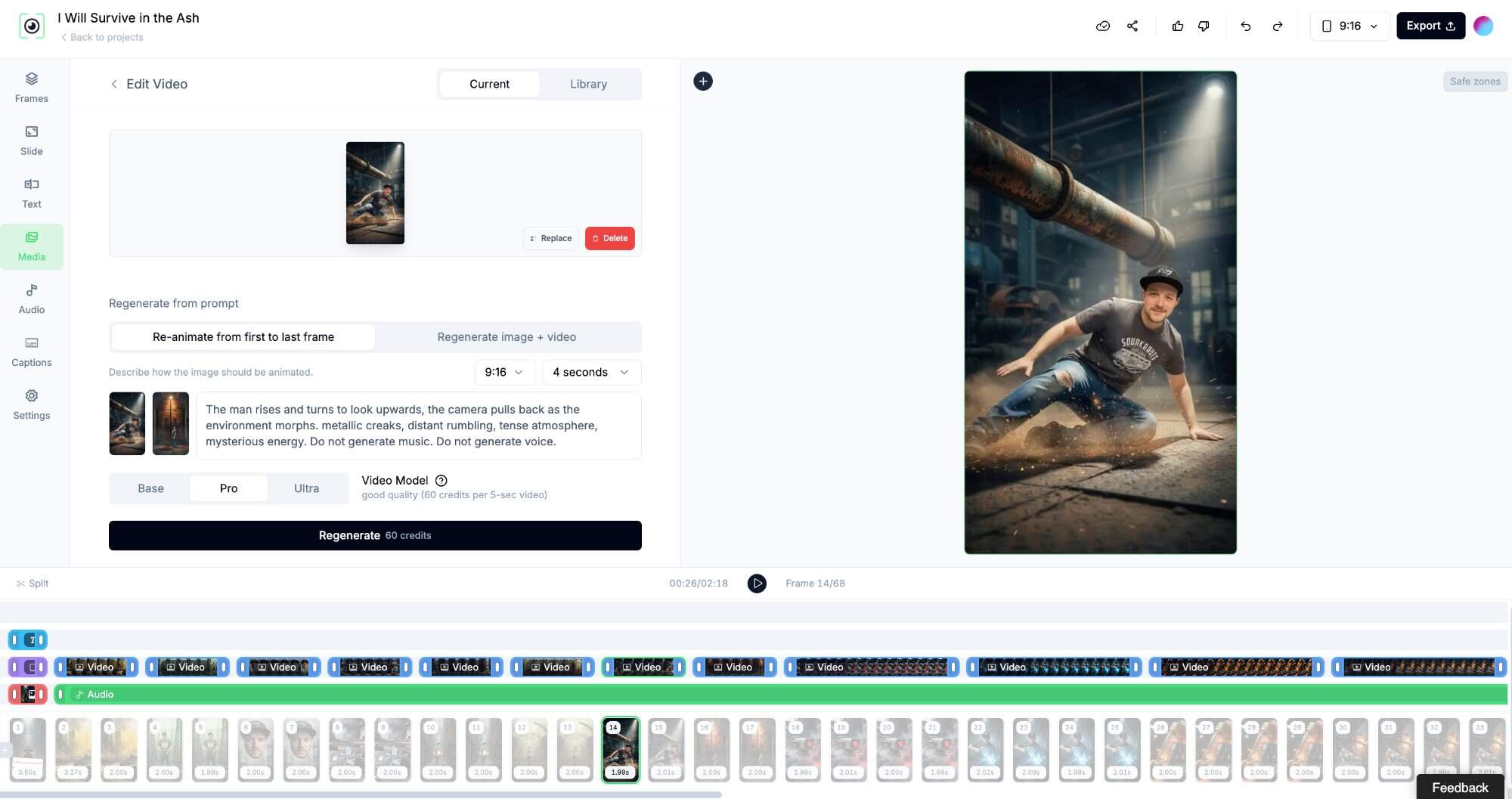
The editor uses a slide-based timeline structure. Each slide represents a frame of your video. Navigate sequentially through slides to review and modify content.
Editing Capabilities
The editor supports these modifications:
- Customize backgrounds with solid colors or gradients
- Toggle captions on or off for individual slides
- Add text to your video
- Delete slides you do not need
- Adjust timing through transcript changes
- Add media files, audio tracks, and effects
- Fine-tune colors and transitions
- Re-generate image+video (especially helpful when characters are not consistent)
And much more.
Exporting and Publishing:
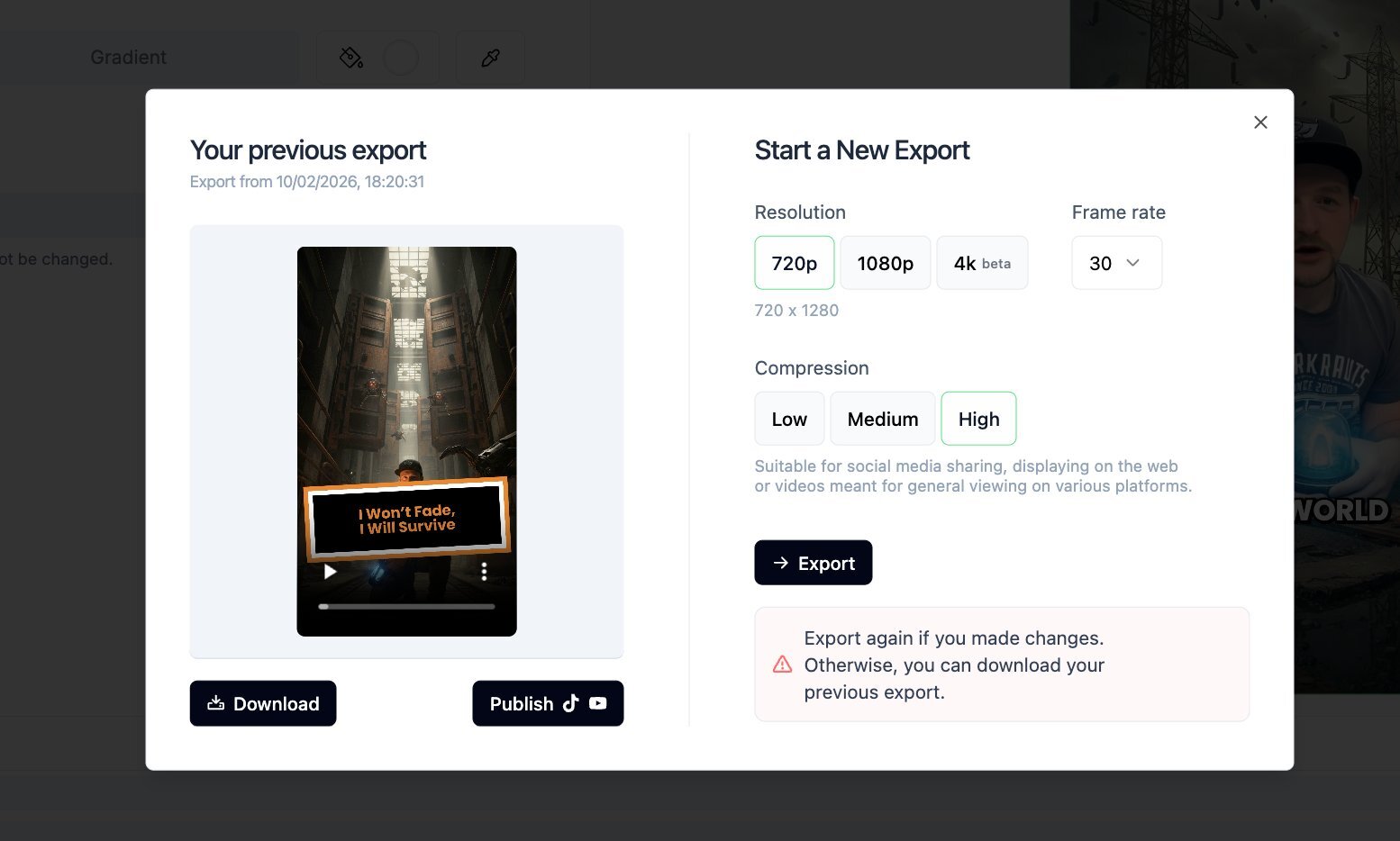
Export options include 720p, 1080p, and 4K resolution. Adjust frame rate and compression settings based on your target platform.
You can download the video file or publish directly to TikTok and YouTube. Previous exports are saved for re-download without re-exporting. This YouTube Shorts vs TikTok for music guide provides tips on choosing the right platform for your content.
Best Practices and Tips for Success
Top tips for success with Revid AI:
- Use high-quality, clear audio files for accurate lyric synchronization.
- Test with a short clip before committing credits to a full song.
- Experiment with different presets and visual guidelines.
- Use lower media counts for initial tests.
- Enable Continuous Mode for seamless results.
What to avoid during setup and use:
- Generating full videos without testing settings first.
- Using low-quality audio files that produce inaccurate captions.
- Selecting Ultra model for initial tests (high credit cost).
- Skipping the editing phase after generation.
- Ignoring platform-specific format requirements.
Time savers worth adopting:
- Save successful visual guidelines for reuse across projects.
- Use the Media Library to store and reuse character images.
- Export in multiple formats simultaneously for different platforms.
- Test caption styles on short clips before full generation.
Getting Started with Revid AI Today:
The process follows four simple steps:
- Upload audio
- Configure settings
- Generate
- Edit.
The learning curve is manageable with practice. Start with the Growth plan at $39/month for testing.
Begin with a short song or clip to minimize credit usage while learning the interface. Experiment with different presets and visual guidelines. Iteration improves results.
Visit Revid AI to create your first AI music video project. This tool is one option among many. Choose based on your specific needs and workflow.
Generation takes 2 to 5 minutes depending on song length, visual style, and generation model. AI-generated videos take longer than stock video options.
Frequently Asked Questions:
Is Revid.ai free to use?
No. Revid.ai offers paid subscription plans starting at $39/month (Growth plan). The free tier has limited features and credits. Most users need a paid plan to generate full music videos.
How much does Revid.ai cost?
Revid.ai offers three monthly tiers: Growth ($39/month, 2,000 credits), Elite ($89/month, 5,000 credits), and Ultra ($199/month, 12,000 credits). A typical 2-minute music video costs approximately $39.
Revid.ai supports MP3, WAV, AAC, and M4A audio formats. You can also link directly from Spotify or Suno. Convert unsupported formats before uploading.
Can I use AI music videos on TikTok and YouTube Shorts?
Yes. Revid.ai generates videos optimized for short-form platforms. Export in 9:16 format for TikTok and YouTube Shorts. All videos include commercial usage rights.
Do I own the music videos created with Revid.ai?
Yes. All subscription plans include 100% content ownership and commercial usage rights. You can monetize, sell, or distribute your generated videos without restrictions.
Is Revid.ai good for independent artists?
Yes. Revid.ai reduces music video production costs from $500-$10,000+ to $39/month. The tool requires some learning and iteration to achieve desired results. It works best for creating multiple variations quickly rather than replacing professional videography.
What visual styles does Revid.ai offer for music videos?
Revid.ai offers generation presets including Default, Ghibli Studio, Educational, Pixar, Anime, SciFi, Realist, and Ultra Realism. You can choose between AI-generated videos, moving AI images, stock videos and more.
How long does it take to generate a music video with Revid.ai?
Generation takes 2 to 5 minutes depending on song length, visual style, and generation model. AI-generated videos take longer than stock video options.